 ## How to Edit the Help & Support Information
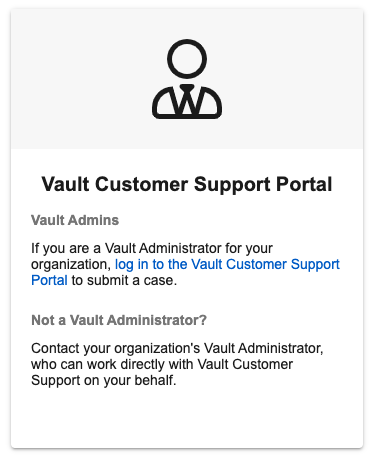
To replace the Vault Customer Support Portal information with a custom message:
1. Navigate to **Admin > Settings > Help Settings** and click **Edit**.
2. Enter the **Message Title**, which will appear as the heading for the custom section. This field does not accept HTML tags.
3. Enter the **Message Text**. This field accepts basic HTML tags such as formatting and links. See the list below for allowable tags.
4. Click **Preview** to see what the custom message section will look like for users.
5. If you ever need to revert to the default Vault Customer Support Portal message, click **Revert to default text**.
6. If your Vault supports multiple languages, you can enter a different custom message for each language. Each user's language determines which message that user sees in the **Help & Support** page.
1. To add multiple localized labels or messages at once, an export and import tool is available from **Admin > Settings > Language & Region Settings**. For more information, see About Bulk Translation
.
2. Admins can also individually edit labels in their assigned language
. This requires that the **Enable multilingual labels** is checked under Multi-Language Visibility (**Admin > Settings > Language & Region Settings**). Also ensure that the Admin users have the desired language selected in the _Edit Localized Labels_ field (**Admin > Users & Groups**). Multilingual Labels only work for domain users and do not work with cross-domain users.
7. Click **Save**.
## Allowed HTML Tags {#html}
* Basic formatting: ``, ``, ``, `
## How to Edit the Help & Support Information
To replace the Vault Customer Support Portal information with a custom message:
1. Navigate to **Admin > Settings > Help Settings** and click **Edit**.
2. Enter the **Message Title**, which will appear as the heading for the custom section. This field does not accept HTML tags.
3. Enter the **Message Text**. This field accepts basic HTML tags such as formatting and links. See the list below for allowable tags.
4. Click **Preview** to see what the custom message section will look like for users.
5. If you ever need to revert to the default Vault Customer Support Portal message, click **Revert to default text**.
6. If your Vault supports multiple languages, you can enter a different custom message for each language. Each user's language determines which message that user sees in the **Help & Support** page.
1. To add multiple localized labels or messages at once, an export and import tool is available from **Admin > Settings > Language & Region Settings**. For more information, see About Bulk Translation
.
2. Admins can also individually edit labels in their assigned language
. This requires that the **Enable multilingual labels** is checked under Multi-Language Visibility (**Admin > Settings > Language & Region Settings**). Also ensure that the Admin users have the desired language selected in the _Edit Localized Labels_ field (**Admin > Users & Groups**). Multilingual Labels only work for domain users and do not work with cross-domain users.
7. Click **Save**.
## Allowed HTML Tags {#html}
* Basic formatting: ``, ``, ``, ``, `` * Lists: `
`, `
`, `
- ` * Links: `` (with `href`, `title`, `target`, and `rel` attributes only) * Styling: `` (with `style` attribute only) ## Related Permissions To add or manage custom support information, an Admin must be assigned a permission set with _General Configuration: Read_ and _General Configuration: Edit_ permissions.