# Managing Document Name Defaulting

_Name_ is a standard document field in Vault. For each document type, subtype, or classification, you may define a format for auto-populating the field's default value. Name formatting conventions are applied during initial creation, classification, and reclassification operations for documents, placeholders and binders. The **Document Name Format** only defines the default value: users with the **Edit Fields** permission may later modify the field value.

Vault applies the same [name format option][1] that you select for documents to <a href="/en/gr/58613/">attachments</a>
.

## Accessing Document Name Options

You can manage the format for default document names from **Admin > Configuration > Document Types**. To modify this setting for a document type, you must have a security profile that grants the **Document Type**: **Edit** permission.

## Name Format Options {#name-format-options}

You can use the following name format options:

### Inherit from Base Document

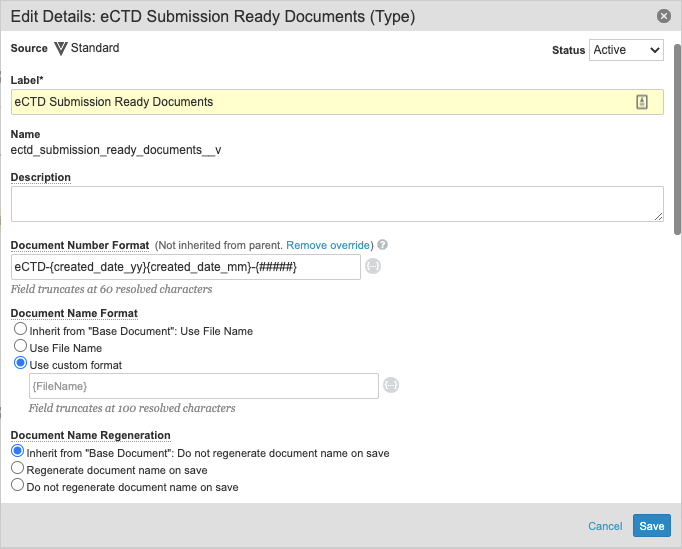
**Inherit from Base Document** (default option) auto-populates the _Name_ field with the format used by the _Base Document_. For example, if the base document uses the _Use File Name_ format, the new document subtype will use the same format. Note that this only applies to child document types related to the _Base Document_. If the document type is a parent, the **Use File Name** option is used by default.

<a href="https://platform.veevavault.help/assets/images/document-type-edit-details-20R34.png" data-lightbox="document-type-edit-details-20R34.png" data-title="" data-alt="">
  <img class="docimage" src="https://platform.veevavault.help/assets/images/document-type-edit-details-20R34.png" alt="" style="width: 400px;"  />
</a>

### Use File Name

**Use File Name** auto-populates the _Name_ field with the filename of the source file. For example, _Storyboard\_0725.pdf_ becomes _Storyboard\_0725_. The document owner can modify the default value while editing document fields during document creation, or users with the correct permissions can edit the value later. For documents without a source file (placeholders, binders, etc.), Vault does not auto-populate the field and the document owner must enter a value manually.

### Use Custom Format

**Use Custom Format** auto-populates the _Name_ field based on the format that you specify in **Admin > Configuration > Document Types**. The custom format uses tokens representing field values for the document. For example, the format `{authors__vs} - {product__v.abbreviation__vs}` would resolve to _Lynde et al - WD_, where _Lynde et al_ is the value in the _Authors_ field and _WD_ is the _Product Abbreviation_ for the document's selected product. Document Type, Subtype and Classification are not available as field tokens for inclusion in the Document _Name_.

When using this option, Vault auto-populates the _Name_ field after the document owner populates fields and saves the new document. Once saved, users with the correct permissions can edit the value. If a field used in the custom format is left blank during document creation, the document _Name_ resolves without that value. For example, if the _Authors_ field from the above example was left blank, the _Name_ would be _- WD_. If the custom format resolves to an entirely blank value, Vault will insert the _Document Number_ value into the _Name_ field.

It is important to remember that any time you define a custom format (instead of using the default **Use File Name** option), end users will be unable to edit the _Name_ value during document creation, classification, or reclassification.

### Dynamic Document Automatic Name Regeneration {#dynamic}

You can configure Vault to regenerate the document name upon saving. With this option, any time that document metadata changes, Vault dynamically regenerates the document name to reflect the new metadata in the custom format. For example, if a user were to reclassify the document, Vault would rename the document to reflect the new classification. To enable this, select **Use custom format**, then select the **Regenerate document name on saving** setting.

<div class="note-border alert-info">
  <div class="alert alert-info" role="alert">
    <div><i class="far fa-info-circle"></i></div>
    <div class="alert-text">
      <p><strong>Note</strong>: Document automatic name regeneration does not support metadata that includes <strong>{curly brackets}</strong>. If necessary, we recommend using <strong>(parentheses)</strong> or <strong>[square brackets]</strong> instead.</p>
    </div>
  </div>
</div>


It is not recommended to use both dynamic document automatic name regeneration and a workflow step to update a document name.

The following actions trigger Vault to regenerate the document name:

  * Classify
  * Reclassify
  * Upload
  * Create from Template
  * Copy
  * Create Draft
  * Version
  * Metadata updates from:
      * Doc Info page
      * Vault API
      * Bulk actions
      * Workflow steps
      * Lifecycle state entry actions
      * Document state changes

## Character Limits

The _Name_ field is a standard Vault field with a 100-character limit. You cannot modify this limit. When defining **Document Name Format** using document field tokens, check that the total characters for a resolved name will not exceed 100 characters. If the resolved name exceeds the character limit, Vault displays an error and cannot save the new document.

For example, the format `{authors__vs} - {product__v.abbreviation__vs}` uses two document field tokens and three additional characters. The _Authors_ field has a 255-character limit by default. _Product Abbreviation_ has a 10-character limit. Users could easily exceed the limit on the resolved _Name_ field due to the high character limit in the _Authors_ field. In a situation like this, you could choose to avoid using the _Author_ field token for the document name, or adjust the field's limit down to 87 or fewer characters.

## How to Set the Base Document Name Format

By default, all document types have the **Use File Name** setting for naming documents. You can change the setting at the _Base Document_ level to apply a custom format across all document types except those with overrides at the type, subtype, or classification level.

  1. From the **Document Types** page, choose **Edit Details** from the **Actions** menu for _Base Document_.
  2. In the **Document Name Format** field, enter the naming scheme. If needed, click the token icon to search for and insert tokens.
  3. Click **Save**.

## How to Override the Base Document Name Format

All document types inherit their name format from the document type above them (subtype from type, classification from subtype, etc.) unless you define a different format specifically for that type, subtype, or classification.

To override the base document name format:

  1. From the **Document Types** page, navigate to the document type, subtype, or classification to change and choose **Edit Details** from the **Actions** menu.
  2. The **Document Name Format** field automatically shows the inherited format or any existing override format. Enter the new format. If needed, click the token icon to search for and insert tokens.
  3. Click **Save**.

## Special Behavior with Planned Documents {#planned}

Planned documents can make use of the document type configurations for document name format. During planned document setup, the **Planned Document Name** field displays the current custom format in grayed out text, if one is specified for the document type. You may override that format with a new configured name format.

When you define a custom naming format for the planned document, rather than using the document type configuration, Vault resolves tokens using the binder to which the document belongs. When using the a custom format defined for the document type, Vault resolves tokens against the planned document itself.

For example, Thomas has a binder with two planned documents. The Document 1 inherits a custom name format (`${DocumentNumber}`) from the document type. Document 2 has an override name format defined for the planned document specifically, but the format content itself is the same (`${DocumentNumber}`). These documents will have different _Name_ values, because Document 2 inherits the _Document Number_ value from the binder (_Binder-00322_), whereas Document 1 uses its own _Document Number_ value (_Document-0458_).

## Field Tokens for Document Name

The following tokens are available for document name format:

  * Document number
  * File name
  * Autonumber
  * Any <a href="/en/gr/645/#tokens">tokens</a>
 available for Document Number Format (except for created month and year)

### Autonumber Details

When used for document naming, the _Autonumber_ token is separate from the numbering token in the document number format. _Autonumber_ tokens allow for unique document names that are also unique from document numbers, if necessary.

We do not recommend using these tokens with [Dynamic Document Automatic Name Regeneration][2]. If you choose to use the _Autonumber_ token, remember that Vault will generate a new number each time that it regenerates the document name.

## Multi-Select Fields as Tokens {#first}

When using a multi-select field as a token, the generated name uses the first value of those selected. The first value is usually determined by alphabetical order on the value key (private key), not label. However, your Vault may sort selected values based on which value users selected first in the field, if Customer Support has enabled this option.

If you want to avoid this variability, there are three options:

  * Avoid using multi-select fields in the document name.
  * If your Vault uses alphabetical sort for selected values, select a single value during document creation and select additional values later. Vault generates the document name once during document creation. After the name is generated, selecting other values for a field used in the document name will not cause it to update.
  * Enable sorting based on the order of the user's selections. Vault will use the first value selected when generating the document name.

When using a multi-select field as a token, the generated name uses the first value of those selected. The first value is determined by alphabetical order on the value name (private key), not label.

If you want to avoid this variability, there are two options. The first is to avoid using multi-select fields in custom name formats. The second is to instruct users to select a single value during document creation and additional values later. Vault generates the document name once during document creation. After the name is generated, selecting other values for a field used in the document name will not cause it to update.

 [1]: #name-format-options
 [2]: #dynamic
