# Creating & Managing Groups

Groups are key to managing user access in Vault. A group is simply a named list of users, but by defining groups that reflect the teams and roles in your company, and assigning those groups to document roles, you can manage document access more easily and efficiently.

In Vaults using Dynamic Access Control, Vault also automatically creates groups that correspond to one lifecycle role and additional document field criteria. These are called Auto Managed Groups.

## Accessing Group Administration

View and manage groups from **Admin > Users & Groups > Groups**. You must have a security profile that grants **Groups** permissions to work with user groups.

## System Provided Groups {#system-provided-groups}

Each Vault has a number of groups designated with a group _Type_ of _System Provided Group_. Vault includes these groups in your initial configuration and updates group membership automatically based on standard security profiles. When you create new users or modify their security profile, the system provided groups will reflect those changes. You cannot delete these groups.

In addition to groups for each standard security profile, Vault manages the _All Internal Users_ group. By default, _All Internal Users_ includes users with the security profiles _Document User_, _Business Administrator_, _System Administrator_, and <a href="/en/gr/31186/">_Vault Owner_</a>
. Note that unless an Admin modifies the included security profiles for system provided groups, users with a custom profile, rather than a standard profile, are not included in any system provided group. Only users with the standard _Vault Owner_ security profile can edit these groups in order to change the included security profiles; other details are not editable. In addition, users with the _Vault Owners_ security profile cannot change the included security profile in the _Vault Owners_ system provided group.

### Manager Groups {#manager_groups}

When Manager Groups is enabled in your Vault, Vault creates system-managed groups that include each user's direct manager. This functionality uses the Manager field on User object records.

#### Example

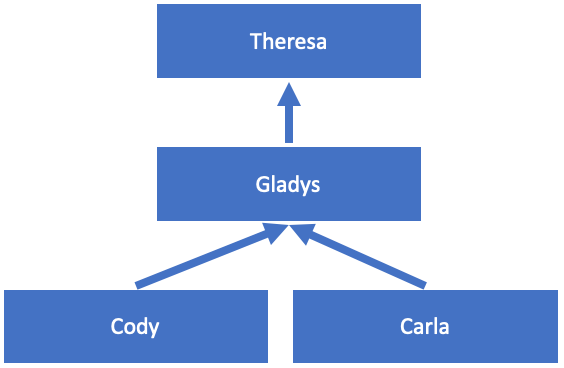
For example, Gladys is a manager. Her direct reports are Carla and Cody. Gladys also has a manager, Theresa.

<a href="https://platform.veevavault.help/assets/images/orgchart.png" data-lightbox="orgchart.png" data-title="" data-alt="">
  <img class="docimage" src="https://platform.veevavault.help/assets/images/orgchart.png" alt="" style="width: 35%;"  />
</a>

Manager Groups functionality automatically creates the following groups:

  * Carla - Manager:
      * Gladys (direct manager)
  * Cody - Manager:
      * Gladys (direct manager)
  * Gladys - Manager:
      * Theresa (direct manager)
  * Theresa - Manager:
      * No group members because Theresa's User record has no selection for Manager

#### Enabling Manager Groups

You can start using this functionality by selecting the **Enable Manager Groups** option from **Admin** > **Security Settings** > **Manager Groups.** Once this is enabled, Vault automatically creates manager groups for every _User_ record that includes a _Manager_ field. This happens for _User_ records that already exist in the Vault as well as User records created after enablement. Modifying the _Manager_ field on a _User_ record results in Vault adjusting the affected manager groups.

If you disable the manager groups setting, Vault inactivates all manager groups and removes all members from them.

#### Using Manager Groups

A user's manager group appears directly below the user when selecting them in applicable functions, such as:

  * During manual assignment
  * When adding users or groups to a role
  * When sharing views
  * When sharing document links

If the **Include Manager Groups when selecting workflow participants** option is enabled, you also see manager groups when assigning workflow participants.

<div class="note-border alert-info">
  <div class="alert alert-info" role="alert">
    <div><i class="far fa-info-circle"></i></div>
    <div class="alert-text">
      <p><strong>Note</strong>: Manager groups do not appear in group selection picklists or when selecting members in custom sharing rules.</p>
    </div>
  </div>
</div>


## Auto Managed Groups {#auto-managed}

Auto Managed groups are a feature of Dynamic Access Control. Once you begin creating _User Role Setup_ records, you'll see Auto Managed groups appear.

These groups correspond to _User Role Setup_ records, which include a user reference, a single lifecycle role reference, and one or more document/object field references. _User Role Setup_ records with the same values (excluding the user reference) are placed into the same group. This table shows three example _User Role Setup_ records and their corresponding groups.

<table class="wbord">
  <tr>
    <td>
      <strong>User</strong>
    </td>
    <td>
      <strong>Role</strong>
    </td>
    <td>
      <strong>Product</strong>
    </td>
    <td>
      <strong>Country</strong>
    </td>
    <td>
      <strong>Auto Managed Group</strong>
    </td>
  </tr>
  <tr>
    <td>
      Thomas Chung
    </td>
    <td>
      Editor
    </td>
    <td>
      CholeCap
    </td>
    <td>
      United States
    </td>
    <td>
      CholeCap-United States-Editor
    </td>
  </tr>
  <tr>
    <td>
      Gladys Dunford
    </td>
    <td>
      Editor
    </td>
    <td>
      CholeCap
    </td>
    <td>
      United States
    </td>
    <td>
      CholeCap-United States-Editor
    </td>
  </tr>
  <tr>
    <td>
      Tracy Lee
    </td>
    <td>
      Editor
    </td>
    <td>
      CholeCap
    </td>
    <td>
      &#8212;
    </td>
    <td>
      CholeCap-Editor
    </td>
  </tr>
</table>

Vault creates and populates these groups automatically. When _User Role Setup_ records change, Vault checks to see if a new group is needed and reassigns users immediately.

### Editing Auto Managed Groups

When editing these groups, you can only turn the **Allow selection in configurations** setting on and off. No other options are editable.  Vault automatically assigns group names based on the field order specified in **Admin > Settings > Security Settings**.

### Using Groups Outside DAC: Runtime {#auto-managed-using}

You can select these groups for runtime tasks, for example, as a recipient for Send as Link or as a task assignee in a workflow start dialog.

### Using Groups Outside DAC: Configuration {#using_groups_outside_dac_configuration}

The **Allow selection in configurations** setting controls whether you can use these groups during design and configuration, for example, in configuring field-level security.

If a group becomes invalid because it references a picklist value or object record that is no longer active, you cannot select that group in configurations.

The following configuration options never allow you to select Auto Managed groups because they are part of the pre-DAC access control model:

  * Allowed users/default users in document lifecycle role configuration
  * _Viewer_, _Editor_, and _Consumer_ defaults in the document type configuration

## User Managed Groups {#user-managed-groups}

Many organizations will need custom groups to manage their business processes. In Vault, a custom group can be manually assigned or dynamically assigned. Manual assignment means that an Admin has to assign individual users to a group.

Automatic assignment uses the _Included Security Profiles_ setting to specify one or more security profiles that correspond to the group. Vault automatically populates these groups with users who have the correct security profiles. For example, the _VPharm Internal_ group may contain users who have the standard _Document User_ and _System Admin_ profiles, as well as the custom _VPharm Business Admin_ profile.

If a user's security profile changes or the group's included security profiles change, Vault reflects those changes immediately. When adding a security profile that contains no members to a group, Vault does not update the _Last Modified Date_ of the group.

### How to Create Custom Groups

To create a new User Managed group:

  1. From the **Groups** page, click **Create**.
  2. Enter the **Group Name** and (optional) **Description**.
  3. Optional: Select one or more profiles in **Included Security Profiles**. Vault automatically includes any user with the selected security profile in the group.
  4. Optional: Enable the **Delegate access allowed only among group members** option as described in the following section.
  5. Click **Save**.
  6. Open the **Members** tab and click **Edit Members**.
  7. Search for users and click the **+** icon to add them to the group or the **-** icon to remove them. To search within an existing group, select a group from the picklist.
  8. When finished, click **Close**.

### Restricting Delegate Access {#restrict-delegate-access}

Before you can restrict delegate access for individual groups, you must enable this functionality by selecting the **Delegate access allowed only among group members** checkbox on the **Admin > General Settings** page.

Next, you can enable the **Delegate access allowed only among group members** option when configuring a custom group to restrict the pool of delegate candidates a user can select in your Vault. When you enable this option, members of this group can only grant delegate access to other group members. You can also enable the **Delegate access allowed only among group members** option for [system provided groups][1], including the _Vault Owner_ group.

Vault filters the delegate candidate pool as follows:

  * Users must be active
  * Users must have the _Allow as a Delegate_ permission
  * Users must have at least one common active group membership. For example, if user A belongs to the "US Medical" user group, while user B belongs to the "Canada Medical" group, neither user A nor B would be allowed to delegate access to each other. User C, however, is a member of both the "US Medical" and "Canada Medical" groups, so user A and B would be allowed to delegate access to user C.
  * If user D does not have an active group membership, or _Delegate access allowed only among group members_ is not enabled for their group, user D is not allowed to delegate access for any other users since no users would be available to select when they attempt to delegate access.

See <a href="/en/gr/22824/">About Permission Sets</a>
 for information on default access permissions for delegating access.

### How to Change Members in a Custom Group

This option is only available for User Managed groups. To change the users that are members of a group:

  1. From the **Groups** page, click on the group to modify.
  2. Open the **Members** tab.
  3. Click **Add Users to Group**.
  4. In the dialog, search to find users to add or remove. Click the **+** icon to add a user to the group or the **-** icon to remove a user who is already in the group. You cannot remove users that Vault automatically includes based on their security profile.
  5. When finished, click **Close**.

Admins with the correct permissions can also <a href="/en/gr/953/">add an individual user to groups</a>
 from the Users page.

### How to Delete Groups

Deleting a group removes it from your Vault and cannot be undone. If the group has any roles on documents or is involved in an active workflow, you cannot delete it. If you are not ready to permanently delete a group, but want to prevent users from selecting it, you can disable the group. This option is only available for User Managed groups.

To delete a group:

  1. From the **Groups** page, click on the group to delete.
  2. On the **Details** tab, click **Delete**.
  3. Click **Continue** in the dialog to confirm.

<div class="note-border alert-info">
  <div class="alert alert-info" role="alert">
    <div><i class="far fa-info-circle"></i></div>
    <div class="alert-text">
      <p><strong>Note</strong>: You cannot delete a group that is in use in an active workflow.</p>
    </div>
  </div>
</div>


### How to Disable Groups

Disabling prevents users from selecting a group, but does not affect active workflows or sharing settings for documents where that group already has a role. This option is only available for User Managed groups. 

To disable a group:

  1. From the **Groups** page, click on the group to disable.
  2. In the **Details** tab, click **Edit**.
  3. Change the **Status** value.
  4. Click **Save**.

## Reporting on Groups

Generating reports on groups lets you easily analyze the relationships between users and groups. This is helpful when aggregating data to see which users belong to what groups for auditing purposes, annual reviews, reconciliations, and many other critical business processes.

### How To Configure Reporting on Groups

You configure reports on groups much like any other report type, however, reporting on groups requires the use of the _Membership_ object. To configure reporting on groups, select _User_ or _Group_ as the primary reporting object. Next, add _Membership_ as a down object. Vault automatically adds _User_ or _Group_ as an up object depending on what you selected as your primary reporting object. For details on configuring report types, see <a href="/en/gr/21543/">Configuring Report Types</a>
.

Report viewers must have the Read Group Membership permission in order to see reports of this type.

[1]: #system-provided-groups