# Configuring Expected Document Lists (EDLs) & Milestones

Using Expected Document Lists (EDLs) alongside your milestones enables milestone-based TMF planning and completeness reporting. It also supports detailed Study Startup milestones and improves your ability to share information across your TMF and Study Startup teams. You can apply EDL Templates to your milestones and set the value of your _Milestone_ document fields by _EDL Items_. Additionally, you can use [Override EDL Templates][1] to further refine the expected documents at the _Country_ level.

<div class="note-border alert-info">
  <div class="alert alert-info" role="alert">
    <div><i class="far fa-info-circle"></i></div>
    <div class="alert-text">
      <p><strong>Note</strong>: This feature is only available on Clinical Operations Vaults.</p>
    </div>
  </div>
</div>


##  Applying EDL Templates to Milestones {#applying_edl_templates_to_milestones}

To measure TMF completeness at key points in time for a study, you can apply EDL templates to study milestones. In order to apply an EDL template to a milestone, the level of each must be the same (for example, country-level EDL templates to a study country milestone). Depending on the configuration of the EDL template you are applying, this action will add/remove EDL items and/or may update the attributes (such as number expected or requiredness) of existing EDL items. In addition to applying a template, you can also configure the EDL template as needed to <a href="/en/gr/33316/#how_to_set_up_edl_templates">increase/decrease document quantities and/or add/remove EDL items</a> specific to the particular milestone.

You can apply EDL templates to both milestones created from templates and milestones created individually.

### How to Enable Milestone-Based EDL Templates

To enable this feature, navigate to **Admin > Settings > General Settings** and click **Edit**. In the _Expected Document List (EDLs) Options_ section, set the **Enable Milestone based EDL template** checkbox and click **Save**.

### How to Apply EDL Templates to Milestones

To apply an EDL template to a milestone:

1. Navigate to the milestone record.
2. From the **Actions** menu, select **Add Expected Documents**.
3. In the _Apply Expected Document List_, select a template to apply to the milestone. If no templates appear, click the binoculars icon to filter and select a template.
4. Once you have selected a template, click **Finish**.

If you specified a Template EDL for the <a href="/en/gr/37552/#templates">milestone template</a>, when creating a milestone template, Vault creates your EDL from that template when you <a href="/en/gr/24430/#how-to-create-from-templates">**Create Milestones from Template**</a>.

### Milestone-Specific Expected Documents

You can specify which types of milestones Vault creates when you apply an _EDL Item Template_ to a milestone based on the <a href="/en/gr/33316/#how-to-create-edl-item-templates">configuration of the following fields on the _EDL Item Template_</a>:

* **Milestone Type**: Vault will create and relate _Expected Documents_ if the _Milestone Type_ on the _EDL Item Template_ matches the milestone's type.
* **Owning Milestone**: Vault will only create _Expected Documents_ for the types of milestones specified in the _Owning Milestone_ field. When it does so, it will set the _Owning Milestone_ field on the new _Expected Document_ and will relate it to the _Owning Milestone_, as well additional milestones based on the _Milestone Type_ field in the _EDL Item Template_. This allows you to track documents that are specific to individual milestones, such as protocol amendments and submissions.


<div class="note-border alert-info">
  <div class="alert alert-info" role="alert">
    <div><i class="far fa-info-circle"></i></div>
    <div class="alert-text">
      <p><strong>Note</strong>:  This feature is only available if the EDL Template Refactor feature is enabled in your Vault. To enable, navigate to <strong>Admin</strong> &gt; <strong>Settings</strong> &gt; <strong>Expected Document List (EDL) Options</strong> and check <strong>EDL Template Refactor</strong> in your Clinical Operations Vault. Learn more about <a class="external-link " href="https://rn.veevavault.help/en/gr/archive/19r2/whats-new-in-19r2/#clinical-edl-template-refactor" target="_blank" rel="noopener">EDL Template Refactor<i class="fa fa-external-link" aria-hidden="true"></i></a>.</p>
    </div>
  </div>
</div>


### Relationship Between Milestones & EDL Items

When creating _EDL Item_ records, Vault creates <a href="/en/gr/28740/">many-to-many relationships</a> between the EDL items and the _Milestone_ records. Vault creates one (1) _Milestone Item_ record for each combination of _EDL Item_ and _Milestone_.

## EDL Hierarchical View

For each _Milestone_ record, you can open <a href="/en/gr/45400/">EDL Hierarchical View</a>. EDL Hierarchical View displays all of a _Milestone_ record's _Expected Documents_ in a tree-like structure, grouped by document type, sub-type, and classification.

## Setting Milestone Document Field Values by EDL Item

You can configure your Vault to fill the _Milestone_ field on documents using your Expected Document List. Setting _Milestone_ field values by _EDL Item_ populates the _Milestone_ field on documents based on the _EDL Items_ the document matches.

### How to Enable Set Milestone Values by EDL Item

To enable this feature, navigate to **Admin > Settings > General Settings** and click **Edit**. In the _Expected Document List (EDLs) Options_ section, set the **Manage Milestone field value by Expected Documents** checkbox and click **Save**.

When this feature is enabled:

* Vault populates the _Milestone_ field on the latest version of the document, ignoring _Milestones_ with _Actual Finish Dates_.
* The _Documents_ section of _Milestone_ records displays only the latest versions of documents related to that particular _Milestone_ record.
* The _Milestone_ document field becomes read-only.

## Override EDL Templates

You can create Override EDL Templates to capture differences in required documentation for each required country without recreating the standard EDL Template for each country. For example, you start with a standard EDL template, applying non-country-specific global standards. Then, create Override EDL Templates for country-specific modifications and additions. As a result, you end up with a final EDL that combines global standards (from your Standard EDL Template) with country-specific elements for each country (from your Override EDL Template for that Country) for which you have set up Override EDL Templates.

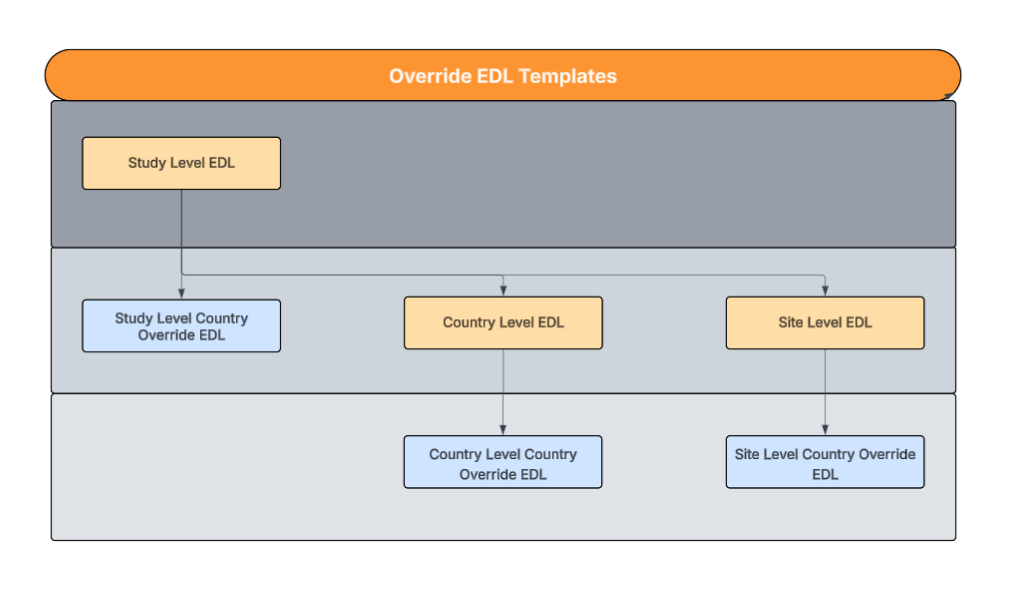
This diagram shows how to set up the parent hierarchy for Override EDL Templates. An override template should always be the child of the EDL Template it is overriding.

<a href="https://platform.veevavault.help/assets/images/25R3-clinops-Template-EDL-Hierarchy-Diagram.png" data-lightbox="25R3-clinops-Template-EDL-Hierarchy-Diagram.png" data-title="" data-alt="Diagram displaying the Template EDL Hierarchy">
  <img class="docimage" src="https://platform.veevavault.help/assets/images/25R3-clinops-Template-EDL-Hierarchy-Diagram.png" alt="Diagram displaying the Template EDL Hierarchy" style=""  />
</a>

To create an Override EDL Template:

1. Navigate to the _EDL Template_ object, either through a custom tab or in **Business Admin > Objects**.
2. Click **Create**.
3. Fill in the required fields.
4. Select the **Override** checkbox.
5. Select the **Parent EDL Template**.
6. Select the **Template Country**.
7. Click **Save**.

Once you have set up the Override EDL Template, Vault applies it to templates that reference the selected Parent EDL Template and the selected Template Country. This gives you greater control over your EDLs at the _Study Country_ level, without requiring you to have separate templates for each _Study Country_.

<div class="note-border alert-info">
  <div class="alert alert-info" role="alert">
    <div><i class="far fa-info-circle"></i></div>
    <div class="alert-text">
      <p><strong>Note</strong>:  This feature is only available if the EDL Template Refactor feature is enabled in your Vault. To enable, navigate to <strong>Admin</strong> &gt; <strong>Settings</strong> &gt; <strong>Expected Document List (EDL) Options</strong> and check <strong>EDL Template Refactor</strong> in your Clinical Operations Vault. Learn more about <a class="external-link " href="https://rn.veevavault.help/en/gr/archive/19r2/whats-new-in-19r2/#clinical-edl-template-refactor" target="_blank" rel="noopener">EDL Template Refactor<i class="fa fa-external-link" aria-hidden="true"></i></a>.</p>
    </div>
  </div>
</div>


## Related Permissions

You can complete all steps in this article with the standard Business Admin, System Admin, or Vault Owner profile. If your Vault uses custom security profiles, your profile must grant the following <a href="/en/gr/22824/">permissions</a>:

<table class="wbord">
  <tr>
    <td>
      <strong>Type</strong>
    </td>
    <td>
      <strong>Permission Label</strong>
    </td>
    <td>
      <strong>Controls</strong>
    </td>
  </tr>
  <tr>
    <td>
      Security Profile
    </td>
    <td>
      Settings: General Configuration: Edit
    </td>
    <td>
      Ability to enable features in General Settings
    </td>
  </tr>

  <tr style="height: 48px;">
    <td>
      Security Profile
    </td>
    <td>
      Objects: Milestone: Edit
    </td>
    <td>
      Ability to edit <em>Milestone</em> records
    </td>
  </tr>

  <tr style="height: 48px;">
    <td>
      Security Profile
    </td>
    <td>
      Objects: Milestone Item: View
    </td>
    <td>
      Ability to view <em>Milestone Item</em> records
    </td>
  </tr>
  <tr>
    <td>
      Security Profile
    </td>
    <td>
      Objects: EDL Template: View
    </td>
    <td>
      Ability to view <em>EDL Template</em> records
    </td>
  </tr>
  <tr>
    <td>
      Security Profile
    </td>
    <td>
      Objects: EDL Item Template: View
    </td>
    <td>
      Ability to view <em>EDL Item Template</em> records
    </td>
  </tr>
  <tr>
    <td>
      Security Profile
    </td>
    <td>
      Objects: EDL: Create, Edit
    </td>
    <td>
      Ability to create and edit <em>EDL</em> records
    </td>
  </tr>
  <tr>
    <td>
      Security Profile
    </td>
    <td>
      Objects: EDL Item
    </td>
    <td>
      Ability to create and edit <em>EDL Item</em>
    </td>
  </tr>
</table>

[1]: #override-edl-templates