Note: This feature is only available on Clinical Operations CTMS Vaults.
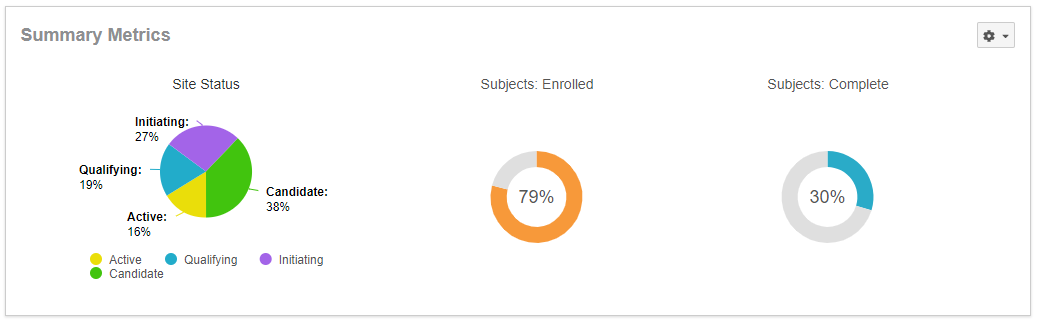
If you hover over the **Subjects: Enrolled** or **Subjects: Complete** charts, a hovercard displays the actual metric number, the planned metric number, and the forecast metric number.
You can edit the related _Metric_ and _Subject_ object records directly from the **Summary Metrics** widget:
1. From the **Actions** menu in the **Summary Metrics** widget, select **Summary Metrics** or **Subject Status**.
2. Vault displays a filtered list of either _Metric_ or _Subject_ records. Make any necessary edits.
3. Click **Save**.
Note that the labels in this widget reflect your Vault's _Subject Label_ and the values defined in the _Subject Status_ picklist.
### Monitoring Compliance
With the **Monitoring Compliance** widget, you can easily view your overdue monitoring visits and late trip reports.
Prior to the 19R2.0 release, Vault calculated _Monitoring Compliance_ based on the _Compliant MVR?_ field on the document. As of the 19R2.0 release, Vault pulls this data from the _Compliant MVR?_ field on the associated _Monitoring Event_ object record.
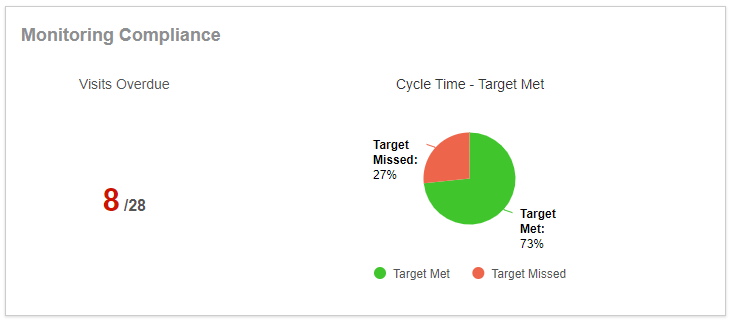 The red number below _Visits Overdue_ is the number of monitoring visits with a planned or baseline start date before today's date and no actual start date. The black number below _Visits Overdue_ is for all _Expected Visits,_ which is the total number of planned and confirmed visits.
The _Cycle Time – Target Met_ pie chart displays the percentage of monitoring visit reports that are compliant and not compliant. Hover over the pie chart to see the most recent _Monitoring Compliance_ details at the level you selected in the context selector.
### My Tasks
The **My Tasks** widget displays a simplified view of the Vault Home **My Tasks** page. This widget shows your assigned _Study Site Tasks, Monitoring Follow up Items_, document workflow tasks, object workflow tasks, and envelope tasks on the following objects: _Protocol Violations or Deviations_, _Study Communication Logs_, and _Responses_ for the selected _Study_, _Study Country_, or _Study Site_.
The red number below _Visits Overdue_ is the number of monitoring visits with a planned or baseline start date before today's date and no actual start date. The black number below _Visits Overdue_ is for all _Expected Visits,_ which is the total number of planned and confirmed visits.
The _Cycle Time – Target Met_ pie chart displays the percentage of monitoring visit reports that are compliant and not compliant. Hover over the pie chart to see the most recent _Monitoring Compliance_ details at the level you selected in the context selector.
### My Tasks
The **My Tasks** widget displays a simplified view of the Vault Home **My Tasks** page. This widget shows your assigned _Study Site Tasks, Monitoring Follow up Items_, document workflow tasks, object workflow tasks, and envelope tasks on the following objects: _Protocol Violations or Deviations_, _Study Communication Logs_, and _Responses_ for the selected _Study_, _Study Country_, or _Study Site_.
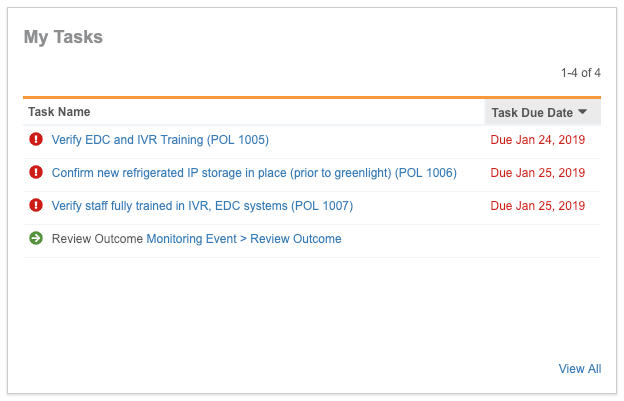 From the **Actions** menu in this widget, you can **Complete** tasks or **Undo Acceptance** (workflow tasks only).
### Monitoring Status
The **Monitoring Status** widget displays the current statuses associated with each type of _Monitoring Event_.
From the **Actions** menu in this widget, you can **Complete** tasks or **Undo Acceptance** (workflow tasks only).
### Monitoring Status
The **Monitoring Status** widget displays the current statuses associated with each type of _Monitoring Event_.
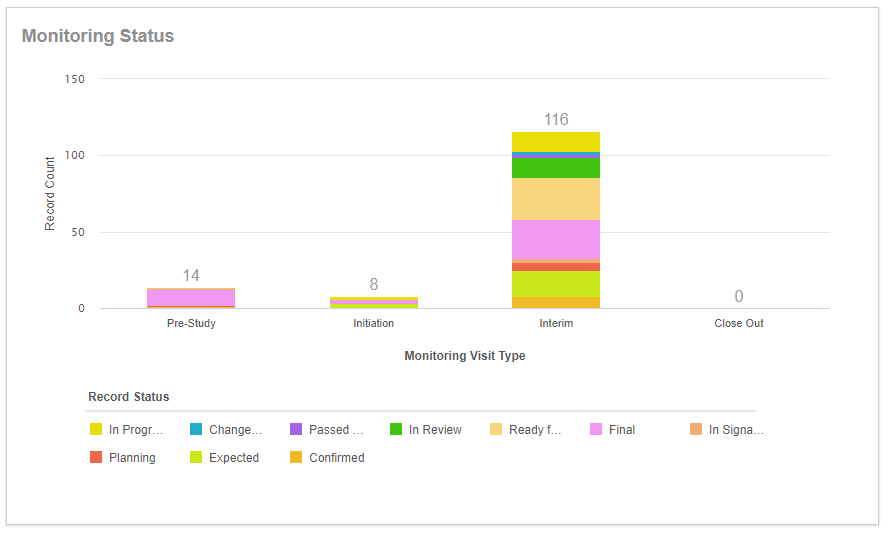 If you hover over a bar, the hovercard displays the lifecycle states that records are currently in and the count of records in each lifecycle state.
### Milestone Status
The **Milestone Status** widget displays a list of _Milestone_ object records. Select a **Milestone Category** to filter the list of _Milestones_ displayed.
If you hover over a bar, the hovercard displays the lifecycle states that records are currently in and the count of records in each lifecycle state.
### Milestone Status
The **Milestone Status** widget displays a list of _Milestone_ object records. Select a **Milestone Category** to filter the list of _Milestones_ displayed.
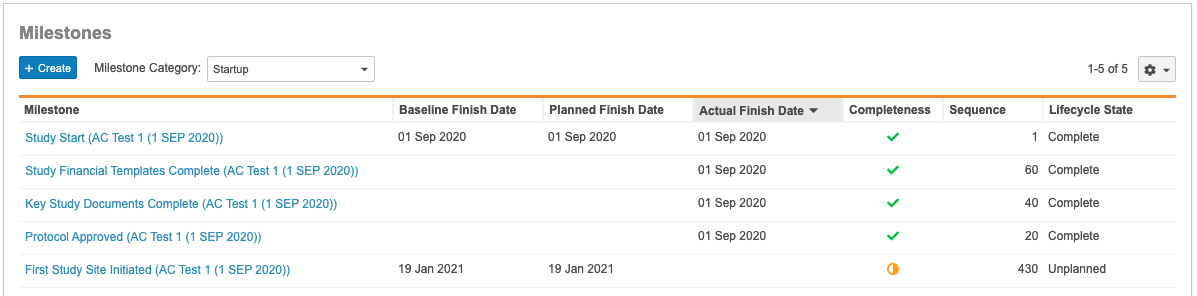 From this widget, you can perform bulk object actions, inline edit your records, and create and relate object records.
The name of the **Milestone** widget reflects the plural label of the _Milestone_ object, which may be different if it has been configured by your Admin.
#### Configuring the Milestone Category Picklist
Add picklist values to the _Milestone Category_ picklist so that users can filter the list of _Milestones_ displayed in the **Milestones** widget.
### Enrollment Status Graph
The _Enrollment Status_ graph displays the enrollment history and projected enrollment for your _Study_, _Study Country_, or _Study Site_.
From this widget, you can perform bulk object actions, inline edit your records, and create and relate object records.
The name of the **Milestone** widget reflects the plural label of the _Milestone_ object, which may be different if it has been configured by your Admin.
#### Configuring the Milestone Category Picklist
Add picklist values to the _Milestone Category_ picklist so that users can filter the list of _Milestones_ displayed in the **Milestones** widget.
### Enrollment Status Graph
The _Enrollment Status_ graph displays the enrollment history and projected enrollment for your _Study_, _Study Country_, or _Study Site_.
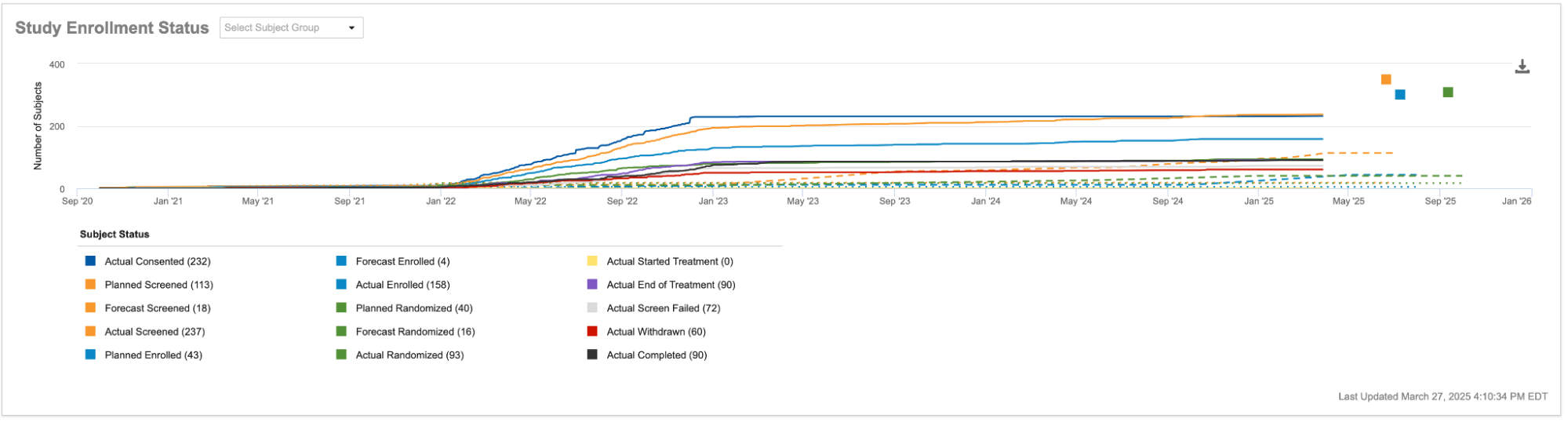 The first date on the X-axis is the _Current Planned FSI_ date, and the last date on the X-axis is the _Current Planned LSO_ date. The Y-axis represents the number of subjects. Your Vault's _Subject Label_ displays in the X- and Y-axis labels. The _Subject Status_ legend identifies the different lines on the graph.
For _Studies_ where users manually enter values for the _Forecasted_ fields of _Metrics Over Time_ records, the _Enrollment Status_ graph displays those _Forecasted_ values as well.
For _Studies_ tracking _Enrollment Metrics_ for _Subject Groups_, select a **Subject Group** from the picklist to filter the _Enrollment Status Graph_.
Vault alerts you when your graph is missing data:
The first date on the X-axis is the _Current Planned FSI_ date, and the last date on the X-axis is the _Current Planned LSO_ date. The Y-axis represents the number of subjects. Your Vault's _Subject Label_ displays in the X- and Y-axis labels. The _Subject Status_ legend identifies the different lines on the graph.
For _Studies_ where users manually enter values for the _Forecasted_ fields of _Metrics Over Time_ records, the _Enrollment Status_ graph displays those _Forecasted_ values as well.
For _Studies_ tracking _Enrollment Metrics_ for _Subject Groups_, select a **Subject Group** from the picklist to filter the _Enrollment Status Graph_.
Vault alerts you when your graph is missing data:
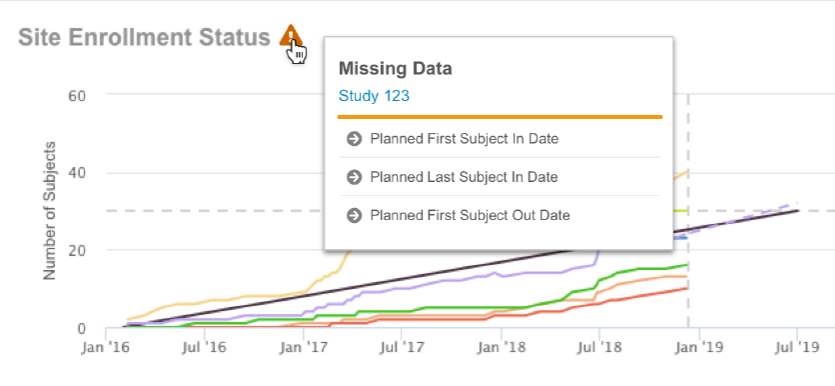 Hover over the hazard sign icon to see what data is missing.
For a more in-depth explanation of how Vault compiles and displays enrollment metrics, see Subject & Enrollment Metrics.
## Related Permissions
You must have at least _View_ permission on the following objects to see the Study Management Homepage components:
* _Study_, _Study Country_, and _Study Site_
* _Clinical User Task_
* _Metrics_
* _Monitoring Visit_
* _Monitoring Event_
* _Monitoring Compliance_
* _Milestone_
* _Enrollment Status Log_
Hover over the hazard sign icon to see what data is missing.
For a more in-depth explanation of how Vault compiles and displays enrollment metrics, see Subject & Enrollment Metrics.
## Related Permissions
You must have at least _View_ permission on the following objects to see the Study Management Homepage components:
* _Study_, _Study Country_, and _Study Site_
* _Clinical User Task_
* _Metrics_
* _Monitoring Visit_
* _Monitoring Event_
* _Monitoring Compliance_
* _Milestone_
* _Enrollment Status Log_