# Configuring Monitoring Events

With Vault, you can manage your users' monitoring trips and information with CTMS Trip Reports. This feature collects all trip information into a single Vault object, _Monitoring Event_, and enables users to automatically format it into a Monitoring Visit Report (MVR) document. Vault uses <a href="/en/gr/41172/">formatted output</a> to create documents for your _Monitoring Visit Reports_.

You can manage these objects and documents using _Trip Report Templates_. This template object brings together trip report details, as well as question and answer sets for a visit. When you use a _Trip Report Template_ to generate questions on a _Monitoring Event_, Vault adds the _Trip Report Template_ name to the _Monitoring Event_ record giving you additional tracking and reporting abilities.

<div class="note-border alert-info">
  <div class="alert alert-info" role="alert">
    <div><i class="far fa-info-circle"></i></div>
    <div class="alert-text">
      <p><strong>Note</strong>: This feature is only available on Clinical Operations CTMS Vaults.</p>
    </div>
  </div>
</div>


## Recommended Configuration {#configuration}

To effectively use trip reports, we recommend you perform the following configuration tasks in your Vault.

### Lifecycle & Workflow Configuration {#lifecycle-workflow}

The CTMS Trip Reports feature provisions the necessary changes to your _Trip Report Template_ and _Monitoring Event_ lifecycles and workflows. However, you will need to set the new lifecycle's **Status** to Active and make configuration changes as needed to best suit the needs of your organization.

  * To use the _Plan Monitoring Event_ workflow, configure your _Monitoring Event_ lifecycle's _Expected_ state to include a _Workflow_ type user action to start the _Plan Monitoring Event_ workflow.
  * To use the _Create Monitoring Confirmation Letter_ workflow, configure your _Monitoring Event_ lifecycle's _In Progress_ and _Confirmed_ states to include a _Workflow_ type user action to start the _Create Monitoring Confirmation Letter_ workflow.
  * To use the _Create Monitoring Follow Up Letter_ workflow, configure your _Monitoring Event_ lifecycle's _In Progress, Ready for Review_, _In Review_, _Passed Review_, _In Signature_, and _Final_ states to include a _Workflow_ type user action to start the _Create Monitoring Event Follow Up Letter_ workflow.
  * To seed _Monitored Subjects_ and _Monitored Subject Visits_, configure your _Monitoring Event_ lifecycle's _In Progress_ state to include the _Seed Monitored Enrollment_ or _Proactively Seed Monitored Enrollment_ entry action to seed _Monitored Enrollment_ data when a _Monitoring Event_ begins. Add the _Seed Monitored Enrollment_ or _Proactively Seed Monitored Enrollment_ user action to re-seed _Monitored Enrollment_ data for visits that occur over multiple days.
  * Configure the _Monitoring Event_ lifecycle to [seed Monitoring Follow Up Items into Monitoring Events records][25].
  * Configure the _Monitoring Event_ lifecycle to <a href="/en/gr/68407/">seed _Issues_ into _Monitoring Events_ records</a>.
  * Configure the _Review & Approve Monitoring Event_ workflow to ensure all [required responses, comments, follow up items, and issues are populated][8].
  * Configure the _Review Comments are Resolved_ entry action on the Monitoring Event lifecycle to ensure that all _Review Comments_ are resolved before the workflow progresses, including orphaned _Review Comments_ that are hidden by Vault. _Review Comments_ can become orphaned when a user creates one for a record, then deletes the record while the _Review Comment_ is still open.

### Trip Report Formatted Output

This feature includes a formatted output template that Vault uses to create PDFs of trip reports. If any additional information is required to include in a trip report document, you can update your <a href="/en/gr/41172/">formatted output template</a>.

## Configuring Long Text Fields {#long-text-fields}

The default setting for question responses and comments limits text fields to 1,500 characters. To allow users to enter up to 32,000 characters, navigate to **Admin > Settings > Application Settings** and set the **Enable Long Text Trip Report Questions** checkbox.

By default, the maximum length of the long text fields is 5,000. You can adjust this setting by changing the **Maximum Length** value of the _Response Text_ and _Comment_ long text fields on the _Trip Report Question Response_ object.

### Migrating to Long Text Fields

If you already have existing _Monitoring Events_ in your Vault, enabling long text fields requires a small data migration. Contact your Veeva services representative for help with the following steps:

  1. <a href="/en/gr/36928/">Enable Configuration Mode</a> to ensure users are not creating or updating _Trip Report Question Responses_ while you perform this migration.
  2. Navigate to <a href="/en/gr/31536/">Vault Loader</a> and **Extract** the _Trip Report Question Responses_ object records.
  3. Prepare the CSV input file:
      - Copy the data in the _response\_text\_\_ctms_ column to the _long\_response\_text\_\_v_ column.
      - Copy the data in the _comment\_\_ctms_ column to the _long\_comment\_\_v_ column.
      - Delete all columns except _id_, _long\_response\_text\_\_v_ and _long\_comment\_\_v_.
      - Save the CSV file.
  4. In Vault Loader, **Choose** the _CSV File._
  5. Select the _Trip Report Question Responses_ **Object Type**.
  6. Select the _Update_ **Action Type**.
  7. Select the _ID_ **Key Field**.
  8. Click **Start Load**.

## Creating Trip Report Templates & Uploading Questions {#upload-questions}

### Configuration for Uploading Trip Report Questions

You can configure the following user actions on the _Draft_ state of the _Trip Report Template_ object lifecycle, which allow you to quickly populate trip report questions in bulk:

  * **Workflow > Trip Report Template Review**
  * **Download Trip Report Template**
  * **Upload Trip Report Questions**

Note that these user actions may already be configured in new CTMS Vaults.

### Creating Answer Sets

Before you can create your _Trip Report Template_ and upload _Questions_, you must create _Answer Set_ records. You can create these records manually from the **Trip Report Template Admin > Answer Set Bank** tab, or load them in bulk using <a href="/en/gr/26607/">Vault Loader</a>. When you create _Answer Sets_, you must create individual _Answer_ records in the **Available Answers** section of the _Answer Set_ record detail page. For example, when you create a "Yes / No" Answer Set, you must create two _Answer_ records: Yes and No.

Answer sets exist separately from your _Trip Report Templates_. You can create a large bank of answers in your Vault to use with multiple templates. When you upload or create multiple choice _Questions_, Vault associates each question to an _Answer Set_ using an object reference field.

When creating _Answer Sets_, make sure to include an _Order_ to ensure that the answers are displayed in a specific sequence.

### Creating Trip Report Templates

You can create _Trip Report Templates_ for each type of monitoring visit your CRAs might perform: Interim, Oversight, Pre Study, Site Close Out, and Site Initiation. When a CRA starts authoring a trip report, Vault will preferentially select an approved template with the nearest match on visit type, study and study country.

You can create a new _Trip Report Template_ to upload a new set of questions, or copy an existing _Trip Report Template_ to copy over a base set of questions for the visit type and customize the new template for your study and study country.

To create a new _Trip Report Template_, navigate to **Trip Report Template Admin > Trip Report Templates** and click **Create**. Select a Trip Report template type in the dialog, then click **Continue**. Enter the record details and click **Save**. Note that selecting a **Study** or a **Study Country** creates a study-specific trip report. Do not enter values for these fields unless you intend to use the template for a specific study.

To copy and customize an existing _Trip Report Template_, choose a template of the desired visit type and select **Copy Record** from the **Actions** menu. Fill in _Study_ and _Study Country_ as needed and **Save**. When prompted, check the box to **Copy Related Records**. This will copy your base set of questions for the visit type. You can then [add questions manually][10], delete existing questions, or change the question **Order** to customize your new template.

### Uploading Questions to New Trip Report Templates

To add _Questions_ to a new _Trip Report Template_, select **Download Trip Report Template** from the **Actions** menu. Vault automatically downloads a CSV template file you can use to populate questions, instructions, conditional requirements, and dependent questions.

<div class="note-border alert-info">
  <div class="alert alert-info" role="alert">
    <div><i class="far fa-info-circle"></i></div>
    <div class="alert-text">
      <p><strong>Note</strong>: If you run the <strong>Download Trip Report Template</strong> action and the template is blank, Vauls downloads a blank CSV template file. If data is present on the template, Vault downloads the CSV template file populated with data.</p>
    </div>
  </div>
</div>


This table describes the columns in the CSV file:

<table class="wbord" style="width: 639px;">
  <tr>
    <td style="width: 229px;">
      <strong>Column Heading</strong>
    </td>
    <td style="width: 92px;">
      <strong>Example Value</strong>
    </td>
    <td style="width: 298px;">
      <strong>Notes</strong>
    </td>
  </tr>
  <tr>
    <td style="width: 229px;">
      <code>trip_report_template__v</code>
    </td>
    <td style="width: 92px;">
      Site Monitoring Visit Report
    </td>
    <td style="width: 298px;">
      <div>
        <div>
          This value must match the <em>Name</em> of the <em>Trip Report Template</em> record to which you are uploading questions.
        </div>
      </div>
    </td>
  </tr>
  <tr>
    <td style="width: 229px;">
      <code>question_type__v</code>
    </td>
    <td style="width: 92px;">
      Multiple Choice Question
    </td>
    <td style="width: 298px;">
      <div>
        Allowed values:
      </div>
      <ul>
        <li>
          Multiple Choice Question
        </li>
        <li>
          Text Question
        </li>
      </ul>
    </td>
  </tr>
  <tr>
    <td style="width: 229px;">
      <code>question_text__v</code>
    </td>
    <td style="width: 92px;">
      Is eCRF used?
    </td>
    <td style="width: 298px;">
    </td>
  </tr>
  <tr>
    <td style="width: 229px;">
      <code>trip_report_section__v</code>
    </td>
    <td style="width: 92px;">
      (Electronic or Paper) Case Report Form Review
    </td>
    <td style="width: 298px;">
      <div>
        <div>
          Enter either a new <em>Trip Report Section</em> name or an existing one. At save, Vault automatically creates a new <em>Trip Report Section</em> record for each unique section name entered. If a section with the same name already exists, Vault adds questions to that section and does not create a new section.
        </div>
      </div>
    </td>
  </tr>
  <tr>
    <td style="width: 229px;">
      <code>answer_set__v</code>
    </td>
    <td style="width: 92px;">
      Yes / No / Maybe
    </td>
    <td style="width: 298px;">
      <div>
        <div>
          Enter the name of a defined <em>Answer Set</em> for Multiple Choice Questions. Leave this column blank for Text Questions.
        </div>
      </div>
    </td>
  </tr>
  <tr>
    <td style="width: 229px;">
      <code>required_response__v</code>
    </td>
    <td style="width: 92px;">
      Yes
    </td>
    <td style="width: 298px;">
      <div>
        <div>
          Allowed values:
        </div>
        <ul>
          <li>
            Yes
          </li>
          <li>
            No
          </li>
          <li>
            True
          </li>
          <li>
            False
          </li>
        </ul>
        <p>
          Note: Selecting <em>Yes</em> or <em>True</em> makes this question required on the <em>Monitoring Event</em>.
        </p>
      </div>
    </td>
  </tr>
  <tr>
    <td style="width: 229px;">
      <code>comment_allowed__v</code>
    </td>
    <td style="width: 92px;">
      Yes
    </td>
    <td style="width: 298px;">
      <div>
        <div>
          Allowed values:
        </div>
        <ul>
          <li>
            Yes
          </li>
          <li>
            No
          </li>
          <li>
            True
          </li>
          <li>
            False
          </li>
        </ul>
      </div>
    </td>
  </tr>
  <tr>
    <td style="width: 229px;">
      <code>instructions__v</code>
    </td>
    <td style="width: 92px;">
      Please answer the question.
    </td>
    <td style="width: 298px;">
      Text field
    </td>
  </tr>
  <tr>
    <td style="width: 229px;">
      <code>question_comment_required__v</code>
      <code>answer__v</code>
    </td>
    <td style="width: 92px;">
      Yes; No
    </td>
    <td style="width: 298px;">
      <div>
        <div>
          Used to create conditional requirements.
        </div>
        <div>
          Enter the name of a defined <em>Answer</em> for multiple choice <em>Questions</em>. Leave this column blank for text <em>Questions</em>.
        </div>
        <div>
        Multiple <em>Answers</em> can be separated by ";" to create multiple <em>Answers</em> with Conditional Requirements records.
        </div>
      </div>  
    </td>
  </tr>
  <tr>
    <td style="width: 229px;">
      <code>question_comment_required__v</code>
      <code>required_comment__v</code>
    </td>
    <td style="width: 92px;">
      Yes; No
    </td>
    <td style="width: 298px;">
      <div>
        <div>
          Allowed values:
        </div>
        <ul>
          <li>
            Yes
          </li>
          <li>
            No
          </li>
          <li>
            True
          </li>
          <li>
            False
          </li>
        </ul>
      </div>
    </td>
  </tr>
  <tr>
    <td style="width: 229px;">
      <code>question_comment_required__v</code>
      <code>follow_up_item_requiredness__v</code>
    </td>
    <td style="width: 92px;">
      <code>required__v</code>; <code>optional__v</code>
    </td>
    <td style="width: 298px;">
      <div>
        <div>
          If provided, must match the name of the picklist value:
        </div>
        <ul>
          <li>
            <code>required__v</code>
          </li>
          <li>
            <code>optional__v</code>
          </li>
          <li>
            <code>na__v</code>
          </li>
        </ul>
      </div>
    </td>
  </tr>
   <tr>
    <td style="width: 229px;">
      <code>question_clin.name__v</code>
    </td>
    <td style="width: 92px;">
      Q1
    </td>
    <td style="width: 298px;">
      <div>
        <div>
          Used to create question branching.
        </div>
        <div>
          Text. Will be used as a reference when specifying a controlling question. If provided, must be unique within the CSV.
        </div>
      </div>  
    </td>
  </tr>
  <tr>
    <td style="width: 229px;">
      <code>controlling_question__v</code>
    </td>
    <td style="width: 92px;">
      Q1
    </td>
    <td style="width: 298px;">
      Text. User will enter <code>question_clin.name__v</code> of a record listed within the file. 
    </td>
  </tr>
  <tr>
    <td style="width: 229px;">
      <code>controlling_answer__v</code>
    </td>
    <td style="width: 92px;">
      Yes
    </td>
    <td style="width: 298px;">
      Controlling Answer text 
    </td>
  </tr>
  <tr>
    <td style="width: 229px;">
      <code>order__v</code>
    </td>
    <td style="width: 92px;">
      1
    </td>
    <td style="width: 298px;">
      <div>
        <div>
          By default, Vault loads questions based on the order they appear in the CSV file. Adding this optional column defines the order in which <em>Questions</em> appear in the <em>Monitoring Event</em> details page.
        </div>
        <div>
        </div>
        <div>
          Note: If you add this column, you must enter an <em>Order</em> value for each <em>Question</em>.
        </div>
      </div>
    </td>
  </tr>
</table>

All CSV values are case-sensitive and must exactly match values in your Vault, except for the Yes/No (boolean) columns.

When you finish populating your CSV, click **Upload Trip Report Questions** from the _Trip Report Template_ record's **Actions** menu and select your file. Vault displays an error message detailing what went wrong. Note that you must use UTF-8 encoding in your CSV file in order for it to upload successfully.

Vault automatically creates a _Question_ record and a _Trip Report Question Template_ record for each row in your CSV file and groups your _Questions_ into the _Trip Report Sections_ you defined. If the _Trip Report Section_ you entered doesn't exist, Vault automatically creates a new _Trip Report Section_ record.

Once you upload your _Questions_, you can edit the **Order** for a question from the _Template Questions_ section. The number you enter in the **Order** field displays with your _Question_ on the _Monitoring Event_ **Details** page and in the trip report.

### Approving Your Templates

When you have finished creating or modifying your template, select the option to approve the template from the **Actions** menu.

## Creating Questions Manually {#manual}

You can also create individual _Questions_ separately from a _Trip Report Template_, and associate individual _Questions_ to your _Trip Report Template_ during template creation later. You can create these _Question_ records from the **Trip Report Template Admin > Question Bank** tab, or load them in bulk using Vault Loader.

Before you create your _Questions_, navigate to the _Trip Report Section_ object in **Admin > Business Admin** and create any new _Trip Report Section_ records in which to group your _Questions_. Enter a **Name** and select a **Section Type** from the picklist. Vault does not allow you to create records with duplicate values. We recommend including the trip report type in the record **Name**, for example, "IMV – Trial Study Requirements" and "COV – Trial Study Requirements." You can <a href="/en/gr/1269/">configure the Trip Report _Section Type_ picklist</a> from the **Business Admin > Picklists** page.

After you've created your _Trip Report Sections_, create your _Question_ records and fill in the relevant fields. To ensure that a _Response_ is required, select **Yes** for **Required Response**. To group a _Question_ into a _Trip Report Section_, choose the desired section from the **Trip Report Section** field on the _Question_ record. If [configured][15], you can enter **Instructions** that will be <a href="/en/gr/42835/#answering-questions">displayed to users</a> to explain how they should answer the _Question_.

When you've created all _Questions_, you can add them to your _Trip Report Template_. Navigate to your _Trip Report Template_ record and click **Create** in the _Template Questions_ section. Select a **Section**, the **Question**, and specify an **Order** for the question.

### Creating Questions with Instructions

You can enter **Instructions** that Vault displays <a href="/en/gr/42835/#answering-questions">to users</a> to explain how they should answer the _Question_. To do this, you must first <a href="/en/gr/26387/#how-to-show-hide-or-move-object-fields">add the _Instructions_ field</a> to the _Details_ section of the _Question_ page layout.

### Creating Questions with Conditional Requirements {#conditional-requirements}

For multiple-choice **Question Types**, you can require users to enter comments and log follow up items, including issues to follow up on, based on which answer they select. For example, if you create a question to ask, "Was the protocol amended since the last visit?" with possible answers of _Yes_ and _No_, you can specify that users must enter a comment if they select _Yes_ but not if they select _No_, and that users must log a follow up item if they select _No_ but not if they select _Yes_.

### Creating Dependent Questions

Dependent questions can only be answered if a specific answer is chosen for a multiple-choice controlling question. This is similar to having conditional requirements, but instead of adding additional items to the question, a new question becomes editable. This allows for branching lines of questioning in your Trip Reports.

To make a question dependent on a previous answer, select the **Controlling Question**. The control field for **Controlling Answer** shows the available answers for that question. Choose the **Controlling Answer**. The question you are editing will only become editable in the Trip Report if the _Controlling Answer_ is chosen for the _Controlling Question_.

When a user answers the **Controlling Question** with the **Controlling Answer**, Vault automatically displays the dependent question as editable. Similarly, if a user changes the **Controlling Question** response to a response that is not the **Controlling Answer**, Vault automatically displays any dependent questions as uneditable. This works within the same Trip Report Section or across sections.

### Object Configurations
#### Page Layout Configurations

You must first configure the following object page layouts before you can create dependent questions, or make comments, follow up items, and issues required:
  * On the _Question_ object page layout, <a href="/en/gr/26387/#how-to-add-related-object-sections">add the _Answer with Conditional Requirements_</a> related object section so that you can specify which answers require comments, follow up items, and issues.
  * On the _Answer with Conditional Requirements_ object page layout, <a href="/en/gr/15057/#how-to-add-object-fields">add whichever of the following fields</a> that are relevant to your business model:
     * _Answer_
     * _Required Comment_
     * _Follow Up Item Requiredness_
     * _Issue Requiredness_
     * _Issue Type_
  * On the _Trip Report Question Template_ object page layout, add the following fields to the _Details_ section to use dependent questions:
     * _Controlling Question_
     * _Controlling Answer Field Control_
        * Check the box for **Specify different Label and Help Content**
        * Update the label to Controlling Answer
     * On the _Trip Report Question Response_ object page layout, add the following fields to the _Details_ section to use dependent questions:
         * _Controlling Question_
         * _Controlling Answer_
         * _Dependent Question Behavior_

#### Object Configurations

On the _Answer with Conditional Requirements_ object, unselect the <a href="/en/gr/15057/#relating-object-records">_Relate Multiple Records_</a> setting to change the object from a simple to a <a href="/en/gr/28740/#many-to-many-relationships">complex join</a>.

### How to Make Comments, Follow Up Items & Issues Required {#required}

  1. Navigate to a multiple-choice _Question_ record.
  2. Click **Create** in the _Answer with Conditional Requirements_ section.
  3. Select the predefined answers that will require comments, follow up items, or issues.
  4. Enter values for the appropriate fields and click **SAVE**.
  5. Optional: Configure the _Verify Required Trip Report Questions_ <a href="/en/gr/33550/#how-to-define-a-system-action-step">system action</a> to ensure all required responses, comments, follow up items, and issues are populated before users can proceed to the next lifecycle state. If the workflow step criteria are not met, Vault displays a dialog to the user listing out the sections that are missing required values. Vault populates the question response as _Not Evaluated - Dependent Question_ when locked dependent questions are not answered.

As of the 21R2.2 release, Vault uses the _Highlight Required_ field on _Trip Report Question Response_ records to highlight required fields. Prior to this release, Vault checked the _Highlight Required_ field on related _Monitoring Event_ records; this field is now deprecated. No configuration changes are necessary to accommodate this change.

<div class="note-border alert-info">
  <div class="alert alert-info" role="alert">
    <div><i class="far fa-info-circle"></i></div>
    <div class="alert-text">
      <p><strong>Note</strong>: As of the 21R1.3 release, the <em>Required Comment</em> field on <em>Answer with Conditional Requirement</em> (<code class="language-plaintext highlighter-rouge">question_comment_required__v</code>) object must be set to <em>Yes</em> in order for comments to be required for the related answer. As part of this change, the <em>Required Comment</em> field was automatically set to <em>Yes</em> on all <em>Answer with Conditional Requirements</em> records in your Vault.</p>
    </div>
  </div>
</div>


Prior to the 21R1.3 release, answers with required comments were determined by related _Answer with Conditional Requirements_ records.

## Adding Questions to Monitoring Events

Vault groups your _Questions_ into the _Trip Report Sections_ you define, which you can then add to your _Monitoring Event_ <a href="/en/gr/26387/">page layout</a>. Vault automatically populates that page layout section with the related _Questions_.

To add a _Trip Report Section_ to the page layout of your _Monitoring Event_ record:

  1. Navigate to **Configuration > Objects > Monitoring Event** **> Page Layouts**.
  2. Click to open the page layout.
  3. For **Add Section**, select **Trip Report Questions**.
  4. Enter a **Label** for the section.
  5. Optional: To display this section only when the _Monitoring Event_ record is in certain lifecycle states, select states from the **Show the section only in these lifecycle states** drop-down.
  6. Select a **Section Type**. This list shows the _Trip Report Section_ records in your Vault.
  7. Click **Done**.
  8. Optional: Click and drag your new section to reorder.
  9. Click **Save**.

## Configuring Reviewer Comments

Reviewer comments enable you to easily provide feedback on monitoring events. See <a href="/en/gr/42835/#reviewer-comments">Working with Trip Reports (CTMS)</a> for general information about reviewer comments.

### Configuration Overview

  * Add the **Review Status** column to the following page layout sections of a _Monitoring Event_: _Monitoring Event Participants_, _Monitored Metrics (Enrollment Metrics)_, _Monitored Subject (Subject Data)_, _Monitored Subject Visit (Subject Visit SDV)_, _Monitored ICFs_, _Protocol Deviations_, and _Clinical User Tasks_. Add the _Review Status_ column to these sections to allow users to provide feedback on monitoring event details via reviewer comments.
  * Select the **Enable Monitoring Reviewer Comments** checkbox from **Admin > Settings > Application Settings.** Vault will automatically add the _Review Status_ column to all question sections on the _Monitoring Event_ object. Note that this checkbox does not affect the _Review Status_ column on any other section.
  * Ensure relevant permission sets have _Read_, _Edit_, _Create_, and _Delete_ permissions on the _Review Comment_ object and _Read_ permission on the _Review Summary_ object.

## Defaulting Activities & Participants

When [configured][20], Vault automatically adds _Monitoring Event Participants_ and _Monitoring Activities_, via a system action, when a CRA plans a _Monitoring Event_.

Vault adds site personnel with the _Site Monitor_ or _Principal Investigator_ roles as invited _Monitoring Event Participants_ by default. Vault also automatically adds _Monitoring Activities_ to the visit, based on the standard _Monitoring Activities_ for the selected visit type (object types for the _Monitoring Event_ object).

When users select **Plan Visit** from the _Monitoring Event_ record's **Actions** menu, the system action creates and relates the appropriate _Monitoring Event Participants_ and _Monitoring Activities_. This action also changes the _Monitoring Event_ record's lifecycle state from _Expected_ to _Planning_.

## Seeding Monitored Subjects & Monitored Subject Visits {#seeding}

You can configure Vault to seed _Monitored Subjects_ and _Monitored Subject Visits_ using the <a href="/en/gr/42835/#seeding">Seed Monitoring Enrollment or Proactively Seed Monitoring Enrollment</a> user or entry actions. Seeding data reduces data entry for CRAs.

### Monitored Subjects

When [configured][20], Vault automatically seeds the _Monitored Subjects_ object with a copy of the current _Subjects_ and their statuses for the _Site_.

### Monitored Subject Visits

When [configured][20], Vault automatically seeds the _Monitored Subjects_ object with a copy of the current _Subject Visits_ that apply to the _Subjects_ created in the _Monitored Subject_. See details about <a href="/en/gr/42835/#seed-monitored-enrollment">when Vault seeds Monitored Subject Visit data</a>.

## Seeding Follow-up Items {#seeding-follow-up-items}

You can configure Vault to seed follow-up items related to your monitoring event to use in trip reports or report letters.

To enable this:

  1. Navigate to **Admin > Settings > Application Settings** and click **Edit**.
  2. In the _CTMS Features_ section, set the **Remove Follow Up Sections** option and click **Save**. This removes the _Open Follow-Up Items_ and _Closed Since Last Follow-Up Items_ sections and adds new sections for the _Monitored Open Follow-Up Items_ and _Monitored Closed Since Last Follow-Up Items_ join objects. You cannot undo this action.
  3. Configure the **Seed Follow-Up Items** <a href="/en/gr/33550/#how-to-define-a-system-action-step">system action in a workflow</a> on the _Monitoring Event_ lifecycle.
  4. Add related object sections to the _Monitoring Event_ page layout for the _Monitored Open Follow-Up Item > Clinical User Task_ and _Monitored Closed Follow-Up Item > Clinical User Task_ objects.
  5. Add the **Seed Follow-Up Items** <a href="/en/gr/59885/#user-actions">user action</a> to the applicable states of the _Monitoring Event_ lifecycle.

## Seeding Issues

You can configure Vault to seed issues related to your monitoring event to use in trip reports or report letters.

To enable this:

1. Configure the **Seed Issues** system action in a workflow on the _Monitoring Event_ lifecycle.
2. Add two related object sections, _Open Issues_ and _Closed Issues Since Last Visit_, to the _Monitoring Event_ page layout for the _Monitored Open Issue > Issue_ object. On the _Open Issues_ section, set Criteria VQL on the page layout to filter issues where _Resolved Date_ is blank. On the _Closed Issues Since Last Visit_ section, set Criteria VQL on the page layout to filter issues where _Resolved Date_ is not blank.
3. Add the **Seed Issues** entry action and <a href="/en/gr/59885/#user-actions">user action</a> to the applicable states of the _Monitoring Event_ lifecycle.

## Custom Monitoring Event Types {#custom-monitoring-event-type}

You can configure custom _Monitoring Event_ types using <a href="/en/gr/32857/">object types</a>. If you choose to use custom _Monitoring Event_ types, perform the following configuration tasks to match the functionality of the standard _Monitoring Event_ types:

  1. Ensure that the object type includes the following fields:
      - _Monitoring Visit Confirmation Letter_
      - _Monitoring Visit Follow Up Letter_
      - _Milestone Type_
      - _Trip Report_
  2. Create document templates for confirmation and follow up letters for this _Monitoring Event_ type.
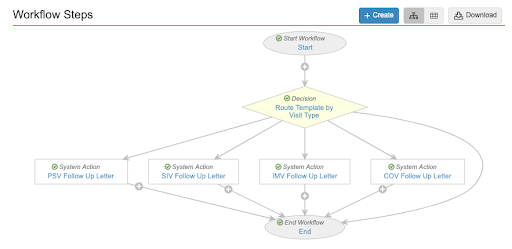
  3. Add a system action step to the _Create Monitoring Confirmation Letter_ workflow for the new _Monitoring Event_ type. Place the step after the _Route Template by Visit Type_ decision step.
  4. Add a system action step to the _Create Monitoring Follow Up Letter_ workflow for the new _Monitoring Event_ type. Place the step after the _Route Template by Visit Type_ decision step.

<a href="https://platform.veevavault.help/assets/images/custom-monitoring-event-workflow-diagram.png" data-lightbox="custom-monitoring-event-workflow-diagram.png" data-title="" data-alt="Monitoring Letter Workflow">
  <img class="docimage" src="https://platform.veevavault.help/assets/images/custom-monitoring-event-workflow-diagram.png" alt="Monitoring Letter Workflow" style=""  />
</a>

If the _Milestone Type_ you select matches the object type of your custom monitoring event, Vault automatically creates a _Milestone_ record of the correct type.

For example, if you added a _Monitoring Event_ object type for a _Remote Monitoring Event_ named "remote\_monitoring\_event_\_c" and you created a picklist value in the _Milestone Type_ picklist labeled "Remote Monitoring Event" with the name "remote\_monitoring\_event\_\_c", and then you created a _Monitoring Event_ of the object type _Remote Monitoring Event_, Vault would create a milestone with the milestone type of _Remote Monitoring Event_, and associate it to your _Monitoring Event_.

## Related Permissions

You can complete all steps in this article with the standard _System Admin_ or _Vault Owner_ profile.

If your Vault uses custom security profiles, your profile must grant the following permissions:

<table class="wbord">
  <tr>
    <td>
      <p>
        <strong>Type</strong>
      </p>
    </td>
    <td>
      <p>
        <strong>Permission Label</strong>
      </p>
    </td>
    <td>
      <p>
        <strong>Controls</strong>
      </p>
    </td>
  </tr>
  <tr>
    <td>
      <p>
        Security Profile
      </p>
    </td>
    <td>
      <p>
        Objects: Question
      </p>
    </td>
    <td>
      <p>
        Ability to create and edit <em>Questions</em>
      </p>
    </td>
  </tr>
  <tr>
    <td>
      <p>
        Security Profile
      </p>
    </td>
    <td>
      <p>
        Objects: Answer with Conditional Requirements
      </p>
    </td>
    <td>
      <p>
        Ability to create and edit <em>Answer with Conditional Requirements</em> records in the related object section of a <em>Question</em> record
      </p>
    </td>
  </tr>
  <tr>
    <td>
      <p>
        Security Profile
      </p>
    </td>
    <td>
      <p>
        Objects: Answer Sets
      </p>
    </td>
    <td>
      <p>
        Ability to create and edit <em>Answer Sets</em>
      </p>
    </td>
  </tr>
  <tr>
    <td>
      <p>
        Security Profile
      </p>
    </td>
    <td>
      <p>
        Objects: Trip Report Template
      </p>
    </td>
    <td>
      <p>
        Ability to create and edit <em>Trip Report Templates</em>
      </p>
    </td>
  </tr>
  <tr>
    <td>
      <p>
        Security Profile
      </p>
    </td>
    <td>
      <p>
        Objects: Trip Report Sections
      </p>
    </td>
    <td>
      <p>
        Ability to create and edit <em>Trip Report Sections</em>
      </p>
    </td>
  </tr>
  <tr>
    <td>
      <p>
        Security Profile
      </p>
    </td>
    <td>
      <p>
        Objects: Trip Report Question Templates
      </p>
    </td>
    <td>
      <p>
        Ability to create and edit <em>Trip Report Question Templates</em>
      </p>
    </td>
  </tr>
  <tr>
    <td>
      <p>
        Security Profile
      </p>
    </td>
    <td>
      <p>
        Vault Owner Actions: Vault Loader
      </p>
    </td>
    <td>
      <p>
        Grants ability to see and use the <strong>Loader</strong> tab. You must have this permission to load <em>Questions</em> and <em>Answer Sets</em> in bulk and to migrate to long text fields with Vault Loader.
      </p>
    </td>
  </tr>
</table>

 [8]: #creating-questions-with-conditional-requirements
 [10]: #creating-questions-manually
 [15]: #creating-questions-with-instructions
 [17]: #lifecycle-workflow-configuration
 [20]: #recommended-configuration
 [25]: #seeding-follow-up-items
