# Managing Object eSignatures

eSignatures provide a way for users to complete tasks and sign electronic records. You can enable eSignatures on an object to capture relevant details, including the _Signature Name_, _Signature Time_, and _Signature Meaning_, in a related list on the object record detail page. Vault captures these details when a user provides an eSignature through an object workflow.

When you enable eSignatures on an object, Vault creates a related read-only _eSignature_ child object based the _eSignature_ object class. This adds an eSignature related list to the object's page layout. Note that you cannot disable eSignatures on an object if there is at least one eSignature record or references to the _eSignature_ object.

<div class="note-border alert-info">
  <div class="alert alert-info" role="alert">
    <div><i class="far fa-info-circle"></i></div>
    <div class="alert-text">
      <p><strong>Note</strong>: Vault will migrate and create corresponding eSignature object records for objects with workflow eSignatures that existed prior to 18R1.</p>
    </div>
  </div>
</div>


## About the eSignature Object Class

Vault now manages eSignatures with the _eSignature_ object class to capture eSignatures on object records. When a user provides an eSignature, Vault creates a related _eSignature_ object record with the following fields:

<table class="wbord">
  <tr>
    <td>
      <strong>Field Name</strong>
    </td>
    <td>
      <strong>Description</strong>
    </td>
  </tr>
  <tr>
    <td>
      Name
    </td>
    <td>
      Vault-generated name for the object record
    </td>
  </tr>
  <tr>
    <td>
      User ID (Hidden)
    </td>
    <td>
      The unique Vault identifier
    </td>
  </tr>
  <tr>
    <td>
      Signature Name
    </td>
    <td>
      The first and last name of the signer at the time of signing
    </td>
  </tr>
  <tr>
    <td>
      Signature Title
    </td>
    <td>
      The title of the signer at the time of signing
    </td>
  </tr>
  <tr>
    <td>
      User Name
    </td>
    <td>
      The unique user name of the signer in Vault
    </td>
  </tr>
  <tr>
    <td>
      Signature Time
    </td>
    <td>
      The date and time the signature was captured
    </td>
  </tr>
  <tr>
    <td>
      Signature Meaning
    </td>
    <td>
      The capacity value the signer selected when completing an eSignature object workflow task
    </td>
  </tr>
  <tr>
    <td>
      Verdict
    </td>
    <td>
      The object workflow task verdict label associated with the eSignature
    </td>
  </tr>
  <tr>
    <td>
      Task Name
    </td>
    <td>
      The name of the object workflow task associated with the eSignature record
    </td>
  </tr>
  <tr>
    <td>
      Workflow Name
    </td>
    <td>
      The name of the object workflow associated with the eSignature record
    </td>
  </tr>
  <tr>
    <td>
      Parent
    </td>
    <td>
      The parent object record that was signed
    </td>
  </tr>
  <tr>
    <td>
      Workflow Task ID
    </td>
    <td>
      The unique ID for the associated workflow task instance
    </td>
  </tr>
  <tr>
    <td>
      Workflow Process ID
    </td>
    <td>
      The unique ID for the associated workflow process instance
    </td>
  </tr>
  <tr>
    <td>
      Delegate Title
    </td>
    <td>
      The title of the delegate user at the time of signing; only captured for signatures completed by delegate users
    </td>
  </tr>
  <tr>
    <td>
      Delegate Name
    </td>
    <td>
      The first and last name of the delegate user at the time of signing; only captured for signatures completed by delegate users
    </td>
  </tr>
  <tr>
    <td>
      Delegate User
    </td>
    <td>
      The delegate user object record; only captured for signatures completed by delegate users
    </td>
  </tr>
</table>

## Enabling eSignatures

To enable eSignatures on a specific object:

  1. Navigate to **Admin** > **Configuration** > **Objects** > **[Object]**.
  2. Click **Edit** from the Details tab.
  3. Select the **Enable eSignatures** checkbox.
  4. Click **Save**.

<div class="note-border alert-info">
  <div class="alert alert-info" role="alert">
    <div><i class="far fa-info-circle"></i></div>
    <div class="alert-text">
      <p><strong>Note</strong>: You can only enable eSignatures on parentless objects and child objects. Vault does not support eSignatures on grandchild objects. For example, if <em>Study</em> is the parent of <em>Study Country</em>, and <em>Study Site</em> is the child of <em>Study Country</em>, you cannot enable eSignatures on <em>Study Site</em>.</p>
    </div>
  </div>
</div>


## Defining Signature Types {#signature-types}

After you enable eSignatures on a specific object, Vault automatically creates a _Signature Type_ picklist for that object. For example, if you enabled eSignatures on the _Product_ object, Vault creates a _Product Signature Type_ picklist. This picklist enables you to select a signature type when configuring an eSignature as part of a workflow task.

You can <a href="/en/gr/1269/#edit">add values to this picklist</a> from the **Business Admin > Picklists > [Object] Signature Type** page.

## Configuring eSignatures in Object Workflows

You can add an eSignature prompt to an object workflow task or a verdict to capture a user's eSignature as part of the workflow task. When you <a href="/en/gr/33550/#esign">set up eSignatures in a workflow task</a>, you can select the **Signature Type**. You'll need to define signature types (as described above) to select an option in this picklist.

You can also define a workflow action step to automatically <a href="/en/gr/33550/#remove-esig">remove eSignatures from object records</a> under certain conditions or upon <a href="/en/gr/33550/#cancelation-actions">workflow cancelation</a>.

## Viewing Object eSignatures

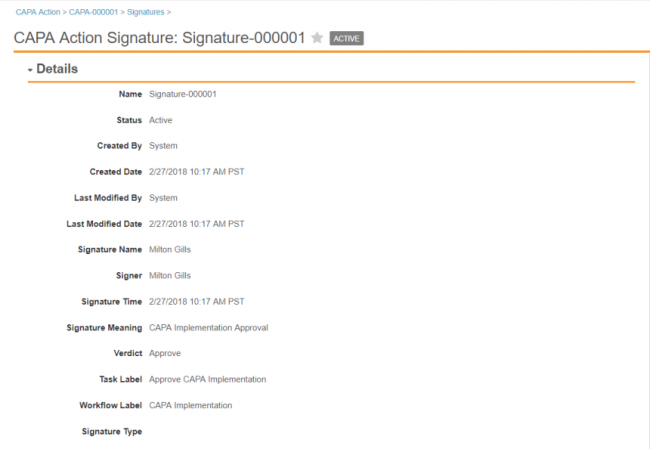
When a user completes an eSignature, Vault captures and stores its details in an object record. You can view eSignature records in a related list on the parent object record detail page. Additionally, you can click the eSignature record to view its details.

<a href="https://platform.veevavault.help/assets/images/view-eSignature-record-17r3.png" data-lightbox="view-eSignature-record-17r3.png" data-title="" data-alt="">
  <img class="docimage" src="https://platform.veevavault.help/assets/images/view-eSignature-record-17r3.png" alt="" style="width: 55%;"  />
</a>

## Configuring to Make eSignatures Obsolete {#configuring-to-make-esignatures-obsolete}

In some cases, captured eSignatures may no longer be relevant to your current process and need to be updated. You can configure the **Make signature records obsolete** <a href="/en/gr/59885/#entry-actions">object lifecycle entry action</a> for each lifecycle state to determine when an eSignature records are out of date. When you configure this entry action, you use the **Preserve these signature types** drop-down to select all _Signature Types_ (described above) that are still valid in this state.

When the object record moves to this lifecycle state, Vault checks its related eSignature records. Any eSignature records with a _Signature Type_ that you didn't preserve will move to the _Obsolete_ state automatically.

## Deleting Records & Related Signatures

When eSignatures are enabled on an object, you can't delete a parent object record if it has related _eSignature_ records. Instead of manually deleting each child _eSignature_ record, you can enable a user action that allows users to delete a parent record and all related _eSignature_ records at once.

### Enabling the User Action

The action to delete a parent record and its related _eSignature_ records is automatically available in Vault. To enable it, navigate to **Admin > Configuration > Objects > [Object] > Actions**. Select the **Delete Record and Related Signatures** action and set the **Status** to **Active**. You can also configure Atomic Security to control who can view and execute the action by lifecycle state and role. Learn more about <a href="/en/gr/47850/#Atomic_Security_Actions">configuring Atomic Security on object actions</a>.

If you disable eSignatures for the parent object, the action won't display in a parent record's **Actions** menu.

### Deleting eSignatures

Once enabled, users with the _Delete_ permission on the parent object can select the **Delete Record and Related Signatures** action from the record's **Actions** menu. Vault automatically deletes the parent record and all related _eSignature_ records.

## Known Issue for Records in the Inactive State

There is a known issue where completing a workflow task with an eSignature on a record in the _Inactive_ state causes an error.
