# Using the Milestone Workspace

The Milestone Workspace allows you to see a summary of a milestone's expected documents and related documents. This ensures that Study team members have a unified, user-friendly view that allows them to launch multi-document workflow and bulk object record workflows for expected documents all from one place. Additionally, the workspace offers a more efficient way to organize, plan, and execute document actions and expected document reviews within the context of their specific Study Milestones.

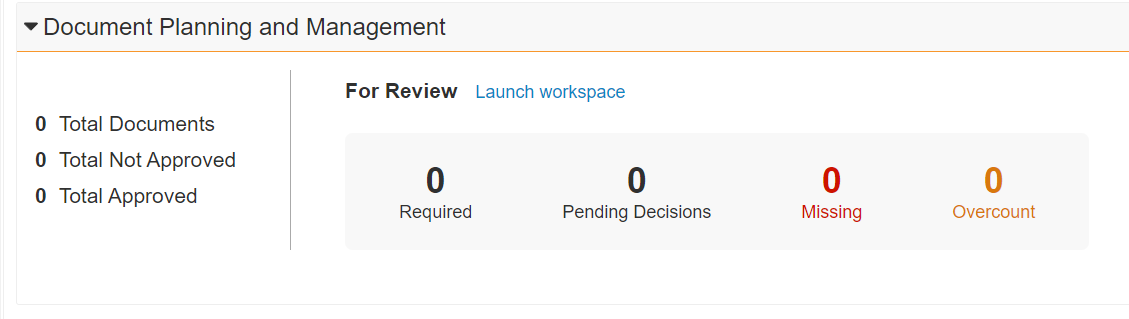
You can access the Milestone workspace from the _Document Planning and Management_ section of the Milestone page layout.

<a href="https://platform.veevavault.help/assets/images/milestone-workspace-clinops.png" data-lightbox="milestone-workspace-clinops.png" data-title="" data-alt="Document Planning and Management section">
  <img class="docimage" src="https://platform.veevavault.help/assets/images/milestone-workspace-clinops.png" alt="Document Planning and Management section" style="max-width: 50%;"  />
</a>

Here you can see the documents for review with the following labels:

* **Required**: the number of expected document records with the _Requiredness_ field set to _Required_
* **Pending Decision**: the number of expected documents with the _Requiredness_ field set to _Pending Decision_
* **Missing**: the number of expected document records with the _All Documents Count_ value less than the _# Expected_ value
* **Overcount**: the number of expected document records with _All Documents Count_ value greater than the _# Expected_ value

<div class="note-border alert-info">
  <div class="alert alert-info" role="alert">
    <div><i class="far fa-info-circle"></i></div>
    <div class="alert-text">
      <p><strong>Note</strong>: For the <em>Missing</em> count, expected document records are only taken into account if the <em># Expected</em> field has been edited or a document has been matched.</p>
    </div>
  </div>
</div>


The Milestone Workspace includes two pages: Documents and Tasks.

The Documents page displays two tables for the Milestone's _Expected Documents_ (on the left) and the _Matched Documents_ (on the right).

To view the <a href="/en/gr/32749/">_Matched Documents_</a> associated with a particular _Expected Document_ record, simply select the desired _Expected Document_ record. Vault then displays the associated _Matched Document(s)_ in the Matched Documents table. You can use these tables to search, filter, review, and update records. You can also send documents and expected documents on workflows directly from the workspace.

The Tasks page displays <a href="/en/gr/40757/#clinical-user-tasks">Clinical User Tasks</a> associated with the Milestone. Like the Documents page, it allows you to search, filter, review, and update records.

<div class="note-border alert-info">
  <div class="alert alert-info" role="alert">
    <div><i class="far fa-info-circle"></i></div>
    <div class="alert-text">
      <p><strong>Note</strong>: You cannot filter the <em>Expected Documents</em> table on Milestone items with custom fields.</p>
    </div>
  </div>
</div>


All tables in the Milestone Workspace support saved views.

## Send Documents and Expected Documents on a Workflow

You can send Matched and Expected Documents on a workflow from the Milestone Workspace. 

1. Select the document(s) and/or Expected Documents you wish to send on a workflow. 
2. Select the workflow start action.
3. Vault opens the **Start Workflow** window.
4. Select the desired **Workflow** from the picklist. 
5. Click **Continue**. 
   
<div class="note-border alert-info">
  <div class="alert alert-info" role="alert">
    <div><i class="far fa-info-circle"></i></div>
    <div class="alert-text">
      <p><strong>Note</strong>: Only workflows that your organization has configured in your Vault will be displayed in the <strong>Workflow</strong> picklist.</p>
    </div>
  </div>
</div>


### Current Workflows & Workflow History

Starting a workflow from the Milestone workspace will add it to the Current Workflows tab. All active workflows initiated from the Milestone Workspace are listed here. You can navigate directly into the workflow's envelope to complete any assigned tasks.

Vault lists completed workflows in the Workflow History tab.