# About Document Workflows

Document workflows allow users to send one or more documents out for a wide variety of processes, such as review and approval, with up to 100 documents on a single workflow instance.

Document workflows function using _Envelope_ object records. When configured, users can add a document or group of documents to an envelope and start a workflow controlled by the envelope. This is an efficient way to allow users to review one or more documents with a single workflow task.

<div class="note-border alert-info">
  <div class="alert alert-info" role="alert">
    <div><i class="far fa-info-circle"></i></div>
    <div class="alert-text">
      <p><strong>Note</strong>: Audit logs support a precision to one second. Events occurring within a single second may appear in an unexpected order.</p>
    </div>
  </div>
</div>


## Envelopes & Object Workflows

The "envelope" is an _Envelope_ object record. Vault maintains the link between a single envelope (representing a single workflow instance) and the associated documents through a relationship. Technically, document workflows are a type of object workflow. The _Envelope_ record goes through an object workflow, but it brings the related "contents" (documents) with it as individual _Envelope Contents_ records.

Document workflows include some special functionality over a standard object workflow, including a document viewer where task owners can easily navigate between the content documents for review. More importantly, document workflows include special steps that allow the workflow to collect separate verdicts for each content document.

If you remove a document from a workflow, the state of its _Envelope Contents_ record changes to _Removed_, while the _Envelope Contents_ record remains in the workflow. This allows users to report on data and view verdicts for the removed document while it is excluded from workflow activities.

## Bound Document Versions

When a document workflow is started with bound document versions, the documents with bound versions in the envelope are fixed. The envelope is connected to the version of the document that was in the envelope when the workflow started. If the document is later updated to a new version, the envelope will still contain the previous version.

Currently, you can only start a document workflow with bound document versions from a RIM Submission Content Plan. Veeva Support can also configure Vault API to start document workflows with bound document versions.

## Document Lifecycles

Document workflows can apply to any lifecycle, or they can apply to specific lifecycles. See <a href="/en/gr/2434/#lifecycle-workflow-interaction">Document Lifecycle & Workflow Interaction</a> for more information.

## Example Document Workflow

<a href="https://platform.veevavault.help/assets/images/MDW_Branching_Workflow_19R13.png" data-lightbox="MDW_Branching_Workflow_19R13.png" data-title="" data-alt="Example Document Workflow">
  <img class="docimage" src="https://platform.veevavault.help/assets/images/MDW_Branching_Workflow_19R13.png" alt="Example Document Workflow" style=""  />
</a>

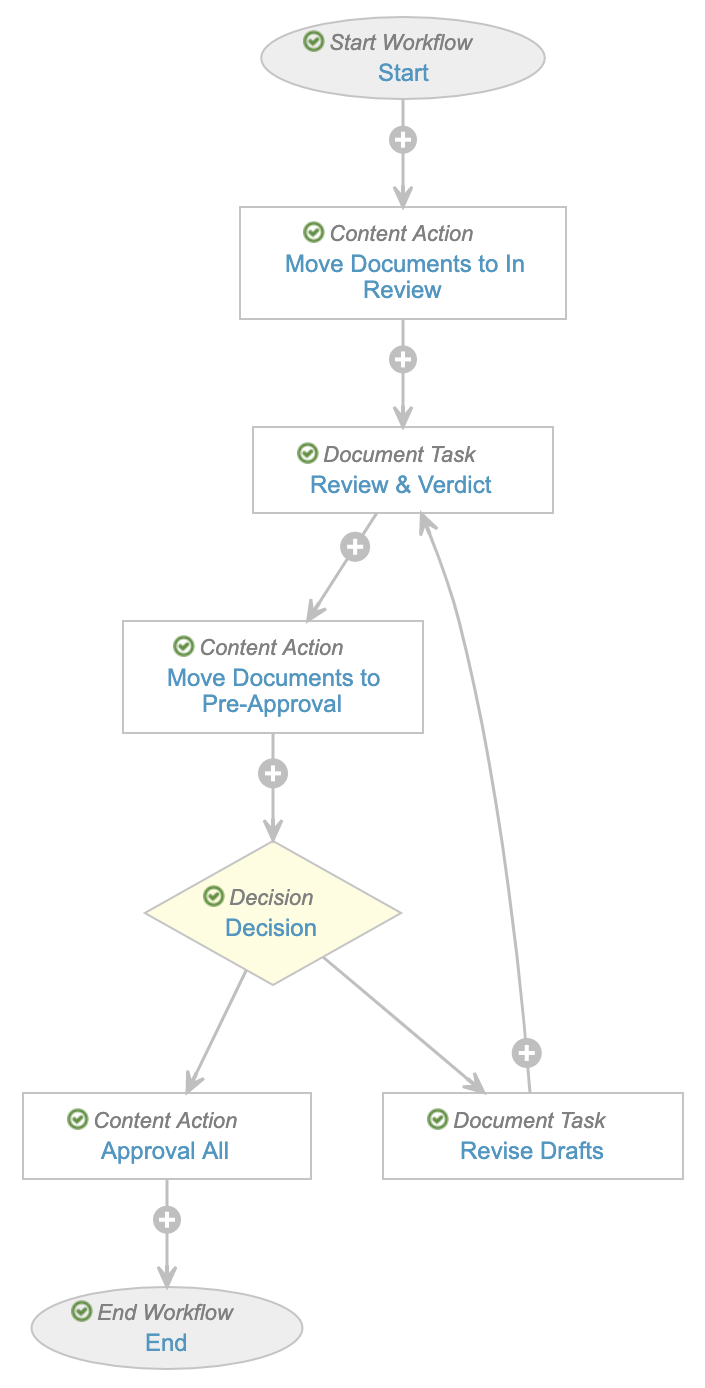
In this example, a set of envelope documents go out for review and approval:

  1. **Start**: _Workflow Owner_ (Teresa) assigns a _Reviewer_ (Alejandro).
  2. **Move Documents to In Review (Content Action)**: Vault moves all envelope documents into the _In Review_ state type.
  3. **Review & Verdict (Document Task)**: This task prompts for a verdict on any documents that are in the _In Review_ state type. All documents are in this state type. Alejandro (_Reviewer_) reviews the envelope documents and provides a verdict (_Ready for Approval_ or _Requires Changes_) on each. He sets _Document A_ to _Ready for Approval_. He notices that _Document B_ contains some errors, so he adds annotations and sets the verdict to _Requires Changes_.
  4. **Move Documents to Pre-Approval (Content Action)**: Vault looks at each document. If the document's verdict is _Ready for Approval_ (like _Document A_), Vault moves the document into _Pre-Approval_ state type. If the document's verdict is _Requires Changes_ (like _Document B_), Vault does not take any action on the document. _Document B_ remains in the _In Review_ state type.
  5. **Decision**: Vault looks at the documents in the envelope. This step will branch the workflow: the workflow envelope (with all documents) will continue forward to the next step if all documents are in the _Pre-Approval_ state type. Otherwise, the workflow envelope will go to the **Revise Drafts** step. Because _Document B_ is in the _In Review_ state type, the envelope (with both _Document A_ and _Document B_) goes to **Revise Drafts**. Note that the decision step is different from the prompt for verdicts on a document task; Vault completes the decision step without user input.
  6. **Revise Drafts (Document Task)**: In this step, the task instructions prompt Teresa (_Workflow Owner_) to review Alejandro's annotations and upload a new version for any documents that need one. After doing so, she marks the task as complete.
  7. **Review & Verdict (Document Task)**: The workflow brings the envelope back to this step. Again, Alejandro reviews the documents. However, the workflow only prompts him for a verdict on _Document B_ because _Document A_ is no longer in the _In Review_ state type.
  8. **Move Documents to Pre-Approval (Content Action)**: Vault looks at each document. If the document's verdict is _Ready for Approval_ (like _Document B_), Vault moves the document into _Pre-Approval_ state type. No action occurs on _Document A_ because there was no verdict provided, but _Document A_ is already in _Pre-Approval state_.
  9. **Decision**: Because all documents in the envelope are now in _Pre-Approval_, Vault moves forward to the **Approve All** step.
  10. **Approve All (Content Action)**: The workflow moves all documents into the _Approved_ state type.

<div class="note-border alert-info">
  <div class="alert alert-info" role="alert">
    <div><i class="far fa-info-circle"></i></div>
    <div class="alert-text">
      <p><strong>Note</strong>: Although the workflow branches at the <em>Decision</em> step, all documents move together (inside the envelope) through a single branch. Only <em>Content Action</em> steps can look inside the envelope and take different actions on individual documents. In this example, this step changes states on documents based on their individual verdicts.</p>
    </div>
  </div>
</div>


## Workflow Users

There are various types of users associated with a workflow:

  * **Workflow owner**: The user who started or owns the workflow.
  * **Task owner**: The user assigned to a specific task in the workflow. Note that license type, security profile, and task setting restrictions may prevent some users from completing tasks.
  * **Workflow participants**: All users assigned to a participant group via a participant control on the workflow start dialog. The workflow owner assigns users to specific participant groups.

## Reviewing Workflow Events

You can review events associated with a document workflow in these places:

  * Document timeline view for documents included in the workflow envelope
  * Document audit logs or audit trails for documents included in the workflow envelope
  * Object record audit logs or audit trails for the _Envelope_ object
