# Configuring the Study Training-Clinical Operations Connection

Organizations using both a Clinical Operations Vault and a Study Training Vault can utilize the Study Training-Clinical Operations Connection to automatically transfer data and documents from Clinical Operations to Study Training. This connection transfers _Study_, _Study Country_, _Study Site_, _Study Person_, _Person_, _Organization_, and domain _User_ information across Vaults and automates CrossLink document creation and up-versioning.

<div class="note-border alert-info">
  <div class="alert alert-info" role="alert">
    <div><i class="far fa-info-circle"></i></div>
    <div class="alert-text">
      <p><strong>Note</strong>: The Study Training-Clinical Operations Connection is only available for organizations with both a Clinical Operations Vault and Study Training Vault.</p>
    </div>
  </div>
</div>


## Configuration Overview

Perform the following steps to configure your Vaults to use the Study Training-Clinical Operations Connection:

  * Set up [connection components][1]
  * Update the [configuration in your Clinical Operations Vault][2]
  * Update the [configuration in your Study Training Vault][3]
  * [Activate the connection][4]

## Study Training-Clinical Operations Connection Components {#components}

The following components support the standard Study Training-Clinical Operations connection.

### Connections

The following _Connection_ records are available from **Admin > Connections**:

* _Study Training to Clinical Operations Connection_ (`study_training_to_clinops_connection__v`) is available in your Study Training Vault
* _Study Training to Clinical Operations Connection_ (`study_training_to_clinops_connection__v`) is available in your Clinical Operations Vault

The connection is not active by default. Once set up, you will still need to <a href="/en/gr/53358/#Establish_Vault_to_Vault">establish the Vault to Vault connection</a>
 before you can use it.

### Integration & Integration Points {#integration-and-integration-points}

The _Integration_ and _Integration Point_ objects enable Vault to define what documents and data the connection maps from one Vault to another.

The _Study Training to Clinical Operations Connection_ record includes the following default _Integration_ records with standard _Integration Point_ records in your Clinical Operations Vault:

  * _Study Data Integration_
    * _Study Outbound Integration Point_
    * _Study Country Outbound Integration Point_
    * _Study Site Outbound Integration Point_
  * _Study Persons Integration_
    * _Responsibility Outbound Integration Point_
    * _Study Person Outbound Integration Point_
    * _Study Person Responsibility Integration Point_
  * _Study Training Materials Integration_
    * _Study Training Materials Outbound Integration Point_

The _Study Training to Clinical Operations Connection_ record includes the following default _Integration_ records with standard _Integration Point_ records in your Study Training Vault:

  * _Study Data Integration_
    * _Country Inbound Integration Point_
    * _Organization Inbound Integration Point_
    * _Study Country Inbound Integration Point_
    * _Study Inbound Integration Point_
    * _Study Site Inbound Integration Point_
  * _Study Persons Integration_
    * _Person Inbound Integration Point_
    * _Responsibility Inbound Integration Point_
    * _Study Person Inbound Integration Point_
    * _Study Person Responsibility Inbound Integration Point_
  * _Study Training Materials Integration_
    * _Study Training Materials Inbound Integration Point_
  * _User Integration_
    * _User Inbound Integration Point_

### Integration Rules, Query Object Rules & Field Rules

To support the Study Training-Clinical Operations connection, Veeva provides standard <a href="/en/gr/62154/">Integration Rules</a>
 associated with an Integration Point. Each Integration Rule has associated <a href="/en/gr/62154/#about-query-object-rules">Query Object Rules</a>
 and/or <a href="/en/gr/62154/#about-field-rules">Field Rules</a>
 supporting specific connection functions. Navigate to **Admin > Connections > Integration Rules** in your Clinical Operations or Study Training Vault to review all standard rules.

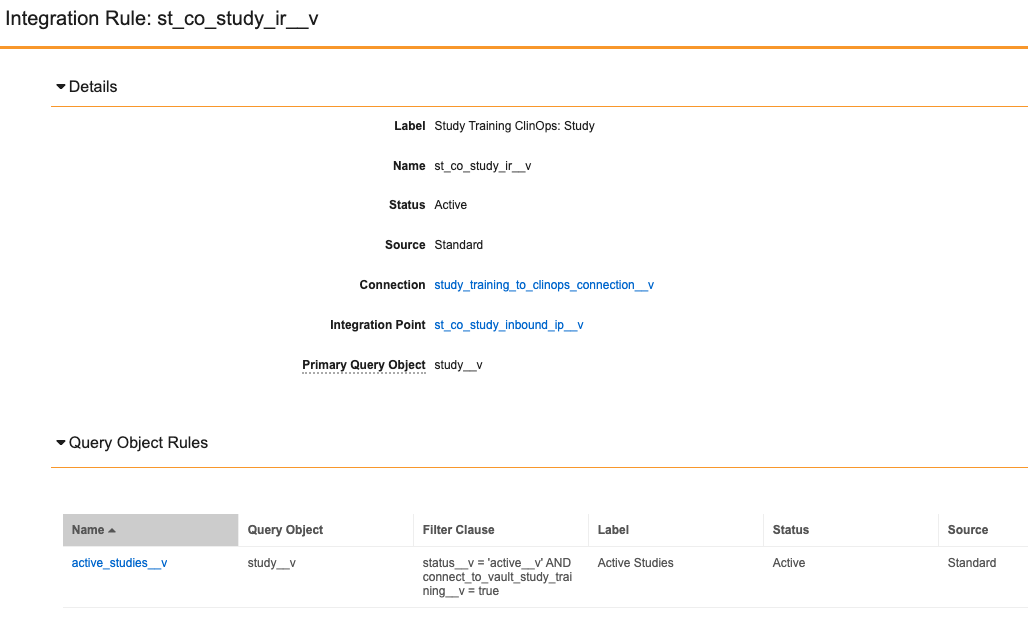
For example, in Study Training, the *Study Training ClinOps: Study* Integration Rule (`st_co_study_ir__v`) includes a Query Object Rule ensuring that, prior to transfer, a Clinical Operations *Study* record is active (`status = 'active__v'` in the rule's VQL-formatted **Filter Clause**), and that its *Connect to Veeva Study Training* field is "Yes" (`AND connect_to_vault_study_training__v = true`).

The Query Object Rule can be further expanded based on your organization's requirements, such as limiting incoming Clinical Operations *Study* records to only those with a *Study Phase* value of "Phase III", resulting in the following VQL: `status__v = 'active__v' AND connect_to_vault_study_training__v = true AND study_phase__v='phase_iii__c'`. 

<a href="https://platform.veevavault.help/assets/images/st-clinops-study-integration-rule.png" data-lightbox="study integration and field rule" data-title="" data-alt="screenshot of the study integration rule">
  <img class="docimage" src="https://platform.veevavault.help/assets/images/st-clinops-study-integration-rule.png" alt="screenshot of the study integration rule" style=""  />
</a>

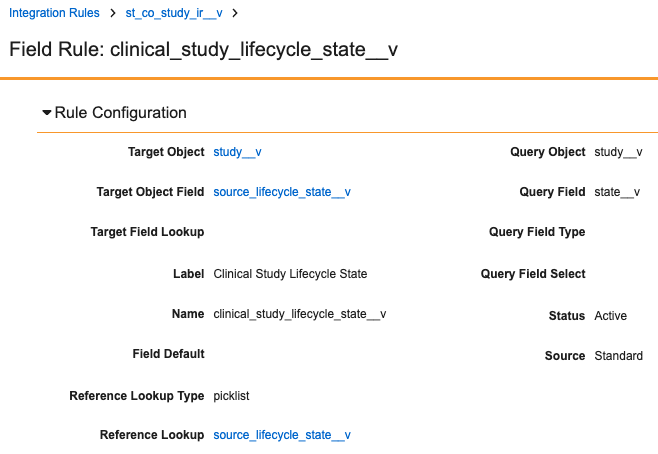
Some Integration Rules are also delivered with Field Rules, both with and without reference lookups. The example Integration Rule above includes several standard Field Rules mapping *Study* object fields in Clinical Operations (the **Query Object** and **Query Field**) to the *Study* object in Study Training (the **Target Object** and **Target Object Field**). Some Field Rules additionally include reference lookups to align the Clinical Operations and Study Training data models.

For example, the *Clinical Study Lifecycle State* Field Rule maps the source Clinical Operations `state__v` field to the target Study Training `source_lifecycle_state__v` field. As these two fields do not have matching external keys, Vault uses the `source_lifecycle_state__v` reference lookup to map each possible Clinical Operations `state__v` value to its Study Training `source_lifecycle_state__v` picklist counterpart.
<a href="https://platform.veevavault.help/assets/images/st-clinops-study-field-rule.png" data-lightbox="study integration and field rule" data-title="" data-alt="screenshot of the study integration field rule">
  <img class="docimage" src="https://platform.veevavault.help/assets/images/st-clinops-study-field-rule.png" alt="screenshot of the study integration field rule" style=""  />
</a>

The following table contains useful Query Object Rules to define for the Study Training-Clinical Operations Connection in your Study Training Vault:

|Object|Criteria VQL|Description|
|--- |--- |--- |
|Study Person|`status__v = 'active__v' AND study__clinr.connect_to_vault_study_training__v = true`|Includes _Study Persons_ that are active and the _Study_'s _Connected to Study Training_ value is _Yes_|
|Study Person|`status__v = 'active__v' AND study__clinr.connect_to_vault_study_training__v = true AND site__clin = null`|Includes _Study Persons_ that are active, the _Study_'s _Connected to Study Training_ value is _Yes_, and that do not have an assigned _Site_|
|Person|`vault_user__sys !=null`|Includes _Persons_ that are associated with a system _User_ record.|
|Study|`status__v = 'active__v' AND connect_to_vault_study_training__v = true`|Includes _Studies_ that are active and the _Study_'s _Connected to Study Training_ value is _Yes_|
|Study Country|`status__v = 'active__v' AND study__vr.connect_to_vault_study_training__v = true`|Includes _Study Countries_ that are active and the _Study_'s _Connected to Study Training_ value is _Yes_|
|Site|`status__v = 'active__v' AND study__vr.connect_to_vault_study_training__v = true`|Includes _Sites_ that are active and the _Study_'s _Connected to Study Training_ value is _Yes_|
|Documents|`connect_to_vault_study_training__v = true AND crosslink__v = false`|Includes Vault documents which are not CrossLinks but have a _Connected to Study Training_ value of _Yes_. In addition, only documents that are _Steady State_ are candidates for transfer to Study Training|
|Responsibility and Study Person Responsibility| `exclude_from_study_training__v != true`<br> and <br>`status__v = 'active__v' AND study__vr.connect_to_vault_study_training__v = true AND ready_for_training__v = 'yes__v'`| Together, these rules allow the connection to reference custom _Responsibility_ records in the Clinical Operations Vault which are connected to Study Training (`exclude_from_study_training__v = false`), then create corresponding Learner Roles in Study Training when the connected _Study Person Responsibility_ record is marked as _Ready for Training_, in addition to other basic criteria.|


### Queues

This feature includes two standard <a href="/en/gr/53147/">message processing queues</a>
. You can access and manage these queues from **Admin > Connections > Spark Queues**.

In your Clinical Operations Vault, you have:

  * _Study Training to ClinOps Outbound Queue_ (`study_training_clin_op_outbound_queue__v`)

In your Study Training Vault, you have:

  * _Study Training to ClinOps Inbound Queue_ (`study_training_clin_op_inbound_queue__v`)

### User Exception Objects

Vault includes the _User Exception Message_ object and its child object, _User Exception Item_, to help you track and resolve any errors that occur with the connection. If the Study Training side of the integration can't process an incoming message, Vault creates a _User Exception Message_ record to capture the failure.

When the connection job runs, Vault processes all _User Exception Messages_ that are in the Active state, and inactivates previous ones. Any new errors result in new _User Exception Messages_ in the _Active_ state. Vault also creates individual _User Exception Item_ records for each item that failed on the related _Integration Point_ record in the Clinical Operations Vault. The _User Exception Item_'s _Error Message_ field contains the reason for error.

You can view and manage these messages from **Admin > Connections > User Exception Messages**.

A _User Exception Message_ means that you need to update your configuration. After you update the configuration, Vault attempts to resolve any errors the next time the connection runs. You can also select the **Retry Transfer** action to run the connection and resolve errors.

## Configuring Your Clinical Operations Vault for the Connection {#configuring-clinical-operations}

Before activating the connection, you must complete the following steps in your Clinical Operations Vault to ensure proper functioning of the connection:

1. Activate the _Connect to Vault Study Training_ shared document field and add it to any document types. Documents with _Connect to Study Training = Yes_ will be transferred to Study Training.
2. Activate and add the _Connect to Study Training Vault_ field on the _Study_ object page layout.
3. Configure the _Code_ field on the _Country_ object to use the **User must always enter a value (required)** and **Values must be unique** options. If any Country record lacks the value, populate it with the appropriate two-digit country code.
4. Export record data for the following object records from the Clinical Operations Vault: _Person_, _Country_, and _Organization_. Include the _Global ID_ field. Import the records into the Study Training Vault and map _Global ID_ (Clinical Operations) to _Link_ (Study Training). This ensures _Person_, _Country_, and _Organization_ references on _Study Person_, _Study Country_, and _Study Site_ are available. This export/import process is only required once.


## Configuring Your Study Training Vault for the Connection {#configuring-study-training}

You must complete the steps described in the sections below in your Study Training Vault to enable the connection:

### Study Training Object & Document Configuration

Before activating the connection, you must complete the following steps in your Study Training Vault to ensure the connection functions properly:

  1. Add _Global ID_ or _Code_ values to the _Link_ or _Document Link_ field on any existing records in Study Training of the below objects and documents. The _Global ID_ values should correspond to like records in the Clinical Operations Vault. Failure to populate these values may result in Vault creating duplicate records:
     * _Study_ (Fields: _Global ID_, _Link_)
     * _Study Country_ (Fields: _Global ID_, _Link_)
     * _Study Site_ (Fields: _Global ID_, _Link_)
     * _Study Person_ (Fields: _Global ID_, _Link_)
     * _Country_ (Fields: _Global ID_, _Link_)
     * _Organization_ (Fields: _Global ID_, _Link_)
     * _Person_ (Fields: _Global ID_, _Link_)
  2. Populate the _Document Link_ and _Document Version Link_ data in existing documents, and set version binding to _Specific Document Version_. Ensure that these fields are populated appropriately for any existing CrossLinks.
  3. Configure any _Study_ object reference fields on documents to use the **Allow user to select multiple values** option.
  4. Activate the standard _Training Materials_ document type and associate the recommended _Draft to Approved_ document lifecycle. On the _Training Materials_ document lifecycle:
     * Configure the following entry actions on the state selected as the _Steady State_:
        * _Set new major version_
        * _Set previous steady state to superseded_
        * _Create Training Requirement Impact Assessment Record_
     * Configure the _Cancel Open Training Assignments_ entry action on the state selected as the _Superseded State_.
     * Configure the _Retire or Assess Impact on Training Requirements_ entry action on the state selected as the _Obsolete State_.
  5. <a id="clinical-mapping-configuration"></a>Review your Vault's `study_team_role__v` object configuration. Depending on when your Vault was created, this object may be labeled "[Clinical Mapping][6]", "Study Team Role", or "Clinical Study Team Role". To configure the object for the connection:
     * Ensure the **Object Label** and **Object Plural Label** are _Clinical Mapping_ and _Clinical Mappings_, respectively.
     * Add the following to the object page layout:
       * Source Key Field Selector control
       * _Training Type_ and _Role Type_ fields
     * Within any impacted permission sets, ensure users working with _Clinical Mapping_ records are granted _Read_, _Create_, and _Edit_ access to the object, as well as _View_ access to the object's _Source Key Field Selector_ object control.
  6. On the _Organization_, _Person_, and _LearnerRole-Person_ objects, configure the _Link_ field to use the **Values must be unique** and **Do not copy this field in Copy Record** options.
  7. Configure the _Code_ field _Country_ to use the **User must always enter a value (required)** and **Values must be unique** options. If any Country record lacks the value, populate it with the appropriate code.
  8. Add the appropriate _View In Clinical_ formula field on the following objects' page layout, and update the field's formula on existing records with the record _ID_ field value:
     * _Study_ (Field: _Clinical Study Link_)
     * _Study Country_ (Field: _Clinical Study Country Link_)
     * _Study Site_ (Field: _Clinical Study Site Link_)
     * _Study Person_ (Field: _Clinical Study Person Link_)
     * _Country_
     * _Organization_
     * _Person_
  9. Since _Person_ data comes from the Clinical Operations Vault, configure the _Person_ object's fields to non-required, and remove any _Training Eligibility_ default value configurations.
  10. On the _User Exception Message_ object, add the **Retry Transfer** custom action. Add this action to the _Active_ state in the _User Exception Message Lifecycle_.
  11. Optional: Activate the _External Site_ object type on _Organization_ object and make it the default object type.
  12. Optional: Update permission sets to remove _Create_ permission for the following objects and for their related object document fields for appropriate security profiles:
      * _Study_
      * _Study Country_
      * _Study Site_
      * _Study Person_

### Enabling CrossLinks

CrossLink documents enable content from one Vault to be used in another Vault within the same domain. In order for the connection to create documents across both your Clinical Operations and your Study Training Vaults, you'll need to <a href="/en/gr/23139/#enable-crosslinks">enable CrossLinks</a>
 in your Study Training Vault. Vault will not sync documents from the Clinical Operations Vault which lack an associated _Study_.

### Clinical Mappings & Reference Lookups {#clinical-mappings-and-reference-lookups}

Prior to 24R2, the connection's integration rules relied upon reference lookups to map _Study Team Roles_ (or "Clinical Study Team Roles") in Clinical Operations to _Learner Roles_ (`study_learner_role__v`) in Study Training.

As of 24R2, these reference lookups are [no longer required][5]. Instead:

* Existing roles mapped via lookups at the time of the release are automatically available in all Study Training production Vaults as _Clinical Mapping_ (`study_team_role__v`) records. When creating records during the upgrade, Vault also:
    * Inactivated the existing lookups, as they are no longer in use.
    * Set mapping records' _Training Type_ field to "Role", but did not set the _Role Type_ field. You can populate this field to delineate mappings for the Project Team or Site Staff, or it can remain null. When null, Vault assumes the record is for a Project Team member. This reflects system behavior prior to the upgrade.
* New roles must be <a class="external-link " href="https://quality.veevavault.help/en/gr/48712025#creating-study-learner-roles" target="_blank" rel="noopener">created<i class="fa fa-external-link" aria-hidden="true"></i></a> and mapped using the <a class="external-link " href="https://quality.veevavault.help/en/gr/48712025#clinical-mappings" target="_blank" rel="noopener">_Clinical Mapping_<i class="fa fa-external-link" aria-hidden="true"></i></a> object.

Additionally, with the introduction of <a class="external-link " href="https://quality.veevavault.help/en/gr/48712025#responsibilities" target="_blank" rel="noopener">responsibility-based training<i class="fa fa-external-link" aria-hidden="true"></i></a>:

* A set of standard responsibilities are automatically available in all existing and new Study Training Vaults as _Clinical Mapping_ records with their _Training Type_ field set to "Responsibility". These records correspond to Clinical Operations _Responsibilities_.
* Veeva provisions _Responsibilities_ and corresponding _Clinical Mappings_ during Vault releases. While these records represent industry best-practice for a study's task list, your organization may opt to <a class="external-link " href="https://clinical.veevavault.help/en/gr/61542#study-person-responsibilities" target="_blank" rel="noopener">create<i class="fa fa-external-link" aria-hidden="true"></i></a> additional Clinical Operations _Responsibility_ records to support a specific study's training needs.

### Generating Global IDs

The Study Training-Clinical Operations Connection relies on _Global IDs_ to populate the **Link** field in the target Vault. If a record was last updated before the 19R3 release, the _Global ID_ field may not be populated. If a record is missing the _Global ID_, contact Veeva Support and request that they generate this value on the _Study_, _Study Country_, _Study Site_, and _Study Person_ objects in your Clinical Operations Vault. If you have _Study_, _Study Country_, _Study Site_, and _Study Person_ records in Study Training, populate the _Link_ field value with the _Global ID_ from the source record.

### Last Successful Run Field

On every inbound _Integration_ record, the _Last Successful Run_ field captures the date and time the integration last ran. Vault uses this date to query changes since the integration's last successful run.

You can use the _Last Successful Run_ field in the following ways:

* If you don't want Vault to transfer existing object records or existing _Steady_ state documents as CrossLink documents, set this field to the date and time when you will activate the connection.
* If you need to rerun every _Integration Point_ within the _Integration_ record, you can clear the _Last Successful Run_ field. The next time an action in either Vault triggers the connection, Vault will re-process all documents or object records within the scope of that integration point.

## Study Training User Management

Study Training offers multiple methods for managing _User_ and _Person_ records. The methods described here can be configured together or separately, depending on your organization's requirements.

### Enabling VeevaID

VeevaID is a Vault application identity provider which allows users to access Vaults on multiple sponsor domains with a single user ID and password. In Study Training, a Vault Admin can send Learners an invitation to register for VeevaID (individually or in bulk), or the process can be automated via the connection.

See <a class="external-link " href="https://quality.veevavault.help/en/gr/598557" target="_blank" rel="noopener">VeevaID for Study Training<i class="fa fa-external-link" aria-hidden="true"></i></a> for further details.

### Auto-Creating Domain Users {#auto-creating-domain-users}

By default, when a Study Manager creates a Clinical Operations _Person_ record, the connection automatically creates a corresponding _Person_ record in Study Training. Then, a Study Training Vault Admin creates the person's domain _User_ record and manually associates it with the new _Person_ record.

When enabled, the connection can replace the Vault Admin's manual steps by automatically:
  * Creating a domain _User_ record in Study Training with the same details as those in Clinical Operations, when in Clinical Operations the _Person_ record with a referenced _User_ is associated with at least one _Study_.
  * Updating existing Study Training _Person_ records with the appropriate _User_ reference and _Training Eligibility_ value.

To enable the connection to automatically create domain _Users_, confirm that Study Training's _Clinical to Study Training User Management_ job is active and scheduled to run according to your organization's requirements. Along with the _Study Training ClinOps: User_ Integration Rule and related field rules, this job additionally activates or inactivates existing Study Training domain _User_ records. This process does not support VeevaID users, which are managed via a different job, _VeevaID Invitation Management_.

If your Study Training Vault uses _Role Dependencies_, Vault also creates and assigns users the appropriate _User Role Setup_ record. See <a class="external-link " href="https://quality.veevavault.help/en/gr/48712025#creating-role-dependency-records" target="_blank" rel="noopener">Creating Role Dependency Records<i class="fa fa-external-link" aria-hidden="true"></i></a> for further details.


<div class="note-border alert-info">
  <div class="alert alert-info" role="alert">
    <div><i class="far fa-info-circle"></i></div>
    <div class="alert-text">
      <p><strong>Note</strong>: This functionality is managed by the connection and does not rely on the <em>Auto Manage Persons</em> Application Setting or related job. These components manage a similar process in Veeva Training and should remain inactive in Study Training Vaults.</p>
    </div>
  </div>
</div>


### Security Profile Mapping {#security-profile-mapping}

By default, when the connection [auto-creates domain users][7], the Study Training Vault assigns these users to the standard *Training User* Security Profile (`training_user__v`), and a Vault Admin must manually assign a different security profile to certain users to perform certain tasks. For example, when a new user is also a Study Manager, the auto-created *User* record's *Security Profile* field must be manually updated to a custom "Training: Study Manager" profile.

When the appropriate *Security Profile Mapping* records are in place, the Study Training Vault can instead automatically add new users to an Admin-defined Security Profile. This eliminates any manual Vault Admin steps for a majority of new Study Training users.


<div class="note-border alert-info">
  <div class="alert alert-info" role="alert">
    <div><i class="far fa-info-circle"></i></div>
    <div class="alert-text">
      <p><strong>Note</strong>: This feature is intended for new Study Training domain users only, and cannot be used to manage existing users, nor any VeevaID users. Additionally, a Clinical Operations user must be associated with at least one connected <em>Study</em> record. See <a class="external-link " href="https://quality.veevavault.help/en/gr/48712025#profile-mapping" target="_blank" rel="noopener">configuration<i class="fa fa-external-link" aria-hidden="true"></i></a> details for additional limitations.</p>
    </div>
  </div>
</div>


## Activating the Connection {#activate}

Once all configuration steps are complete, <a href="/en/gr/53358/#Establish_Vault_to_Vault">activate the connection</a>
.

## Auto-Filing Study Training Logs to eTMF

Training records captured in Study Training Vaults are key trial artifacts relevant to an organization's trial master file in Veeva eTMF. To support this relationship and eliminate manual processes for filing training records to eTMF, Vault can <a class="external-link " href="https://quality.veevavault.help/en/gr/774804" target="_blank" rel="noopener">automatically file<i class="fa fa-external-link" aria-hidden="true"></i></a> Study Training logs as Library documents, then transfer them to eTMF as CrossLinks.

## Connection Limitations

See <a href="/en/gr/53358/#limitations">Standard Connection Limitations</a>
 for a list of limitations that impact the Study Training-Clinical Operations Connection.

## Related Permissions

You need a _System Admin_ security profile as well as the following permissions to set up the standard Study Training-Clinical Operations Connection:

|Type|Permission Label|Controls|
|--- |--- |--- |
|Security Profile|Admin: Application: Manage Connections|Ability to set up the Study Training-Clinical Operations Connection|
|Security Profile|Object: User Exception Item, User Exception Message: Read|Ability to see _User Exception Item_ and _User Exception Message_ records if a connection failure occurs|
|Security Profile|Object: User Exception Message: Object Action Permissions: Retry Transfer: View, Execute|Ability to perform the _Retry Transfer_ action on a _User Exception Message_ record.|

  [1]: #components
  [2]: #configuring-clinical-operations
  [3]: #configuring-study-training
  [4]: #activate
  [5]: #clinical-mapping-configuration
  [6]: #clinical-mappings-and-reference-lookups
  [7]: #auto-creating-domain-users
  [8]: #security-profile-mapping
