Note: The Bring Forward Annotations on Version Create setting for document types, which enables automatically brought forward annotations, does not affect manually brought forward annotations. The Allow Users to Bring Forward Annotations settings, which enables manually brought forward annotations, does not affect automatically brought forward annotations.
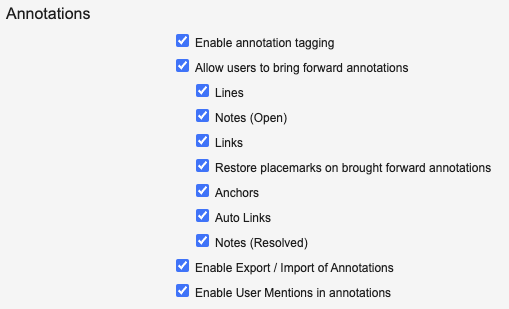
* Select **Allow users to bring forward annotations** to enable _Bring Forward Annotations_, and then select the types of annotations that users can bring forward: lines, open notes, links, anchors, auto links, and resolved notes.
* Select **Restore placemarks on brought forward annotations** to enable automatically-placed note and link annotations.
## Enabling Bring Forward Linked Document Relationships {#enabling_bring_forward_linked_document_relationships}
Handling of _Linked Document_ relationships
during document versioning depends on your Vault's settings. This article addresses how Vault handles links if the **Bring Forward Linked Document Relationships to new versions** feature is on. Otherwise, Vault does not copy the _Linked Documents_ relationships
during versioning.
When this feature is on, Vault copies any linked document relationships from the previous version of a document into the newly created version. Vault only copies the relationships. Any annotations, including the link annotations that created the relationship, are not copied. Relationships are displayed in the document fields under _Linked Documents_.
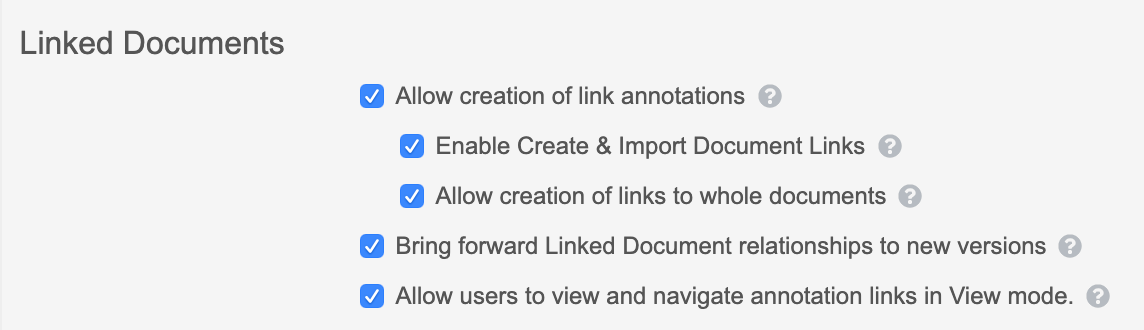
Select the **Bring forward Linked Document Relationships to new versions** checkbox.
* For Platform Vaults: **Admin > Settings > General Settings**
* For Application Vaults: **Admin > Settings > Application Settings**
## Enabling Link Annotations & Document Links {#enabling_link_annotations_document_links}
Link Annotations and Document Links
allow you to link to specific pages or paragraphs within other documents, your current document, or to complete documents. In _Annotate_ mode, Link Annotations are visible within the content of a document in the form of a small link icon and a shaded link area. Click the link icon to view the details. You can also view link annotations in _View_ mode
. Document Links are visible in the Doc Info fields panel.
Link annotations and document links are available for Veeva Vault Platform and all applications.
 To enable or disable these features, navigate to:
* Platform Vaults: **Admin > Settings > General Settings**
* Application Vaults: **Admin > Settings > Application Settings**
To enable link annotations, select the **Allow creation of link annotations** checkbox. To enable document links, select the **Enable Create & Import Document Links** checkbox. Link attributes such as the anchor name and page, are always displayed in the _Linked Documents_ section. When a link annotation referencing a target is deleted, the linked document relationship created by that link annotation is also deleted.
Annotation links in _View_ mode are automatically enabled in your Vault. To disable links in _View_ mode, clear the **Allow users to view and navigate annotation links in View mode** checkbox.
Links to whole documents are automatically enabled in your Vault. To disable links to whole documents, clear the **Allow creation of links to whole documents** checkbox.
To enable or disable these features, navigate to:
* Platform Vaults: **Admin > Settings > General Settings**
* Application Vaults: **Admin > Settings > Application Settings**
To enable link annotations, select the **Allow creation of link annotations** checkbox. To enable document links, select the **Enable Create & Import Document Links** checkbox. Link attributes such as the anchor name and page, are always displayed in the _Linked Documents_ section. When a link annotation referencing a target is deleted, the linked document relationship created by that link annotation is also deleted.
Annotation links in _View_ mode are automatically enabled in your Vault. To disable links in _View_ mode, clear the **Allow users to view and navigate annotation links in View mode** checkbox.
Links to whole documents are automatically enabled in your Vault. To disable links to whole documents, clear the **Allow creation of links to whole documents** checkbox.
Note: Some Vault configurations include custom filters on the Linked Documents relationship type. For example, a filter might only allow users to add documents in the Approved state as linked documents. Vault applies these filters when creating link annotations and linked document relationships, but ignores them when importing document links. To learn more about custom filters on document relationship types, contact Veeva Support.
Note: The Bring Forward Annotations on Version Create setting for document types, which enables automatically brought forward annotations, does not affect manually brought forward annotations. The Allow Users to Bring Forward Annotations settings, which enables manually brought forward annotations, does not affect automatically brought forward annotations.
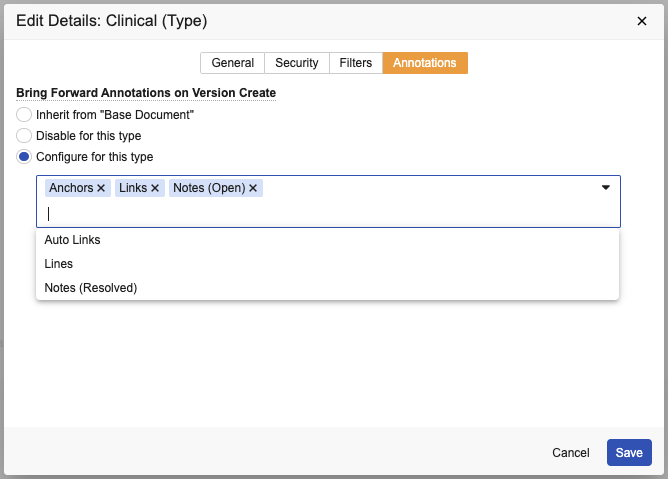 When a user creates a new document version of a document type with annotations configured to be automatically brought forward, Vault brings forward the annotations according to the following rules:
* Vault automatically brings forward annotations from the latest document version only. If no eligible annotations in the latest version exist, annotations are not brought forward.
* Vault does not create duplicate annotations when they are brought forward both manually and automatically.
* Vault places automatically brought forward annotations on the new document version following the same placement rules
as manually brought forward annotations.
* While Vault automatically brings forward annotations, the user cannot manually bring forward annotations. Vault displays a banner to indicate when the process of automatically bringing forward annotations is underway.
## Enabling Offline Annotation {#enabling_offline_annotation}
Offline Annotation
is a feature that helps reviewers to be productive while offline, using familiar editing tools. You can export any document, along with any annotations it has, and review offline in your preferred PDF editor. You can reply to exported annotations and create new annotations. When finished, you then import the annotated rendition into Vault.
Multiple users can review and annotate offline concurrently; when they import, Vault adds each new annotation to the document as if the users had annotated through the UI. If any mistake happens, Vault helps users to recover easily with the _Undo Last Import_ option.
You can enable the offline annotation feature from **Admin > Settings > General Settings**. The **Enable Export / Import of Annotations** option enables the feature.
## Enabling _Document Owner_ Annotation Deletion {#document-owner-annotations}
You can allow the _Document Owner_ of a document to delete other users' annotations
on the document.
To allow _Document Owners_ to delete other users' annotations, navigate to **Admin > Settings > General** and select **Allow Document Owner to delete other users' annotations** in the _Annotations_ section.
[1]: #auto-bring-forward-annotations
[2]: #enabling_bring_forward_annotations
[3]: #document-owner-annotations
When a user creates a new document version of a document type with annotations configured to be automatically brought forward, Vault brings forward the annotations according to the following rules:
* Vault automatically brings forward annotations from the latest document version only. If no eligible annotations in the latest version exist, annotations are not brought forward.
* Vault does not create duplicate annotations when they are brought forward both manually and automatically.
* Vault places automatically brought forward annotations on the new document version following the same placement rules
as manually brought forward annotations.
* While Vault automatically brings forward annotations, the user cannot manually bring forward annotations. Vault displays a banner to indicate when the process of automatically bringing forward annotations is underway.
## Enabling Offline Annotation {#enabling_offline_annotation}
Offline Annotation
is a feature that helps reviewers to be productive while offline, using familiar editing tools. You can export any document, along with any annotations it has, and review offline in your preferred PDF editor. You can reply to exported annotations and create new annotations. When finished, you then import the annotated rendition into Vault.
Multiple users can review and annotate offline concurrently; when they import, Vault adds each new annotation to the document as if the users had annotated through the UI. If any mistake happens, Vault helps users to recover easily with the _Undo Last Import_ option.
You can enable the offline annotation feature from **Admin > Settings > General Settings**. The **Enable Export / Import of Annotations** option enables the feature.
## Enabling _Document Owner_ Annotation Deletion {#document-owner-annotations}
You can allow the _Document Owner_ of a document to delete other users' annotations
on the document.
To allow _Document Owners_ to delete other users' annotations, navigate to **Admin > Settings > General** and select **Allow Document Owner to delete other users' annotations** in the _Annotations_ section.
[1]: #auto-bring-forward-annotations
[2]: #enabling_bring_forward_annotations
[3]: #document-owner-annotations