# Configuring Site Connect

<a href="/en/gr/64231/">Veeva Site Connect</a> streamlines and automates the sharing of documents and data between Sponsors/CROs and sites through Site Home in Clinical Operations.

<div class="note-border alert-info">
  <div class="alert alert-info" role="alert">
    <div><i class="far fa-info-circle"></i></div>
    <div class="alert-text">
      <p><strong>Note</strong>: Veeva Site Connect is an add-on product available for any Clinical Operations Vault.</p>
    </div>
  </div>
</div>


## Configuration Overview

  * [Enable Veeva Site Connect][2] in your Clinical Operations Vault.
  * Ensure users have access to <a href="/en/gr/64231/#related-objects">related objects</a>.
  * Optional: Add the _Site Document Exchange_ section to the _Study Site_ page layout.
  * [Configure _Site Package Definitions_][4] that users can select when defining _Site Packages_.
  * Enable the [_Site Connect User_][21] field on the _Study Person_ record for each user who needs access to Site Connect.
  * Optional: Activate the <a href="/en/gr/61542/#removing-access-for-study-personnel">_Revoke Access from Study Persons with End Date_</a> job to remove Site Connect access for users with _Study Person_ records that reach their _End Date_.
  * Optional: Add the <a href="/en/gr/865483/#study-responsibilities">_Study Responsibilities_</a> application section to the _Study Site_ page layout. 
  * Optional: Add the <a href="/en/gr/61542/#study-person-responsibilities">_Study Person Responsibilities_</a> application section to the _Study Person_ page layout.
  * Optional: Enable the [_Manage Unblinded Content_][23] responsibility on the _Study Person_ record for each person who needs to view unblinded content. 
  * [Configure user actions][5] to allow users to trigger the exchange of documents and document requests.
  * Ensure the [_Connected Study Type_][22] field on the _Study_ record is set to <a href="/en/gr/70244/">_Document Exchange_</a>, <a href="/en/gr/65187/">_Safety Distribution_</a>, and/or <a href="/en/gr/774031/">_Payment Information_</a>. 
  * Configure <a href="/en/gr/895401/">_Study Site Addresses_</a> to manage study-specific addresses for a site and receive addresses entered by the site in Site Home.
  * Enable the _Sponsor/CRO Name_ checkbox to allow Vault to automatically create SiteVault connections. The _Sponsor/CRO_ setting also controls the name Vault displays in Site Connect emails to Site Personnel, such as in the subject line.
  * Optional: Configure the [_Site Connect Details_ user action][3].
  * Optional: [Configure single-study documents][18].
  * [Map document types][6] to _Vault Clinical Docs_ reference model artifacts.
  * Optional: [Configure _Field Defaults_][7] to specify default values for fields on incoming documents and records.
  * Optional: <a href="/en/gr/65185/">Configure _Safety Distributions_</a> to allow users to send safety documents to study sites, including sites that aren't on SiteVault.
  * Optional: <a href="/en/gr/71272/">Configure document reconciliation</a> so that users can verify that a site's eISF contains the appropriate study documents in their SiteVault.
  * Optional: [Configure _Create as Unclassified_][17] documents.
  * Optional: [Configure _Authenticated Document Link_][19] documents.
  * Optional: Configure [_System Links_][20] to provide access to other study-related systems.
  * Optional: Adjust the frequency of the [Received from Site notification][8].


## Enabling Veeva Site Connect {#enabling-site-connect}

Veeva Site Connect is an add-on product available for Vaults in the Clinical Operations family. Contact Veeva Support to add Veeva Site Connect to your Clinical Operations Vault.

## Site Document Exchange Page Layout Section

Adding this section to the _Study Site_ object page layout allows users to see and search all document transfers in a given context at a glance. When configured, all _Study Site_ records will display a grid view of transfer details.

Once a context is selected, Vault displays the associated columns:

### Open At Site

* _Name_
* _Document Type_
* _Document Number_
* _Sent Date_
* _Expected Action_
* _Sent Comments_

### Received From Site

* _Name_
* _Document Type_
* _Document Number_
* _Received Date_
* _Expected Action_
* _Sent Comments_
* _Received Comments_

### Rejected By Site

* _Name_
* _Document Type_
* _Document Number_
* _Expected Action_
* _Sent Comments_
* _Received Comments_

### All Sent To Site

* _Name_
* _Document Type_
* _Document Number_
* _Sent Date_
* _Expected Action_
* _Sent Comments_


<div class="note-border alert-info">
  <div class="alert alert-info" role="alert">
    <div><i class="far fa-info-circle"></i></div>
    <div class="alert-text">
      <p><strong>Note</strong>: In Vaults with the <a href="/en/gr/30260/#subartifacts"><em>Enable Subartifacts</em> setting</a> enabled, the <em>Document Exchange</em> section displays a <em>Subartifact</em> column for all views.</p>
    </div>
  </div>
</div>


## Configuring Site Package Definitions {#site-package-definitions}

_Site Package Definitions_ are templates of document types that users can exchange with _Study Sites_. These packages are used by Vault to automatically retrieve relevant study documents and add them to site-specific packages. Every _Site Package Definition_ parent record contains a set of _Site Package Document_ records. These document records represent the document types that Vault will include in a Site Package.

To create a _Site Package Definition_ record:

  1. Navigate to the _Site Package Definition_ object record list page from **Business Admin** or a custom tab.
  2. Click **Create**.
  3. Enter a **Site Package Definition**.
  4. Click **Save**.

### Site Package Documents {#site-package-documents}

To add _Site Package Documents_ to a _Site Package Definition_:

  1. Open a _Site Package Definition_ record.
  2. In the _Site Package Document_ section, click **Create**.
  3. Select a **Document Type**, **Subartifact**, **Level**, and **Expected Site Action**. Only Vaults with the <a href="/en/gr/30260/#subartifacts">_Enable Subartifacts_ setting</a> enabled display the _Subartifact_ field. Vault requires a value for the _Subartifact_ field, when available. The _Document Type_ you select determines the available values for the _Subartifact_ field.
  4. Optional: Enter **Default** **Comments**. Vault displays default values to users on the <a href="/en/gr/70244/#preview-site-packages">*Preview Site Packages*</a> page.
  5. Click **Save**.

<div class="note-border alert-info">
  <div class="alert alert-info" role="alert">
    <div><i class="far fa-info-circle"></i></div>
    <div class="alert-text">
      <p><strong>Note</strong>: The <em>Subartifact</em> value on the <em>Site Package Document</em> record populates onto the corresponding <em>Distribution Task</em>.</p>
    </div>
  </div>
</div>


Below is a simple set of _Site Package Documents_ that you could include in a _Site Package Definition_:

|Document Type|Level|Expected Site Action|
|--- |--- |--- |
|_Protocol_|Study|None|
|_Protocol Signature Page_|Site|Revise & Return|
|_Investigator's Brochure_|Study|None|
|_Acceptance of Investigator Brochure_|Site|Revise & Return|
|_IRB or IEC Submission_|Site|Provide Original|

## Enabling the Site Connect User Field {#enabling-the-site-connect-user-field}

Site users cannot view and exchange study-specific data and documents until they are granted access to Site Connect. To do this, add the **Site Connect User** field to the _Study Person_ record layout. Enabling the _Site Connect User_ field, sends the user an invitation email with a link to log in to Site Connect.

Once the _Site Connect User_ field is enabled, a system _Site Home Access_ record is created in **Business Admin**. This record captures the details of the Site Connect user, such as their full name, who requested their access, and their access start and end date. You cannot edit this record.

Ensure the following conditions are met before enabling the _Site Connect User_ field:
  * The _Study Person_ record includes values for _Study_, _Study Country_, and _Study Site_.
  * The _Grant Access to Related Records_ field is set to _No_ on the _Study Person_.
  * The _Email_ field on the user's related _Person_ record is not blank.
  * The _Person Type_ on the related _Person_ record is set to _Site Staff_ or _Investigator_.
  * The _Study Person_ record does not have an inactive VeevaID in this Vault.

If these conditions are not met, Vault displays an error when you save the _Study Person_ record with the _Site Connect User_ field enabled.

### Bulk Enabling the Site Connect User Field
<div class="note-border alert-info">
  <div class="alert alert-info" role="alert">
    <div><i class="far fa-info-circle"></i></div>
    <div class="alert-text">
      <p><strong>Note</strong>: We recommend using this feature when you are enabling the <em>Site Connect User</em> field on over 5,000 <em>Study Person</em> records. Veeva Support must enable the <em>Disable Automatic Invitation for Site Connect Users</em> flag to enable this functionality. Veeva Support must also disable the flag after you complete bulk <em>Site Connect User</em> enablement.</p>
    </div>
  </div>
</div>


When the _Disable Automatic Invitation for Site Connect Users_ flag is enabled in your Vault, Vault does not immediately invite users to Site Connect when you enable the _Site Connect User_ field on their _Study Person_ record. Instead, the _Site Connect Study Invitation Cleanup_ job invites users in bulk. The job runs hourly and invites up to 5,000 Site Connect users at a time. This job allows for better error handling and ensures the system takes advantage of bulk performance, minimizing the time _Site Connect User_ enablement takes.

## Enabling Unblinded Content for Study Person {#unblinded-content}

Clinical Operations utilizes the _Blinded_ (`blinded__v`) and _Unblinded_ (`unblinded__v`) values for the _Content_ (`blinding__v`) field value on documents to enhance security and restrict user access to documents containing sensitive information. Documents with the _Unblinded_ value for the _Content_ field in Clinical Operations documents are also restricted in Site Connect. Only Site Connect users with <a href="/en/gr/49810/">_Manage Unblined Content_</a> responsibility can view and access _Unblinded_ documents in Site Connect.

You can allow a site user access to _Unblinded_ documents by adding the **Manage Unblinded Content** (`manage_unblinded__content__v`) <a href="/en/gr/61542/#study-person-responsibilities">responsibility</a> to the site user's <a href="/en/gr/61542/">**Study Person**</a> record. A Site Connect user with the _Manage Unblinded Content_ responsibility can view and access _Unblinded_ documents in addition to the standard _Blinded_, custom, or null _Content_ field value documents. Site Connect only restricts _Unblinded_ content for _Document Exchange_, _End-of-Study Media_, and _Study Protocol_ links. Site Connect does not support the restriction of _Unblinded_ content for _Safety Distribution_, _Announcements_, or _Payment Information_. If users send _Unblinded_ documents from Clinical Vaults to sites as _Safety Distributions_, _Payment Letters_, or _Announcements_, the documents will be visible to all site users.

Site Connect users with the _Manage Unblinded Content_ responsibility can use the _Restricted_ checkbox when uploading ad hoc documents to create _Blinded_ or _Unblinded_ documents in Clinical Operations. Users without the _Manage Unblinded Content_ responsibility cannot upload _Unblinded_ documents. Users cannot adjust the _Restricted_ checkbox setting on _Revise and Return_ tasks. 

## Configuring the Connected Study Type {#connected-study-type}

All _Study_ records in a Clinical Operations Vault have a _Connected Study Type_ field that determines the connections available to a given study. Vault bases the contents of the multi-select picklist for this field on which products you have access to:
  * **Document Exchange**: Exchange of documents with Site Connect users.
  * **Safety Distribution**: Exchange of Safety Distributions with SiteVault and via email to sites not yet using Site Connect users.
  * **Payment Information**: Exchange of _Payment Request_ and _Payable Item_ details with Site Connect users. 


<div class="note-border alert-info">
  <div class="alert alert-info" role="alert">
    <div><i class="far fa-info-circle"></i></div>
    <div class="alert-text">
      <p><strong>Note</strong>:  Only available if <a href="/en/gr/58941/">Veeva Payments</a> is enabled in your Vault.</p>
    </div>
  </div>
</div>


## Configuring Site Connect User Actions {#configuring-user-actions}

### Send Matched Document {#send-matched-documents}

You can add the **Send Matched Document Via Clinical Network** <a href="/en/gr/59885/#how-to-define-a-user-action">user action</a> to any *Active* state of the *Expected Documents* lifecycle. When configured, this action allows users to send documents and document requests to sites from the **Actions** menu of *Expected Document* records.

### Send Site Package {#send-site-package}

You can add the **Send Site Package Via Clinical Network** <a href="/en/gr/59885/#how-to-define-a-user-action">user action</a> to any *Active* state of the *Study Country* or *Study Site Lifecycle*. When configured, this action allows users to send Site Packages to SiteVault sites from the **Actions** menu of *Study Country* or *Study Site* records.

## Configuring the Site Connect Details User Action {#site-connect-details}

You can add the Site Connect Details user action to any document lifecycle state. The action will display when the Study referenced on the document has an active Site Connect agreement. When taken, the action:

* Initially displays the **Comment History** page if the document was sent to a single _Study Site_; or
* Initially displays the **Track Document Distribution** page if the document was sent to multiple _Study Sites_.

Users can toggle between both displays, and export the contents to either Excel or CSV.

### Comment History

This displays all comments related to the document as it is exchanged between Sponsor/CRO and the Site. Each comment shows the _Study Site_ name and associated document version, the latter of which can be clicked to launch in a new browser tab.

### Track Document Distribution

This displays which _Sites_ a document was sent to, along with the _Sent Date_, _Due Date_, and _Expected Site Action_ for each exchange.

## Configuring the Single-Study Documents Setting {#single-study-docs}

The _Enable Single-Study Documents_ setting tells Vault what to do when your Clinical Operations Vault receives a document from your Site Vault that references multiple _Study_ records. If you set _Enable Single-Study Documents_ to True, Vault creates a new document for each of the studies referenced. If set to False, Vault creates a single new document that references all the studies.

You can change the _Enable Single-Study Documents_ setting by navigating to **Admin > Settings > Application Settings > Connected Studies**.

## Mapping Vault Clinical Docs Artifacts {#mapping}

Ensure that document types in your Vault are mapped to the <a href="/en/gr/30260/">*Vault Clinical Docs* model</a> so that transferred documents are classified correctly.

Users can utilize the [_Send Documents to Sites_][13] user action for document types mapped to the following artifacts:

|Vault Clinical Docs Artifact|Vault Clinical Docs External ID|SiteVault Document Type|
|--- |--- |--- |
|Acceptance of Investigator Brochure|vdc__57|Acceptance of IB|
|Acceptance of Marketed Product Material|vdc__325|Acceptance of Marketed Product Material|
|Additional Monitoring Activity|vdc__310|Correspondence|
|Advertisements for Subject Recruitment|vdc__27|Advertisement for Recruitment|
|Certificate of Analysis|vdc__89|IP & Supply Shipping|
|Certification or Accreditation|vdc__95|Lab Certification|
|Clinical Study Report|vdc__29|Clinical Study Report|
|Clinical Trial Agreement|vdc__68|Contract|
|Close-Out Visit Confirmation Letter|vdc_166|Monitoring Visit Confirmation Letter|
|Close-Out Visit Follow Up Letter|vdc_167|Monitoring Visit Follow Up Letter|
|Completed CRF|vdc_204|Completed CRFs|
|Confidentiality Agreement|vdc__53|Confidentiality Agreement|
|Contractual Agreement|vdc__106|Contract|
|CRF Completion Requirements|vdc__108|Procedure Manual|
|Data Privacy Agreement|vdc__67|Data Privacy Form|
|Expedited Safety Report|vdc_151|Expedited Safety Report|
|Feasibility Documentation|vdc__54|Feasibility Questionnaire|
|Form FDA 1572|vdc__64|1572 or Equivalent|
|Head of Facility Curriculum Vitae|vdc__101|Lab Director Qualifications|
|Import License|vdc__36|IP & Supply Shipping|
|Indemnity|vdc__69|Contract|
|Informed Consent Form|vdc__24|Informed Consent Form (blank)|
|Insurance|vdc__18|Insurance|
|Interim Monitoring Visit Confirmation Letter|vdc_164|Monitoring Visit Confirmation Letter|
|Interim Monitoring Visit Follow Up Letter|vdc_165|Monitoring Visit Follow Up Letter|
|Investigator Newsletter|vdc_209|Correspondence|
|Investigator Brochure Summary of Changes|vdc__317|Investigator Brochure|
|Investigator Regulatory Agreement|vdc__65|1572 or Equivalent|
|Investigator's Brochure|vdc__13|Investigator Brochure|
|Investigators Agreement (Device)|vdc__73|1572 or Equivalent|
|Investigators Meeting Material|vdc__308|Training Material|
|IP Accountability Documentation|vdc__83|IP Accountability|
|IP Certificate of Destruction|vdc__305|IP Destruction|
|IP Instructions for Handling|vdc__80|IP Instructions for Handling|
|IP Quality Complaint Form|vdc__306|IP Quality Complaint|
|IP Recall Documentation|vdc__323|IP & Supply Shipping|
|IP Re-labeling Documentation|vdc__85|IP Relabeling|
|IP Return Documentation|vdc__324|IP & Supply Shipping|
|IP Sample Label|vdc__81|IP Sample Label|
|IP Shipment Documentation|vdc__82|IP & Supply Shipping|
|IP Storage Condition Documentation|vdc__320|Equipment Log|
|IP Storage Condition Excursion Documentation|vdc__309|IP Excursions|
|IP Supply Plan|vdc__79|IP & Supply Shipping|
|IP Transfer Documentation|vdc__84|IP & Supply Shipping|
|IP Treatment Decoding Documentation|vdc__326|Participant Decoding Event|
|IP Unblinding Plan|vdc__90|Decoding Procedures|
|IP Verification Statements|vdc__88|IP & Supply Shipping|
|IRB or IEC Approval|vdc__42|IRB/IEC Response|
|IRB or IEC Compliance Documentation|vdc__45|IRB/IEC Compliance|
|IRB or IEC Composition|vdc__43|IRB/IEC Composition|
|IRB or IEC Notification of Trial Termination|vdc__50|IRB/IEC Submission|
|IRB or IEC Progress Report|vdc__49|IRB/IEC Submission|
|IRB or IEC Submission|vdc__41|IRB/IEC Submission|
|Maintenance Logs|vdc__321|Equipment Log|
|Marketed Product Material|vdc__21|Marketed Product Material|
|Non-IP Return Documentation|vdc__93|IP & Supply Shipping|
|Non-IP Shipment Documentation|vdc__92|IP & Supply Shipping|
|Non-IP Storage Documentation|vdc__322|Equipment Log|
|Normal Ranges|vdc__98|Lab Normal Ranges|
|Note to File|vdc_207|Note to File|
|Notification to Regulatory Authority of Safety or Trial Information|vdc__37|Regulatory Authority Submission|
|Operational Procedure Manual|vdc_150|Procedure Manual|
|Other Approvals|vdc__47|Ancillary Committee Response|
|Other Curriculum Vitae|vdc__62|CV|
|Other Financial Agreement|vdc__70|Contract|
|Other Information Given to Subjects|vdc__28|Participant Materials - Other|
|Other Site Staff Medical License|vdc_211|Medical License|
|Other Site Staff Qualification Supporting Information|vdc__63|Training Evidence (non study-specific)|
|Other Submissions|vdc__46|Ancillary Committee Submission|
|Participant Adverse Event Log|vdc__315|Participant Adverse Event Log|
|Payment Letter|vdc_201|Correspondence|
|Pregnancy Report Form Template|vdc__313|Adverse Event Report|
|Pre-Study Visit Confirmation Letter|vdc_160|Monitoring Visit Confirmation Letter|
|Pre-Study Visit Follow Up Letter|vdc_161|Monitoring Visit Follow Up Letter|
|Principal Investigator Curriculum Vitae|vdc__60|CV|
|Principal Investigator Financial Disclosure Form|vdc__66|Financial Disclosure Form|
|Principal Investigator Medical License|vdc__175|Medical License|
|Principal Investigator Qualification Supporting Information|vdc__196|Training Evidence (non study-specific)|
|Protocol|vdc__14|Protocol|
|Protocol Clarification|vdc__212|Protocol Clarification|
|Protocol Deviations|vdc__316|Protocol Deviations|
|Protocol Signature Page|vdc__58|Protocol Signature Page|
|Protocol Summary of Changes|vdc__213|Protocol Summary of Changes|
|Protocol Synopsis|vdc__15|Protocol Synopsis|
|Recruitment Plan|vdc__1|Recruitment Plan|
|Regulatory Approval Notification|vdc__32|Regulatory Authority Response|
|Regulatory Notification of Trial Termination|vdc__39|Regulatory Authority Submission|
|Regulatory Progress Report|vdc__38|Regulatory Authority Submission|
|Regulatory Submission|vdc__31|Regulatory Authority Submission|
|Relevant Communications (Site Management)|vdc__78|Correspondence|
|Relevant External Communications|vdc__319|Correspondence|
|Remote Monitoring Visit Confirmation Letter|vdc_168|Monitoring Visit Confirmation Letter|
|Remote Monitoring Visit Follow Up Letter|vdc_169|Monitoring Visit Follow Up Letter|
|SAE Report Form Template|vdc__318|Adverse Event Report|
|Safety Report Supporting Document|vdc__327|Expedited Safety Report|
|Sample Case Report Form|vdc__19|Sample Case Report Form|
|Sample Storage Condition Log|vdc__307|Specimen Tracking|
|Site Budget|vdc__302|Budget|
|Site Contact Details|vdc__52|Site Contact Details|
|Site Evidence of Training|vdc__77|Training Evidence (study-specific)|
|Site Initiation Visit Confirmation Letter|vdc_162|Monitoring Visit Confirmation Letter|
|Site Initiation Visit Follow Up Letter|vdc_163|Monitoring Visit Follow Up Letter|
|Site Invoice|vdc_206|Invoice|
|Site Selection Letter|vdc__303|Correspondence|
|Site Signature & Initials|vdc__301|Signature & Initials|
|Site Signature Sheet|vdc__72|Delegation of Authority|
|Site Training Material|vdc__76|Training Material|
|Source Data Agreement|vdc__311|Source Data Agreement|
|Special Events of Interest Form Template|vdc__314|Adverse Event Report|
|Study Team Member Contact List|vdc__304|Sponsor/CRO Contact Information|
|Sub-Investigator Curriculum Vitae|vdc__61|CV|
|Sub-Investigator Medical License|vdc__176|Medical License|
|Sub-Investigator Qualification Supporting Information|vdc__197|Training Evidence (non study-specific)|
|Subject Diary|vdc__22|Diary (blank)|
|Subject Information Sheet|vdc__25|Participant Information Sheet|
|Subject Log|vdc_208|Participant Screening Log|
|Subject Participation Card|vdc__26|Study Participation Card|
|Subject Questionnaire|vdc__23|Participant Questionnaire (blank)|
|System Account Management|vdc__110|System User Access|
|Trial Initiation Monitoring Report|vdc__75|Monitoring Visit Follow Up Letter|
|Visit Log|vdc_210|Monitoring Visit Log|

### Mapping Profile Document Types {#profile-documents}

When your Vault receives profile documents from SiteVault, Vault automatically classifies the document based on the document's attributes in SiteVault and the configuration of artifacts for the _Vault Clinical Docs_ reference model in your Vault.

|Vault Clinical Docs Artifact Applied to Document|SiteVault Document Attributes|
|--- |--- |
|_Other Site Staff Medical License_|Document type is _Other Site Staff Medical License_ and the _Study Team Role_ is not _Principal Investigator_ or _Sub-Investigator_|
|_Other Curriculum Vitae_|Document type is _CV_ and the _Study Team Role_ is not _Principal Investigator_ or _Subinvestigator_|
|_Other Site Staff Qualification Supporting Information_|Document type is _Training Evidence (non study-specific)_ and the _Study Team Role_ is not _Principal Investigator_ or _Subinvestigator_|
|_Principal Investigator Curriculum Vitae_|Document type is _CV_ and the _Study Team Role_ is _Principal Investigator_|
|_Principal Investigator Medical License_|Document type is _Medical License_ and the _Study Team Role_ is _Principal Investigator_|
|_Principal Investigator Qualification Supporting Information_|Document type is _Training Evidence (non study-specific)_ and the _Study Team Role_ is _Principal Investigator_|
|_Sub-Investigator Curriculum Vitae_|Document type is _CV_ and the _Study Team Role_ is _Subinvestigator_|
|_Sub-Investigator Medical License_|Document type is _Medical License_ and the _Study Team Role_ is _Subinvestigator_|
|_Sub-Investigator Qualification Supporting Information_|Document type is _Training Evidence (non study-specific)_ and the _Study Team Role_ is _Subinvestigator_|

If your Vault only has one (1) or two (2) artifacts mapped for the _Vault Clinical Docs_ reference model, Vault automatically checks for other _Vault Clinical Docs_ artifact mappings in a specific, hierarchical order before sending the profile document to the _Inbox_ as an _Unclassified_ document. Vault checks for _Vault Clinical Docs_ artifact configurations in the following order: _Principal Investigator_, _Sub-Investigator,_ and _Other_. 

For example, if your Vault receives a Sub-Investigator Medical License document in Site Connect, your Vault first checks for a classification mapped to the _Sub-Investigator Medical License Vault Clinical Docs_ artifact. If no mapping exists for _Sub-Investigator Medical License_, Vault checks for an _Other Site Staff Medical License_ mapping and then _Principal Investigator Medical License_ mapping. If no mapping is found, the document is uploaded as _Unclassified_ in the Document Inbox.

### Designate Documents as Create as Unclassified {#create-as-unclassified}

Vault automatically classifies the documents sent from your site to your Clinical Operations Vault based on the document type. In some cases, however, you may wish for certain documents to be created as Unclassified so that you can classify them later, either manually or using the TMF Bot.

<div class="note-border alert-info">
  <div class="alert alert-info" role="alert">
    <div><i class="far fa-info-circle"></i></div>
    <div class="alert-text">
      <p><strong>Note</strong>: Any documents received from a site are created as Unclassified documents when the Clinical Operations Vault is missing a mapping to the corresponding Vault Clinical Docs artifact, regardless of the <em>Create as Unclassified</em> setting.</p>
    </div>
  </div>
</div>


To enable or disable the _Create as Unclassified_ field at the _Artifact_ level:

1. Navigate to **Admin > Vault Clinical Docs > Hierarchy Items**.
2. Select the _Artifact_ for which you want to enable or disable _Create as Unclassified_.
3. From the **All Actions** menu, click **Toggle Create as Unclassified**. If the field was previously disabled, Vault enables it, and vice versa.

<div class="note-border alert-info">
  <div class="alert alert-info" role="alert">
    <div><i class="far fa-info-circle"></i></div>
    <div class="alert-text">
      <p><strong>Note</strong>: Documents site staff submit as part of a <em>Provide Original</em> task are always filed to the mapped classification even when the <em>Toggle Create as Unclassified</em> setting is enabled.</p>
    </div>
  </div>
</div>


### Designate Artifacts as Authenticated Document Links {#authenticated-doc-links}

You may wish to require authentication for documents exchanged with Site Connect users (such as _Protocol_ or _Investigator's Brochure_ documents). You can accomplish this by designating Vault Clinical document artifacts as Authenticated Document Links. If enabled, each time a Site Connect user clicks a document link for that artifact from a Site Connect email notification, Vault requires them to authenticate using their VeevaID.

To enable or disable Authenticated Document Links at the _Artifact_ level:

1. Navigate to **Business** **Admin > Artifacts**.
2. Optional: Select the filter icon (<i class="fas fa-filter"></i>) in the _Model_ column to filter by the Vault Clinical Docs model.
3. Select the _Artifact_ for which you want to enable or disable _Authenticated Document Links_.
4. From the **All Actions** menu, click **Toggle Authenticated Document Links**. If the field was previously disabled, Vault enables it, and vice versa.

## Configuring Site System Links {#system-links}

Site users may rely on Sponsors and CROs to share links to systems used on a study, such as EDC or Study Training. You can display study related system information on the _System Links_ section in Site Connect for site users to access at any time. 

### Automated System Links {#auto-sys-links}

Site Connect automatically creates links to _Studies_ and _Sites_ in other Veeva Systems by utilizing <a class="external-link " href="https://platform.veevavault.help/en/gr/548356" target="_blank" rel="noopener">VeevaID<i class="fa fa-external-link" aria-hidden="true"></i></a> and <a class="external-link " href="https://platform.veevavault.help/en/gr/53358" target="_blank" rel="noopener">Vault to Vault connections<i class="fa fa-external-link" aria-hidden="true"></i></a>.

In Vaults with Vault to Vault connections configured, Site Connect creates _Site System Link_ records linking directly to the corresponding record in the connected Veeva System for all _Studies_ and corresponding _Study Sites_ with a value for the _Connected Study Type_ field. Navigate to **Admin > Connections** to view your _Connections_.

For Site Connect to create the links for _Studies_ and _Sites_, the _Study_ record must have a value for the _Connected Study Type_ field and one or more of the Vault to Vault connection fields, such as the _Connect to Veeva RTSM_ or _Connect to Vault eCOA_ fields. Vault displays these _Site System Link_ records for site users in the _System Link_ tab of _Site Home_ for Site Connect. For site users utilizing VeevaID, _System Links_ automatically takes users to the record page in the corresponding Veeva System without requiring the users to log in. 

When the _Connected Study Type_ field value is removed from a _Study_ record, Site Connect sets all _System Links_ related to that _Study_ to _Inactive_. 

All Site Connect created _Site System Links_ have the _Auto-created_ field set to _True_. You cannot edit these _Site System Link_ records, only set them to _Activate_ or _Inactivate_.

### How to Manually Create System Links {#man-sys-links}

You can provide site users with links to the login page of study relevant systems by manually creating _System Link_ records. These links display on the _System Links_ page in Site Connect alongside all [Veeva created _System Links_][24].

To create a _System Link_ record:

1. Navigate to **Site Connect > Site System Links**.
2. Click **Create**.
3. Select a **Study**.
4. Optional: Select a **Study Country**. If selected, site _System Links_ appear only for sites under this _Study Country_. 
5. Optional: Select a **Study Site**. If selected, site _System Links_ appear only for the selected _Study Site_.
6. Enter the **System Name**.
7. Select the **System Type**. Options include **EDC**, **Training**, **eCOA**, **RTSM / IRT**, and **Other**.
8. Enter the **System URL** Site Connect users need to access. The _System URL_ must include the appropriate "http" or "https" designation and must be a direct link to the study instance when possible.
9. Optional: Enter a **Description**.
10. Click **Save**.
 
Once you save the _System Link_ record, the system shares it with site users in Site Connect. To remove a system link from Site Connect, select **Make Inactive** from the site _System Link_ record's **Actions** menu or move the record to the _Make Inactive_ state.

## Configuring Field Defaults {#field-defaults}

_Field Defaults_ allow you to specify a default value for certain fields on incoming documents and object records.

To create a _Field Default_ record:

1. **Create** a _Field Default_ record from **Business Admin** or a custom tab.
2. Select a **Field Default Type** and click **Continue**.
3. Enter a **Name**, **Field Name**, and **Default Value** to apply. You must enter _Default Values_ in a [specific format][15] depending on the data type. For _Object Field_ and _Object Field Default (Rule Set)_ types of defaults, enter an **Object Name**.
4. Depending on the _Field Default Type_ you are creating, select the **Connection** or **Rule Set** that this default value will apply to.
5. The _Status_ defaults to _Active_ on new records. If you want Vault to ignore the _Field Default_, you can change the **Status** to **Inactive** if you want Vault to ignore the _Field Default_.
6. Click **Save**.

If you create both _Rule Set_-level and _Connection_-level _Field Defaults_ for a field, Vault applies the _Default Value_ specified in the _Connection_-level _Field Default Type_.

<div class="note-border alert-info">
  <div class="alert alert-info" role="alert">
    <div><i class="far fa-info-circle"></i></div>
    <div class="alert-text">
      <p><strong>Note</strong>: Vault prioritizes <em>Field Defaults</em> over default document and object configurations.</p>
    </div>
  </div>
</div>


### Maintaining the Prior Version Value

Enter the **Prior Version Value Token** (`prior_version_value`) when creating document _Field Defaults_ to populate the field with the prior versions's value. This token prevents users from manually filling out the field on each newly received document version.

### Default Value Formatting {#default-format}

You must enter values in the _Default Value_ field in the correct format:

|Data Type|Format|
|--- |--- |
|Text|Text|
|Yes/No|true/false|
|Object|Object ID|
|Date Time|YYYY:MM:DDTHH:MM:SS.MMMZ|
|Date|YYYY:MM:DD|
|Picklist Value for Object|Picklist Value Name|
|Picklist Value for Document|Picklist Value Label|
|Number|123|
|Prior Version Value Token|{prior_version_value}|

## Received from Site Notifications {#notifications}

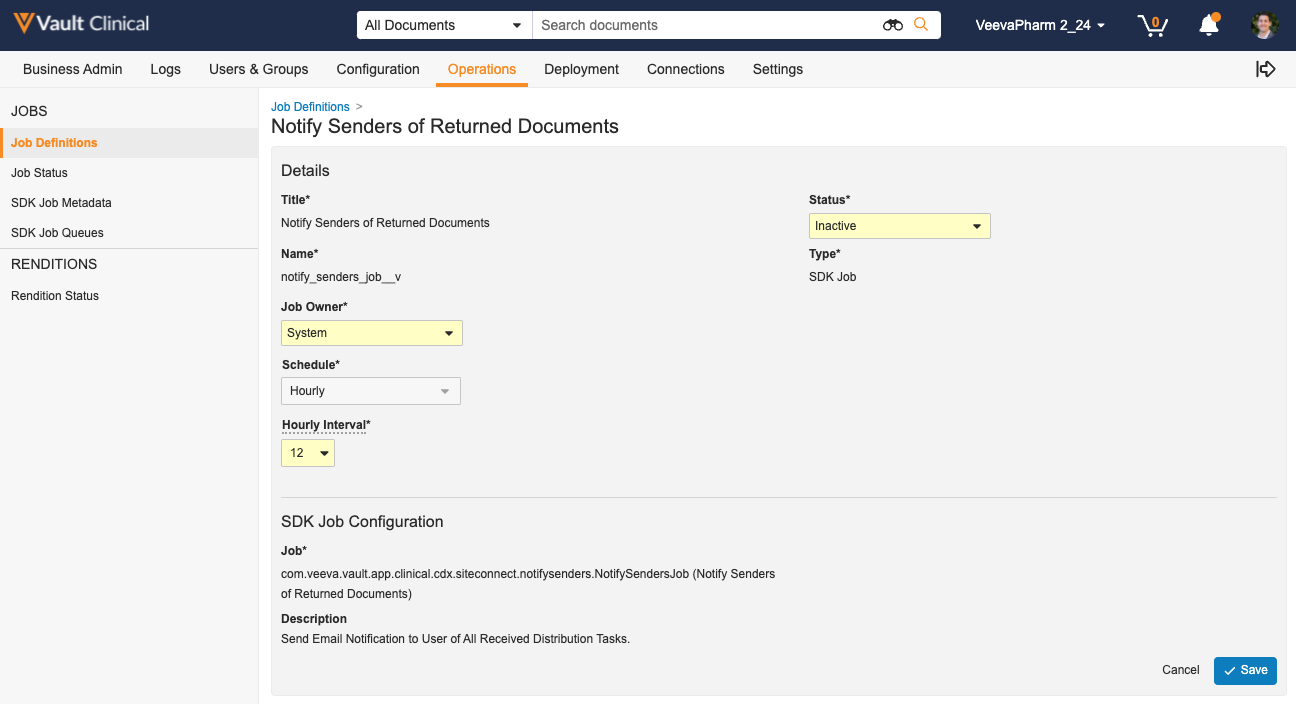
You can adjust the frequency of the notification users receive after their requested documents from a site are created in the Clinical Operations Vault by navigating to **Admin > Operations > Job Definitions** and clicking on the **Notify Senders of Returned Documents** job. You can configure the notification to send **Hourly**, **Daily**, **Weekly**, or **Monthly** in the _Schedule_ field, or set the _Status_ to **Inactive** to prevent Vault from sending the notification.

<a href="https://platform.veevavault.help/assets/images/returned-document-notification-job.png" data-lightbox="returned-document-notification-job.png" data-title="" data-alt="Returned Document Notifiction job">
  <img class="docimage" src="https://platform.veevavault.help/assets/images/returned-document-notification-job.png" alt="Returned Document Notifiction job" style=""  />
</a>

 [1]: #configuring-the-create--send-agreement-invitation-user-actions
 [2]: #enabling-veeva-site-connect
 [3]: #site-connect-details
 [4]: #configuring-site-package-definitions
 [5]: #configuring-clinical-network-user-actions
 [6]: #mapping-vault-clinical-docs-artifacts
 [7]: #configuring-field-defaults
 [8]: #notifications
 [13]: #send-document-via-clinical-network
 [15]: #default-value-formatting
 [16]: #configuring-the-send-agreement-invitation-entry-action
 [17]: #create-as-unclassified
 [18]: #single-study-docs
 [19]: #authenticated-doc-links
 [20]: #system-links
 [21]: #enabling-the-site-connect-user-field
 [22]: #connected-study-type
 [23]: #unblinded-content
 [24]: #auto-sys-links
 [25]: #man-sys-links