# Sending Documents & Document Requests

With <a href="/en/gr/64231/">Veeva Site Connect</a>
, you can send documents and document requests to any study site. You can send individual documents and document requests to a site from [the Library and *Expected Documents*][3], or send [Site Packages][4] to multiple sites at once using a single bulk action.

Vault creates _Distribution Tasks_ to track the contents, status, and destination of each document version transferred via Veeva Site Connect.


<div class="note-border alert-info">
  <div class="alert alert-info" role="alert">
    <div><i class="far fa-info-circle"></i></div>
    <div class="alert-text">
      <p><strong>Note</strong>: This feature is only available in Clinical Operations Vaults with Veeva Site Connect enabled.</p>
    </div>
  </div>
</div>


## Sending from Library & Expected Documents {#send-from-library-expected-documents}

You can send documents to target sites directly from your Library or _Expected Documents_ via user actions. When sending documents, Vault prompts you for different entries depending on the level of the document or document request. Vault determines if a document is site-, country-, or study-level based on the following criteria:

* **Site-level**: One or more values in the _Study Site_ document field.
* **Country-level**: One or more countries in the _Study Country_ field and no value in the _Study Site_ field.
* **Study-level**: One or more values in the _Study_ field and no value in the _Study Country_ field or _Study Site_ field.

You can view the following information about if or when each document version has been sent to one or more sites in the document information panel:

* **Sent to Site(s)**: _Yes_ or _No_; whether the document version has been sent to at least one site.
* **Initial Sent to Site(s) Date**: The first date that the document version was sent to a site.
* **Last Sent to Site(s) Date**: The most recent date that the document version was sent to a site.
* **Received from Site(s) Date**: The first date that the document version was received from a site.

### Send Documents From Library {#send-from-library}

To send documents in your Library to the target Vault:

  1. Select the **Send to Sites** option from the document's **Actions** menu.
  2. Select an **Action** and **Due Date**. For study and country-level documents, select the **Study Sites** that will receive the document.
  3. Optional: Enter **Comments**.
  4. Click **Next** or **Send**. 
  5. For study-level, country-level, and multi-site level documents, select the **Study Sites** that will receive the document. Vault only displays active _Study Sites_ in the dialog.
  6. Click **Send**.

When you send study-level, country-level or multi-site level documents to study sites, Vault creates _Distribution Tasks_ for each study site. You will receive a notification when the document distribution is complete.

Within ten minutes, Vault sends an email to _Study Persons_ with valid <a href="/en/gr/61542/#study-person-responsibilities">_Study Person Responsibility_</a>
 records for the _Maintain Essential Documents Responsibility_ for each applicable _Study Site_.

In Vaults with the _Enable Subartifacts_ setting enabled, when you send a document to a site, Site Connect populates the _Subartifact_ field on the corresponding _Distribution Task_ with the _Subartifact_ value from the document.

When a site completes their 'Revise and Return' _Distribution Task_ for a study-level, or multi-site level document, the system creates a new document in the Clinical Operations Vault with the study site tagged to it. When a site completes and returns a _Distribution Task_ for a site-level document, the system up-versions the document.

### Send Documents & Document Requests From Expected Documents {#send-from-expected-documents}

To send matched _Expected Documents_ to the target Vault:
 1. Navigate to **Planning > Expected Documents** and select the _Expected Document_.
 2. From the **Actions** menu, select the option to send matched documents. If the record contains matched documents, Vault will send a site-specific version of the document to the site. If the record does not contain any matched documents, Vault will send a request to the site to provide the document.
 3. Select an **Action** and **Due Date**.
 4. Click **Next** or **Send**.
 5. For study-level and country-level documents, select the **Study Sites** that will receive the document.
 6. Click **Send**.


Within ten minutes, Vault sends an email to _Study Persons_ with valid <a href="/en/gr/61542/#study-person-responsibilities">_Study Person Responsibility_</a>
 records for the _Maintain Essential Documents Responsibility_ for each applicable _Study Site_.

### Recalling a Document

To recall a document:

1. Navigate to the document you want to recall in the Library.
2. From the **Actions** menu, select **Mark Recalled from Site**.
3. Select the **Study Site(s)** from which you want to recall the document.
4. Enter a reason for why the document needs to be recalled. This reason is saved to the corresponding _Distribution Task_.
5. Click **Yes**.

Vault strikes through the document name in the row grid on the _Site Home_ page and users can no longer click it. In addition, site users can see the Sponsor or CRO's recall reason in an email and Vault notification.

## Automating Document Exchange with Study Sites

Vault provides the ability to automate document distribution and requests sent to study sites. Sponsors and CROs can determine which documents are auto-distributed by setting **Auto-distribute document action** to either **Revise & Return** or **None** on the document. An hourly job titled _Automated Document Distribution_ picks up these documents and creates _Distribution Task_ records only if the _Connected Study_ _Type_ field on the related _Study_ record is set to _Document Exchange_ and _Auto-document exchange_ is enabled on the related _Study Site_ records. Documents also support a _Sponsor/CRO Comments_ field which is included in the _Distribution Task_ that is created for the site.

<div class="note-border alert-info">
  <div class="alert alert-info" role="alert">
    <div><i class="far fa-info-circle"></i></div>
    <div class="alert-text">
      <p><strong>Note</strong>: The hourly <em>Automate Document Distribution</em> job only considers documents modified in the last 24 hours.</p>
    </div>
  </div>
</div>


To create auto-document requests, enable the _Auto-request from Site_ field on _Expected Document_ records. You can also include _Sponsor/CRO Comments_. For site-level _Required_ EDL records, if _Auto-request from Site_ is enabled, Vault creates one or more _Distribution Task_ records with the _Action_ field set to _Provide Original_.


<div class="note-border alert-info">
  <div class="alert alert-info" role="alert">
    <div><i class="far fa-info-circle"></i></div>
    <div class="alert-text">
      <p><strong>Note</strong>:  In Vaults with the <a href="/en/gr/30260/#subartifacts"><em>Enable Subartifacts</em> setting</a>
 enabled, Site Connect populates the <em>Subartifact</em> field on the new <em>Distribution Task</em> with the <em>Subartifact</em> value from the document when you auto-distribute documents to a Site.</p>
    </div>
  </div>
</div>


Vault creates _Distribution Task_ records based on the _# Expected_ value and the _All Document Count_ value. When the _# Expected_ field value is greater than the _All Document Count_ field value, Vault creates _Distribution Task_ records for the difference between the two values. For example, if the _# Expected_ value is five and the _All Document Count_ field value is two for an _Expected Document_ record, Vault creates three _Distribution Task_ records. Vault creates additional _Distribution Tasks_ when the _# Expected_ value increases. Vault also cancels open _Distribution Task_ records when the _# Expected_ value decreases or when the system matches documents to an _Expected Document_ record via manual upload, which increases the _All Document Count_ value.

The default _Due Date_ is set to one week from distribution task creation for all site tasks, but you can change this value within the _Distribution Task_ record.

Sites receive an email notification once a day for all documents and document requests sent via automated document exchange. The emails are sent everyday at 8:30 a.m. in the Vault's Timezone.

To enable auto-document distribution:

  1. Navigate to **Admin > Configuration > Document Fields**.
  2. Locate the relevant document type and click **Add > Existing Shared Field > Auto-distribute document action**. This action adds the _Auto-distribute document action_ field to documents assigned with the selected document type.
  3. Optional: Select **Add > Existing Shared Field > Sponsor/CRO Comments**. This action adds the _Sponsor/CRO Comments_ field to documents assigned with the selected document type. Although optional, this field is recommended.
  4. Click **Ok**.
  5. Navigate to **Admin > Configuration > Objects > Study Site > Layouts > Study Site Detail Page Layout**.
  6. Add the **Auto-document exchange** field to the **Details** section of the layout.
  7. Click **Save**.

It is recommended to add _Auto-distribute document action_ and _Sponsor/CRO Comments_ to document types with Site Connect-related <a href="/en/gr/618/#additional-doc-type-clinical-ops">process names</a>
. It is also recommended to enable the _Auto-distribute document action_ and _Auto-document exchange_ fields during document or _Study Site_ object lifecycle state changes with desired conditions via an entry action or event action, such as using the _Process Name_ value or by classification. Use another event or entry action to clear these fields when the document or _Study Site_ record reaches a state not desired for auto-distribution.

<div class="note-border alert-info">
  <div class="alert alert-info" role="alert">
    <div><i class="far fa-info-circle"></i></div>
    <div class="alert-text">
      <p><strong>Note</strong>: The <em>Auto-distribute document action</em> field is read-only by default. However, you can make this field editable on documents. Navigate to <strong>Admin &gt; Configuration &gt; Document Fields &gt; Shared Fields &gt; Auto-distribute document action &gt; Security Overrides</strong>. Click <strong>Edit</strong> and change the <strong>Default Security</strong> field to <strong>Editable</strong>. Then, click <strong>Save</strong>. You can now manually change this field on documents as needed.</p>
    </div>
  </div>
</div>


To enable auto-document requests creation:

1. Navigate to **Admin > Configuration > Objects > Expected Document > Layouts.**
2. Add **Auto-request from site** and **Sponsor/CRO Comments** to each desired object layout.
3. Click **Save**.

We recommend enabling _Auto-request from Site_ on _Expected Document_ records either manually with a <a href="/en/gr/42778/">field default</a>
 via an <a href="/en/gr/51700/">event action</a>
, or by defaulting values from the related _Template Expected Document Auto-request from Site and Sponsor/CRO Comments_ fields. Use another event action to clear the field when the record enters a state not desired for sending auto-requests to sites.

## Sending Site Packages {#sending-site-packages}

With Site Packages, you can send multiple documents and document requests to one or more _Study Sites_ for a _Study_ or _Study Country_.

The <a href="/en/gr/64233/#configuring-site-package-definitions">pre-configured *Site Package Definition*</a>
 that you select for a Site Package determines which template of documents your Vault will exchange with a site.

### Define Site Packages {#define-site-packages}

Select the option to send Site Packages from the **Actions** menu of an active _Study_, _Study Country_, or _Study Site_ record.

After selecting a **Site Package Definition** and **Due Date**, Vault displays a list of _Study Sites_  associated with the _Study_ or _Study Country_. Select the **Study Sites** that will receive a package and click **Next** to preview the Site Packages.

### Preview Site Packages {#preview-site-packages}

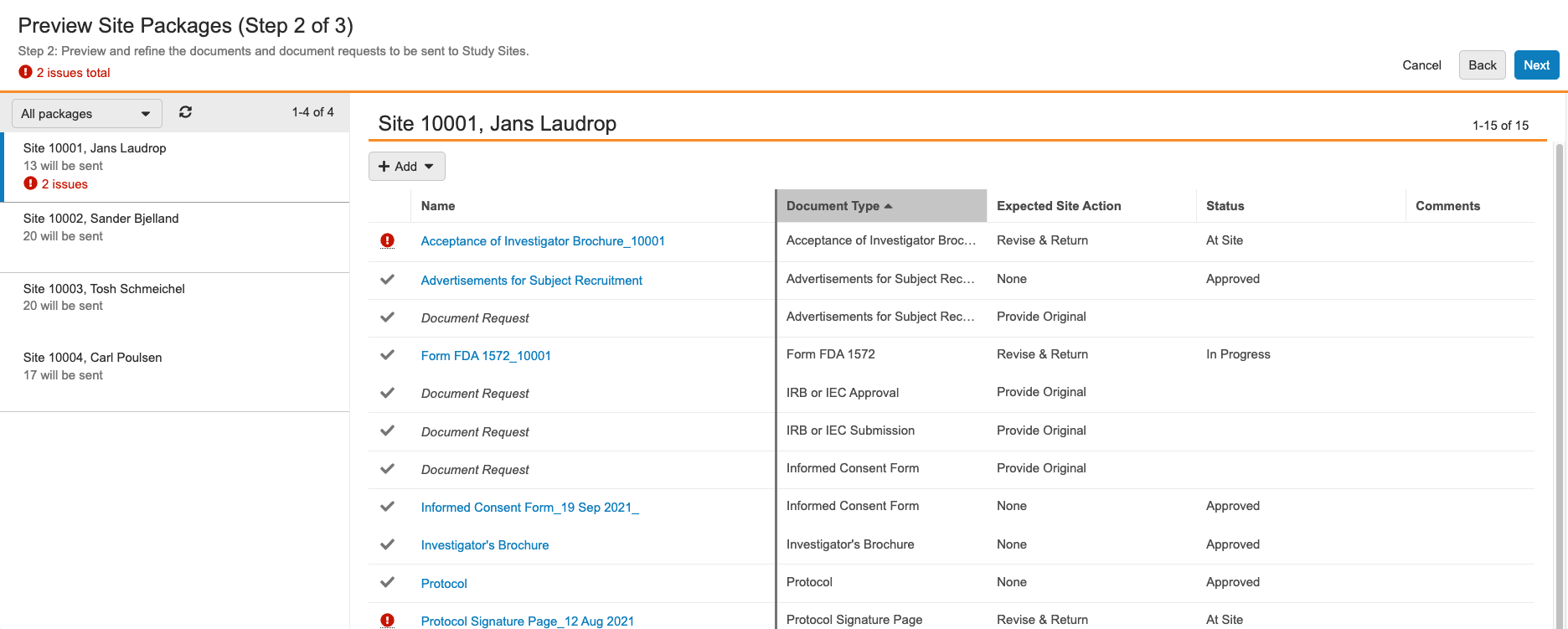
Vault displays each Site Package for individual sites. Click on a package to view the documents and document requests included in that Site Package. To modify the contents of a Site Package, click **+ Add** to include additional documents and document requests or hover over an item and click the **X** icon to remove it from the package.

<a href="/en/gr/31019/">Click into the **Comments** column</a>
 to enter any relevant comments for individual documents. Depending on the *Site Package Definition* you selected for the Site Package, you may see default values in the *Comments* fields that an Admin has configured.

Vault displays a red exclamation icon (<img class="inline" src="https://platform.veevavault.help/assets/images/clinops-site-package-issue.png" alt="Site Package Issue Icon" style="" />) if an issue prevents Vault from sending a document or document request to the site. Hover over the icon to see the issue details. For example, Vault only sends documents in states that have been <a href="/en/gr/64233/#send-document-via-clinical-network">configured for the **Send Documents to Sites** user action</a>
 and will indicate if one of the documents in the Site Package is not in the correct state.


<div class="note-border alert-info">
  <div class="alert alert-info" role="alert">
    <div><i class="far fa-info-circle"></i></div>
    <div class="alert-text">
      <p><strong>Note</strong>:  In Vaults with the <a href="/en/gr/30260/#subartifacts"><em>Enable Subartifacts</em> setting</a>
 enabled, Site Connect requires you select a value for the <em>Subartifact</em> field on document requests. The <em>Subartifact</em> value you select for the document request populates onto the corresponding <em>Distribution Task</em>. When site users upload documents for the document request <em>Distribution Task</em>, the system sets the <em>Subartifact</em> value on the document to the same value as the <em>Subartifact</em> value on the <em>Distribution Task</em>.</p>
    </div>
  </div>
</div>


After making adjustments and resolving any outstanding issues, click **Next** to confirm the Site Packages. Vault will remove documents with unresolved issues from the Site Package.

<a href="https://platform.veevavault.help/assets/images/clinops-preview-site-packages.png" data-lightbox="clinops-preview-site-packages.png" data-title="" data-alt="Preview Site Packages">
  <img class="docimage" src="https://platform.veevavault.help/assets/images/clinops-preview-site-packages.png" alt="Preview Site Packages" style=""  />
</a>

### Confirm Site Packages {#confirm-site-packages}

Review the Site Packages that Vault will send to each _Study Site_. The summary includes an overview of how many items Vault will send to each _Study Site_. Click **Send** to send the Site Packages to the sites.

## Received from Site Notifications

After any requested documents have been created in the Clinical Operations Vault from a specific _Study Site_, the requesting user receives a summary notification alerting them of the documents created. The frequency of these notifications varies based on <a href="/en/gr/64233/#notifications">Admin configuration</a>
.


 [3]: #send-from-library-expected-documents
 [4]: #sending-site-packages
