# Configuring Quality Control (QC) Risk-Assessment

eTMF allows you to take a risk-based approach to Quality Control (QC) reviews of documents. Vault selects a document for QC review based on the document type, risk level, and applicable rules.

## Configuration Overview
* Add the _Primary QC Status_, _Secondary QC Status_, and _Risk Assessment Memo_ fields to document types that will be included in the risk based QC process. Only _Classifications_ with these fields are eligible for QC risk assessment.
* Create [_Document Type Risk Mapping_][1] records.
* Create [_QC Risk Rule_ records][2].
* Configure the [_Quality Control_ document workflow][3] for risk assessment.

## Creating Document Type Risk Mappings {#document-type-risk-mapping}
_Document Type Risk Mapping_ records track the _QC Risk Level_ for specific _Classifications_ and, optionally, _Subartifacts_. You can only create one record for each _Classification_ and _Subartifact_.

To create a _Document Type Risk Mapping_ record:

1. Navigate to **Business Admin > Objects > Document Type Risk Mappings**.
2. Click **Create**.
3. Select a **Classification**.
4. Optional: Select a **Subartifact**.
5. Select a **QC Risk Level**.

Vault uses _Document Type Risk Mapping_ records to determine which [_QC Risk Rule_][2] to apply to a given document. Vault does not assign _QC Risk Rules_ to document type _Classifications_ with the _QC Risk Level_ of _None_, defaulting the applicable _Primary_ or _Secondary QC Status_ field to _QC Required_ as a result of the risk assessment.

## Creating QC Risk Rules {#creating-qc-risk-rules}
When a user sends a document for a QC review, and that document's _Classification_ has a _Document Type Risk Mapping_ record, Vault applies a qualifying _QC Risk Rule_ record. The _QC Risk Rule_ record determines the likelihood of Vault selecting the document for QC review based on the _Percentage Sampled_.

To create a _QC Risk Rule_ record:

1. Navigate to **Business Admin > Objects > QC Risk Rules**.
2. Click **Create**.
3. Select a **QC Risk Level**.
4. Select a **QC Type**. You can select _Pre-Approval_ or _Post-Approval_.
5. Optional: Select an **Organization**.
6. Optional: Select a **Study**.
7. Optional: Select a **Country**.
8. Enter a **Percent Sampled**.

When selecting a _QC Risk Rule_ for a document, Vault matches the _QC Risk Level_ on the _Document Type Risk Mapping_ record for the document's _Classification_ to the _QC Risk Level_ on the _QC Risk Rule_. To determine if it will select the document for QC review, Vault references the _Percent Sampled_ value on the applied _QC Risk Rule_ and generates a random number for that document. Vault compares the randomly generated number to the _Percent Sampled_ value and selects the document if the number falls within the value. For example, if the _Percent Sampled_ value is 80% and the randomly generated number is less than or equal to 80, Vault selects the document for QC review. If the randomly generated number is greater than 80, Vault does not select the document for review.

You can select an _Organization_, _Study_, or _Country_ for _QC Risk Rule_ records. When you create _QC Risk Rule_ records with values for these fields, the document must also match the values in those fields for the rule to apply. When more than one _QC Risk Rule_ record applies to a single document, Vault applies the rule with the largest _Percent Sampled_ value.

### Viewing Risk Rule Metrics
Vault generates a _Risk Rule Metric_ record for each _QC Risk Rule_. The _Risk Rule Metric_ record tracks the _Number of Matched Documents_ and _Number of Docs Requiring QC_ for the corresponding _QC Risk Rule_ record and updates the values once the system completes the _Risk Assessment_ system action. Vault resets the _Risk Rule Metric_ record when you change or update the associated _QC Risk Rule_.

## Configure Quality Control (QC) Workflow for Risk Assessment {#configuring-qc-workflow-risk-assessment}

<div class="note-border alert-info">
  <div class="alert alert-info" role="alert">
    <div><i class="far fa-info-circle"></i></div>
    <div class="alert-text">
      <p><strong>Note</strong>: For assistance configuring your workflow to enable the Quality Control risk assessment functionality, please contact Veeva Services.</p>
    </div>
  </div>
</div>


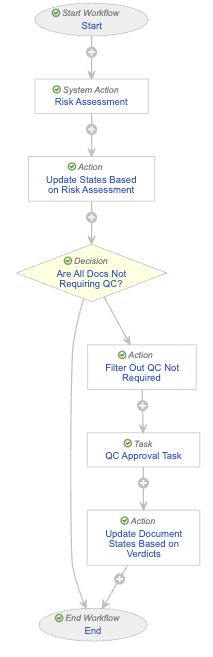
To enable Quality Control risk assessment, the Quality Control workflow requires a few additions. The workflow below provides an example of a Quality Control workflow including the necessary additions to enable the Quality Control risk assessment functionality.

<a href="https://platform.veevavault.help/assets/images/25r1.3-clinops-5-risk-assessment-qc.png" data-lightbox="25r1.3-clinops-5-risk-assessment-qc.png" data-title="" data-alt="Example QC Risk Assessment Workflow">
  <img class="docimage" src="https://platform.veevavault.help/assets/images/25r1.3-clinops-5-risk-assessment-qc.png" alt="Example QC Risk Assessment Workflow" style=""  />
</a>

The following describes the purpose of each step in this example <a href="/en/gr/50498/">workflow</a>:

* **_Risk Assessment_ system action**: This system action performs the risk assessment on the document in the workflow. This system action consists of identifying the _Document Type Risk Mapping_ record that corresponds to the document's _Document Type Classification_ and the correct _QC Risk Rule_ to apply. Next, the system generates a random number from one (1) to 100 and compares it to the _Percent Sampled_ value.
* **_Update States Based on Risk Assessment_ action**: This <a href="/en/gr/50498/#how-to-define-an-action-step">action step</a> enables the system to update the documents that do not require QC to _Approved_ and the documents that do require QC to _In QC Review_. These states may be different in your Vault.
* **_Are All Docs Not Requiring QC?_ decision step**: This <a href="/en/gr/50498/#decision">decision step</a> ends the workflow if all documents complete the risk assessment and do not require QC. If any documents in the workflow require QC, the documents move to another step in the workflow.
* **_Filter out QC Not Required_ action**: With this action, the workflow filters out the documents that do not require QC from the documents that do.
* **_QC Approval_ task**: This is the QC <a href="/en/gr/50498/#document_task_steps">task</a> for the documents that require QC.
* **_Update Document States Based on Verdicts_ action**: This action updates the state of documents that required QC.

## Related Permissions
Users can complete all steps in this article with the standard _Business Admin_, _System Admin_, or _Vault Owner_ security profile. If your Vault uses custom security profiles, your profile must grant the following <a href="/en/gr/22824/">permissions</a>: 

| Permission Type | Permission | Controls    |
| --------------- | ---------- | ----------- |
| Security Profile | Admin: Document Fields: Read, Create, Edit | Allows you to view and add fields on document types |
| Security Profile | Object: Document Type Risk Mapping: Read, Create, Edit, Delete | Allows you to view, create, edit, and delete _Document Type Risk Mapping_ records |
| Security Profile | Object: QC Risk Rule: Read, Create, Edit, Delete | Allows you to view, create, edit, and delete _QC Risk Rule_ records |
| Security Profile | Object: Risk Rule Metric: Read | Allows you to view _Risk Rule Metric_ records                                     |
| Security Profile | Admin: Document Workflow: Read, Create, Edit, Delete | Allows you to view, create, edit, and delete document workflows |


 [1]: #document-type-risk-mapping
 [2]: #creating-qc-risk-rules
 [3]: #configuring-qc-workflow-risk-assessment
