# Managing Document eSignature Templates

Signature pages allow Vault to generate a page with electronic signatures for a document and attach that page to the viewable rendition. Signature pages only appear with downloaded renditions and do not affect source files.

When creating a signature page, you can add and format content in the header, footer, and signature blocks using <a href="/en/gr/6037/#template-formatting">rich-text tools</a>
.

## Example Signature Page Layout {#example}

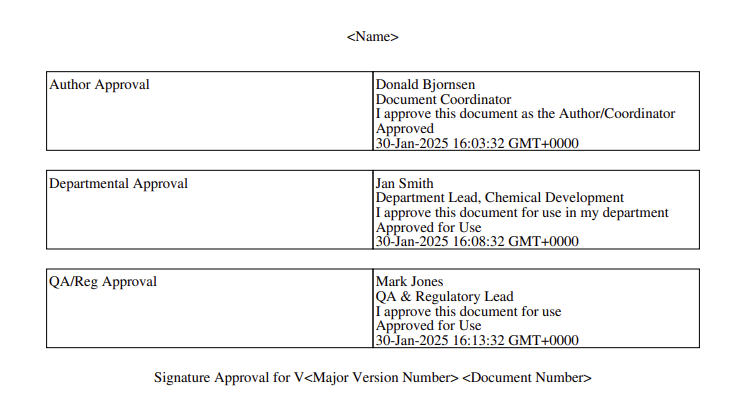
When Vault generates a document with an associated signature page template, the content in the template's signature block is repeated for each signature recorded against the document. See the following example generated using the [**Download Preview** button][1]:


<a href="https://platform.veevavault.help/assets/images/platform_signature_page_template_example.png" data-lightbox="images" data-title="" data-alt="Example signature page layout">
  <img class="docimage" src="https://platform.veevavault.help/assets/images/platform_signature_page_template_example.png" alt="Example signature page layout" style="width: 500px;"  />
</a>

## Accessing Template Management

From **Business Admin > Templates > Signature & Cover Pages**, you can manage eSignature page templates as well as the <a href="/en/gr/36366/">_Audit Export Cover Page_</a>
 and <a href="/en/gr/38684/">_Report Export Cover Page_</a>
 template.

## How to Create Signature Page Templates {#how-to-create-signature-page-templates}

To create a signature page template:

1. From the **Signature & Cover Page Templates** page, click **Create Signature Page Template**.<br>
2. Enter a **Name** for the template. This value only appears in the **Business Admin** area.
3. In the **Header** and **Footer** fields, enter and format the <a href="/en/gr/6037/#template-formatting">format the text, tokens, and logos</a>
 as needed. Vault adds this content to every signature page above and below the signature blocks as shown in the [example above][3].
4. In the **Signature Blocks** field, enter and <a href="/en/gr/6037/#template-formatting">format the text and tokens</a>
 for the signatures, such as the signee name, date, and workflow step tokens. Only the fields available from the token tool are valid fields for signature blocks. The content in the signature blocks field repeats for each rignature on the renfered page as shown in the [example above][3]. 
5. Select a **Location** for the signature page. The page can appear at the beginning or end of the document.
6. Optional: Click **Download Preview** to view the template and assess your changes. Vault translates any tokens into user-friendly labels in the preview.<br>
7.  Click **Save**.
8.  After creating the template, <a href="/en/gr/26100/">assign it to a document lifecycle</a>
.

## How to Edit Templates

To edit a signature page template:

1. From the **Signature & Cover Page Templates** page, click on the template.
2. Click **Edit**.
3. Make any necessary changes.
4. Click **Save**. The new template takes effect immediately for all new signatures.

<div class="note-border alert-info">
  <div class="alert alert-info" role="alert">
    <div><i class="far fa-info-circle"></i></div>
    <div class="alert-text">
      <p><strong>Note</strong>: If Vault has already generated a signature page for a specific document version, that signature page only updates to the new template after a user manually or automatically regenerates the page.</p>
    </div>
  </div>
</div>


## How to Delete Templates

Deleting a template removes it permanently from the Vault. Before deleting, you must change the associated lifecycle to not use the template. To delete:

1. From the **Signature & Cover Page Templates** page, hover over the template.
2. Click **Delete** (<i class="far fa-times-circle"></i>).
3. Click **Continue** in the confirmation dialog to confirm that you want to delete the template.

## About eSignature Page Generation & Regeneration {#esig-gen}

By default, Vault automatically generates or regenerates eSignature pages when documents enter their configured steady states. Users may generate and regenerate eSignature pages on documents in non-steady states using a <a href="/en/gr/12339/">user action</a>
 or <a href="/en/gr/12399/">entry action</a>
. 

<div class="note-border alert-info">
  <div class="alert alert-info" role="alert">
    <div><i class="far fa-info-circle"></i></div>
    <div class="alert-text">
      <p><strong>Note</strong>: You must first configure the user action or entry action before users can perform them.</p>
    </div>
  </div>
</div>


If a document corresponds to a lifecycle without a defined steady state, Vault generates the eSignature page on the first instance of a page view or by using a user or entry action.

### About eSignature Page Language

When available, Vault generates eSignature pages in the _Document Language_. The _Document Language_ field is only available in Vaults using <a href="/en/gr/13309/#enable-multi-language">multilingual document handling</a>
. If the _Document Language_ field is blank or unavailable, Vault generates eSignature pages using the Vault's _Base Language_.

## About Signature Dates & Times

Vault generally displays dates and times that are adjusted to the current user's selected time zone. However, on signature pages, the signature date and time appears in UTC.

## About Signature Page Sizing

Generated signature pages have the same dimensions as the first page of the viewable rendition. Note that they always use portrait layout. For advanced templates, Vault does not resize the template.

## About Character Limits

When using tokens in the signature page header or footer, keep in mind that these areas have maximum character limits. Consider the maximum length of the fields related to each token. Vault truncates the text on a single line after it reaches the maximum, so you may notice that some details are not visible when the tokens resolve.

The limit is 600 characters each for the header, signature block, and footer fields. Text that exceeds the first line is wrapped and displayed on the following line.

## Enabling Overlays & Signature Pages in the External Viewer

You can configure overlays and signature pages to be displayed in viewable renditions downloaded from the Approved Viewer available to external users in areas such as Approved Email (Veeva Commercial Content), Public Content Distribution (Veeva Commercial Content), and Safety Distribution (Veeva Safety). If the setting is enabled, both configured overlays and signature pages are applied.

To enable overlays and signature pages in the external viewer, navigate to **Admin > Settings > General Settings** and select the **Download with Overlays and Signature pages in External Viewer** checkbox in the **Documents** section.

This setting does not apply to viewable renditions downloaded from Send as Link emails or notifications.


 [1]: #how-to-create-signature-page-templates
 [2]: #about-advanced-templates
 [3]: #example
