# Using CRF Import

Many organizations use Medidata Rave EDC or other systems to collect clinical data and assemble subject case report forms. Using the CRF import feature, you can quickly and easily file all final subject CRFs for a study into Vault. After exporting final subject CRFs, use the actions menu on the corresponding study record to upload the exported ZIP file. Each final subject CRF within the export file becomes a new document with the appropriate study and site metadata, and with _Approved_ status.


<div class="note-border alert-info">
  <div class="alert alert-info" role="alert">
    <div><i class="far fa-info-circle"></i></div>
    <div class="alert-text">
      <p><strong>Note</strong>: This feature is only available on Clinical Operations eTMF Vaults. Before using this feature, an Admin must <a href="/en/lr/18918/">enable and configure</a> it.</p>
    </div>
  </div>
</div>


## Accessing CRF Import

You can access the **CRF Import** action from the **Studies** listing page or study detail page. To get to the **Studies** listing page, navigate to **Admin > Business Admin > Studies**. If your Vault includes a custom tab for the _Study_ object, you can also access CRF import from there.

## How to Import CRF

To import a ZIP file of CRFs:

  1. Open the **Studies** listing page.
  2. Select **Import CRF** from the actions menu on the correct study.
  3. In the **Import CRF** window, choose a ZIP file and click **OK** to upload. Note that your ZIP file must have the [correct structure][2] and be under 4GB.
  4. Vault sends a notification email when the document creation process is complete.

Note that, as the user who uploaded the file, you will become the document owner for all documents created by the import process.

## CRF File Structure {#structure}

In order to successfully import CRFs, the file must:

  * Be a standard ZIP file
  * Have a top-level folder
  * Have site-specific folders

When exporting CRFs from Medidata Rave EDC, they will automatically have the correct file structure.

There is no limit on the number of files in the ZIP file, as long as the total ZIP size is under 4GB.

### Site Matching & Folder Names

Vault uses the folder names on the site-specific folders to match documents to a specific site. The folder name must match the _Site Number_ value.

If you'd like to also include a description in the folder name, add a dash/hyphen before the description, for example, "7490-UCSF Medical Center" or "7490 – UCSF Medical Center." Vault ignores the description when creating documents from the ZIP file.

Note that Vault ignores both the filename for the ZIP file and the top-level folder name.

### Site Matching Errors

If the name on any site-specific folder does not match a configured study site (_Site Number_ value) in the Vault, document creation will fail for all folders.

### Document Name

Vault automatically populates the _Name_ field for the document based on the filename for the uploaded CRF file or, if your Vault uses a custom name format, based the configured format.

### Example Structure

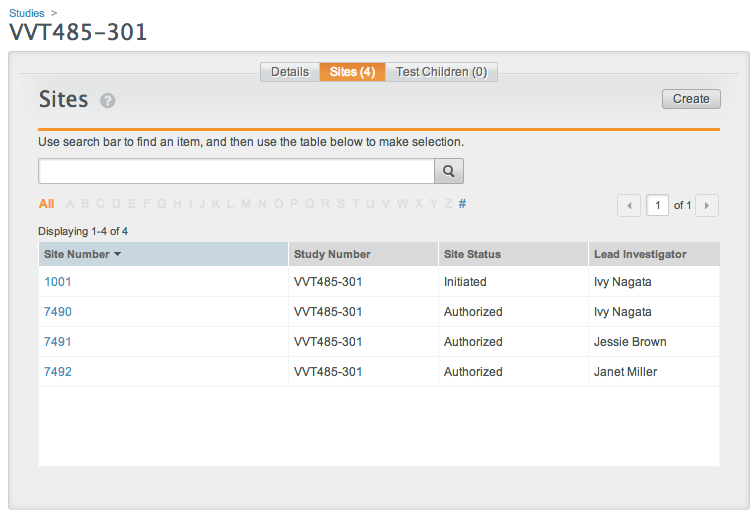
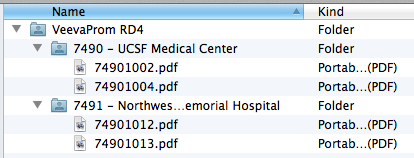
These images show the file and folder structure and the matching site configuration in Vault. When uploaded a ZIP file containing this structure would create four documents, with two for each site.

<a href="https://platform.veevavault.help/assets/images/etmf-crf-file-structure.png" data-lightbox="etmf-crf-file-structure.png" data-title="" data-alt="CRF File & Folder Structure">
  <img class="docimage" src="https://platform.veevavault.help/assets/images/etmf-crf-file-structure.png" alt="CRF File & Folder Structure" style=""  />
</a>

<a href="https://platform.veevavault.help/assets/images/etmf-crf-site-config.png" data-lightbox="etmf-crf-site-config.png" data-title="" data-alt="Configured Sites">
  <img class="docimage" src="https://platform.veevavault.help/assets/images/etmf-crf-site-config.png" alt="Configured Sites" style=""  />
</a>

## Versioning with CRF Import

You can use the CRF import feature to upload new versions of existing case report form documents. When you upload a ZIP file, Vault determines if the component files match existing documents using:

  * The study and site for which you upload the file.
  * The filename of the document source file, for example, "74901002.pdf."

If these three attributes match an existing document, Vault treats the uploaded file as a new version of the existing document. This functionality is the same as using the **Upload New Version** action on the document. The **Version** field will increment by a single major version, for example, V1.0 to V2.0.

## Related Permissions

Your security profile must include the following [permissions](/en/lr/22824/) to use CRF Import:

<table class="wbord">
  <tr>
    <td style="width: 10%;">
      <strong>Type</strong>
    </td>
    <td style="width: 15%;">
      <strong>Permission</strong>
    </td>
    <td style="width: 65%;">
      <strong>Controls</strong>
    </td>
  </tr>
  <tr>
    <td>
      Security Profile
    </td>
    <td>
      Objects: Study: View
    </td>
    <td>
      <p>
        Ability to view the <em>Study</em> object, either through <strong>Admin > Business Admin</strong> or a <strong>Studies</strong> tab.
      </p>
    </td>
  </tr>
  <tr>
    <td>
      Document Role
    </td>
    <td>
      Create Document
    </td>
    <td>
      <p>
        Ability to create documents for the CRF Import document type <em>(Final</em> <em>CRF</em> by default)
      </p>
      <p>
        If you do not have this permission, your Vault allows you to upload a ZIP file, but CRF Import will fail to create the documents.
      </p>
    </td>
  </tr>
  <tr>
    <td>
      Document Role
    </td>
    <td>
      Edit Document
    </td>
    <td>
      <p>
        Ability to upload a new version of the document through CRF Import
      </p>
      <p>
        Note that you must have this permission for the <em>Approved</em> state in the <em>CRF Import</em> lifecycle.
      </p>
    </td>
  </tr>
</table>

 [2]: #structure