# SiteVault Inviter
Sponsors working on connected _Studies_ can invite _Site_ personnel to sign up for SiteVault directly from their Clinical Operations Vault using SiteVault Inviter. To do so, users create new _Signup Campaigns_ to track requests associated with a particular _Study_. Then, they can create individual _Signup Requests_ for personnel associated with the _Study_. Users can track the status of the _Signup Request_ from delivery through its completion and see information about the Site's _Universal Site Number_ from within their Clinical Operations Vaults. Users may also identify which _Sites_/_USNs_ a _Site_ personnel email address may be associated with and send a SiteVault signup email to _Site_ personnel not already associated with a _USN_.
## The _Signup Campaign_ Object
The _Signup Campaign_ page layout contains information about the various _Signup Requests_ that you have created for a particular _Study_. The _Signup Campaign_ page layout allows you to track the status of your _Signup Requests_ throughout the lifecycle of the _Signup Request_ by expanding the various sections of the page layout.
 ## Using SiteVault Inviter
You can use SiteVault Inviter to invite _Site_ personnel to sign up for SiteVault from your Clinical Operations Vault.
1. Navigate to **Global Directory > SiteVault Signup Campaigns**.
2. Click **Create**.
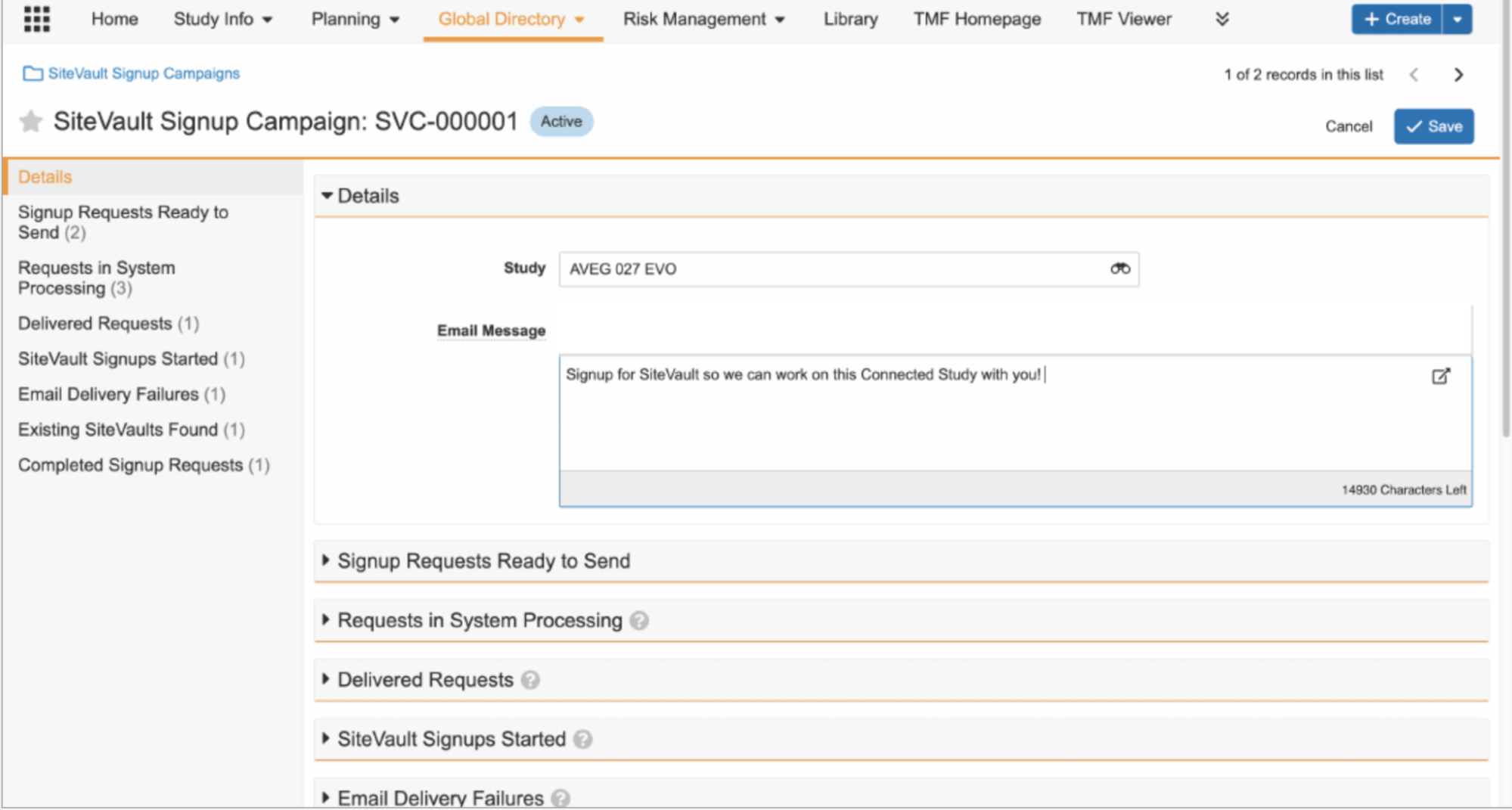
3. Select a **Study**.
4. Enter the **Email Message** you want to include.
5. Click **Signup Requests Ready to Send**.
6. Click **Create**.
7. Enter the **Name** of the personnel you wish to invite. Vault automatically enters the **Site Contact Email Address** of the personnel. Repeat as necessary to add all required personnel.
8. From the Actions Menu, click **Send Signup Requests**.
9. **Optional:** Enter the desired email address in the **Reply-to** field. This is the email address to which Vault sends a reply when a recipient of the _Signup Request_ responds to the _Signup Request_ email.
10. **Optional:** Enter the **Study Country** and **Study Site** on the _Signup Request_. This can assist with reporting needs. In addition, it can benefit Sponsors/CROs who require the process to be managed by individual CRAs.
Vault sends the signup invitation emails to the appropriate personnel. Vault also sends reminder emails to recipients. It sends one a week after the initial delivery of the invitation and another two weeks after the initial invitation.
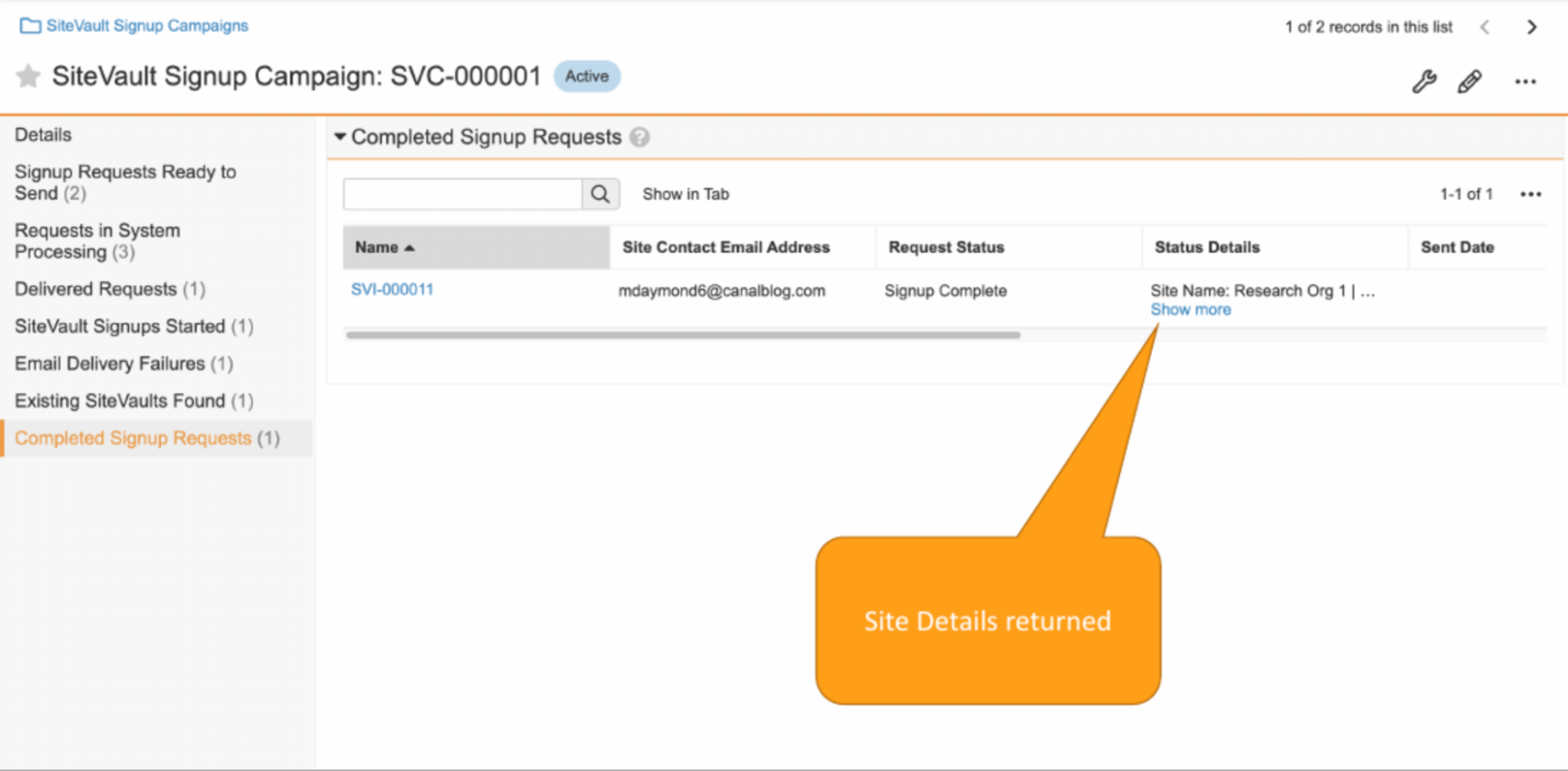
As people respond to the _Signup Requests_, Vault updates the _Request Statuses_. You can view these from the _Signup Campaign_ page layout. When users complete a _Signup Request_, Vault updates the _Status Details_ field of the _Signup Request_ with information about the _Site Details_.
## Using SiteVault Inviter
You can use SiteVault Inviter to invite _Site_ personnel to sign up for SiteVault from your Clinical Operations Vault.
1. Navigate to **Global Directory > SiteVault Signup Campaigns**.
2. Click **Create**.
3. Select a **Study**.
4. Enter the **Email Message** you want to include.
5. Click **Signup Requests Ready to Send**.
6. Click **Create**.
7. Enter the **Name** of the personnel you wish to invite. Vault automatically enters the **Site Contact Email Address** of the personnel. Repeat as necessary to add all required personnel.
8. From the Actions Menu, click **Send Signup Requests**.
9. **Optional:** Enter the desired email address in the **Reply-to** field. This is the email address to which Vault sends a reply when a recipient of the _Signup Request_ responds to the _Signup Request_ email.
10. **Optional:** Enter the **Study Country** and **Study Site** on the _Signup Request_. This can assist with reporting needs. In addition, it can benefit Sponsors/CROs who require the process to be managed by individual CRAs.
Vault sends the signup invitation emails to the appropriate personnel. Vault also sends reminder emails to recipients. It sends one a week after the initial delivery of the invitation and another two weeks after the initial invitation.
As people respond to the _Signup Requests_, Vault updates the _Request Statuses_. You can view these from the _Signup Campaign_ page layout. When users complete a _Signup Request_, Vault updates the _Status Details_ field of the _Signup Request_ with information about the _Site Details_.