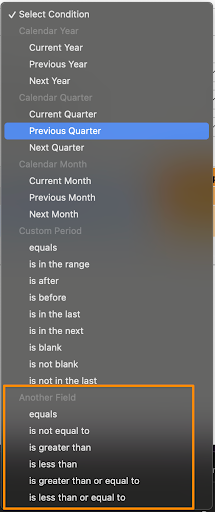
Note: Sometimes, you can answer the same question for an individual document from the Where Used view.
For example, users can report on relationships where the Source and Target documents have different values for a given field:
 ## Version-Specific Document Relationship Reports
In document relationship reports, the primary reporting object always shows the latest document version, regardless of when the document relationship was created. The secondary reporting object honors version specificity for document relationships that are version-specific. For example, if your source document is version-specific, the target document should be the primary reporting object.
## Document Aliases
The **Alias** fields help you to understand the context for fields and filters in your report. For example, when adding a report filter, the list of fields includes fields for the source document and for the target document. Rather than showing "source" and "target" headings for these, Vault uses the alias values (Copy and Original, etc.) as the headings.
## Version-Specific Document Relationship Reports
In document relationship reports, the primary reporting object always shows the latest document version, regardless of when the document relationship was created. The secondary reporting object honors version specificity for document relationships that are version-specific. For example, if your source document is version-specific, the target document should be the primary reporting object.
## Document Aliases
The **Alias** fields help you to understand the context for fields and filters in your report. For example, when adding a report filter, the list of fields includes fields for the source document and for the target document. Rather than showing "source" and "target" headings for these, Vault uses the alias values (Copy and Original, etc.) as the headings.
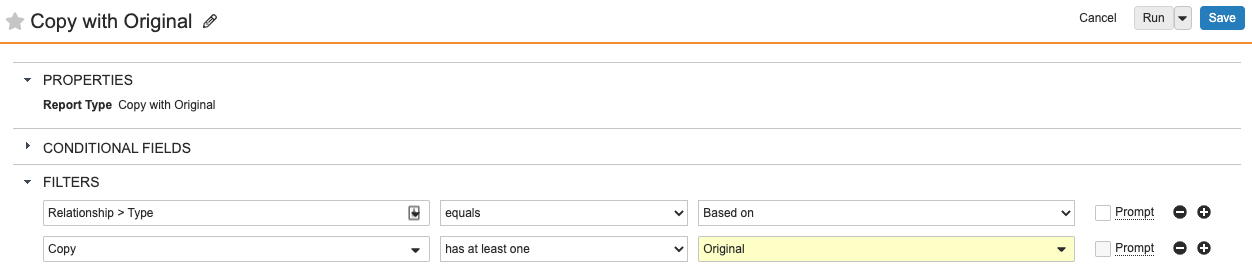 The aliases also appear as column headers for each reporting object.
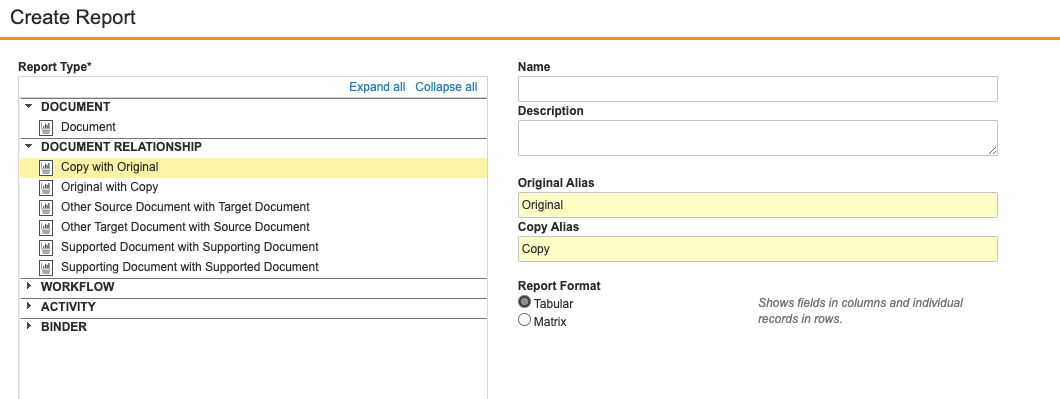
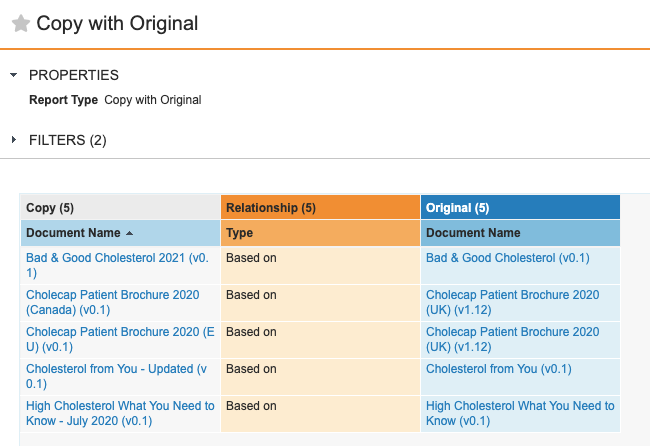 Aliases are set automatically for document relationship reports, but you can update the values after selecting a report type for a new report. Note that alias values (like report types) are only editable during the first step of report creation; you cannot update these later.
 ## Example Setups {#example_setups}
### Global Document Reuse Report
This example explains how specific report settings need to be set in order to create a report that shows global documents with their country-specific copies.
* Report Type: Original with Copy
* Report Format: Tabular
* Original Alias: Global Document
* Copy Alias: Local Document
* Filters:
* _Relationship > Type_ equals _Based On_ (default filter)
* _Global Document_ has at least one _Local Document_ (default filter)
* _Global Document > Country_ equals _Global_
* _Local Document > Country_ does not equal _Global_
### Related Pieces by Document Report
This example explains how specific report settings need to be set in order to create a report that shows promotional pieces with their related pieces.
* Report Type: Supported Document with Supporting Document
* Supporting Document Alias: Related Piece
* Supported Document Alias: Promotional Piece
* Filters:
* _Relationship > Type_ equals _Related Pieces_ (default filter requires update)
* _Promotional Piece_ has at least one _Related Piece_ (default filter)
### Linked Document Relationship Report
This example explains how specific report settings need to be set in order to create a report that shows educational pieces with their linked reference documents.
* Report Type: Other Target Document with Source Document
* Target Document Alias: Educational Document
* Source Document Alias: Reference Document
* Filters:
* _Relationship > Type_ equals _Linked Documents_ (user must manually select the relationship type)
* _Source Document_ has at least one _Target Document_ (default filter)
[0]: #example_setups
## Example Setups {#example_setups}
### Global Document Reuse Report
This example explains how specific report settings need to be set in order to create a report that shows global documents with their country-specific copies.
* Report Type: Original with Copy
* Report Format: Tabular
* Original Alias: Global Document
* Copy Alias: Local Document
* Filters:
* _Relationship > Type_ equals _Based On_ (default filter)
* _Global Document_ has at least one _Local Document_ (default filter)
* _Global Document > Country_ equals _Global_
* _Local Document > Country_ does not equal _Global_
### Related Pieces by Document Report
This example explains how specific report settings need to be set in order to create a report that shows promotional pieces with their related pieces.
* Report Type: Supported Document with Supporting Document
* Supporting Document Alias: Related Piece
* Supported Document Alias: Promotional Piece
* Filters:
* _Relationship > Type_ equals _Related Pieces_ (default filter requires update)
* _Promotional Piece_ has at least one _Related Piece_ (default filter)
### Linked Document Relationship Report
This example explains how specific report settings need to be set in order to create a report that shows educational pieces with their linked reference documents.
* Report Type: Other Target Document with Source Document
* Target Document Alias: Educational Document
* Source Document Alias: Reference Document
* Filters:
* _Relationship > Type_ equals _Linked Documents_ (user must manually select the relationship type)
* _Source Document_ has at least one _Target Document_ (default filter)
[0]: #example_setups