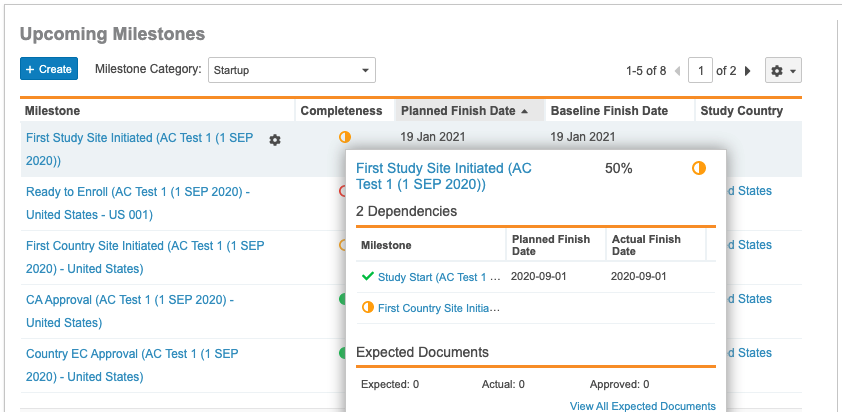
Note: This feature is only available on Clinical Operations eTMF Vaults and requires some configuration by an Admin.
### Completeness
This widget displays the percentage of EDL items based on the milestone you select from the _Upcoming Milestones_ widget, whose **Requiredness** is set to _Required_. The number listed above _Unapproved Documents_ is a count of all the documents, to which the user has access, whose latest version is not in the _Steady State_ type based on its lifecycle configuration. This count does not include documents in the _Superseded_ or _Obsolete_ lifecycle state.
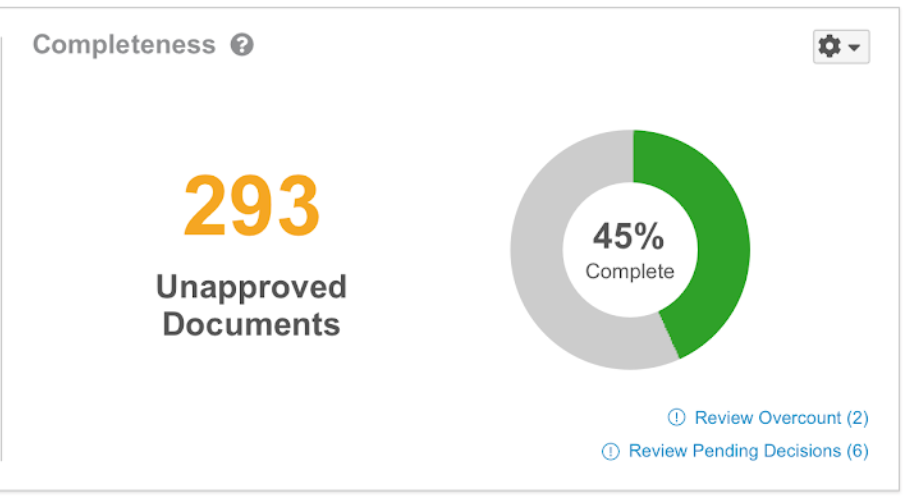 From this widget, click **Unapproved Documents** to view all documents contributing to the *Unapproved Document* count in the _Documents_ page. The _Documents_ page only displays documents the user has view permissions for. You can also _Review Overcount_ or _Review Pending Decisions_. Click **Review Overcount** to go to a pre-filtered list of EDL items with an _Overcount_ value of **Yes**. Click **Review Pending Decisions** to go to a pre-filtered list of EDL items with _Requiredness_ set to **Pending Decision**.
### Timeliness {#Timeliness}
This widget displays the timeliness of document approval as a pie chart with two calculated values: _Approved in less than or equal to {#} days_ and _Approved in greater than {#} days_. Your Vault's Admin will define these values.
From this widget, click **Unapproved Documents** to view all documents contributing to the *Unapproved Document* count in the _Documents_ page. The _Documents_ page only displays documents the user has view permissions for. You can also _Review Overcount_ or _Review Pending Decisions_. Click **Review Overcount** to go to a pre-filtered list of EDL items with an _Overcount_ value of **Yes**. Click **Review Pending Decisions** to go to a pre-filtered list of EDL items with _Requiredness_ set to **Pending Decision**.
### Timeliness {#Timeliness}
This widget displays the timeliness of document approval as a pie chart with two calculated values: _Approved in less than or equal to {#} days_ and _Approved in greater than {#} days_. Your Vault's Admin will define these values.
 ### Tasks Requiring Attention
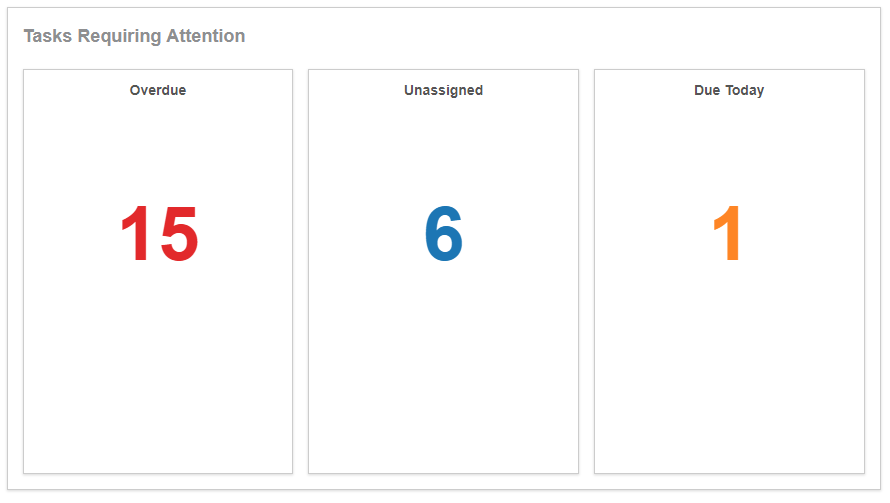
This widget displays the number of document and clinical user tasks that are _Overdue_, _Unassigned_, and _Due Today_ based on the study, study country, or site you choose in the **Study Selector**.
Click on a number to display a list of tasks filtered on the respective metric. Note that these lists are not comprehensive. We recommend that you utilize reports to capture the exact number of tasks that are _Overdue_, _Unassigned_, and _Due Today_.
### Tasks Requiring Attention
This widget displays the number of document and clinical user tasks that are _Overdue_, _Unassigned_, and _Due Today_ based on the study, study country, or site you choose in the **Study Selector**.
Click on a number to display a list of tasks filtered on the respective metric. Note that these lists are not comprehensive. We recommend that you utilize reports to capture the exact number of tasks that are _Overdue_, _Unassigned_, and _Due Today_.
 ### My Tasks
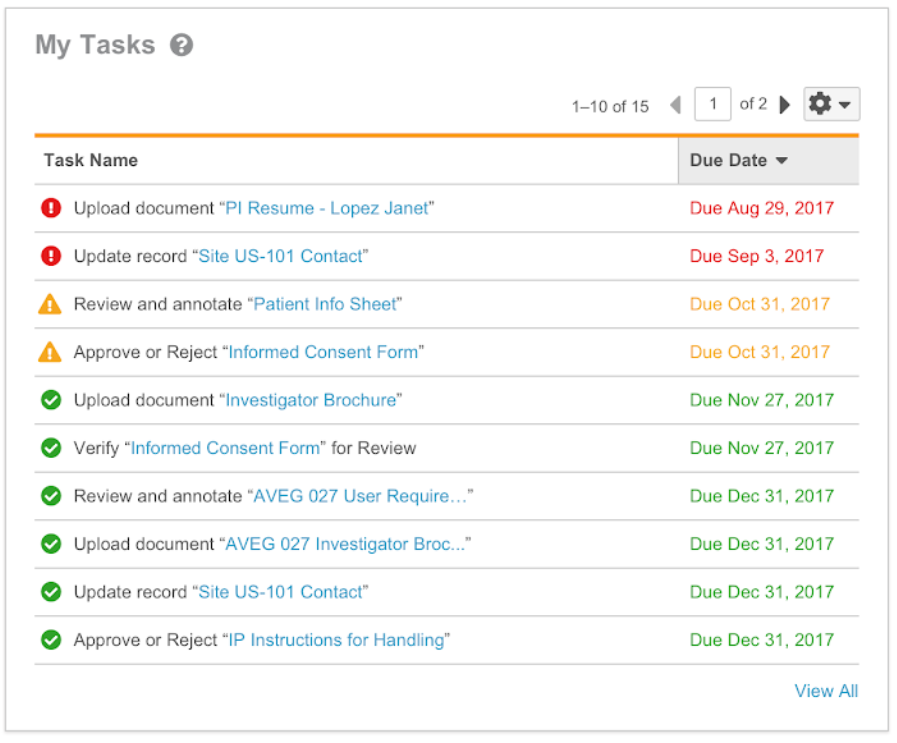
Displays up to ten (10) of your assigned tasks. Note that _My Tasks_ only shows document, envelope, and clinical user tasks assigned to you. View quality issue tasks from the [Quality Issues][7] widget.
### My Tasks
Displays up to ten (10) of your assigned tasks. Note that _My Tasks_ only shows document, envelope, and clinical user tasks assigned to you. View quality issue tasks from the [Quality Issues][7] widget.
 ### Quality Issues {#quality-issues}
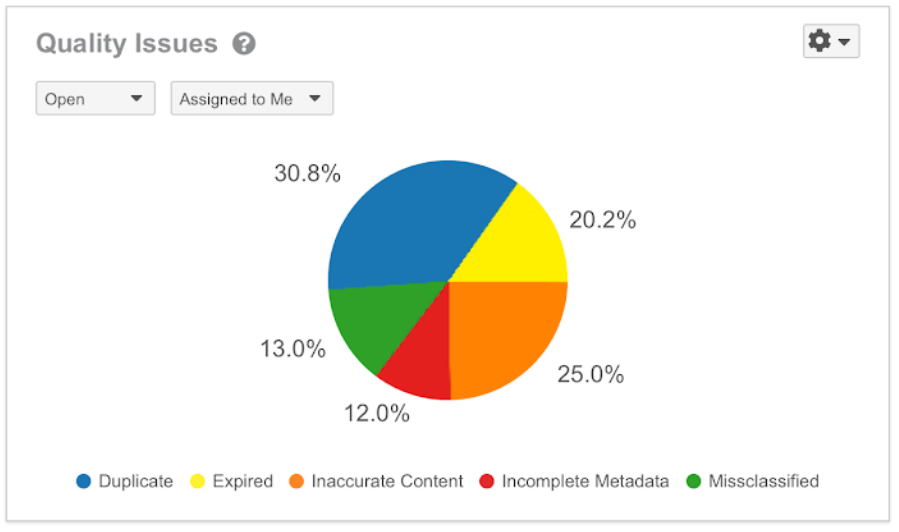
The [_Quality Issues_](/en/lr/50384/) widget shows a pie chart of the quality issues in your Vault. The chart groups issues by type (_Duplicate_, _Expired_, _Misclassified_, etc.). You can filter to show _Open_ or _Closed_ issues, all issues, or issues assigned to you.
You must [add the _Quality Issue_ shared field](/en/lr/4884/) to relevant document types before Vault will display quality issues for documents of those types on the homepage. Any quality issues that you create for a document prior to the configuration of this field will not appear on the homepage.
### Quality Issues {#quality-issues}
The [_Quality Issues_](/en/lr/50384/) widget shows a pie chart of the quality issues in your Vault. The chart groups issues by type (_Duplicate_, _Expired_, _Misclassified_, etc.). You can filter to show _Open_ or _Closed_ issues, all issues, or issues assigned to you.
You must [add the _Quality Issue_ shared field](/en/lr/4884/) to relevant document types before Vault will display quality issues for documents of those types on the homepage. Any quality issues that you create for a document prior to the configuration of this field will not appear on the homepage.
 ## Related Permissions {#related-permissions}
The following permissions control your ability to use the TMF Homepage:
## Related Permissions {#related-permissions}
The following permissions control your ability to use the TMF Homepage:
|
Type |
Permission Label |
Controls |
|
Security Profile |
Tabs: TMF Homepage: View |
Ability to view and access the TMF Homepage tab on the navigation bar. |
|
Security Profile |
Objects: Activity: User Task: Read |
Ability to view Tasks in the Tasks Requiring Attention and My Tasks widgets. |
|
Security Profile |
Objects: Clinical User Task: Read |
Ability to view Clinical User Tasks. Note that you must assign the read permission on all object types for the Clinical User Tasks object. |
|
Security Profile |
Objects: Expected Document: Read |
Ability to view EDL items. Note that you must assign the read permission on all object types for the Expected Document object. |
|
Security Profile |
Objects: Milestones: Read |
Ability to view Milestone records. Note that you must assign the read permission on all object types for the Milestone object. |
|
Security Profile |
Objects: Quality Issue: Read |
Ability to view Quality Issues. Note that you must assign the read permission on all object types for the Quality Issue object. |