# Using TMF Transfer

TMF Transfer provides an easy way to send a TMF from a source Vault (typically a CRO) to a target Vault (typically a sponsor) with minimal mapping between Vaults. After activating an _Agreement_ for a specific study, users in the source Vault can trigger the [transfer of the study components and related documents][7] to the target Vault.

In the target Vault, users can select transferred studies in the [TMF Viewer](/en/lr/55206/) to view all study documents hierarchically according to how the document types are mapped in the source Vault.


<div class="note-border alert-info">
  <div class="alert alert-info" role="alert">
    <div><i class="far fa-info-circle"></i></div>
    <div class="alert-text">
      <p><strong>Note</strong>: Some <a href="/en/lr/63357/">configuration is required in both Vaults</a> to utilize the TMF Transfer feature in your eTMF Vault.</p>
    </div>
  </div>
</div>


## Overview

  * [Create an Agreement][5] in the initiating Vault that defines what data Vault will exchange.
  * Send the Agreement to the receiving Vault. A user from the receiving Vault must [accept and approve the Agreement][6] for it to become active and for data exchange to begin.
  * [Manually trigger the data transfer][7] to the target Vault as needed.

Vault creates a _CDX ID_ for all Vault-managed records and documents. A _CDX ID_ allows you to identify object records and documents across all Vaults, ensuring that both documents and object records remain in sync.

## Related Objects

The following objects support TMF Transfer:

  * **Agreement**: A record of an agreement between two Vaults that allows actual data exchange to occur.
  * **Agreement Activity**: Captures activities related to the transfer of data between Vaults.
  * **CDX Rule:** A rule that defines the behavior of record and document exchanges. Vault defines and provides these rules for you.
  * **CDX Rule Set**: A set of rules that determines data transfer logic between two Vaults. Vault defines and provides these sets for you.
  * **Clinical Transfer Rule Override**: Allows you to override specific rules for outgoing transfers.
  * **Clinical Transfer Override Agreement**: Links a _Clinical Network Rule Override_ record to an _Agreement_.
  * **Configuration Mapping**: [Maps components](/en/lr/63357/#configuration-mapping) that have different names in the source and target Vaults.
  * **Field Default**: [Specifies default values](/en/lr/63357/#field-defaults) for document and object fields.
  * **Scope Variable**: Defines which object Vault transfers data from.

## Creating Agreements {#create-agreement}

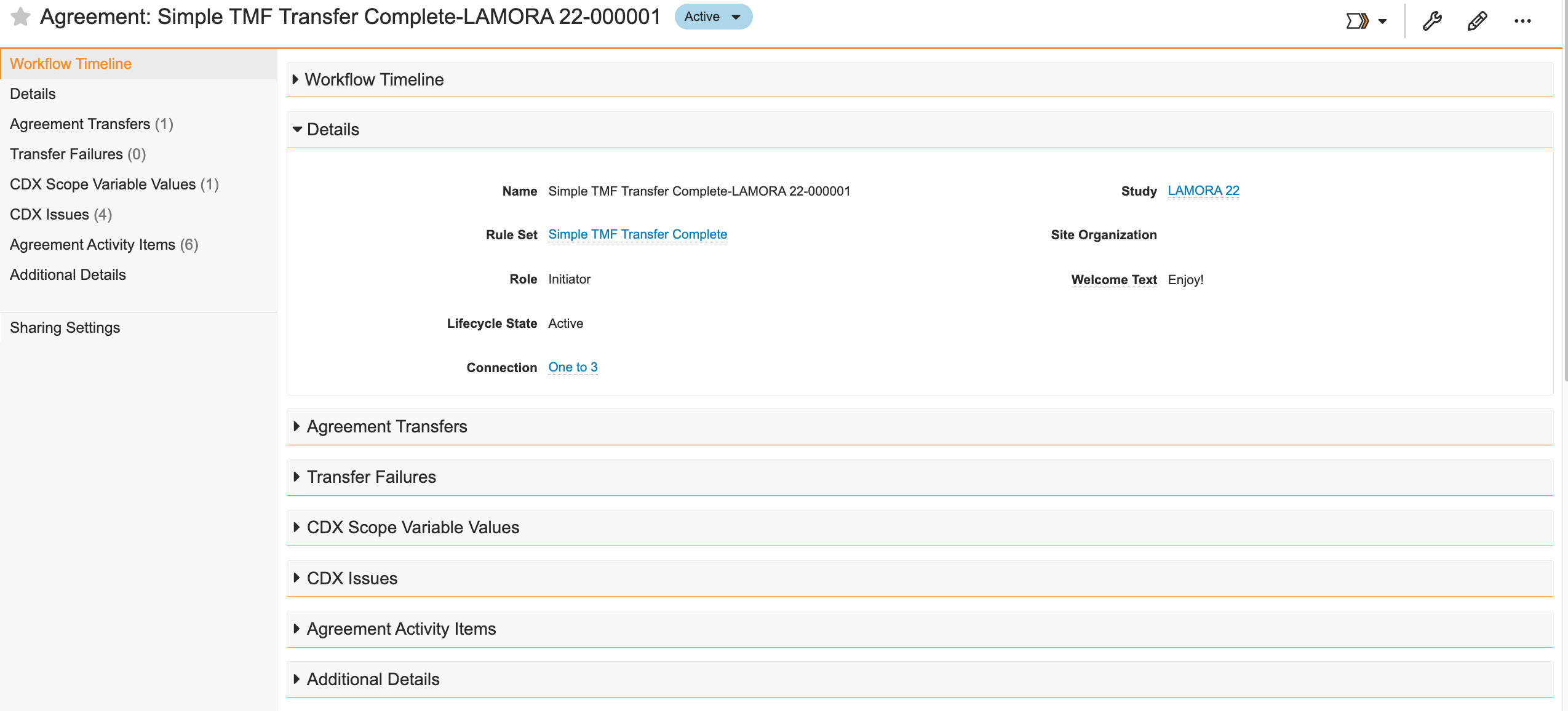
Create and send an _Agreement_ record and have a representative from the target Vault approve the agreement. To do this:

  1. **Create** an _Agreement_ record from **Business Admin** or a custom tab. You can also create an _Agreement_ from the related object section of a study.
  2. Select a [**Rule Set**][10].
  3. Leave the **Role** set to _Initiator_. Do not change the **Role**.
  4. Select a **Connection**.
  5. Select a **Study** from which Vault will transfer data.
  6. Optional: Select the **Schedule Transfer** checkbox to run the transfer daily.
  7. Click **Save**. This moves the agreement to the _Configuring_ state.
  8. Optional: **Add** [_Clinical Transfer Rule Overrides_][11] to limit the scope of the records transferred from your Vault.
  9. Select **Send Agreement Invitation** from the **Actions** menu. This moves the agreement to the _Pending_ state and creates an _Agreement_ record in the target Vault.

<div class="note-border alert-info">
  <div class="alert alert-info" role="alert">
    <div><i class="far fa-info-circle"></i></div>
    <div class="alert-text">
      <p><strong>Note</strong>: Add the <em>Include TMF Documents</em> and <em>Schedule Transfer</em> fields to the TMF Transfer <em>Agreements</em> page layout to view and select the field.</p>
    </div>
  </div>
</div>


At this point, you must wait until a user in the target Vault approves the agreement and activates the connection.

<a href="https://platform.veevavault.help/assets/images/tmf-transfer-create-agreement.png" data-lightbox="tmf-transfer-create-agreement.png" data-title="" data-alt="TMF Transfer Agreement">
  <img class="docimage" src="https://platform.veevavault.help/assets/images/tmf-transfer-create-agreement.png" alt="TMF Transfer Agreement" style="width: 50%;"  />
</a>

Vault prevents you from reclassifying or creating new versions of transferred documents in the target Vault while the agreement is active. This eliminates risks of discrepancies between the Vaults and ensures synchronization with the source Vault.


### Accepting an Agreement {#accept-agreement}

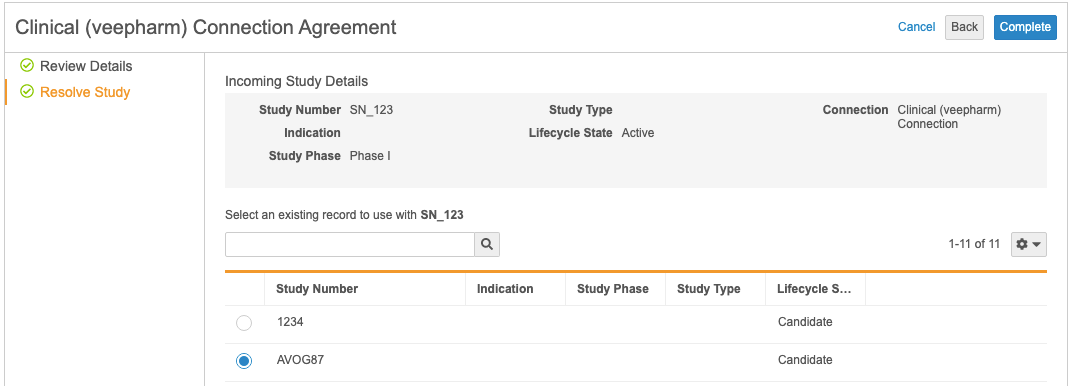
Vault creates the _Approve Agreement_ workflow task in the target Vault and sends notifications to relevant users. Once a valid user clicks **Accept**, and then selects the **Complete** verdict on the task, Vault launches the _Agreement_ wizard.

The wizard displays details about the agreement, including the requesting Vault and study. Clicking **Next** displays more detailed information about the study and allows the receiving user to map the study in the source Vault to an existing study in the target Vault.
<a href="https://platform.veevavault.help/assets/images/tmf-transfer-accept-agreement.png" data-lightbox="tmf-transfer-accept-agreement.png" data-title="" data-alt="Accepting TMF Transfer Agreement">
  <img class="docimage" src="https://platform.veevavault.help/assets/images/tmf-transfer-accept-agreement.png" alt="Accepting TMF Transfer Agreement" style=""  />
</a>

The receiving user must click **Complete** and approve the agreement to activate the connection.

### Rule Sets {#rule-sets}

Rule sets determine what object records and documents Vault transfers. The following rule sets support TMF Transfer:

<table class="wbord">
  <tr>
    <td>
      <p>
        <strong>Rule Set</strong>
      </p>
    </td>
    <td>
      <p>
        <strong>Transferred</strong><strong> Components</strong>
      </p>
    </td>
  </tr>
  <tr>
    <td>
      <p>
        <em>TMF Transfer Complete</em>
      </p>
    </td>
    <td>
      <ul>
        <li>
          <em>Study Country</em> records
        </li>
        <li>
          <em>Study Site</em> records records
        </li>
        <li>
          All steady state study documents
        </li>
      </ul>
    </td>
  </tr>
  <tr>
    <td>
      <p>
        <em>TMF Transfer Blinded</em>
      </p>
    </td>
    <td>
      <ul>
        <li>
          <em>Study Country</em> records
        </li>
        <li>
          <em>Study Site</em> records records
        </li>
        <li>
          All blinded steady state study documents
        </li>
      </ul>
    </td>
  </tr>
  <tr>
    <td>
      <p>
        <em>TMF Transfer (No Site Creation)</em>
      </p>
    </td>
    <td>
      <ul>
        <li>
            <em>Study Country</em> records
        </li>
        <li>
          All steady state study documents
        </li>
      </ul>
    </td>
  </tr>
  <tr>
    <td>
      <p>
        <em>TMF Transfer Blinded (No Site Creation)</em>
      </p>
    </td>
    <td>
      <ul>
      <li>
          <em>Study Country</em> records
      </li>
        <li>
          All blinded steady study documents
        </li>
      </ul>
    </td>
  </tr>
</table>

The [CTMS Transfer](/en/lr/738058/) rule set also supports the transfer of TMF documents when you select the **Include TMF Documents** checkbox. This selection on the CTMS Transfer prevents two separate CTMS Transfer and TMF Transfer agreements from running at the same time and simplifies the agreements process for Admin.


<div class="note-border alert-info">
  <div class="alert alert-info" role="alert">
    <div><i class="far fa-info-circle"></i></div>
    <div class="alert-text">
      <p><strong>Note</strong>: Depending on the <a href="/en/lr/63357/#activating-rule-sets">configuration of your Vault</a>, you may only see the <em>TMF Transfer Complete</em> rule set.</p>
    </div>
  </div>
</div>


### Rule Overrides {#rule-overrides}

_Clinical Transfer Rule Overrides_ allow you to limit the scope of outbound records transferred between Vaults. For example, the CRO may want to only send documents to the sponsor where the _QA Check Completed_ field is set to _Yes_. Create a _Rule Where Clause Override_ record to apply this limitation to all documents and records sent to the target Vault.

Overrides only affect outbound transfers from the Vault with the override configured. They do not limit incoming transfers.

You can add _Clinical Transfer Rule Overrides_ to _Agreement_ records in _Pending_ or _Configuring_ state.

#### Types of Overrides

  * **Rule Where Clause Override**: Allows you to override the _Where Clause_ of a single Rule. For example, if the _Where Clause_ of a _Rule_ is `study__v = {study}` and the _Additional Where Clause_ of the override is `blinding__v = 'Blinded'`, then Vault applies the combined clause of: `study__v = {study} AND blinding__v = 'Blinded'`.
  * **Rule Set Document Where Clause Override**: Allows you to override the _Where Clauses_ for all the _Rules_ in a rule set. For example, if a rule set contains two _Rule_ records, one with _Where Clause_ `study__v = {study}`, the other with _Where Clause_ `organization__v = {organization__v}`, and the _Additional Where Clause_ of the override is `blinding__v = 'Blinded'`, then Vault applies the combined clause of: `study__v = {study} AND organization__v = {organization__v} AND blinding__v = 'Blinded'`.

#### How to Create Rule Overrides

  1. Click **Add** in the _Clinical Transfer Rule Override_ section of an _Agreement_ record. You can also create _Clinical Transfer Rule Overrides_ from **Admin** > **Business Admin** or a custom tab.
  2. Click **Create**.
  3. Select an override type and click **Continue**.
  4. Enter a **Name** for the override.
  5. Select a **Rule Set**.
  6. Enter additional details depending on the override type you selected above:
      1. **Rule Where Clause Override**: Select a **Rule** and enter an **Additional Where Clause**.
      2. **Rule Set Document Where Clause**: Enter an **Additional Where Clause**.
      3. **Rule Override Owner**: Select a **Rule** and an **Override Owner**.
  7. Click **Save**.
  8. Click **OK** to apply the override to the _Agreement_.

#### Rule Override Limitations

  * You cannot add overrides to _Agreements_ in the _Active_ state.
  * You cannot create overrides for _Rules_ that contain a _Scope Variable_ component. For example, you cannot override the _Study_ variable.
  * You cannot edit _Clinical Transfer Rule Override_ records linked to an _Agreement_ in the _Pending_ or _Active_ states.
  * You cannot edit overrides of type _Rule Override Owner_ if the _Role_ field is set to _Assignee_.

### Issues {#issues}

When an agreement is unable to process a rule, Vault creates a _CDX Issue_ record in the Vault where the error must be resolved. There are four _CDX Issue Types_ that Vault may create:

  * _Record Mapping Issue_: Vault creates this issue type when a required mapped record does not exist.
  * _Document Configuration Error_: Vault creates this issue type when a mapped document type is missing.
  * _Server Error_: Vault creates this issue type when there is an error not related to object record mapping, document type mapping, or Vault configuration.

In addition to other details, each issue record has a detailed _Error Message_ field to inform you of what actions need to take place. For example, if a required mapped record does not exist, the _Error Message_ field would read: "No record with mapping record or matching Link field exists".

### Resolving Issues

With every _Issue_ record that Vault creates, it also creates a workflow that allows you to resolve the issue. The workflow for resolving an issue depends on the issue type.

#### Object Configuration Error Types

Selecting **Run Associated Rule** from the **Actions** menu attempts to process the failed rule again. You must ensure that you resolve any configuration discrepancies before selecting the action.

## Managing Agreements

### Deactivating an Agreement {#deactivate}

You can deactivate an agreement in two ways:

  * As a user in the target Vault, select the **Reject** verdict on the _Approve Agreement_ workflow task.
  * For an _Active_ or _Pending_ agreement, select **Deactivate Agreement** from the **Actions** menu. You cannot reactivate a deactivated agreement.

### Pausing an Agreement {#pause}

If you need to suspend an agreement for any reason, you can do so with the **Pause Agreement** action available on active _Agreement_ records. Pausing an agreement moves the record to the _Paused_ lifecycle state in both Vaults.

You can unpause an agreement with the **Unpause Agreement** action. This returns the agreement to the _Active_ lifecycle state.

### Activity Log {#activity-log}

Vault captures activities related to the transferring and receiving of object records and documents using the _Agreement Activity_ object.

Vault marks the _Direction_ field on the _Agreement Activity_ record as _Outgoing_ or _Incoming_ depending on if the object record or document sent or received.

## Transferring Data {#transferring-data}

Once an _Agreement_ is activated, users can manually trigger data transfers between Vaults. To do this, select the **Transfer In Scope Documents and Records** user action from the **Actions** menu of an _Agreement_ record to transfer the following components to the target Vault:

* All _Study Country_ and _Study Site_ records, including any archived records
* All _Steady_ state study documents with the following components:
    * The source document and source rendition, including any archived documents
    * The audit trail of the source document, which are attached to each document as renditions in the target Vault
    * All approved versions
    * Standard [TMF Document Fields] [0]
    * All document attachments

Vault does not transfer custom renditions uploaded to documents.

TMF Transfer follows a few guidelines:

  * All documents transferred to the target Vault are created with _TMF Document_ document type in _Steady_ state.
  * Unless the _Scheduled Transfer_ field is set, no data is automatically transferred between Vaults. All transfers must be manually triggered via the **Transfer In Scope Documents and Records** action.
  * If a document is reclassified in the source Vault after it is transferred, you must re-trigger the manual transfer to see the update in the target Vault.
  * _Study Country_ and _Study Site_ records are created in the receiving Vault regardless of requiredness. If any required fields are missing, the records will be created without those values.
  * [Study archival](/en/lr/66648/) and [document archival](/en/lr/34126/) must be enabled in both Vaults to properly transfer archived records and documents. Vault creates all records and documents in the default state when archiving is not enabled in the target Vault.

### Viewing Transfer Status

Vault provides status information about your TMF Transfer in the _Agreement Transfers_ section of the _Agreement_ record. After performing the **Transfer In Scope Documents and Records** user action, Vault populates the _Start Time_ field and reveals the current status of the transfer in the _Lifecycle State_ field.

One of three states is shown:

1. _Extracting_: Vault is preparing documents and records for transfer.
2. _Transferring_: Vault is transferring content to the target Vault.
3. _Finished_: Content has been transferred. Any failures are listed in the _Transfer Failures_ section of the _Agreement_ record. Vault also populates the _Finish Time_ field.

If any _Transfer Failures_ occurred, you can resubmit the failed items using the **Retry Failed Items** user action. This action is only visible if any failures are listed. Vault deletes all related _Transfer Failure_ records when you perform this action.

Vault also creates two CSV files that you can reference for more information about your transfer status. The first lists all of the transferred items for a given _Agreement Transfer_ and whether they were successes or failures. The second compares all of the successfully transferred items between the two Vaults for a given _Agreement_, regardless of which _Agreement Transfer_ transferred the items.

### TMF Document Fields {#document-fields}

The following _TMF Document_ fields are populated with data from the source Vault:

| Field Label | Field Name | How Vault Populates the Field |
| ----------- | ---------- | ----------------------------- |
| _Content_ | `blinding__v` | The value of the _Content_ (`blinding__v`) field in the source Vault |
| _Created by Clinical Transfer_ | `created_by_clinical_network__v` | Indicates if the document was automatically created by Vault via data transfer |
| _Deleted in Source System_ | `deleted_in_source_system__v` | Indicates if the previously transferred document was deleted in the source system |
| _Filing Level_ | `filing_level__v` | The value of the _Level_ field in the source Vault |
| _Source Artifact_ | `source_artifact__v` | References the [_TMF RM 3.0_, _TMF RM 2.0_, and _Vault Clinical Docs_ models](/en/lr/30636/) |
| _Source Subartifact_ | `source_subartifact__v` | The name of the _Subartifact_ document in the source Vault. |
| _Source Created By_ | `source_created_by__v` | The name of the user who created the document in the source Vault |
| _Source Created Date_ | `source_created_date__v` | The value of the _Version Creation Date_ field in the source Vault |
| _Source Doc Type_ | `source_doc_type__v` | The classification of the document from the source Vault |
| _Source Document Connection_ | `source_document_connection__v` | The name of the _Connection_ that Vault used to transfer the document |
| _Source Document Date_ | `source_document_date__v` | The value of the _Document Date_ in the source Vault |
| _Source Document Number_ | `source_tmf_document_number__v` | The value of the _Document Number_ field in the source Vault |
| _Source Document Version_ | `source_document_version__v` | The version of the document in the source Vault |
| _Source Person_ | `source_person__v` | The value of the _Person_ in the source Vault |
| _Source Product_ | `source_product__v` | The value of the _Product_ in the source Vault |
| _Study_ | `study__v` | he value of the _Study_ in the source Vault |
| _Study Site_ | `site__v` | The value of the _Study Site_ in the source Vault |
| _Study Country_ | `study_country__v` | The value of the _Study Country_ in the source Vault |
| _Title_ | `title__v` | The value of the _Title_ in the source Vault |

## Related Permissions {#permissions}

You can complete all steps in this article with the standard Business Admin, System Admin, or Vault Owner profile.

If your Vault uses custom security profiles, your profile must grant the following [permissions](/en/lr/22824/):

| Type | Permission Label | Controls |
| ---- | ---------------- | -------- |
| Security Profile | Objects: Agreement: Create, Edit | Ability to create and edit _Agreement_ records |
| Security Profile | Objects: Clinical Network Issue: Document Configuration Error: View, Edit | Ability to view and edit _Document Configuration Error_ types of _CDX Issue_ records |
| Security Profile | Objects: Clinical Network Issue: Object Configuration Error: View, Edit | Ability to view and edit _Object Configuration Error_ types of _CDX Issue_ records |
| Security Profile | Objects: Clinical Network Issue: Record Mapping Issue: View, Edit | Ability to view and edit _Record Mapping Issue_ types of _CDX Issue_ records |
| Security Profile | Objects: Clinical Network Issue: Server Error: View, Edit | Ability to view and edit _Server Error_ types of _CDX Issue_ records |
| Security Profile | Objects: Clinical Network Rule Override: Rule Where Clause Override: Create, Edit, Delete | Ability to create, edit, and delete _Rule Where Clause Override_ types of _Clinical Transfer Rule Override_ records |
| Security Profile | Objects: Clinical Network Rule Override: Rule Set Document Where Clause Override: Create, Edit, Delete | Ability to create, edit, and delete _Rule Set Document Where Clause Override_ types of _Clinical Network Transfer Override_ records |
| Security Profile | Objects: Clinical Network Rule Override: Rule Owner Override: Create, Edit, Delete | Ability to create, edit, and delete _Rule Owner Override_ types of _Clinical Transfer Rule Override_ records |
| Security Profile | Application: Search: View Archive | Ability to view documents in the archive, search the document archive, and view the standard _Archive_ tab. Note that you must also have the document role permission _View Document_ |
| Security Profile | Application: Search: Manage Archive | Ability to archive documents and studies, upload documents to archived studies, create new records associated with archived studies, and edit metadata for archived studies |

 [2]: #tmf-document-fields
 [5]: #creating-agreements
 [6]: #accepting-an-agreement
 [7]: #transferring-data
 [10]: #rule-sets
 [11]: #rule-overrides
 [0]: #document-fields
