# Managing Dependent Picklists For Object Records

Picklists allow users to select the value for an object field from a range of predefined options. Sometimes, the list is a fixed set of options, such as language, but sometimes the list should change based on the selected value for another field, for example, the list of countries available after selecting "North America" as the region. With dependent picklists, you can create picklist dependencies within objects to show a subset of the available values depending on the value of another picklist field.


<div class="note-border alert-info">
  <div class="alert alert-info" role="alert">
    <div><i class="far fa-info-circle"></i></div>
    <div class="alert-text">
      <p><strong>Note</strong>: You can only create picklist dependencies on custom picklists. Some standard picklist fields may allow creating picklist dependencies; however, this functionality is not possible by default. <a href="/en/lr/772652/">System-managed picklists</a> may support dependencies within the picklist itself rather than on the Picklist object field.</p>
    </div>
  </div>
</div>


## Configuring Dependent Picklists {#configuring-dependent-picklist}

You can initially create dependencies on any custom picklist object field with a set of available values. The **Picklist Dependency** page provides options to [create][3], [edit][4], [add][5], [filter][6], and [remove][7] dependencies.

### How to Create Picklist Dependencies {#create-picklist-dependencies}

To create picklist dependencies:

  1. From **Admin** > **Configuration** > **Objects**, click into an object.
  2. Open the **Fields** tab.
  3. Open a custom picklist field and click **Create Dependencies**.
  4. On the **Picklist Dependency** page, use the [**Controlling Field**][1] to select a picklist or boolean (yes/no) field that will control the values in the current picklist field.
  5. Optional: Click **[Add Dependencies][5]**.
  6. Click **OK**.
  7. Click **Save**.

### How to Edit Picklist Dependencies {#edit-picklist-dependencies}

To edit existing picklist dependencies:

  1. From **Admin > Configuration > Objects**, click into an object.
  2. Open the **Fields** tab.
  3. Open a custom picklist field that has dependencies configured and click **View Dependencies**.
  4. Make any necessary changes, such as [adding dependencies][5], [filtering columns][6], and [removing dependencies][7]. If the picklist contains over 50 dependent values, you can navigate through pages of 50 values each.
  5. Click **Save**.

### How to Add Dependencies {#add-picklist-dependencies}

To add dependencies while creating or editing picklist dependencies:

1. Click **Add Dependencies**.
2. Select **Controlling Value** in the **Add Dependencies** dialog to select a controlling picklist value. Select **Dependent Value** to select a dependent value from the current picklist. If you selected a boolean (yes/no) field as the controlling field, these options are not available and you only need to select the controlling value and dependent values.
3. Optional: Use the search field to locate a controlling or dependent value.
4. If **Controlling Value** is selected, use the checkboxes to select each dependent value from the current picklist. If **Dependent Value** is selected, use the checkboxes to select each controlling value from the controlling picklist.

<div class="note-border alert-info">
  <div class="alert alert-info" role="alert">
    <div><i class="far fa-info-circle"></i></div>
    <div class="alert-text">
      <p><strong>Note</strong>: You can add a maximum of 10,000 dependencies.</p>
    </div>
  </div>
</div>


### How to Filter Dependencies {#filter-picklist-dependencies}

When viewing dependencies, you can filter the controlling and dependent field columns to display specific values. This action is helpful when you have a large list of values but only need to see specific values. It is also helpful if you want to add dependencies based on a specific value.

To filter existing picklist dependencies:

1. Click **View Dependencies** on a custom picklist object field with dependencies configured.
2. In the **Picklist Dependency** grid, click the filter icon (<i class="fal fa-filter"></i>) in the controlling or dependent field's column.
3. Select each value by which you want to filter.
4. Click **Apply**.
5. Optional: Click **Clear** to remove your filters and return the grid to its original view.

The grid displays your selected filter values. If you filter by one (1) value and then click **Add Dependencies**, this value is automatically populated in the picklist field in the **Add Dependencies** dialog.

### How to Remove Dependencies {#remove-picklist-dependencies}

To remove dependencies from a picklist, hover over the first column cell in the **Picklist Dependency** grid and click the **X** button to delete it. Click **Save** to confirm the value's deletion. You can also do this by unchecking checkboxes while using the **Add Dependencies** dialog.

### How to Delete Picklist Dependencies {#delete-picklist-dependencies}

To delete an existing picklist dependency, click **View Dependencies** on a custom picklist field with dependencies configured. On the **Picklist Dependencies** page, click **Delete**. Then, click **Continue** in the **Delete [Dependency]** dialog to remove the dependency.

## About Controlling Fields {#controlling-fields}

Controlling fields allow you to set the value of a field based on the options selected in another field. You can configure controlling fields in the following ways:

  * As a single or multi-value picklist
  * As a controlling picklist to control multiple controlled or dependent picklists
  * As a controlling boolean field

### Multi-Value Picklists as Controlling Fields

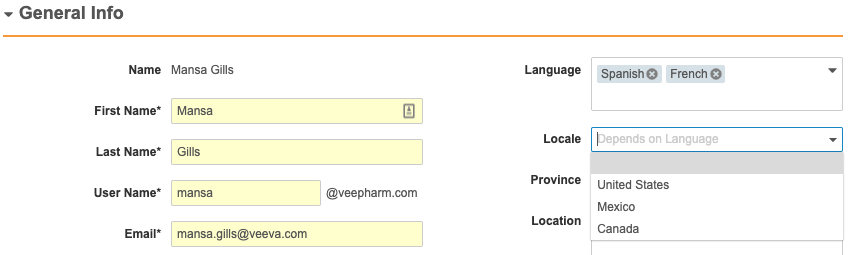
When your Vault uses a multi-value picklist as a controlling field and a user selects multiple values, Vault displays a union of all values available for the selected controlling options. In the example below, the _Language_ picklist field controls the _Locale_ picklist field. When the user selects _Spanish_ and _French_ in the controlling _Language_ field, the dependent _Locale_ field shows all available values for those specified options.

<a href="https://platform.veevavault.help/assets/images/Dependent-Picklist-19r34.png" data-lightbox="Dependent-Picklist-19r34.png" data-title="" data-alt="">
  <img class="docimage" src="https://platform.veevavault.help/assets/images/Dependent-Picklist-19r34.png" alt="" style="width: 75%;"  />
</a>

## Use Case: Two Picklists Between Language & Locale

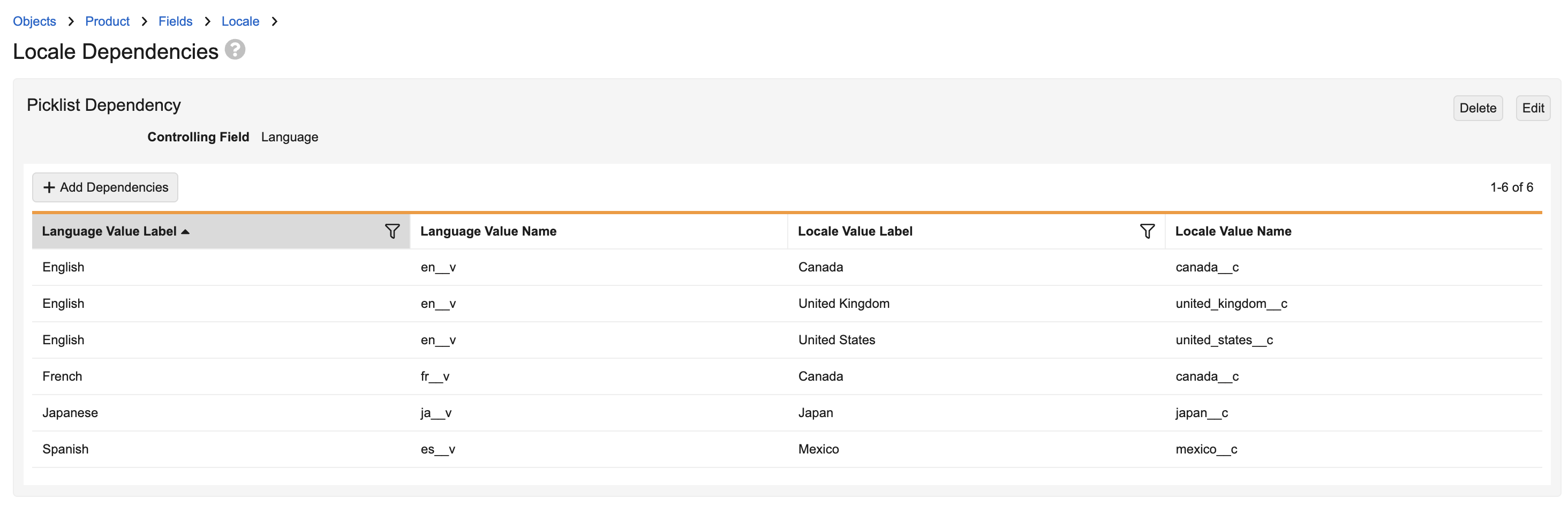
When implemented, dependent picklists are a powerful configuration option that can simplify field entry for users. For example, VeePharm requires values for the _Locale_ and _Language_ fields when adding new users to their Vault. In most cases, Vault may include a fixed set of language options from which to select. However, VeePharm wants to ensure that language options change based on the selected locale.

To configure this, the Admin creates a picklist dependency with _Language_ as the controlling field on the _Locale_ picklist field. The Admin then selects the language options from the **Controlling Field** values so when the user selects a value in the _Language_ field, Vault only displays the relevant values in the _Locale_ field.
<a href="https://platform.veevavault.help/assets/images/Object-Picklist-Dependencies-25R14.png" data-lightbox="Object-Picklist-Dependencies-25R14.png" data-title="" data-alt="Object Picklist Dependencies">
  <img class="docimage" src="https://platform.veevavault.help/assets/images/Object-Picklist-Dependencies-25R14.png" alt="Object Picklist Dependencies" style="width: 75%;"  />
</a>

 [1]: #controlling-fields
 [2]: #configuring-dependent-picklist
 [3]: #create-picklist-dependencies
 [4]: #edit-picklist-dependencies
 [5]: #add-picklist-dependencies
 [6]: #filter-picklist-dependencies
 [7]: #remove-picklist-dependencies
 [8]: #delete-picklist-dependencies
