# Configuring the Clinical Operations-EDC Connection

Using the Clinical Operations-EDC Connection, organizations with both a Clinical Operations CTMS or eTMF Vault and one or more EDC Vaults can exchange data in near real-time. To use the Clinical Operations-EDC Connection, you must configure the relevant components, connect any existing data, and activate the connection. This setup requires configuration steps in both Vaults.

<div class="note-border alert-info">
  <div class="alert alert-info" role="alert">
    <div><i class="far fa-info-circle"></i></div>
    <div class="alert-text">
      <p><strong>Note</strong>: You can connect a single Clinical Operations Vault with up to five (5) EDC Vaults. If you need to connect more EDC Vaults to the same Clinical Operations Vault, contact Veeva Support.</p>
    </div>
  </div>
</div>


## Clinical Operations-EDC Connection Components {#connection-components}

### Connection {#connection}

_CDMS/Clinical Operations Connection_ (`cdms_clin-ops_connection__v`) is available in both your Clinical Operations Vault and EDC Vault under **Admin > Connections**. You must [establish the Vault to Vault connection](/en/lr/53358/) before you can use this connection. Once you have configured one connection, you can easily [copy it to create a new connection][30].

### Integrations {#integrations}

The _CDMS/Clinical Operations Connection_ record includes the following default _Integration_ records with standard _Integration Point_ records in your Clinical Operations Vault:

<table>
  <tr>
    <th>
      <p>
        Integration Name
      </p>
    </th>
    <th>
      <p>
        Integration Point Name(s)
      </p>
    </th>
    <th>
      <p>
        Sent From
      </p>
    </th>
    <th>
      <p>
        Sent To
      </p>
    </th>
    <th>
      <p>
        Included Data
      </p>
    </th>
  </tr>
  <tr>
    <td rowspan="3">
      <p>
        Study Data Integration
      </p>
    </td>
    <td>
      <p>
        Study Integration Point
      </p>
    </td>
    <td>
      <p>
        CTMS
      </p>
    </td>
    <td>
      <p>
        EDC
      </p>
    </td>
    <td>
      <ul>
        <li>
          Study Number
        </li>
        <li>
          Study Phase
        </li>
        <li>
          Lifecycle State
        </li>
        <li>
          Global ID
        </li>
      </ul>
    </td>
  </tr>
  <tr>
    <td>
      <p>
        Study Country Integration Point
      </p>
    </td>
    <td>
      <p>
        CTMS
      </p>
    </td>
    <td>
      <p>
        EDC
      </p>
    </td>
    <td>
      <ul>
        <li>
          Country
        </li>
        <li>
          Study Country Name
        </li>
        <li>
          Study Number
        </li>
        <li>
          Global ID
        </li>
      </ul>
    </td>
  </tr>
  <tr>
    <td>
      <p>
        Site Integration Point
      </p>
    </td>
    <td>
      <p>
        CTMS
      </p>
    </td>
    <td>
      <p>
        EDC
      </p>
    </td>
    <td>
      <ul>
        <li>
          Study Site Number
        </li>
        <li>
          Site Name
        </li>
        <li>
          Lifecycle State
        </li>
        <li>
          Study Country
        </li>
        <li>
          Site Timezone
        </li>
        <li>
          Global ID
        </li>
      </ul>
    </td>
  </tr>
  <tr>
    <td>
      <p>
        Subject Data Integration
      </p>
    </td>
    <td>
      <p>
        Subject Integration Point
      </p>
    </td>
    <td>
      <p>
        EDC
      </p>
    </td>
    <td>
      <p>
        CTMS
      </p>
    </td>
    <td>
      <ul>
        <li>
          Arm
        </li>
        <li>
          Cohort
        </li>
        <li>
          End of Study Date
        </li>
        <li>
          End of Treatment Date
        </li>
        <li>
          Enrolled Date
        </li>
        <li>
          Initial Consent Date
        </li>
        <li>
          Global ID
        </li>
        <li>
          Lost to Follow Up Date
        </li>
        <li>
          Randomized Date
        </li>
        <li>
          Screen Failed Date
        </li>
        <li>
          Screened Date
        </li>
       <li>
          Started Follow Up Date
        </li>
       <li>
          Started Treatment Date
        </li>
        <li>
          Study
        </li>
        <li>
          Study Country
        </li>
        <li>
          Study Site
        </li>
        <li>
          Subject ID
        </li>
        <li>
          Subject Status
        </li>
        <li>
          Substudy
        </li>
        <li>
          Withdrawn Date
        </li>
      </ul>
    </td>
  </tr>
  <tr>
  <tr>
    <td rowspan="3">
      <p>
        Visit Definition (Event Definition)
      </p>
    </td>
    <td>
      <p>
        Visit Definition Integration Point
      </p>
    </td>
    <td>
      <p>
        EDC
      </p>
    </td>
    <td>
      <p>
        CTMS
      </p>
    </td>
    <td>
      <ul>
        <li>
          Description
        </li>
        <li>
          Event Type
        </li>
        <li>
          Help Content
        </li>
        <li>
          Name
        </li>
        <li>
          Study
        </li>
        <li>
          Private Key
        </li>
      </ul>
    </td>
  </tr>
  <tr>
    <td>
      <p>
        Visit Group Definition Transfer Integration Point
      </p>
    </td>
    <td>
      <p>
        EDC
      </p>
    </td>
    <td>
      <p>
        CTMS
      </p>
    </td>
    <td>
      <ul>
        <li>
          Description
        </li>
        <li>
          Repeat Maximum
        </li>
        <li>
          Name
        </li>
        <li>
          Study
        </li>
      </ul>
    </td>
  </tr>
  <tr>
    <td>
      <p>
        Visit Definition to Visit Group Definition Integration Point
      </p>
    </td>
    <td>
      <p>
        EDC
      </p>
    </td>
    <td>
      <p>
        CTMS
      </p>
    </td>
    <td>
      <ul>
        <li>
          Study
        </li>
        <li>
          Visit Definition
        </li>
        <li>
          Visit Group Definition
        </li>
        <li>
          Order
        </li>
      </ul>
    </td>
  </tr>
  <td rowspan="1">
    <p>
      Subject Visit Data
    </p>
  </td>
    <td>
      <p>
        Subject Visit Integration Point
      </p>
    </td>
    <td>
      <p>
        EDC
      </p>
    </td>
    <td>
      <p>
        CTMS
      </p>
    </td>
    <td>
      <ul>
        <li>
          DMR Date
        </li>
        <li>
          Event Date
        </li>
        <li>
          Event Definition
        </li>
        <li>
          Event Group Definition
        </li>
        <li>
          Event Repeat Sequence
        </li>
        <li>
          Event Status
        </li>
        <li>
          Name
        </li>
        <li>
          Overdue Date
        </li>
        <li>
          Planned Date
        </li>
        <li>
          Review For DMR
        </li>
        <li>
          Review For SDV
        </li>
        <li>
          SDV Date
        </li>
        <li>
          SDV Mode<a href="#note1">*</a>
        </li>
        <li>
          Site
        </li>
        <li>
          Study
        </li>
        <li>
          Study Country
        </li>
        <li>
          Subject
        </li>
        <li>
          Global ID
        </li>
        <li aria-level="1">Visit Name<a href="#note2">**</a></li>
        <li aria-level="1">
          Repeating Visit<a href="#note2">**</a>
        </li>
        <li>
          Visit Method
        </li>
      </ul>
    </td>
  </tr>
  <tr>
   <td>
       <p>Protocol Deviation</p>
    </td>
    <td>
    <p>Protocol Deviation Transfer Integration Point</p>
    </td>
    <td>
    <p>EDC</p>
    </td>
    <td>
    <p>CTMS</p>
    </td>
    <td>
    <ul>
     <li aria-level="1">Category</li>
    <li aria-level="1">Content (<code>blinding__v</code>)</li>
    <li aria-level="1">Date of Deviation</li>
    <li aria-level="1">Date Identified</li>
    <li aria-level="1">Description</li>
    <li aria-level="1">EDC ID</li>
    <li aria-level="1">Lifecycle State</li>
    <li aria-level="1">Global ID</li>
    <li aria-level="1">Resolution</li>
    <li aria-level="1">Severity</li>
    <li aria-level="1">Status</li>
    <li aria-level="1">Study</li>
    <li aria-level="1">Study Country</li>
    <li aria-level="1">Study Site</li>
    <li aria-level="1">Sub Category</li>
    <li aria-level="1">Subject</li>
    <li aria-level="1">Subject Visit</li>
    <li aria-level="1">Summary</li>
      </ul>
    </td>
  </tr>
  <tr>
    <td rowspan="2">
      <p>
        Procedure Integration
      </p>
    </td>
    <td>
      <p>
        Procedure Transfer Integration Point
      </p>
    </td>
    <td>
      <p>
        EDC
      </p>
    </td>
    <td>
      <p>
        CTMS
      </p>
    </td>
    <td>
      <ul>
        <li aria-level="1">
          Study
        </li>
        <li aria-level="1">
          Study Country
        </li>
        <li aria-level="1">
          Study Site
        </li>
        <li aria-level="1">
          Subject
        </li>
        <li aria-level="1">
          Subject Visit
        </li>
        <li aria-level="1">
          Procedure Definition
        </li>
        <li aria-level="1">
          Global ID
        </li>
        <li aria-level="1">
          Procedure Status
        </li>
        <li aria-level="1">
          Procedure Date
        </li>
      </ul>
    </td>
  </tr>
  <tr>
    <td>
      <p>
        Procedure Definition Transfer Integration Point
      </p>
    </td>
    <td>
      <p>
        EDC
      </p>
    </td>
    <td>
      <p>
        CTMS
      </p>
    </td>
    <td>
      <ul>
        <li>
          Study
        </li>
        <li>
          Name
        </li>
      </ul>
    </td>
  </tr>
  <tr>
   <td>
       <p>Closeout CRFs</p>
    </td>
    <td>
    <p>Closeout CRFs</p>
    </td>
    <td>
    <p>EDC</p>
    </td>
    <td>
    <p>eTMF</p>
    </td>
    <td>
    <ul>
     <li aria-level="1">Name</li>
    <li aria-level="1">Title</li>
    <li aria-level="1">Study</li>
    <li aria-level="1">Study Country</li>
    <li aria-level="1">Study Site</li>
    <li aria-level="1">Content</li>
    <li aria-level="1">Document Link</li>
      </ul>
    </td>
  </tr>
</table>

<a id="note1"></a>\*The connection only transfers this data if [SDV Requiredness][28] is enabled in your Vault.
<br/>
<a id="note2"></a>\*\*The connection only transfers this data if [Repeating Visits][29] are enabled in your Vault.

<div class="note-border alert-info">
  <div class="alert alert-info" role="alert">
    <div><i class="far fa-info-circle"></i></div>
    <div class="alert-text">
      <p><strong>Note</strong>: You must enable the <em>Visit Definition</em> and <em>Visit Group Definition Transfer</em> integration points to allow the <em>Visit Definition to Visit Group Definition</em> integration point to transfer data.</p>
    </div>
  </div>
</div>


#### Study CDMS Connectivity {#study-cdms-connectivity}
Clinical Operations Vaults track each integration point for a _Study_ in a _Study CDMS Connectivity_ record. _Study CDMS Connectivity_ records include the _Connected Status_, _Study_, _Integration_, and _Integration Point_. The _Last Run Time_ displays the last time Vault ran the integration connection job, while the _Last Successful Run Time_ displays the last time Vault ran the integration connection job with no errors for the study, integration, and integration point. Vault reprocesses integration points on the next connection job run when the _Study CDMS Connectivity_ record for the integration point has a _Last Modified Date_ more recent than the _Last Run Time_. Additionally, the connection retries failed items from previous runs.

<div class="note-border alert-important">
  <div class="alert alert-important" role="alert">
    <div><i class="far fa-exclamation-circle"></i></div>
    <div class="alert-text">
      <p><strong>Important</strong>: Vault manages <em>Study CDMS Connectivity</em> records. Do not edit <em>Study CDMS Connectivity</em> records unless instructed to by a Veeva representative.</p>
    </div>
  </div>
</div>


### Job Labels

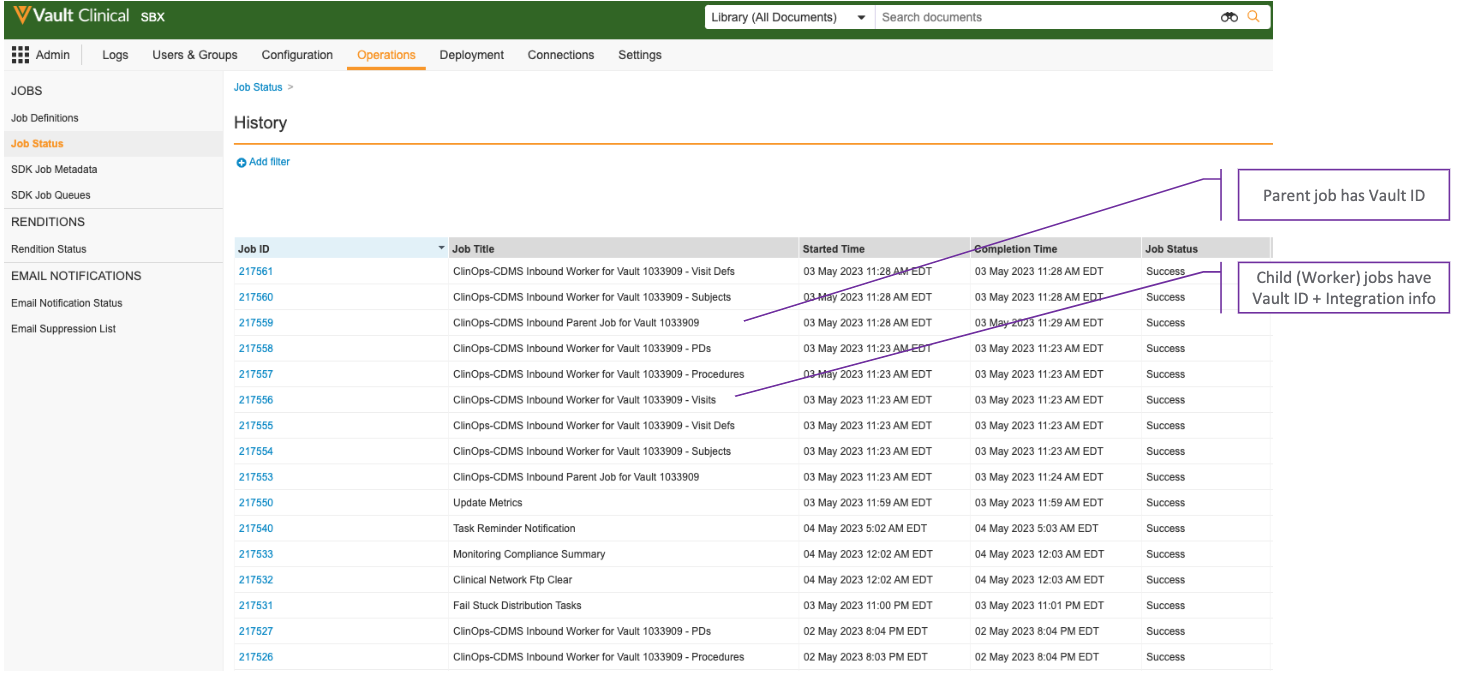
In order to facilitate testing and troubleshooting, Vault labels the connections' Clinical Operations inbound jobs with information about the source EDC Vault and integration associated with the job. This is particularly useful if your organization connects their Clinical Operations Vault with multiple EDC Vaults, or if you have frequent data transfers between the Vaults.

The job labels contain information that makes it easier to see which connection is associated with a job. For example, parent job labels have the following format: "ClinOps-CDMS Inbound Parent for Vault \<EDC Vault ID>". As such, "ClinOps-CDMS Inbound Parent for Vault 11432" is the label for the inbound parent job that handles EDC Vault 11432. Single _Study_ refresh parent jobs have a similar format: "ClinOps-CDMS Study Refresh Parent Job for Vault \<EDC Vault ID>".

Worker jobs have a similar format, but contain additional information. The worker job label format is "ClinOps-CDMS Inbound Worker for Vault \<EDC Vault ID> - \<Integration Code>". As an example, "ClinOps-CDMS Inbound Worker for Vault 11432 - Visits" is the label for the inbound worker job that processes _Subject Visits_ coming from EDC Vault 11432. Single _Study_ refresh worker jobs have a similar format: "ClinOps-CDMS Study Refresh Inbound Worker for Vault \<EDC Vault ID> - \<Integration Code>".

Worker job labels contain the following integration codes:

* **_Procedures_**: Processes _Procedures_
* **_Procedure Defs_**: Processes _Procedure Definitions_
* **_PDs_**: Processes _Protocol Deviations_
* **_Visits_**: Processes _Subject Visits_
* **_Subjects_**: Processes _Subjects_
* **_Visit Defs_**: Processes _Visit Definitions_
* **_Visit Group Defs_**: Processes _Visit Group Definitions_
* **_CRFs_**: Processes _Closeout CRFs_

<a href="https://platform.veevavault.help/assets/images/clin-ops-cdms-job-labels.png" data-lightbox="clin-ops-cdms-job-labels.png" data-title="" data-alt="Job Labels">
  <img class="docimage" src="https://platform.veevavault.help/assets/images/clin-ops-cdms-job-labels.png" alt="Job Labels" style="max-width: 600px;"  />
</a>

## Initial Configuration Overview {#configuration-overview}

You only need to complete the steps in this section once to configure the Clinical Operations-EDC Connection:

  * In the Clinical Operations Vault: Add [fields][2] to the relevant objects, update the [_User Exception Message_ configuration][3], and [create flash reports][4].
  * In the EDC Vault: Create or update [_Study_ and _Site Status_ reference lookups][5] as necessary and [configure the Business Admin menu][6].
  * In both the Clinical Operations and EDC Vaults: Map [objects][7], [object field reference lookups][8], and [connect any preexisting records][9] across both Vaults.
  * In both the Clinical Operations and EDC Vaults: [Activate the connection](/en/lr/53358/#vault-to-vault).
  * Optional: In the Clinical Operations Vault: Enable [restricted data transfer][31] to enable handling of blinded and unblinded content from EDC.

<div class="note-border alert-info">
  <div class="alert alert-info" role="alert">
    <div><i class="far fa-info-circle"></i></div>
    <div class="alert-text">
      <p><strong>Note</strong>: Some additional configuration may be required for your Vaults. Prior to setting up the Clinical Operations-EDC Connection, we recommend contacting Veeva Support.</p>
    </div>
  </div>
</div>


### Clinical Operations Object Field Configuration {#ctms-object-field-configuration}

Update the following object fields in Clinical Operations:

  * Add the _Connect to Vault CDMS_ field to the _Study_ page layout.
  * Add the _CDMS Connection_ field to the _Study_ page layout.
  * Add the _Study Phase_ field to the _Study_ object page layout and make it a required field.
  * Add the _Site Timezone_ field to the _Site_ object page layout and make it a required field.
  * Ensure the _Protocol Deviation Status_ field on the _Issue_ object is enabled for the _Protocol Deviation_ object type.
  * Add the _Casebook Link_ (`casebook_link__v`) field to the _Subject_, _Visit_, _Monitored Subject_, and _Monitored Visit_ page layouts. This field links directly to the relevant review page in the EDC Vault where the casebook is managed, whether the Clinical Operations Vault is connected to a single or multiple EDC Vaults. 
  * Ensure that users who use the _Casebook Link_ field have access to the _EDC Redirect_ page in the relevant permission sets.

<div class="note-border alert-info">
  <div class="alert alert-info" role="alert">
    <div><i class="far fa-info-circle"></i></div>
    <div class="alert-text">
      <p><strong>Note</strong>: If your organization previously utilized the custom <em>Casebook Link</em> (<code class="language-plaintext highlighter-rouge">casebook_link__c</code>) formula field on the <em>Subject</em>, <em>Visit</em>, <em>Monitored Subject</em>, or <em>Monitored Visit</em> page layouts, you should remove it, and replace it with the standard <em>Casebook Link</em> field (<code class="language-plaintext highlighter-rouge">casebook_link__v</code>).</p>
    </div>
  </div>
</div>


  * Make the _Organization_ field on the _Site_ object a required field.
  * Ensure the _Subject ID_ field on the _Subject_ object is [not unique](/en/lr/15057/#values).
  * Ensure the `summary_ctms` field on the `pdv_clin` object has a field length of at least 500 characters.
  * Change the _Review for SDV_ field label on the _Subject Visit_ object to _SDV Complete?_.
  * Change the _Review for DMR_ field label on the _Subject Visit_ object to _DMR Complete?_.
  * Change the _Review for SDV_ field label on the _Monitored Subject Visit_ object to _SDV Complete?_.
  * Optional: Configure [query object rules](/en/lr/62154/). When creating query object rules for a particular object, consider the effect the rule will have on related objects.


<div class="note-border alert-info">
  <div class="alert alert-info" role="alert">
    <div><i class="far fa-info-circle"></i></div>
    <div class="alert-text">
      <p><strong>Note</strong>:  When you create <a href="/en/lr/62154/">query object rules</a> for the <em>Event</em> object, do not select the <em>Event</em> object for the <em>Query Object</em> field. Selecting the <em>Event</em> object will result in an error. You must select the <em>Event Deltas</em> object and limit the query object rules to fields available in the <em>Event Deltas</em> object.</p>
    </div>
  </div>
</div>


### Configuring Subject Matching on External ID

The _CDMS-CTMS Connection: Disable Subject Matching on External ID_ setting allows you to control whether Vault attempts to match _Subject_ records using the _External (RTSM) ID_ field or not.

By default, this setting is set to False (in other words, External ID matching is enabled). Vault uses the _External (RTSM) ID_ field to link _Subject_ records from CTMS to _Subject_ records in EDC if the _Subject_ records are not already linked via the _Global ID_ field. If matching _External (RTSM) ID_ fields are identified, Vault links the two _Subject_ records and updates the CTMS _Subject_ record with the _Global ID_ from the EDC _Subject_ record. This is useful in situations in which a _Subject_ record was created in CTMS before being created in EDC, such as for pre-screening purposes. Going forward, Vault continues to update the CTMS _Subject_ record based on changes to the EDC _Subject_ record based on matching the _Global ID_ fields.

If desired, you can contact Veeva Support to set the _CDMS-CTMS Connection: Disable Subject Matching on External ID_ to True (in other words, External ID matching is disabled). Vault then does not attempt to match the _External (RTSM) ID_ fields and, instead, only evaluates the _Global ID_ fields of the two _Subject_ records. If there is no match, Vault creates a _Subject_ record in CTMS corresponding to the EDC _Subject_ record. If there is a match, Vault updates the CTMS _Subject_ record accordingly.

### Subject Matching on External ID

When transferring subjects from EDC, the Clinical Operations-EDC Connection will check whether the Subject is linked via the _Global ID_ field. If the Subject is not linked, the connection will also try to match on an _External ID_, if this field is not empty. If a match is still not found, the connection will create a new _Subject_ and link it using the _Global ID_ field.

If desired, the additional matching on _External ID_ can be disabled by contacting Veeva.

### User Exception Message Configuration {#user-exception-message-configuration}

Make the following changes to the _User Exception Message_ object configuration:

  * Navigate to **Admin > Configuration > Objects > User Exception Message > Actions** and create a new action. Select the **Reprocess Request** action and click **Save**.
  * Update the _User Exception Message_ object page layout to include a related object section for _User Exception Items_. Select the radio button to **Prevent record creation**.
  * Ensure that the columns in the _User Exception Items_ section are in the following order:
      * _Exception Item Name_
      * _Error Type_
      * _Error Message_
      * _Item_
      * _Item Data_

### Configuring Flash Reports {#configuring-flash-reports}

We suggest creating a [flash report](/en/lr/51842/) to track and resolve any issues that occur with the connection. First, create a new [_Report Type_](/en/lr/21543/):

  1. Navigate to **Admin > Configuration > Report Types** and click **Create**.
  2. Populate required fields.
  3. Select **User Exception Messages** as the _Primary Reporting Object_.
  4. Click **Add Related Object**, select **User Exception Items (Child)** as the _Related Object_.
  5. Click **Save**.

Next, create the report:

  1. Navigate to the **Reports** tab and click **Create**.
  2. Select the **User Exception Message with User Exception Item** _Report Type_ and click **Continue**.
  3. Add the following **User Exception Message** [filters](/en/lr/8591/):
      * _Status equals Active_
      * _Created Date is in the last 1 day_
      * In the Clinical Operations Vault: _Integration in Study Data_, _Subjects_, _Subject Visits (Events)_, _Visit Definitions (Event Definitions)_, _Procedures_, and _Protocol Deviations_
      * In the EDC Vault: _Integration in EDC to CTMS Subject Data, EDC to CTMS Subject Event Date_, and _CTMS to EDC Study Data_
  4. Click **Edit Columns** and add the _Error Type_, _Error Message_, _Item_, and _Item Date_ columns.
  5. **Save** the report.
  6. [Schedule the report](/en/lr/51842/) to run daily and select the **Only send when at least one record is returned** option from the _Email and Vault notification preferences_ drop-down.
  7. Update the [**Sharing Settings**](/en/lr/3622/#sharing-reports) for the report to ensure it is sent to the necessary users. We recommend sharing with one or more users on your IT team.

### Configuring the Study & Site Status Reference Lookup {#configuring-study-and-site-status-reference-lookup}

In EDC, there are _Reference Lookups_ for the following fields:

  * _Study_ > _Study Status_: The _Study_ lifecycle state in Clinical Operations maps to the _Study Status_ picklist values in EDC.
  * _Site_ > _Site Status_: The _Site_ lifecycle state in Clinical Operations maps to _Study Status_ picklist values in EDC.

If the Clinical Operations Vault has custom _Study_ or _Site_ lifecycle states, you should add additional _Reference Lookups_ in the EDC Vault:

  1. In EDC, navigate to **Admin > Connections > CDMS to CTMS Connection > Reference Lookups**.
  2. Select the `study_status__v` or `site_status__v` reference lookup.
  3. Click **Add**.
  4. Add the _Name_ of the custom lifecycle state from Clinical Operations as the _Source Key_ and select the appropriate _Target Key_ in EDC.
  5. Click **Save**.
  6. Repeat these steps for all custom _Study_ or _Site_ lifecycle states in Clinical Operations.

### Configuring the Study Phase Reference Lookup {#configuring-study-phase-reference-lookup}

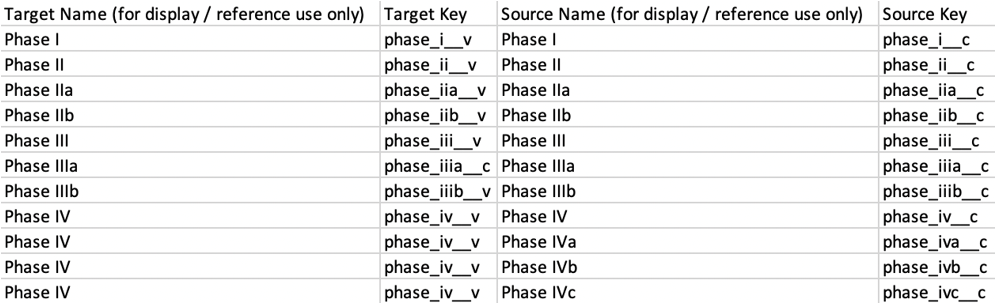
Each _Study Phase_ in CTMS must map to a _Study Phase_ in EDC. Because _Study Phase_ is a system-configured field in EDC and a custom field in CTMS, you must configure this mapping manually:

  1. In the EDC Vault, navigate to **Admin > Connections > CDMS to CTMS Connection > Reference Lookups**.
  2. Select the `study_phase__v` reference lookup.
  3. Click **Export Template**.
  4. Open the exported CSV file in an editor.
  5. In the CTMS Vault, navigate to **Admin > Business Admin > Picklists** and click into the _Study Phase_ picklist.
  6. Copy and paste the source name (_Picklist Value Label_) and source key (_Picklist Value Name_) to the CSV file. Ensure that you match the _Picklist Value Label_ and name from the CTMS Vault with the _Picklist Value Label_ and name from EDC. Multiple items from CTMS can map to one item in EDC. You can add custom picklist values to EDC as desired. Every picklist value from CTMS should be mapped to avoid errors. The resulting CSV file may look like this:<a href="https://platform.veevavault.help/assets/images/EDC-CTMS_Connection_Study_Phase_Mapping_Example.png" data-lightbox="EDC-CTMS_Connection_Study_Phase_Mapping_Example.png" data-title="" data-alt="Mapping CSV Example">
  <img class="docimage" src="https://platform.veevavault.help/assets/images/EDC-CTMS_Connection_Study_Phase_Mapping_Example.png" alt="Mapping CSV Example" style="max-width: 500px;"  />
</a>
  7. Save the CSV file in the editor.
  8. In the EDC Vault, navigate to **Admin > Connections > CDMS/Clinical Operations Connection > Reference Lookups** and [load the reference lookup template](/en/lr/58198/#Template) onto the `study_phase__v` reference lookup.

### Mapping the Country Object {#mapping-the-country-object}

_Country_ object records must be mapped between EDC and Clinical Operations in order to create _Study Country_ object records.

To link _Country_ object records using _Global ID_:

  1. In both the Clinical Operations Vault and EDC Vault, use [Vault Loader](/en/lr/31536/) to export _Country_ object records. Ensure that you select the **Include Non-editable Fields** checkbox.
  2. Open the resulting CSV files in an editor.
  3. Use a VLOOKUP function to populate the appropriate _Link_ field in EDC with the value from the _Global ID_ field in Clinical Operations in an [input spreadsheet file](/en/lr/26607/#prepare). For more information on using a VLOOKUP function, see the documentation for your spreadsheet editor.
  4. If any _Countries_ do not automatically resolve via the VLOOKUP function, add them to the input spreadsheet manually. If any countries exist in one Vault but not the other, create these countries and map them in the other Vault.
  5. Save the file with the completed `id` and `link__sys` columns.
  6. [Load the CSV file](/en/lr/26607/#load) into the EDC Vault.

You can also map _Country_ object records between EDC and Clinical Operations using standard country codes. When using standard country codes, if the value of the `code__sys` field on the _Country_ record in EDC matches the value for the same field on the _Country_ record in Clinical Operations, the connection considers these records linked. Additionally, the connection links _Country_ records between the EDC and Clinical Operations Vaults if the records have identical names.

The Clinical Operations-EDC connection prioritizes _Global ID_ linked records over standard country code matching.

### Configuring the Business Admin Menu in EDC {#Configuring-the-Business-Admin-Menu-in-EDC}

Navigate to **Admin > Configuration > Objects > Study Country** and click **Edit**. Select the **Display in Business Admin** checkbox and click **Save**.

## Enabling Restricted Data Transfer {#restricted-data-transfer}

By default, the connection only supports unrestricted (blinded in CTMS) data transfer. You can enable restricted (unblinded in CTMS) data transfer for _Subject Visits_ and _Protocol Deviations_, allowing users to manage and track all subject activity from EDC. Access to restricted data is limited to users with access to the unblinded information in CTMS.

When enabled, Vault checks the event in EDC for restricted data. If present, the system first attempts to locate an existing _Unblinded Subject Visit Data_ record in the Clinical Operations Vault. If a record exists, Vault updates the existing _Unblinded Subject Visit Data_ with the new restricted details. If a record does not exist in the Clinical Operations Vault, the system creates an _Unblinded Subject Visit Data_ object record to store the unblinded data.

This feature also controls the transfer of restricted and unrestricted protocol deviation data. When the [_Protocol Deviation integration_][32] is active, EDC Vaults only transfer unrestricted protocol deviations by default. Once you enable restricted data transfer, EDC transfers both restricted and unrestricted protocol deviations.

Vault deletes both the blinded and unblinded data in a _Subject Visit_ record, regardless of whether restricted data transfer is enabled. Vault also deletes all protocol deviations for the given _Subject Visit_.

To enable this feature, navigate to **Admin > Settings > Application Settings > CTMS Features** and select the **Enable Restricted Data Transfer** checkbox.

## Study Configuration Overview {#Study-Configuration-Overview}

After you complete the [initial configuration][24], you'll need to perform the steps in this section for every study in your EDC Vault that you want to connect to your Clinical Operations Vault. Follow the best practice guidelines in this section to ensure that the connection functions correctly.

### Configuring the Subject Status Rule in EDC {#configuring-the-subject-status-rule-in-edc}

_Subject Status_ and _Subject Status Date_ field values are important pieces of information in Clinical Operations. We recommend that you create a rule in the EDC Vault to populate _Subject Status_ and _Subject Status Dates_ in the EDC Vault, to be sent to CTMS.

### Connecting Existing Record Data {#connecting-existing-record-data}

Depending on your configuration prior to implementing this connection, there could be different data in each Vault. This section describes what to do in each of these scenarios.

<div class="note-border alert-info">
  <div class="alert alert-info" role="alert">
    <div><i class="far fa-info-circle"></i></div>
    <div class="alert-text">
      <p><strong>Note</strong>: All steps described in this section should be completed before setting the <em>Connect to Vault CDMS</em> in Clinical Operations Vaults or the <em>Connect to Vault Clinical Operations</em> in EDC Vaults to <strong>Yes</strong>.</p>
    </div>
  </div>
</div>


#### If _Study_, _Study Country_, and _Site_ exist in Clinical Operations, but do not exist in EDC:

  * Create the _Study_ manually in EDC and add the _Global ID_ for that _Study_ from Clinical Operations into the _Link_ field for that _Study_ in EDC.
  * Set the _Connect to Vault CDMS_ field on the _Study_ record in Clinical Operations to **Yes**.
  * The connection updates the _Study_ in EDC with data from Clinical Operations and creates all the _Study Countries_ and _Sites_ from the Clinical Operations data for that _Study_.

#### If _Study_, _Study Country_, and _Site_ exist in both Clinical Operations and EDC:

  * For each _Study_, take the _Global ID_ from Clinical Operations and copy its value to the _Link_ field for the corresponding _Study_ in EDC.
  * For each _Study Country_, take the _Global ID_ from Clinical Operations and copy its value to the _Link_ field for the corresponding _Study Country_ in EDC.
  * For each _Site_, take the _Global ID_ from Clinical Operations and copy its value to the _Link_ field for the corresponding _Site_ in EDC.
  * Set the _Connect to Vault CDMS_ field in Clinical Operations to **Yes**.
  * The connection updates the _Study_, _Study Country_, and _Site_ in EDC with data from Clinical Operations.

You can also perform these steps with [Vault Loader](/en/lr/26607/) in EDC.

#### If _Study_, _Study Country_, and _Site_ do not exist in Clinical Operations, but exist in EDC:

  * Create all _Studies_, _Study Countries_, and _Sites_ from EDC in Clinical Operations.
  * For each _Study_, take the _Global ID_ from Clinical Operations and copy its value to the _Link_ field for that _Study_ in EDC.
  * For each _Study Country_, take the _Global ID_ from Clinical Operations and copy its value to the _Link_ field for that _Study Country_ in EDC.
  * For each _Site_, take the _Global ID_ from Clinical Operations and copy its value to the _Link_ field for that _Site_ in EDC.
  * Set the _Connect to Vault CDMS_ field in Clinical Operations to **Yes**.
  * The connection updates the _Study_, _Study Country_, and _Site_ in EDC with data from Clinical Operations.

You can also perform these steps with [Vault Loader](/en/lr/26607/) in EDC.

#### If _Subject_, _Subject Visit_, and _Visit Definition_ exist in CTMS, but do not exist in EDC:

This is not a valid case for this connection. You can pull in this information from an external EDC system.

#### If _Subject_, _Subject Visit_, and _Visit Definition_ exist in both CTMS and EDC:

  * Ensure the _Study_, _Study Country_, and _Site_ are connected to CTMS per the [configuration instructions][24].
  * For each _Subject_, take the _Global ID_ from EDC and copy its value to the _Link_ field for the corresponding _Subject_ in CTMS.
  * For each _Event_, take the _Global ID_ from EDC and copy its value to the _Link_ field for the corresponding _Subject Visit_ in CTMS.
  * For the latest version of _Event Definitions_, enter the following value in the _Link_ field for that _Visit Definition_ in EDC: `global id`\_`private key`. Both the `global id` and the `private key` should come from the latest version of the _Visit Definition_ in EDC. The Clinical Operations-EDC Connection only uses the latest versions of _Visit Definitions_.

  * Set the _Connect to Vault CTMS_ field in EDC to **Yes**.
  * The connection updates the _Subject_, _Subject Visit_, and _Visit Definitions_ in CTMS with data from EDC.

You can also perform these steps with [Vault Loader](/en/lr/26607/) in CTMS.

#### If _Subject_, _Subject Visit_, and _Visit Definition_ do not exist in either CTMS or EDC:

  * Ensure the _Study_, _Study Country_, and _Site_ are connected to CTMS per the configuration instructions.
  * Set the _Connect to Vault CDMS_ field on the _Study_ record in CTMS to **Yes**.
  * The connection updates the _Subject_, _Subject Visit_, and _Visit Definitions_ in CTMS with data from EDC.

In addition to the above steps, you should also choose the desired connection in the _Study_ record's _CDMS Connection_ field.

### Connecting a New Study {#Connecting-a-New-Study}

To connect new studies in EDC to Clinical Operations:

  1. In the Clinical Operations Vault, create the _Study_ record and ensure that the _Connect to Vault CDMS_ field is set to **No**.
  2. In the EDC Vault, create the _Production Study Instance_ record and ensure that the _Connect to Vault CDMS_ field is set to **Yes**.
  3. Take the _Global ID_ from the _Study_ record in Clinical Operations and copy its value to the _Link_ field on that _Product Study Instance_ record in EDC.
  4. In the Clinical Operations Vault, change the _Connect to Vault CDMS_ field to **Yes**.

#### Connecting Subject Groups

You can enable data transferring for _Subject Group_ assignments for subjects depending on business needs. Some configuration is required to enable the data transfer.

1. In the Clinical Operations Vault, navigate to your _Subject Integration Rule_ (`subject_integration_rule__v`) and activate the _Field Rule_ for the required _Subject Groups_ (`study_arm__v`, `study_cohort__v`, and/or `substudy__v`). 
2. In the EDC Vault, locate the _Subject Group_ name (`name_v`) field, typically labeled _Code_, for every defined _Subject Group_.
3. In the Clinical Operations Vault, locate the matching _Subject Group_ object record and enter the EDC name into the _Link_ (`link__sys`) field on the record.

Deactivating the _Field Rule_ for _Subject Groups_ does not remove the links; the connection merely ignores them during the data exchange.

If you enable the field rule and a _Subject_ record comes in with a _Subject Group_ assignment, but the connection cannot find a linked _Subject Group_ in the Clinical Operation Vault, the connection is displayed in a _User Exception Message_ to indicate that a matching group was not found.

<div class="note-border alert-info">
  <div class="alert alert-info" role="alert">
    <div><i class="far fa-info-circle"></i></div>
    <div class="alert-text">
      <p><strong>Note</strong>: Vault EDC does not support <em>Study Part</em> and <em>Study Element</em> type <em>Subject Groups</em>.</p>
    </div>
  </div>
</div>


### Connecting a New Site {#Connecting-a-New-Site}

When you create new sites in the Clinical Operations Vault, Vault automatically creates them in the EDC Vault. However, you must complete the following steps for <a class="external-link " href="https://cdmshelp.veeva.com/gr/edc/edc-tools/sites/" target="_blank" rel="noopener">each site in the EDC Vault<i class="fa fa-external-link" aria-hidden="true"></i></a>:

  1. In the EDC Vault, navigate to **Tools > EDC Tools** and select the study.
  2. Navigate to the **Sites** tab and click on the _Site Number_ that you want to activate.
  3. Enter your site's _Principal Investigator_.
  4. Enter an _Active Version_ and click **Save**.

## Configuring Integration Points

### Configuring the Protocol Deviations Integration Point {#protocol-deviations-integration}

You can configure your CTMS Vault to receive protocol deviation data from an EDC Vault for connected studies. When this feature is enabled, Vault transfers _Protocol Deviation_ types of _Issues_ (`pdv__ctms`) from EDC.

To enable this feature, you need to activate the Content (`blinding__v`) field on the _Issues_ (`pdv__ctms`) Object. To do this, navigate to **Admin > Settings > Configuration** and click **Object Configuration**. Select the Issues Object and navigate to the Fields tab. Then, edit the Content (`blinding__v`) field to set the field to 'Active' and click **Save**.

Once the field is enabled, activate the _Protocol Deviation_ integration:

  1. Navigate to **Admin > Connections > CDMS/Clinical Operations Connection**.
  2. Find the **Protocol Deviation** integration in the _Integrations_ section.
  3. From the **Actions** menu for the _Protocol Deviation_ integration, select **Activate**.

###  Configuring Procedures {#procedures}

In CTMS Vaults with <a class="external-link " href="https://clinical.veevavault.help/en/lr/58930" target="_blank" rel="noopener">Vault Payments<i class="fa fa-external-link" aria-hidden="true"></i></a> you can configure Vault to receive _Procedures_ when records are generated and updated in EDC for a [connected study][27]. Note that for Vault to transfer _Procedures_, the _Names_ of the _Procedure Definitions_ must be identical in both Vaults.

First, you must activate the values for the _Procedure Status_ picklist:

  1. Navigate to **Admin > Settings > Application Settings** and click **Edit**.
  2. In the _CTMS Features_ section, set the **Enable Procedure Status Standard Picklist Values** checkbox.
  3. Click **Save**.

We recommend reviewing any existing custom procedure definition picklist values in your Vault and setting them to inactive.

After you enable the _Procedure Status_ picklist values, activate the _Procedures_ integration:

  1. Navigate to **Admin > Connections > CDMS/Clinical Operations Connection**.
  2. Find the **Procedures** integration in the _Integrations_ section.
  3. From the **Actions** menu for the _Procedures_ integration, select **Activate**.

Once the integration is activated, Vault will transfer new _Procedure_ records and updates to existing _Procedures_ from EDC to CTMS.

### Configuring Repeating Visits {#repeating-visits}

You can configure your CTMS Vault to receive repeating visit information from EDC. To enable this feature, navigate to **Admin > Settings > Application Settings** and click **Edit**. In the _CTMS Features_ section, set the **Enable CDMS & Clinical Operations Repeating Visits Integration** checkbox, and click **Save**.

Once enabled, add the following fields to the relevant objects, page layouts, and reports:

  * _Visit Name_ (_Repeat Visit Name_ in EDC)
  * _Visit Label_ (_Override Label_ in EDC)
  * _Repeating Visit_ (_Repeat Visit Definitions_ in EDC)

If your Vault includes the <a class="external-link " href="https://clinical.veevavault.help/en/lr/58930" target="_blank" rel="noopener">Vault Payments<i class="fa fa-external-link" aria-hidden="true"></i></a> add-on product, _Payable Items_ are generated based on the shared _Visit Definition_ for each _Subject Visit_.

### About SDV Requiredness {#sdv}

Vault transfers the value of the _SDV Mode_ field from EDC when the event is required.

This behavior was previously controlled by an Application Setting. It is now automatically available in all impacted Vaults.

### Configuring Closeout CRFs

You can configure your eTMF Vault to receive closeout Case Report Files (CRFs) from EDC. The eTMF Vault stores the CRF files as individual documents.

Before you configure the _Closeout CRFs_ integration, your Vaults must have the following:
* [_Study_ records linked][35] between EDC and Clinical Operations Vaults
* [_Country_ records linked][7] by _Global ID_ or standard country codes

When the Clinical Operation-EDC connection creates _Study Country_ and _Site_ records, the records automatically link between the Vaults. You can also manually link _Study Countries_ and _Sites_ using _Global ID_. The connection attempts to match unlinked _Study Countries_ by their parent Country and unlinked _Sites_ by matching the name field (`name__v`).

To enable the _Closeout CRFs_ integration:
1. Navigate to **Admin > Connections > CDMS/Clinical Operations Connection**.
2. Find the **Closeout CRFs** integration in the _Integrations_ section.
3. From the **Actions** menu for the _Closeout CRFs_ integration, select **Activate**.

You must enable the integration on both Vaults. After you enable the integration, configure the **Document Type for EDC Closeout CRFs** __setting in the eTMF Vault. 

To configure the _Document Type for EDC Closeout CRFs_ setting:
1. Navigate to **Admin > Settings > Application Settings** and click **Edit**. 
2. In the _eTMF Features_ section, set the **Document Type for EDC Closeout CRFs** checkbox. 
3. Select a **Document Type** from the drop-down. The _Document Type_ must be a document _Classification_.
4. Select a [**Lifecycle**](/en/lr/2434/) from the drop-down. The lifecycle you select must have a [steady state](/en/lr/14560/) defined. 
5. Click **Save**. 

The generation and re-generation of closeout CRFs in EDC triggers the transfer of the record to the eTMF Vault. When the EDC Vault regenerates _Closeout CRF_ records, the Clinical Operations-EDC connection updates the target CRF documents in the eTMF Vault. The connection creates the target CRF documents in the selected lifecycle's steady state.   

eTMF Vaults labels restricted closeout CRF records from EDC as _Unblinded_. The connection tags the _Subject_ in the _Title_ of the target CRF document and populates the _Name_, _Study_, _Study Country_, and _Study Site_ fields with the data from the source CRF record. If the _Study Country_ and _Study Site_ are not linked between the Vaults, the connection matches based on the _Study Site_ names. If the connection cannot populate any of these fields, Vault creates a _User Exception_ and does not create the target document. 

Vault tracks the _Last Run Time_ and _Last Successful Run Time_ for the _Closeout CRFs_ integration in the [_Study CDMS Connectivity_][34] object.

When an error occurs while processing a _CRF_ record, the connection creates a [_User Exception_][36] and retries the file on the next connection run.

### Deleted Item Marking {#deleted-item-marking}

When users delete _Event_, _Subject_, _Procedure_, and _Protocol Deviation_ records in EDC, the Clinical Operations-EDC Connection can automatically mark these records as deleted in the CTMS Vault. This ensures both Vaults contain the most up to date information.

The Clinical Operations-EDC Connection only deletes items that were deleted in EDC within the last 30 days. If the _Last Successful Run Time_ for an integration and _Study_ are more than 30 days ago when the connection runs, the connection creates a _User Exception Message_ to warn that the _Last Successful Run Time_ was over 30 days ago. Then, it only processes the items that were deleted in the last 30 days. In other words, if you delete an item in EDC and then wait more than 30 days to run the connection, it will not be marked as deleted in CTMS. This is not a connection error, and you can manually mark the item as deleted in CTMS. 

This setting is enabled by default for all Vaults.

### Field Updates for Deleted Items

After the Connection finds a deletion in EDC, records in the CTMS Vault are updated as follows:

**Subject (`subject__clin`)**

|Field Label|Field Name|Value After Deletion|Comments|
|--- |--- |--- |--- |
|_Link_|`link__sys`|Blank||
|_Subject Status_|`subject_status_clin`|"Deleted in CDMS"|New picklist value: `deleted_in_cdms__v`|
|_End of Study Date_|`end_of_study_date__v`|Blank||
|_End of Treatment Date_|`end_of_treatment_date__v`|Blank||
|_Enrolled Date_|`enrolled_date__v`|Blank||
|_Randomized Date_|`randomized_date__v`|Blank||
|_Screen Failed Date_|`screen_failed_date__v`|Blank||
|_Screened Date_|`screened_date__v`|Blank||
|_Withdrawn Date_|`withrawn_date__v`|Blank||
|_Casebook Link_|`casebook_link__v`|Blank|Blanking `link__sys` will cause this field to be blank.|

**Subject Visit (`visit__v`)**

|Field Label|Field Name|Value After Deletion|Comments|
|--- |--- |--- |--- |
|_Link_|`link__sys`|Blank||
|_Visit Status_|`visit_status__v`|"Deleted in CDMS"|New picklist value: `deleted_in_cdms__v`|
|_SDV Complete Date_|`sdv_date__v`|Blank||
|_SDV Mode_|`sdv_mode__v`|Blank||
|_Review for DMR_|`rev_dmr__v`|Blank||
|_DMR Complete Date_|`dmr_date__v`|Blank||

**Procedure (`procedure__v`)**

|Field Label|Field Name|Value After Deletion|Comments|
|--- |--- |--- |--- |
|_Link_|`link__sys`|Blank||
|_Procedure Status_|`procedure_status__v`|"Deleted in CDMS"|New picklist value: `deleted_in_cdms__v`|
|_Procedure Date_|`procedure_date__v`|Blank||

**Protocol Deviation (`pdv_ctms`)**

|Field Label|Field Name|Value After Deletion|Comments|
|--- |--- |--- |--- |
|_Link_|`link__sys`|Blank||
|_Protocol Deviation Status_|`pdv_cdms_status__v`|"Deleted in CDMS"|New picklist value: `deleted_in_cdms__v`|

## Connecting a New EDC Vault {#connecting-a-new-cdms-vault}

Once you have successfully established an EDC Vault connection, you can easily connect a new one by copying the existing connection. To connect another EDC Vault after the first:

1. From your existing connection record's actions menu, select **Copy to new** to create a new connection record that copies the existing one.
2. Activate the connection.
3. Update the _CDMS Connection_ field of any connected studies, including your currently connected studies, with the new connection's value.
4. Connect the new studies.

<div class="note-border alert-info">
  <div class="alert alert-info" role="alert">
    <div><i class="far fa-info-circle"></i></div>
    <div class="alert-text">
      <p><strong>Note</strong>: Vault limits the number of Clinical Operations-EDC Connection instances to five (5). If your organization requires more connections, you can contact Product Support.</p>
    </div>
  </div>
</div>


## Refreshing and Reprocessing {#Refreshing-the-Connection}

Several ways are available to refresh the connection between the Clinical Operations and EDC Vaults after the initial configuration.

### Single Study Refresh {#Refresh-Inbound-Data}

Should you find a single _Study_'s data to be out of sync, contact <a class="external-link " href="https://support.veeva.com/" target="_blank" rel="noopener">Vault Support<i class="fa fa-external-link" aria-hidden="true"></i></a> and have them perform a refresh on that _Study_.

<div class="note-border alert-info">
  <div class="alert alert-info" role="alert">
    <div><i class="far fa-info-circle"></i></div>
    <div class="alert-text">
      <p><strong>Note</strong>: Prior to 22R1, Vault included an action to refresh an entire connection, effectively resetting all <em>Studies</em> involved. This action was removed in 22R1.</p>
    </div>
  </div>
</div>


### Reprocess Request {#Reprocess-Request}

The _Reprocess Request_ action triggers the Clinical Operations Vault to pull data from the EDC Vault as if a change had been made in the EDC Vault. This may be necessary if you fixed an issue with the _User Exception Message_ or _User Exception Item_ objects and want to verify the fix. To reprocess the data:

  1. In the Clinical Operations Vault, navigate to **Admin > Connections > User Exception Messages**.
  2. Open the _User Exception Message_ that you want to reprocess.
  3. Select **Reprocess Request** from the **Actions** menu.

## User Exception Messages {#User-Exception-Messages}

Vault includes the _User Exception Message_ object and its child object, _User Exception Item_, to help you track and resolve any errors that occur with your Clinical Operations-EDC Connection. If either Vault is unable to process incoming data, Vault creates a _User Exception Message_ record to capture the failure and individual _User Exception Item_ records for each integration point that failed. Vault reprocesses integration points on the next connection job run when the [_Study CDMS Connectivity_][34] record for the integration point has a _Last Modified Date_ more recent than the _Last Run Time_. Additionally, the connection retries failed items from previous runs.

### User Exception Message Error Types {#User-Exception-Message-Error-Types}

All _User Exception Messages_ contain references to the applicable _Integration_ and _Integration Point_. Some error types that you may see are:

|Error Type|Description|
|--- |--- |
|CONNECTION_ERROR|There is a connection error between the Vaults. This may occur if your Vault is in maintenance mode.|
|MESSAGE_PROCESSING_ERROR|There are issues delivering the Spark Message or with the query or API that is being called. This may occur if additional _Field Rules_ were manually created or if a _Field Rule_ that is required for the data transfer is _Inactive_.|
|ITEM_PROCESSING_ERROR|There are issues creating records in the target Vault. This may occur if there are missing reference lookups, missing required information, missing mapped data, or permission issues.|

### User Exception Item Error Types {#User-Exception-Item-Error-Types}

All _User Exception Items_ contain a reference to the applicable _User Exception Message_, the _Item_ field containing the _Global ID_ from the source of the record that failed to be created, and the _Item Data_ field containing the actual data used to create the record. Some error types that you may see are:

|Error Type|Description|
|--- |--- |
|INVALID_DATA|A record failed due to incorrect data or a reference cannot be resolved via the self-referencing query.|
|ITEM_NOT_FOUND|A field can't be found because a custom _Field Rule_ was added.|
|OPERATION_NOT_ALLOWED|The record was not created due to a permission issue.|
|REFERENCE_NOT_FOUND|A _Reference Lookup_ for a record can't be resolved.|

## Related Permissions {#related-permissions}

You need a _System Admin_ security profile as well as the following permissions to set up the standard Clinical Operations-EDC Connection:

|Permission Type|Permission|Effect|
|--- |--- |--- |
|Security Profile|Admin: Application: Manage Connections|Ability to access the **Connections** tab in **Admin** and activate the _Connections_|
|Security Profile|Object: User Exception Item, User Exception Message: Read|Ability to see _User Exception Item_ and _User Exception Message_ records if a connection failure occurs|

 [2]: #ctms-object-field-configuration
 [3]: #user-exception-message-configuration
 [4]: #configuring-flash-reports
 [5]: #configuring-study-and-site-status-reference-lookup
 [6]: #Configuring-the-Business-Admin-Menu-in-EDC
 [7]: #mapping-the-country-object
 [8]: #configuring-study-phase-reference-lookup
 [9]: #connecting-existing-record-data
 [24]: #configuration-overview
 [27]: #Connecting-a-New-Study
 [28]: #sdv
 [29]: #repeating-visits
 [30]: #connecting-a-new-cdms-vault
 [31]: #restricted-data-transfer
 [32]: #protocol-deviations-integration
 [34]: #study-cdms-connectivity
 [35]: #Study-Configuration-Overview
 [36]: #User-Exception-Messages