# Working with the Study Person Object

The _Study Person_ object automates the creation of _User Role Setup_ records according to rules specific to your Vault. _Study Person_ records are leveraged across the Clinical Operations product suite and are used to manage [document reuse across studies](/en/lr/59930/) and [access to archived studies](/en/lr/4345/#managing-archived-studies).

Admins can set up a system where Study or Country Managers easily maintain their own team rosters, supporting a quicker study start up process and easier upkeep. Additionally, Responsibilities can be assigned to Study Persons directly from _Study Person_ object records.

## Configuring Dynamic Access Control for Documents on Study Personnel

The _Study Person_ object allows you to utilize the automation capabilities of your Clinical Operations Vault and the flexibility of [Dynamic Access Control (DAC) for documents](/en/lr/31824/) to avoid manually creating hundreds or thousands of _User Role Setup_ records.

Admins can [configure](/en/lr/64831/) _Study Team Roles_ that map to application roles and role dependencies to _Study Team Role_ records. Additionally, users can restrict the assignment of _Study Team Roles_ based on _Person Type_ and/or _Security Profile_. When you attempt to save a record, Vault performs validation checks to prevent users from creating _Study Person_ records with disallowed combinations.

<div class="note-border alert-info">
  <div class="alert alert-info" role="alert">
    <div><i class="far fa-info-circle"></i></div>
    <div class="alert-text">
      <p><strong>Note</strong>: For security reasons, the maximum number of <em>Study Team Roles</em> allowed in a Vault is 300. If you attempt to create an additional <em>Study Team Role</em> and there are already 300 records in your Vault, Vault issues an error message and does not allow you to continue.</p>
    </div>
  </div>
</div>


### Example

Tracy is a Site CRA for Site 101. For this role, she needs _Editor_ access to all Site 101 documents, but also needs _Viewer_ access to country-level and study-level documents. Without _Study Person_, an Admin would manually set up three (3) _User Role Setup_ records for Tracy. With this feature configured, the Study Manager could create a single _Study Person_ record with the _Grant Access to Related Records_ (`create_urs__v`) field set to _Yes_ indicating that Tracy is a Site CRA responsible for Site 101. Based on the configuration, Vault would automatically create all three _User Role Setup_ records.

When Tracy moves to a new position midway through the study, the process for removing her access is also simple. The Study Manager simply updates the _Grant Access to Related Records_ field to _No_ and then deletes or inactivates the _Study Person_ record.

As an additional layer of security, Vault does not allow any changes to the _Study Person_, _Study Team Role_, _Study_, _Study Country_, and _Site_ records while the _Grant Access to Related Records_ (`create_urs__v`) field is set to Yes.

## How to Create Study Persons
How to create a _Study Person_ record:
  1. Navigate to the **Study Personnel** tab.
  2. Click **Create**.
  3. Select a **Person**.
  4. Select a **Study Team Role**.
  5. Select a **Study** and then select a **Study Country** and **Study Site**, if needed.
  6. Set the **Grant Access to Related Records** field to **Yes**.
  7. Select the **Survey Respondent Type** from the picklist. For surveys of the type you select here, Vault uses the Study Person's email address when sending the survey if the Study Person is associated with the survey.
  8. Click **Save**.

If you select **Principal Investigator** for the _Study Team Role_ field and select a **Study Site**, Vault automatically adds that person to the _Principal Investigator_ field in the _Details_ section of the _Study Site_ record. If the _Study Site_ record already has a _Principal Investigator_ and your administrator has enabled _Sync PI Field with Study Person_, the new person replaces the existing person in the _Principal Investigator_ field. If _Sync PI Field with Study Person_ is not enabled, Vault only updates the _Principal Investigator_ field if it is blank. This update does not occur if the site is in an _Archived_ lifecycle state.

Vault automatically creates the _User Role Setup_ records. Depending on the activity in your Vault, it may take a while before the user has access.

If _Sync PI Field with Study Person_ is enabled and you add a _Person_ to a _Study Site_'s _Principal Investigator_ field, Vault creates a new _Study Person_ record with the _Principal Investigator_ role for that _Person_ if a record does not exist. Vault also populates the _Primary Contact Information_ field on the new _Study Person_ record with the available _Contact Information_ record when only one (1) record exists for that _Person_ and the _Pre-default on non-required field when only one reference record is available_ setting is enabled on the _Study Person_ object's _Primary Contact Information_ field.

<div class="note-border alert-info">
  <div class="alert alert-info" role="alert">
    <div><i class="far fa-info-circle"></i></div>
    <div class="alert-text">
      <p><strong>Note</strong>: If the <em>Study Person</em> object contains required custom fields, Vault will still create the <em>Study Person</em> record but will not populate the fields.</p>
    </div>
  </div>
</div>


## Adding Study Person Responsibilities {#study-person-responsibilities}

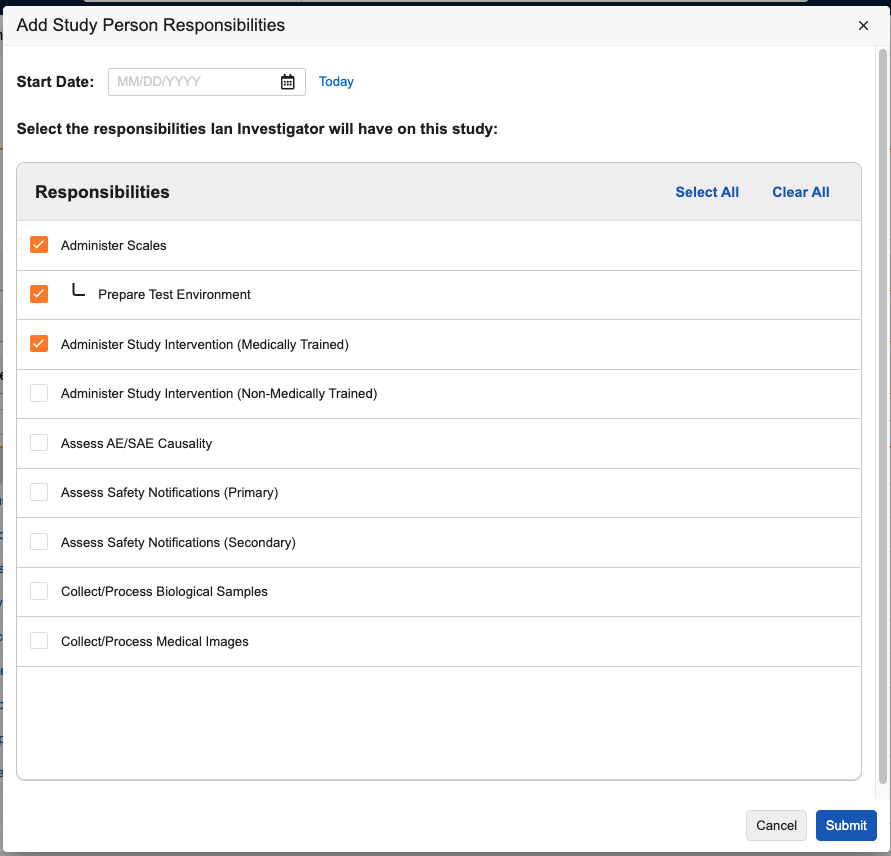
Vault supports assigning one or more Responsibilities to _Site Staff_ or _Investigator_ type Study Personnel, along with the duration the person is performing that task. These are defined as _Study Person Responsibility_ object records and can be added to _Study Person_ records using the _Study Person Responsibilities_ application section.

You must assign _Study Personnel_ to a _Study Site_ before you can add _Responsibilities_. A _Responsibility_ must have a [_Study Responsibility_](/en/lr/865483/#study-responsibilities) record for the associated _Study_ before it can be assigned to a _Study Person_.

To add a _Responsibility_ to a _Study Person_:

1. Navigate to the **Study Person** record.
2. Click **Add** in the _Study Person Responsibilities_ section. 
3. In the dialog, select the **Responsibilities** you want to add. To add a [_Specialized Responsibility_](/en/lr/865483/#specialized-responsibilities), you must select the parent _Standard Responsibility_.
4. Optional: Assign a **Start Date**. This will apply to all selected _Responsibilities_.
5. Click **Submit**.

<div class="note-border alert-info">
  <div class="alert alert-info" role="alert">
    <div><i class="far fa-info-circle"></i></div>
    <div class="alert-text">
      <p><strong>Note</strong>: Users can only have either the <em>Assess Safety Notifications (Primary)</em> or <em>Assess Safety Notifications (Secondary)</em> responsibility, but not both.</p>
    </div>
  </div>
</div>


Once you click **Submit**, Vault creates a _Study Person Responsibility_ record for each _Responsibility_ selected. To review and manage _Study Person Responsibility_ records for a _Study Person_ in bulk, click the **Show in Tab** button in the _Study Person Responsibilities_ section of that _Study Person_ record.

Enter an **End Date** on the _Study Person Responsibility_ record to remove the Responsibility from the _Study Person_. Once the _End Date_ for the _Study Person Responsibility_ record is in the past, the _Responsibility_ can be reassigned to the _Study Person_. If you select the _Responsibility_ for a _Study Person_ who has the Responsibility assigned in an existing _Study Person Responsibility_ record with an _End Date_, Vault clears the _End Date_ for the _Study Person Responsibility_ record.

<a href="https://platform.veevavault.help/assets/images/25r1.3-clinops-1-managing-responsibilities.png" data-lightbox="images" data-title="" data-alt="Study Person Responsibility Selection Dialog">
  <img class="docimage" src="https://platform.veevavault.help/assets/images/25r1.3-clinops-1-managing-responsibilities.png" alt="Study Person Responsibility Selection Dialog" style="max-width: 100%;width: 600px;"  />
</a>

### Study Training & Study Persons {#study-training-persons}

In Clinical Operations, the _Ready for Training_ field defaults to "Yes" for _Internal_ persons (`internal_personnel__v`). Records of this type are based on the associated global directory record which is not "Investigator" or "Site Staff".

Customers with connected <a class="external-link " href="https://quality.veevavault.help/en/lr/48712025#responsibilities" target="_blank" rel="noopener">Study Training Vaults<i class="fa fa-external-link" aria-hidden="true"></i></a> can transfer _Study Person Responsibility_ records to Study Training to define _Responsibility_-based training.

### Applying _End Dates_ to _Study Person Responsibility_ Records {#end-dates-on-study-person-responsibilities}
When you enter an _End Date_ for a _Study Person_ with _Study Person Responsibility_ records, the _Apply End Date to Study Person Responsibility Records_ job applies the _End Date_ to the _Study Person Responsibility_ records if the Person does not have any other _Study Person_ records with no _End Date_ for that Study Site. If the Person has another _Study Person_ record with no _End Date_ for the Study Site, the job does not apply an _End Date_ to the _Study Person Responsibility_ records. The _Apply End Date to Study Person Responsibility Records_ job runs daily.

The _Apply End Date to Study Person Responsibility Records_ job is inactive by default. We recommend Admins enable the job to benefit from the streamlined Responsibility experience.

## Removing Access for Study Personnel {#removing-access-for-study-personnel}

The _Revoke Access from Study Persons with End Date_ job removes a user's access to study-related records when their _Study Person_ record reaches the _End Date_. When active, the _Revoke Access from Study Persons with End Date_ job runs daily and automatically changes the _Grant Access to Related Records_ field to _No_ for _Study Person_ records where the _End Date_ is before the date the job runs. This allows the _Study Person_ record to remain active while removing access to related records.

For Vaults with Site Connect, the _Revoke Access from Study Persons with End Date_ job also removes the user's access to [Site Connect](/en/lr/64233/) by changing the _Site Connect User_ field to _No_.

Admin can navigate to **Admin > Operations > Job Definitions** to activate the _Revoke Access from Study Persons with End Date_ job.