# Managing Domain Settings
In **Admin > Settings > Domain Settings**, Admins can configure [domain-level settings](/en/lr/14691/#domain-settings) for the default session duration, My Vaults, and the domain logo displayed on the My Vaults page. To modify these settings, Admins must have the _Domain Admin_ user setting, as well as a security profile that grants the _Admin: Domain Administration_ permission.
## Configuring the Default Session Duration {#default-session-duration}
From the **Admin > Settings > Domain Settings** page, you can update the default **Session Duration** for the domain, which controls the maximum amount of time users can be idle before Vault UI and Vault API automatically logs them out. When using the API, a user is considered idle after their last request finishes executing.
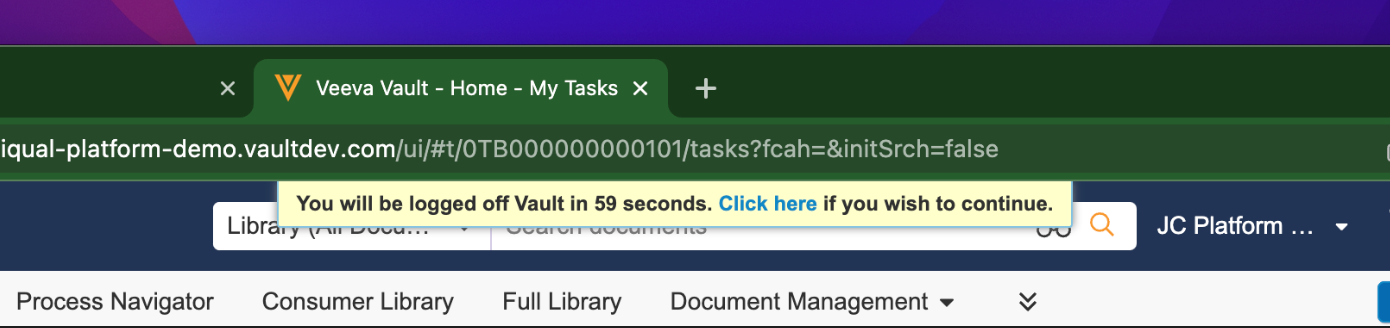
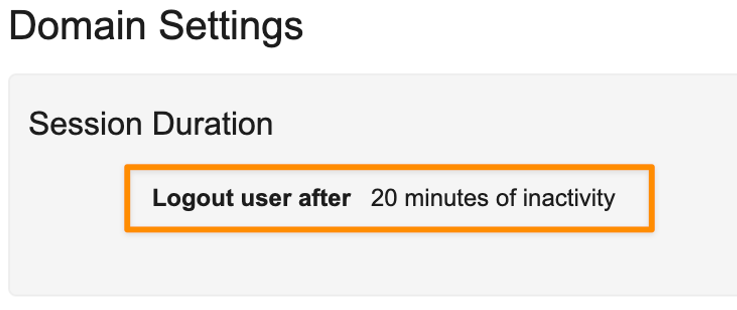 The **Session Duration** options are _10 minutes_, _15 minutes_, _20 minutes_, _30 minutes_, _45 minutes_, _1 hour_, _2 hours_, _4 hours_, and _8 hours_. For example, a _Session Duration_ of _10 minutes_ means a user is automatically logged out after ten minutes of inactivity. When using the Vault API, the authenticated user's session ID would expire ten minutes after their last request finished executing. Vault shows a session timeout warning banner at the top of the page one minute prior to automatically logging the user out. Users can extend their session by clicking the **Click here** prompt within the banner, moving their mouse, or pressing any key on the keyboard.
 In addition to inactivity, a user's session can end if there are major security changes such as password changes or account deactivation. The maximum amount of time a session can remain active is 48 hours, even if the user is not idle.
## Enabling My Vaults
[**My Vaults**](/en/lr/18505/) provides valuable tools for [multi-Vault domains](/en/lr/14691/) and cross-domain users, enabling you to find documents more quickly and see open tasks across your Vaults. This feature is sometimes called Enterprise Home.
Admins can turn on this feature with the **Enable My Vaults Page** setting in **Admin > Settings > Domain Settings**.
Enablement for this feature happens at the domain-level. On a multi-Vault domain, that means that all Vaults will have access to the feature. Once enabled, allow 30 minutes for **My Vaults** to activate.
## Adding a Domain Logo
Admins can add a domain logo to the **My Vaults** page. Logos display on each tile per domain, and not per Vault. The logo image must be in JPG or PNG image formats, less than 500 KB, and cannot exceed 175 x 70 px in size. The upload fails if the image does not meet any of the requirements above.
To add a domain logo to **My Vaults**:
1. From **Admin > Settings > Domain Settings**, click **Edit** in the **Domain Branding** section.
2. Click the **Use Domain Logo on My Vaults** **Page** checkbox.
3. Click **Choose** to select an image to upload.
4. Click **Save.**
5. Return to the **My Vaults** page to view the logo.
[1]: #default-session-duration
In addition to inactivity, a user's session can end if there are major security changes such as password changes or account deactivation. The maximum amount of time a session can remain active is 48 hours, even if the user is not idle.
## Enabling My Vaults
[**My Vaults**](/en/lr/18505/) provides valuable tools for [multi-Vault domains](/en/lr/14691/) and cross-domain users, enabling you to find documents more quickly and see open tasks across your Vaults. This feature is sometimes called Enterprise Home.
Admins can turn on this feature with the **Enable My Vaults Page** setting in **Admin > Settings > Domain Settings**.
Enablement for this feature happens at the domain-level. On a multi-Vault domain, that means that all Vaults will have access to the feature. Once enabled, allow 30 minutes for **My Vaults** to activate.
## Adding a Domain Logo
Admins can add a domain logo to the **My Vaults** page. Logos display on each tile per domain, and not per Vault. The logo image must be in JPG or PNG image formats, less than 500 KB, and cannot exceed 175 x 70 px in size. The upload fails if the image does not meet any of the requirements above.
To add a domain logo to **My Vaults**:
1. From **Admin > Settings > Domain Settings**, click **Edit** in the **Domain Branding** section.
2. Click the **Use Domain Logo on My Vaults** **Page** checkbox.
3. Click **Choose** to select an image to upload.
4. Click **Save.**
5. Return to the **My Vaults** page to view the logo.
[1]: #default-session-duration