**Source URL:** https://clinical.veevavault.help/en/lr/72747/index.md

# Training TMF Bot Document Auto-classification Models


<div class="note-border alert-info">
  <div class="alert alert-info" role="alert">
    <div><i class="far fa-info-circle"></i></div>
    <div class="alert-text">
      <p><strong>Note</strong>: If you are unable to locate the answers you need, please see our <a href="/en/lr/73297/">TMF Bot FAQ</a>.</p>
    </div>
  </div>
</div>


To use certain TMF Bot features like document auto-classification, a _Trained Model_ must be trained and deployed. This training allows the machine learning model to learn eTMF, preparing it to intelligently process data.

Vault automatically creates a _Trained Model_, of type Document Classification, in all eTMF Vaults with at least 1,500 Steady state documents. As long as a _Trained Model_ is not already deployed, Vault also deploys the model for you. In every Vault, custom and system-trained models refresh with each release. _Trained Models_ with a Trained Model type of _Document Classification_ allow [auto-classification of documents in the Document Inbox](/en/lr/72766/), and [quality control](/en/lr/487199/) of manual document classification.

## How Auto-trained Models Work

The TMF Bot is auto-on for all eTMF customers with more than 1,500 Steady state documents. The process the system uses to create, train and deploy a Document Classification _Trained Model_ is as follows:

1. The _Auto-Train Models_ job runs each night at 1:00am EST on all production and pre-release[^1] Vaults. This job will check that:
    * No system-created model has been created since the last major release
    * There are at least 1,500 Steady state documents in this Vault
2. The job creates a _Trained Model_ of the _Document Classification_ type with the following default values: _Prediction Confidence Threshold_: 0.85; _Minimum Documents per Type_: 10; _Auto-Deploy_: TRUE. If your previously deployed model included _Excluded Classification_ records or criteria in the _Document Criteria - VQL_ field, those will be copied to the new trained model. 
3. The latest document versions (based on the _Version Created Date_) that fall into the following categories are used to train this model:
    * In a Steady state (_Approved_/_Final_)
    * Not a Binder
    * Not in the _TMF Document_ or _Final CRF_ document type
    * Not in a document type mapped to "Sites Evaluated but not Selected"
    * The document has pages
4. If there is already a deployed model of the same Trained Model Type in this Vault, the auto-trained model stays in the training state, otherwise it will be automatically deployed after it finishes training.
5. Once the auto-trained model is deployed, any documents uploaded to the Inbox may be auto-classified by the TMF Bot.


<div class="note-border alert-info">
  <div class="alert alert-info" role="alert">
    <div><i class="far fa-info-circle"></i></div>
    <div class="alert-text">
      <p><strong>Note</strong>: Users cannot edit the <em>Prediction Confidence Threshold</em> for system-trained models.</p>
    </div>
  </div>
</div>


Auto-classification models are automatically refreshed with each Vault general release. If you are currently using a manually-trained model, Vault makes a copy of that model, trains it, and deploys it to replace the old model. Otherwise, if you are currently using the previous release's auto-trained model, Vault deploys this new model to replace the old Trained Model. This ensures the system is training on the latest documents that represent your document hierarchy.

The TMF Bot has two options for sourcing data to train its model. For Production Vaults, it uses document content from the same Vault. In non-Production Vaults, administrators can choose to use content from either the Production Vault or the same non-Production Vault. In all cases, the training data and AI model are fully encapsulated within the customer's environment, just as documents and data are completely separated among customers.

Given the number of eTMF customers, auto-training and deploying models in your Vault may take 48 to 72 hours after each general release.

[^1]: Pre-release Vaults will use the production Vault's documents to auto-train the model.

## How To Train a Model {#how-to-train-a-model}

Like all machine learning tools, the TMF Bot requires input to learn before performing tasks on its own. Generally, the larger and more accurate the inputs, the better the resulting model will be. Vault stores accumulated input in _Trained Model_ object records.

### Prediction Confidence

Vault uses a _Prediction Confidence_ score to indicate how certain TMF Bot is that its prediction is correct. This value is between 0 (likely wrong) and 1 (likely correct). The better your inputs, the higher the _Prediction Confidence_ will be. Vault stores _Prediction Confidence_ scores in _[Prediction ][1]_ object records.

### Prediction Confidence Threshold

Vault uses the _Prediction Confidence Threshold_ field value on a _Trained Model_ record to determine what score is required before the system will use that _Prediction_. The _Prediction Confidence Threshold_ is system managed and set to 0.85 by default. This means that if the _Prediction Confidence_ for a document uploaded to the Document Inbox is .8728, Vault auto-classifies the document.

## Creating a Document Classification _Trained Model_

Before creating a _Trained Model_, carefully consider the following limitations:

* Vault allows Admins to train models in <a class="external-link " href="https://rn.veevavault.help/en/gr/pre-release-faq/" target="_blank" rel="noopener">Pre-release<i class="fa fa-external-link" aria-hidden="true"></i></a> or [Sandbox](/en/lr/48988/) environments using their production environment documents, verifying the training process. These models, however, cannot be moved to your production Vault, so _Trained Models_ must be created and trained in the production environment as well.
* Certain categories of documents cannot be auto-classified or used in model training. These include:
    * Video and audio files
    * Non-text files, such as ZIP files, statistical files, or database files
    * Non-English documents, unless your Vault has the Multilingual Model feature enabled.
    * Documents where Vault cannot extract text, for example, if the text is too blurry or if the file is password-protected or encrypted.
* We recommend using at least 3,000 documents in steady states, such as _Approved_ or _Final,_ to train the machine learning model. You may use TMF Bot on Vaults with 1,000 to 3,000 documents, but note that it may limit the quality of your predictions.
* If any of your inputs are misclassified documents, your predictions may be negatively impacted. For example, if several documents that should have been classified as _Legal > Contracts > Vendor_ were classified as _Legal > Agreements > External_, TMF Bot will be less confident about predictions for those document types.
* The following fields are system managed and set with default values: _Prediction Confidence Threshold_: 0.85; _Minimum Documents per Type_: 10; _Auto-Deploy_: TRUE

<div class="note-border alert-info">
  <div class="alert alert-info" role="alert">
    <div><i class="far fa-info-circle"></i></div>
    <div class="alert-text">
      <p><strong>Note</strong>: To enable auto-classification and metadata extraction functionality for documents in languages other than English, contact Veeva Services to enable the Multilingual Model feature.</p>
    </div>
  </div>
</div>


### Creating the _Trained Model_ Object Record

1. Navigate to **Admin > Business Admin** and click into the _Trained Model_ object.
2. Click **Create**.
3. For the **Trained Model Type**, select **Document Classification**.
4. The **Prediction Confidence Threshold** is system managed and is set to 0.85 by default. You do not need to enter any value in this field
5. Set the [**Training Window Start Date**][2] accordingly.
6. Click **Save**.

After creating the _Trained Model_ object record, choose a training method.

### Training Model Filters

If desired, you can choose to customize _Trained Models_ by compiling custom lists of documents to use for training. There are 2 possible methods.

#### VQL Query

You can add a custom VQL Query to your _Trained Model_. Vault evaluates this query when you train the model so that it knows which set of documents to use to train the model.

To add a custom VQL Query to a custom _Trained Model_:

1. Under **Document Criteria**, enter your **Document Criteria - VQL**.
2. Click **Validate**. Vault evaluates the VQL Query.
3. When your VQL query is valid, train your model and select **Training Window Start Date** as **Document Set Source**.

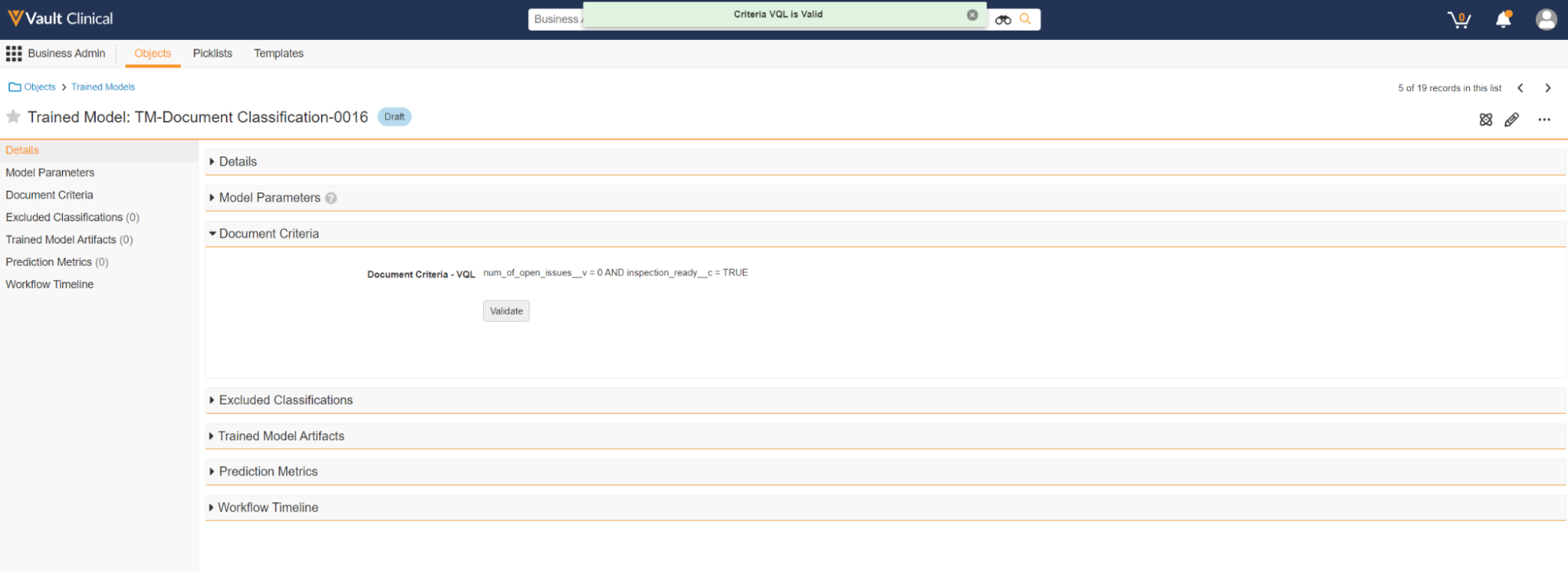
When you **Validate** the **Document Criteria - VQL** field, Vault displays a green banner at the top of the screen if the query is valid.

<a href="https://platform.veevavault.help/assets/images/valid-vql-query-clinops.png" data-lightbox="valid-vql-query-clinops.png" data-title="" data-alt="Valid VQL Query">
  <img class="docimage" src="https://platform.veevavault.help/assets/images/valid-vql-query-clinops.png" alt="Valid VQL Query" style="max-width: 50%;"  />
</a>

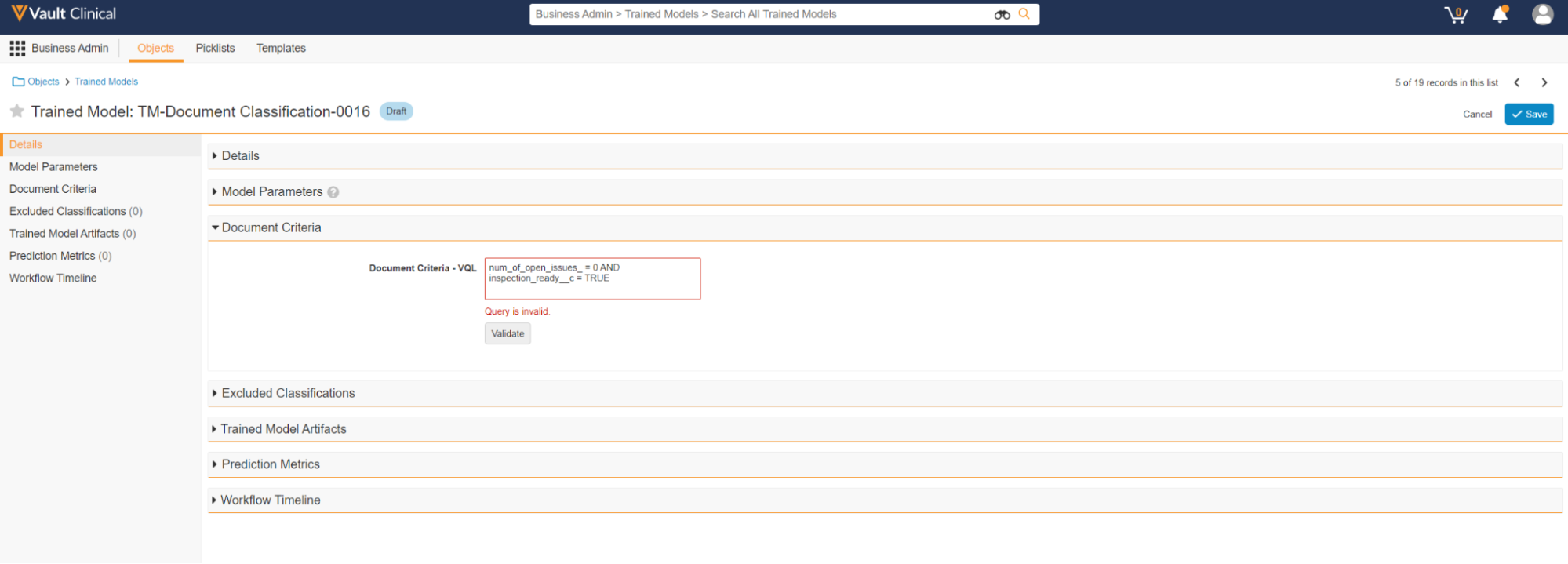
If the query is invalid, Vault displays an error message below the **Document Criteria - VQL** field.
<a href="https://platform.veevavault.help/assets/images/invalid-vql-query-clinops.png" data-lightbox="invalid-vql-query-clinops.png" data-title="" data-alt="Invalid VQL Query">
  <img class="docimage" src="https://platform.veevavault.help/assets/images/invalid-vql-query-clinops.png" alt="Invalid VQL Query" style="max-width: 50%;"  />
</a>

Once you train the model, Vault automatically sets the **Training Set Type** to **Document Criteria**.

### Training Window Start Date

To train your model, you'll need to choose a method to pull documents to use as input in this _Trained Model_ using the _Training Window Start Date_.

This method pulls all documents in a Steady State, such as Approved or Final, with a Version Created Date value between the Training Window Start Date and the current date. If there are more than 200,000 documents that fit this criteria, Vault uses the 200,000 most recent documents. You must ensure you have filled in a Training Window Start Date value on your _Trained Model_ record.

### Creating Excluded Classifications

You can define classifications to be excluded from your Trained Model, so that the documents will never be updated automatically for these classifications, but only manually.

You can specify excluded classifications before or after a model is trained and the behavior will differ depending on when the exclusion is added:

* If you add an excluded classification before the model's training, the TMF Bot excludes the specified classification(s) from all extraction, training, and testing during model deployment. The excluded classifications are then not known by the Bot which can only predict a trained classification.

* If you add an excluded classification after the model's training, the model is not automatically retrained, meaning TMF still knows the excluded classifications but the TMF Bot will not take any action against documents predicted for the excluded classification.

In general, we recommend the following best practices:
* Excluding prior to the model training all the "Non-TMF" / working zone classifications.
* Excluding after the model's training all the monitoring classifications that you expect to be generated by the system when you use Veeva CTMS.
* Not excluding classifications before model training because you think the Bot will perform poorly.

<div class="note-border alert-info">
  <div class="alert alert-info" role="alert">
    <div><i class="far fa-info-circle"></i></div>
    <div class="alert-text">
      <p><strong>Note</strong>: This exclusion applies only to the Trained Model to which the Excluded Classification belongs. For example, let’s say you have Trained Models deployed for Auto-Classification and Metadata Extraction, and your Metadata Extraction model has an Excluded Classification for “Protocol”. You then create a document that the TMF Bot thinks is a Protocol belonging to study AVEG 027. The TMF Bot will classify the document as a Protocol, but it will not set the <em>Study</em> field because the Protocol is an Excluded Classification for Metadata Extraction.</p>
    </div>
  </div>
</div>


To create an excluded classification:

1. Under **Excluded Classifications**, click **Create**.
2. Select the **Status** of the Excluded Classification.
3. Select the **Classification** you wish to exclude.
4. Enter any relevant **Comments**.
5. Click **Save**.

### Training the _Trained Model_

Once you have determined the appropriate [Document Set Method][3], perform the **Train Model** action. Choose the appropriate Document Set method when prompted, then click **Start**. The _Trained Model_ record will move to the In Training state.

An asynchronous job tracks two activities as part of training:

1. **Document Extraction**: During this process, the system collects the data from the specified document set. The output is a CSV file (document_extract_results.csv) in which an Admin can see which documents were able to be used as input and which were not attached under _Trained Model Artifacts_. Vault sends a notification to the Admin who started the action when the extraction is complete.
2. **Model Training**: During this process, the system will use 80% of the extracted data to build a machine learning neural network model, then test that model using the remaining 20%. The output is a number of [performance metrics](/en/lr/72739/) in both the _Trained Model Performance Metrics_ object and attached CSVs under _Trained Model Artifacts_. Vault sends a notification to the Admin who started the action when training is complete.

The time required to complete these jobs varies depending on the number of documents used as input: About 1 hour for Vaults training on 3,000 documents, to about 24 hours for Vaults training on 200,000 documents.

Once Model Training is complete, the _Trained Model_ record will move to the Trained state.

### Training a *Trained Model* in Pre-Release or Sandbox Environments with Production Data

You can train a _Trained Model_ in your Pre-Release or Sandbox Vault with production documents for evaluation purposes. You cannot move the resulting _Trained Model_ to your production environment.

To train using production data, run the **Train Model From Production Data** action. This action is only visible in Pre-Release and Sandbox Vaults.

After evaluating your _Trained Model_, you'll need to perform training again in your production Vault to begin using TMF Bot features there.

### Evaluating the _Trained Model_

There are three Key Metrics to ensure your _Trained Model_ is viable: Extraction Coverage, Auto-classification Coverage, and Auto-classification Error Rate. These can be found in the Training Summary Results field of your Trained Model record. See [the definition of these key metrics and how to improve them](/en/lr/72739/).

### Deploying the _Trained Model_

Once you have trained and evaluated your _Trained Model_, select the **Deploy Model** action from the _Trained Model_ record, review the prompt to ensure you agree with the outcome and click **Start**. The _Trained Model_ record will move to the In Deployment state.

An asynchronous job tracks the deployment of this _Trained Model_ in your Vault. The time required to complete these jobs varies, and it can take anywhere from 30 minutes to two hours. Vault sends a notification to the Admin who performed the action when deployment is complete.

Once the deployment job finishes, the _Trained Model_ record moves to the _Deployed_ state and Vault begins auto-classifying the documents in the Document Inbox.

Only one _Trained Model_ per _Trained Model Type_ can be deployed at a time.


<div class="note-border alert-info">
  <div class="alert alert-info" role="alert">
    <div><i class="far fa-info-circle"></i></div>
    <div class="alert-text">
      <p><strong>Note</strong>: Vault automatically refreshes deployed <em>Trained Models</em> every general release.</p>
    </div>
  </div>
</div>


#### Replacing a Deployed _Trained Model_

To replace a deployed model with a new _Trained Model_, simply deploy the new model. It replaces the currently active model, and auto-classification is not interrupted. This is the recommended method for replacing models.

#### Refreshing a Deployed _Trained Model_

To refresh a deployed model, select the **Refresh Model** action. It will automatically create a deep copy of the current _Trained Model_ and start the training process. This action prevents users from starting multiple training jobs simultaneously, and refreshes a _Trained Model_ in fewer steps.

If the multilingual model has been enabled in your Vault for the first time, [a new model must be trained](#how-to-train-a-model) rather than retraining the existing model or any model that was in use prior to the multilingual model feature being enabled.

### Additional _Trained Model_ Actions & Details

You can only have five _Trained Models_ per _Trained Model Type_. If you attempt to train a sixth, Vault advises you to archive a model before training another. To do so, select the **Archive Model** action on a _Trained Model_ record. The _Trained Model_ record moves to the _Archived_ state. Archived models are not recoverable.

You can also remove deployed models and disable auto-classification by using the **Withdraw Model** action on a _Trained Model_ in the _Deployed_ state. Doing so moves the _Trained Model_ record back to the _Trained_ state.

### Document Quality Control with TMF Bot

_Document Classification Trained Models_ can also be used for quality control purposes. TMF Bot can make predictions about a document as part of a workflow. If the existing classification or metadata (_Study_, _Study Country_, and/or _Study Site_) does not match TMF Bot's suggestion, the Document Info panel lets a user [see the suggestion](/en/lr/487199/). The user can then reclassify the document or update the metadata if desired.

Document Quality Control can be used by itself or alongside auto-classification and metadata extraction. This allows Vaults not using the Document Inbox to benefit from TMF Bot.

To enable this, first deploy a Trained Model using any automatic or manual training method. Then, include an **AI Document QC** system action step in any document workflow. You can add this to existing workflows, or design a new workflow that only performs this action. When the action is performed, predictions are generated and suggestions become available to the user.

## About the _Prediction_ Object

When a _Trained Model_ is deployed and used to predict data for a document, the _Prediction_ object keeps track of each individual prediction attempt. It's unlikely that Admins will need to work with this object directly, but it may be useful to understand the object fields.

* **Prediction ID**: Unique identifier for that prediction, automatically assigned by Vault
* **Related Record Unique ID**: Identifier for the file being evaluated, automatically assigned by Vault
* **Related Record**: Metadata for the document being evaluated, formatted as JSON. You can locate the Vault Document ID, Major version, and Minor version here if needed.
* **Predictions**: The prediction data for this attempt from TMF Bot, formatted as JSON. You can use this field to understand if a prediction failed and why; which _Trained Model_ was used to make the prediction; and, in the case of Document Classification, the first, second, and third top predictions from the model along with their _Prediction Confidence_ scores. If the first Prediction score is above the deployed _Trained Model_ _Prediction Confidence Threshold_, the document will have been auto-populated with that prediction. This can also be seen with the auto-populated JSON parameter.
* **Feedback**: Post-prediction activity. This field shows the current value for the data being predicted in the trueValue JSON parameter and if that value matches the corresponding first Prediction in the Predictions field in the trueValueMatch JSON parameter.
* **Additional Details**: Lists from where Vault generates the prediction. This can include multiple sources. For example, if a bulk auto-classification generates a prediction and the document is sent for a QC check, the _Additional Details_ field contains the values BULK and QC_CHECK.

## About the _Prediction Metrics_ Object

When a _Trained Model_ is deployed and used to predict data for a document, the _Prediction Metrics_ object keeps track of the model's performance over time. The _Prediction Metrics_ job runs monthly and generates records that track the overall performance of the *Trained Model*, as well as performance per document Classification. You can view this object from the _Trained Model_ page layout, and it contains the following fields:

* **Model Performance ID**: Unique ID assigned by Vault
* **Created Date**: Date the prediction metric was calculated
* **Trained Model Type**: The Trained Model Type (Auto-Classification or Metadata Extraction) being evaluated
* **Metric Type**: Metric type presented
* **Metric Subtype**: Subtype of the metric presented
* **Number of Documents**: The number of documents sent to the TMF Bot model during the given time period.
* **Documents Extracted**: The number of documents sent to the TMF Bot that had text successfully extracted and evaluated by the model.  
* **Extraction Rate**: The rate that documents sent to the TMF Bot had the text successfully extracted (**Documents Extracted** divided by **Number of Documents**).  
* **Field Extracted**: The field extracted by the Metadata Extraction model (does not apply to Auto-classification models).
* **Documents with Predictions**: The number of documents that have a predicted value.  
  * For Auto-Classification predictions, all documents sent to the TMF Bot qualify.  
  * For Metadata predictions, the TMF Bot detects the value.  
* **Correct Predictions**: The number of times the predicted value was accurate, whether or not the TMF Bot acted upon it.  
  * For Auto-Classification predictions, the predicted classification is correct whether or not it is above the PCT.  
  * For Metadata predictions, the predicted value is confirmed on the document whether or not it was set by the TMF Bot.  
* **Predictions Above Threshold**: The number of times the TMF Bot acted upon the prediction.   
  * For Auto-Classification predictions, this means the predicted classification was above the model's PCT.  
  * For Metadata predictions, this means that the TMF Bot attempted to set the corresponding field.  
* **Correct Predictions Above Threshold**: The number of times the predicted value was accurate and the TMF Bot acted on it.  
  * For Auto-Classification predictions, this means that the TMF Bot set the correct classification on the model.  
  * For Metadata predictions, this means the TMF Bot detected the value on the document and it was confirmed.
* **Success Rate**: The rate at which predictions on which the system acted were confirmed as true predictions.  
  * For Auto-Classification models, this is **Correct Predictions Above Threshold** divided by **Predictions Above Threshold**.  
  * For Metadata predictions, this is **Correct Predictions** divided by **Documents with Predictions**.
* **Partial Predictions Above Threshold**: The number of times that the system set a value that was confirmed as one of multiple values on the document. This metric only applies to Metadata predictions.

<div class="note-border alert-info">
  <div class="alert alert-info" role="alert">
    <div><i class="far fa-info-circle"></i></div>
    <div class="alert-text">
      <p><strong>Note</strong>: Each combination of <em>Trained Model</em> and <em>Field Extracted</em> will have one set of Metadata Extraction prediction records. This means that in a Vault with both an Auto-classification <em>Trained Model</em> and a Metadata Extraction <em>Trained Model</em>, Vault calcuates prediction metrics for <em>Auto-classification</em>, <em>Study</em>, <em>Study Country</em>, and <em>Site</em>.</p>
    </div>
  </div>
</div>


[1]: #about-the-prediction-object
[2]: #training-window-start-date
[3]: #choosing-a-document-set-method
