Note: Veeva Disclosures is an add-on application to Veeva CTMS and part of the Clinical Operations application family. You must have Veeva CTMS and Veeva eTMF to use Veeva Disclosures. Contact your Veeva representative for more information.
### Disclosure Overview Layout
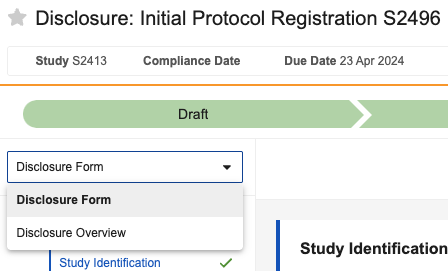
All _Disclosure_ records include the _Disclosure Overview_ layout. The layout displays the information you or the system used to create the _Disclosure_ record in the _Details_ section.
The system generates a _Compliance Date_ based on the [_Disclosure Rule_](/en/lr/826042/) that triggers the creation of a new _Disclosure_ record. The _Compliance Date_ is a read-only field and displays the date the disclosure is due according to registry requirements.
You can enter a **Due Date** when editing the _Disclosure_ record. The _Due Date_ field represents an internal date defined by your company processes in order to meet the registry required _Compliance Date_.
When you submit the _Disclosure_ record, we recommend you update the **Submission Date**. Vault updates the _Submission Date_ for all _Disclosure_ records submitted via the [ClinicalTrials.gov submission connection](/en/lr/793399/#clinicaltrials-connection).
#### Related Documents {#related-documents-section}
When [configured](/en/lr/793399/#mapping-custom-fields), you can [add documents][7] to _Disclosure_ records in the _Related Documents_ section of the _Disclosure Overview_. You can view documents linked to the _Disclosure_ both in this section and the _Related Documents_ section of the _Disclosure Form_, if available. Once added, you can also submit the documents to ClinicalTrials.gov with the [ClinicalTrial.gov submission connection](/en/lr/793399/#clinicaltrials-connection) by selecting the _Post/Update Documents_ user action.
#### Attachments
Vault links all generated versions of the [_Disclosure_][5] and API responses from [submitting the _Disclosure_ record][6] in the _Attachments_ section. Select the files in this section to view and download them.
### Disclosure Form Layout
Note: Only users with a layout profile including Disclosure can view the Disclosure Form layout on Disclosure records.
Note: Veeva Disclosures only creates automatic Disclosure records for supported registries.
Note: Vault prepopulates fields on the Disclosure Form when a user or Vault creates the Disclosure record. The prepopulated fields remain unchanged unless manually updated, even if the original data changes.
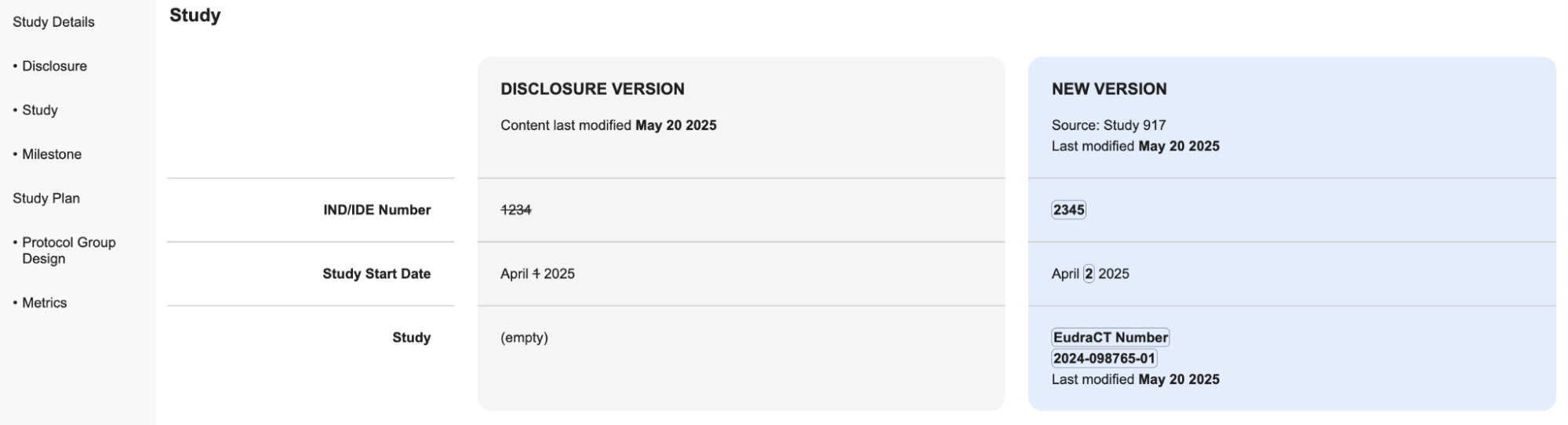
 When you click the **Check for Updates** button, Vault opens a _Check for Updates_ page in a new tab. This page displays one column with all the current _Disclosure Version_ data and one column with the _Newer Version_ data. The page includes sections for each Clinical Operations object within the Disclosure sections with any updated data that does not match the existing data in the associated prepopulated _Disclosure Form_ field with the _Source_ object and the date it was most recently updated in the column header.
The _Check for Updates_ page is view-only. To include the most recent data in your _Disclosure Form_, you must manually update the prepopulated fields with the most recent information. Once the data for all the prepopulated fields corresponding to a single Clinical Operations object match the data in the object, that section is no longer displayed on the _Check for Updates_ page once refreshed.
When you click the **Check for Updates** button, Vault opens a _Check for Updates_ page in a new tab. This page displays one column with all the current _Disclosure Version_ data and one column with the _Newer Version_ data. The page includes sections for each Clinical Operations object within the Disclosure sections with any updated data that does not match the existing data in the associated prepopulated _Disclosure Form_ field with the _Source_ object and the date it was most recently updated in the column header.
The _Check for Updates_ page is view-only. To include the most recent data in your _Disclosure Form_, you must manually update the prepopulated fields with the most recent information. Once the data for all the prepopulated fields corresponding to a single Clinical Operations object match the data in the object, that section is no longer displayed on the _Check for Updates_ page once refreshed.
 ## Commenting on Disclosures
The _Add a comment_ icon on the Disclosure Form subsections allows users with the correct permissions to add, _Edit_, _Delete_, _Resolve_, and _Reopen_ comments on the _Disclosure_ record. Users with _View_ permissions, such as Disclosure Reviewers and Specialists, can add, _Edit_, _Delete_, _Resolve_, and _Reopen_ your own comments. In addition to managing your own comments, Disclosure Specialists can also view, _Resolve,_ and _Reopen_ all comments left on the record by any users. You can only edit or delete your own comments. Once you delete your comment, you can not retrieve it.
Vault displays an orange _Unresolved_ comments icon in the header and side navigation for each subsection with open comments. A subsection can have a maximum of 100 open comments and 200 comments in total, including resolved comments. When all comments for a subsection are resolved, Vault displays a green _Resolved_ comments icon.
In configured _Disclosure_ lifecycles, you can not move a _Disclosure_ record with open comments to the _Approved_ state.
## Editing Disclosures
After you or Vault create a _Disclosure_ record of any type, you can make changes to the record during any unlocked lifecycle stage prior to submission.
### Populating US Results Tables
When editing a _US Results_ type _Disclosure_ record, click the **Fill Arm/Group from Registration** button in the _Arms/Groups_ section header to populate the _Arm/Group Information_ table. Click the **Fill Outcome Measures from Registration** button in the _Define Outcome Measures_ section header to populate the different Outcome Measure tables. Vault only displays these buttons when the corresponding table is empty.
The _Fill Arm/Group from Registration_ and _Fill Outcome Measures from Registration_ buttons populates these tables with the data from the most recently submitted _Registration_ record associated with the _Study_. When multiple Registration records exist for the Study associated with the _US Results_ record, Vault uses the _Registration_ record in the _Approved_ or _Submitted_ lifecycle state with the most recent _Submission Date_ value. When no record with a submission date exists, Vault uses the _Registration_ record with the most recent _Last Content Modified Date_.
### Reordering Arm/Group Tables for US Results
Select **Move Up** or **Move Down** in the _Action Menu_ to the right of the _Arm/Group Title_ field to reorder the existing rows in the _Arms/Groups_ subsection. Once you reorder the rows and click **Save and Proceed**, Vault reorders the columns of corresponding tables in the _Disclosure_ record.
### Copying US Results Table Rows
You can copy rows in the _Outcome Measures_ and _Adverse Event tables_ by navigating to the row in the table and clicking the **Action** menu to the right of the first cell in the row and selecting the **Copy Row** action. This action duplicates the row in the table directly below the selected row. You can update and make changes to the rows in the table. Once done, click **Save and Proceed** to save changes and update corresponding tables with the new information.
### Importing Adverse Events for US Results
Selecting the **Import Results XML** user action allows you to upload a file containing data that Vault populates into the _Adverse Events Reporting_ section of the _US Results_ type _Disclosure_ record. Select **Upload and Overwrite** to confirm that you want the data on the uploaded file to overwrite any existing data in the section. Vault displays an error message and notifies you if any errors occur with the uploaded XML file. Once you successfully upload the new file, refresh your page to view the imported data.
## Validating Disclosures
By default, Vault validates _Disclosure_ records for supported registries when users move them to the _Approved_ state. Vault runs specific validation checks based on the selected supported registry. Vault indicates validation errors in the _Disclosure_ record using the error icon, or in an error file generated at validation. Admins can configure when the validation step occurs in the [workflow](/en/lr/33498/).
## Generating Disclosure Submission Files {#creating-disclosure-file}
Veeva Disclosures allows you to generate a downloadable submission file of the _Disclosure_ record for manual submission to supported registries by selecting **Generate Disclosure XML**.
Vault runs a validation check on the _Disclosure_ record when you select **Generate Disclosure XML**. The _Disclosure_ record must pass the validation check for users to generate the submission file. Vault uses the error icon to indicate which _Disclosure_ record fields failed the validation check. Vault creates an error file in the _Errors Found_ notification.
Once the _Disclosure_ record passes the validation check, Vault creates the submission file in the _Attachments_ section of the _Disclosure Overview_. Users can download the submission file and submit it to the appropriate registry. You can view previous versions of the submission file in the attachment's [version history](/en/lr/58613/#working-with-attachments). You can generate multiple versions of a _Disclosure_ record submission file throughout the _Disclosure Lifecycle_, except in the _Submitted_ workflow state. Admins can configure the _Disclosure_ _Lifecycle_ to edit the states where users can generate submission files.
### Generating Custom Disclosure Files
Admins can [configure custom fields](/en/lr/793399/#mapping-custom-fields) for the _Disclosure object to include on custom Disclosure XML files_. Once configured, these fields appear in the _Disclosure Overview_ section of the _Disclosure_ record. These custom fields do not appear on _Disclosure_ submission files sent to supported registries or generated by the _Generate Disclosure XML_ action. To include custom fields on _Disclosure_ submission files, select **Generate Disclosure Custom XML**. Vault provides the newly generated custom _Disclosure_ XML file attachment in the _Custom XML_ field in the _Disclosure Overview_ section of the _Disclosure_ record to be downloaded. This file can support processes to publish study information to custom public websites.
## Submitting a Disclosure to ClinicalTrials.gov {#submitting-disclosure-file}
Vault supports the submission of US _Disclosure_ records directly to ClinicalTrials.gov. The _Generate and Submit_ action is available once an Admin configures a [ClinicalTrials.gov connection](/en/lr/793399/#clinicaltrials-connection). By default, the user action is only available for _Disclosures_ in the _Approved_ lifecycle state.
When you select **Generate and Submit**, Vault attempts to submit the _Disclosure_ submission file to ClinicalTrials.gov. Once Vault attempts to submit the _Disclosure_ submission file, Vault displays a response status message and attaches a response XML file to the _Disclosure_ record. The _PRS Upload Results_ section in the _Disclosure Overview_ layout shows all submission statuses and related attachments.
If the _Disclosure_ submission is successful, Vault displays the "New Study created on PRS" status message.
## Commenting on Disclosures
The _Add a comment_ icon on the Disclosure Form subsections allows users with the correct permissions to add, _Edit_, _Delete_, _Resolve_, and _Reopen_ comments on the _Disclosure_ record. Users with _View_ permissions, such as Disclosure Reviewers and Specialists, can add, _Edit_, _Delete_, _Resolve_, and _Reopen_ your own comments. In addition to managing your own comments, Disclosure Specialists can also view, _Resolve,_ and _Reopen_ all comments left on the record by any users. You can only edit or delete your own comments. Once you delete your comment, you can not retrieve it.
Vault displays an orange _Unresolved_ comments icon in the header and side navigation for each subsection with open comments. A subsection can have a maximum of 100 open comments and 200 comments in total, including resolved comments. When all comments for a subsection are resolved, Vault displays a green _Resolved_ comments icon.
In configured _Disclosure_ lifecycles, you can not move a _Disclosure_ record with open comments to the _Approved_ state.
## Editing Disclosures
After you or Vault create a _Disclosure_ record of any type, you can make changes to the record during any unlocked lifecycle stage prior to submission.
### Populating US Results Tables
When editing a _US Results_ type _Disclosure_ record, click the **Fill Arm/Group from Registration** button in the _Arms/Groups_ section header to populate the _Arm/Group Information_ table. Click the **Fill Outcome Measures from Registration** button in the _Define Outcome Measures_ section header to populate the different Outcome Measure tables. Vault only displays these buttons when the corresponding table is empty.
The _Fill Arm/Group from Registration_ and _Fill Outcome Measures from Registration_ buttons populates these tables with the data from the most recently submitted _Registration_ record associated with the _Study_. When multiple Registration records exist for the Study associated with the _US Results_ record, Vault uses the _Registration_ record in the _Approved_ or _Submitted_ lifecycle state with the most recent _Submission Date_ value. When no record with a submission date exists, Vault uses the _Registration_ record with the most recent _Last Content Modified Date_.
### Reordering Arm/Group Tables for US Results
Select **Move Up** or **Move Down** in the _Action Menu_ to the right of the _Arm/Group Title_ field to reorder the existing rows in the _Arms/Groups_ subsection. Once you reorder the rows and click **Save and Proceed**, Vault reorders the columns of corresponding tables in the _Disclosure_ record.
### Copying US Results Table Rows
You can copy rows in the _Outcome Measures_ and _Adverse Event tables_ by navigating to the row in the table and clicking the **Action** menu to the right of the first cell in the row and selecting the **Copy Row** action. This action duplicates the row in the table directly below the selected row. You can update and make changes to the rows in the table. Once done, click **Save and Proceed** to save changes and update corresponding tables with the new information.
### Importing Adverse Events for US Results
Selecting the **Import Results XML** user action allows you to upload a file containing data that Vault populates into the _Adverse Events Reporting_ section of the _US Results_ type _Disclosure_ record. Select **Upload and Overwrite** to confirm that you want the data on the uploaded file to overwrite any existing data in the section. Vault displays an error message and notifies you if any errors occur with the uploaded XML file. Once you successfully upload the new file, refresh your page to view the imported data.
## Validating Disclosures
By default, Vault validates _Disclosure_ records for supported registries when users move them to the _Approved_ state. Vault runs specific validation checks based on the selected supported registry. Vault indicates validation errors in the _Disclosure_ record using the error icon, or in an error file generated at validation. Admins can configure when the validation step occurs in the [workflow](/en/lr/33498/).
## Generating Disclosure Submission Files {#creating-disclosure-file}
Veeva Disclosures allows you to generate a downloadable submission file of the _Disclosure_ record for manual submission to supported registries by selecting **Generate Disclosure XML**.
Vault runs a validation check on the _Disclosure_ record when you select **Generate Disclosure XML**. The _Disclosure_ record must pass the validation check for users to generate the submission file. Vault uses the error icon to indicate which _Disclosure_ record fields failed the validation check. Vault creates an error file in the _Errors Found_ notification.
Once the _Disclosure_ record passes the validation check, Vault creates the submission file in the _Attachments_ section of the _Disclosure Overview_. Users can download the submission file and submit it to the appropriate registry. You can view previous versions of the submission file in the attachment's [version history](/en/lr/58613/#working-with-attachments). You can generate multiple versions of a _Disclosure_ record submission file throughout the _Disclosure Lifecycle_, except in the _Submitted_ workflow state. Admins can configure the _Disclosure_ _Lifecycle_ to edit the states where users can generate submission files.
### Generating Custom Disclosure Files
Admins can [configure custom fields](/en/lr/793399/#mapping-custom-fields) for the _Disclosure object to include on custom Disclosure XML files_. Once configured, these fields appear in the _Disclosure Overview_ section of the _Disclosure_ record. These custom fields do not appear on _Disclosure_ submission files sent to supported registries or generated by the _Generate Disclosure XML_ action. To include custom fields on _Disclosure_ submission files, select **Generate Disclosure Custom XML**. Vault provides the newly generated custom _Disclosure_ XML file attachment in the _Custom XML_ field in the _Disclosure Overview_ section of the _Disclosure_ record to be downloaded. This file can support processes to publish study information to custom public websites.
## Submitting a Disclosure to ClinicalTrials.gov {#submitting-disclosure-file}
Vault supports the submission of US _Disclosure_ records directly to ClinicalTrials.gov. The _Generate and Submit_ action is available once an Admin configures a [ClinicalTrials.gov connection](/en/lr/793399/#clinicaltrials-connection). By default, the user action is only available for _Disclosures_ in the _Approved_ lifecycle state.
When you select **Generate and Submit**, Vault attempts to submit the _Disclosure_ submission file to ClinicalTrials.gov. Once Vault attempts to submit the _Disclosure_ submission file, Vault displays a response status message and attaches a response XML file to the _Disclosure_ record. The _PRS Upload Results_ section in the _Disclosure Overview_ layout shows all submission statuses and related attachments.
If the _Disclosure_ submission is successful, Vault displays the "New Study created on PRS" status message.
Note: Once Vault successfully submits the Disclosure submission file, you must manually upload any related documents to ClinicalTrials.gov.