# Using Subject & Enrollment Metrics

This page provides details on how Vault creates and updates the metrics related to subjects and subject enrollment. For general information about CTMS, see <a href="/en/gr/40009/">CTMS Overview</a>.

## Overview

Vault automatically tracks the following metrics for each _Study_, _Subject Group_, _Study Country_, and _Site_ in your Vault.

  * _Total Consented_
  * _Total In Screening_
  * _Total Screened_
  * _Total Screen Failed_
  * _Total Enrolled_
  * _Total Randomized_
  * _Total Started Treatment_
  * _Total In Active Enrollment_
  * _Total In Treatment_
  * _Total Withdrawn_
  * _Total End of Treatment_
  * _Total In Post-Treatment_
  * _Total Started Follow Up_
  * _Total In Follow Up_
  * _Total Lost To Follow Up_
  * _Total Lost To Follow Up Rate (%)_
  * _Total Completed_
  * _Enrollment Rate (subject per month)_
  * _Screen Failure Rate (%)_
  * _Drop Out Rate (%)_

You can populate forecast and planned values for each metric. Actual values are tracked as described below.

## Creating Enrollment Metrics {#auto-seed-metrics}

Vault can automatically create _Enrollment Metrics_ records before there are subjects in your system, allowing you to plan and prepare for future enrollment numbers.

Add the **Seed Metrics Records** action as an <a href="/en/gr/59885/#entry-actions">entry</a>, <a href="/en/gr/59885/#user-actions">user</a>, or <a href="/en/gr/33550/#system-action">system</a> action to the _Study_, _Study Country_, _Study Site_, and _Subject Group_ objects or the lifecycle state of the corresponding lifecycles where you want Vault to create _Metrics_ records. When you run the user action, or the _Study_, _Study Country_, _Study Site_, or _Subject Group_ enters the lifecycle state with the configured action, Vault creates all necessary _Metrics_ records, with _Actual_, _Planned_, and _Forecast_ metric values set to zero.

If any _Metrics_ records are already present at the time this action runs, Vault ignores these and creates records for the metrics that do not exist. This action takes into consideration any metrics defined for omission by the _Metrics Not in Use_ field.

Vault notifies you of any errors or duplicate _Metrics_ records it encounters when running the _Seed Metrics Records_ action.

## Selecting Metrics to Ignore

You can select metrics that Vault will omit from various areas of the system by using the **Metrics Not In Use** picklist on a given study. For the metrics you select on this field, Vault:

  * Removes any status lines for that metric from the _Enrollment Graph_ on the CRA and Study Management Homepages.
  * Removes the selected metric's record from the _Study_, all _Study Countries_, and _Sites_ under that study.
  * Does not create new _Monitored Metric_ records for any _Monitoring Events_ related to _Sites_ under the study.
  * Does not create new metric records for the _Study_, all _Study Countries_, or _Study Sites_ under the study.

You cannot select the metrics for _Total Enrolled_ and _Total Completed_ in the _Metrics Not In Use_ field as these are used in completeness calculations for the study.

Removing a metric from _Metrics Not In Use_ will schedule the _Recalculate Enrollment Metrics_ job for studies with a _Metrics Calculation_ of _Date-Based_ and _Status Snapshot_.

### Metric Calculation {#metric-calculation}

You can choose how Vault calculates metrics using the _Metric Calculation_ field on each Study with the following options:

#### Status Snapshot

This option calculates metrics based on the value of the _Subject Status_ field for each subject at the time Vault runs the calculation.

#### Date-Based

With this option, Vault will calculate metrics based on the date field that matches each metric. For example, Vault would calculate the _Actual Enrolled_ metric based on the number of subjects with an _Enrolled Date_ value. When the _Metric Calculation_ field is set to _Date-Based_, users cannot edit the _Actual_ field on _Metrics_ records. Vault can continue to update the _Actual_ field based on subject data updates using jobs, such as the <a href="/en/gr/63782/">_Update Metrics_ and _Recalculate Metrics_ jobs</a>.  

You must set the _Metric Calculation_ field to **Date-Based** or **Metrics Only** in order to use the Subject Recruitment Planning feature.

#### Metrics Only

With this option, users enter _Metrics Actual_ values manually at the selected _Subject Metrics Only Level_ (_Study_, _Country_, _Site_, or _Subject Group_). Data cannot be entered at levels below the one selected. Vault rolls up _Actual_ values to higher levels.

#### Transferred Metrics

With this option, an integration or Vault Loader transfers _Metrics_ for all levels (_Study_, _Country_, and _Site_) into Vault. Vault will not block or roll up any values. 

<div class="note-border alert-info">
  <div class="alert alert-info" role="alert">
    <div><i class="far fa-info-circle"></i></div>
    <div class="alert-text">
      <p><strong>Note</strong>: The <em>Seed Metrics Records</em> action does not create <em>Metrics</em> records for Studies with the <em>Metric Calculation</em> field set to <em>Transferred Metrics</em>.</p>
    </div>
  </div>
</div>


### Recalculate Enrollment Metrics

You can easily recalculate metrics, metrics over time, and enrollment status logs for a study using the _Recalculate Enrollment Metrics_ user action. An Admin can add the action to a valid lifecycle state on a study. You can use this action to update metrics for a _Study_ in advance of Vault's scheduled updates. Execute it whenever you need to refresh metrics for your study.

For subject-based studies, we recommend Admins configure this action for all _Study_ lifecycle states when you are planning for or enrolling subjects. 

The _Recalculate Enrollment Metrics_ job only creates new _Metrics_ records for _Study_ records with the _Date-Based_ and _Status Snapshot_ settings if a _Metrics_ record for that level does not exist. Use the [**Seed Metrics Records**][1] user or system action to create new sets of _Metrics_ records. For _Studies_ where the _Metrics Only_ setting manages metrics, this action resets all existing metrics to zero and updates the _Metrics Over Time_ records. For _Studies_ with the _Transferred Metrics_ setting, Vault displays an error when you run the _Recalculate Enrollment Metrics_ user action.

<div class="note-border alert-info">
  <div class="alert alert-info" role="alert">
    <div><i class="far fa-info-circle"></i></div>
    <div class="alert-text">
      <p><strong>Note</strong>: If you are switching from <em>Status Snapshot</em> metric calculation to <em>Date-Based</em> metrics, a Vault Admin needs to remove existing <em>Enrollment Status Log</em> records to avoid inconsistent data.</p>
    </div>
  </div>
</div>


## Enrollment Status Graph {#enrollment}

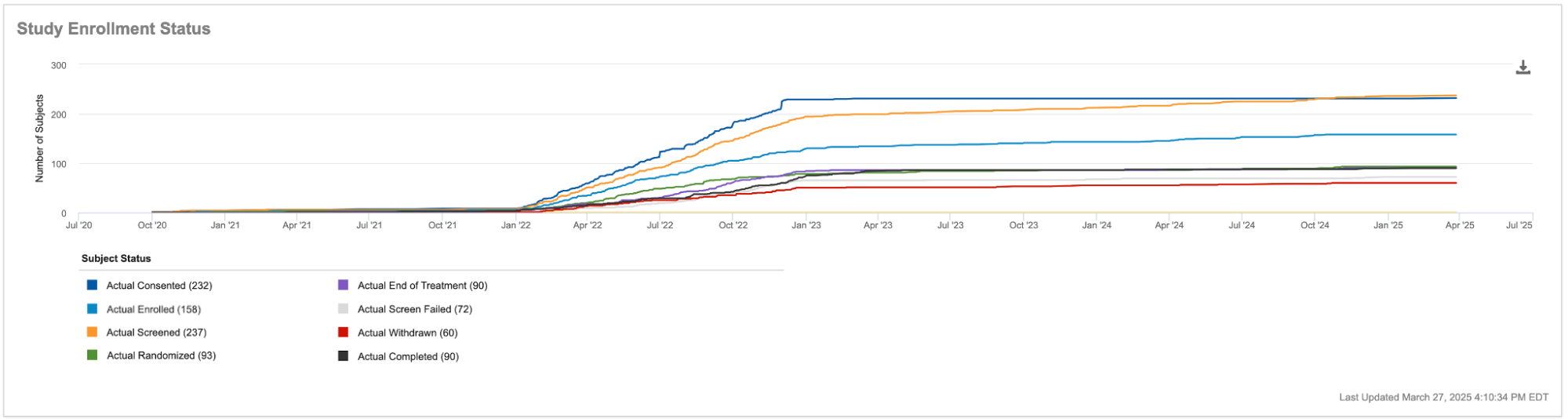
Here is an example of the _Enrollment Status_ graph when not utilizing <a href="/en/gr/55223/">Subject Recruitment Planning</a>:

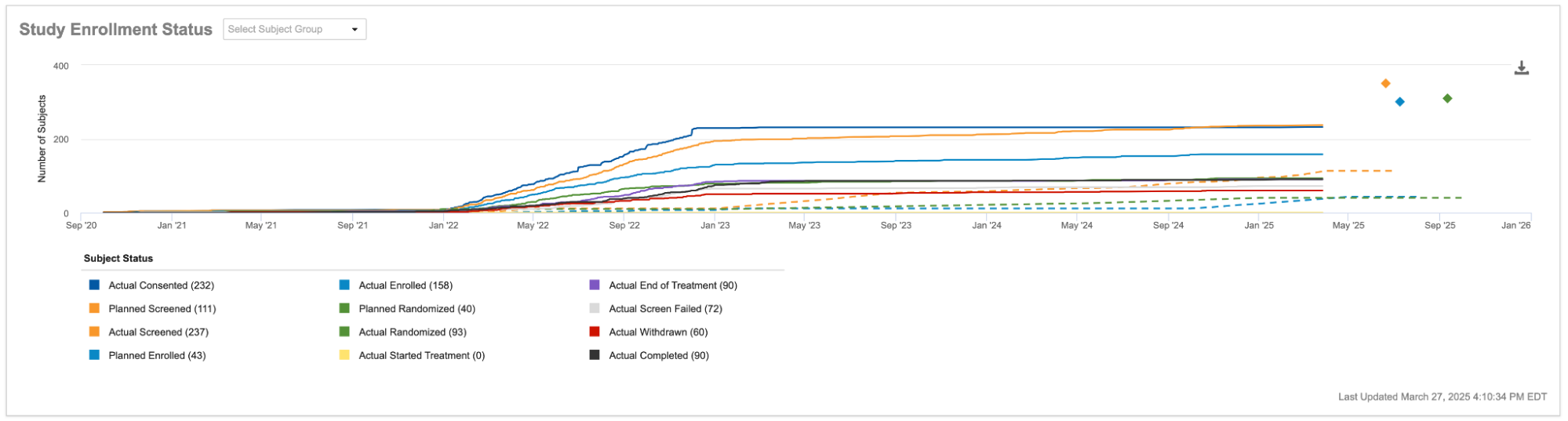
Here is an example of the graph when you are utilizing Subject Recruitment Planning:

### Enrollment Status Graph Elements

The _Enrollment Status_ graph is made up of several different metrics.

<a href="https://platform.veevavault.help/assets/images/25R3.4-enrollment-graph-no-sub-plan.png" data-lightbox="25R3.4-enrollment-graph-no-sub-plan.png" data-title="" data-alt="Enrollment Status Graph">
  <img class="docimage" src="https://platform.veevavault.help/assets/images/25R3.4-enrollment-graph-no-sub-plan.png" alt="Enrollment Status Graph" style=""  />
</a>

These are the metrics displayed if your metric calculation is **Status Snapshot** and you are not planning for metrics over time:
<a href="https://platform.veevavault.help/assets/images/25R3.4-cra-enrollment-graph.png" data-lightbox="25R3.4-cra-enrollment-graph.png" data-title="" data-alt="Enrollment Status Graph">
  <img class="docimage" src="https://platform.veevavault.help/assets/images/25R3.4-cra-enrollment-graph.png" alt="Enrollment Status Graph" style=""  />
</a>


| Label | Appearance | Description |
| --- | --- | --- |
| Planned Total Enrollment | Solid black line | Vault plots the first point of this line based on the _Planned Finish Date_ on the _First Subject In_ milestone. Vault draws from the _Planned Finish Date_ on the _Last Subject In_ milestone to place the last point of this line.<br><br>The number at the first point is always zero, while Vault pulls the number for the last point from the _Current Planned Total Enrolled_ metric. |
| Actual Screen Failed | Solid orange line | Vault plots the points for the line each day based on the number of subjects counted in the _Total Screen Failed_ metric when Vault runs the _Enrollment Status_ job. |
| Actual Total Screened | Solid yellow line | Vault plots the points for the line each day based on the number of subjects counted in the _Total Screened_ metric when Vault runs the _Enrollment Status_ job. |
| Actual Total Enrolled | Solid/dotted purple line | Vault plots the points for the line each day based on the number of subjects counted in the _Enrolled_ metric when Vault runs the _Enrollment Status_ job.<br><br>Vault begins the dotted portion of this line using today's date. Vault draws the enrollment number at this point from _Current Actual Enrolled_.<br><br>Vault pulls data from _Planned Finish Date_ on the _Last Subject In_ milestone and uses the product of _Actual Enrollment Rate_ and the number of months until the _Planned Finish Date_ on the _Last Subject In_ milestone. |
| Actual Total Randomized | Solid light green line | Vault plots the points for the line each day based on the number of subjects counted in the _Randomized_ metric when Vault runs the _Enrollment Status_ job. |
| Actual Withdrawn | Solid red line | Vault plots the points for the line each day based on the number of subjects counted in the _Withdrawn_ metric when Vault runs the _Enrollment Status_ job. |
| Actual Total End of Treatment | Solid blue line | Vault plots the points for the line each day based on the number of subjects counted in the _End of Treatment_ metric when Vault runs the _Enrollment Status_ job. |
| Actual Completed | Solid dark green line | Vault plots the points for the line each day based on the number of subjects counted in the _Completed_ metric when Vault runs the _Enrollment Status_ job. |

These are the metrics displayed if your metric calculation is **Date-Based**:

| Label | Appearance | Description |
| --- | --- | --- |
| Planned Total Enrollment | Solid black line | Vault plots the first point of this line based on the _Planned Finish Date_ on the _First Subject In_ milestone. Vault draws from the _Planned Finish Date_ on the _Last Subject In_ milestone to place the last point of this line.<br><br>The number at the first point is always zero, while Vault pulls the number for the last point from _Current Planned Total Enrolled_. |
| Actual Screen Failed | Solid orange line | Vault plots the points for the line based on the number of subjects with a _Screen Failed Date_ on or before that date. |
| Actual Enrolled | Solid purple line | Vault plots the points for the line based on the number of subjects with an _Enrolled Date_ on or before that date. |
| Actual Randomized | Solid lime green line | Vault plots the points for the line based on the planned number of subjects with a _Randomized Date_ on or before that date. |
| Actual Withdrawn | Solid red line | Vault plots the points for the line based on the number of subjects with a _Withdrawn Date_ on or before that date. |
| Actual End of Treatment | Solid blue line | Vault plots the points for the line based on the number of subjects with an _End of Treatment Date_ on or before that date. |
| Actual Completed |  Solid green line | Vault plots the points for the line based on the number of subjects with a _Completed Date_ on or before that date. |
| Actual Screened | Solid yellow line | Vault plots the points for the line based on the number of subjects with a _Screened Date_ on or before that date. |
| Forecast Enrolled|  Dotted purple line | Vault plots points for the line using today's date. Vault draws the enrollment number at this point from _Current Actual Enrolled_.<br><br>Vault pulls data from _Planned Finish Date_ on the _Last Subject In_ milestone and uses the product of the _Actual Enrollment Rate_ and the number of months until the _Planned Finish Date_ on the _Last Subject In_ milestone. |


### Actual Lines

"Actual" lines show the actual numbers for a metric based on the _Enrollment Status Log_ record's date.

Hovering over an actual line shows the name of the metric, the associated _Enrollment Status Log_ record's date, the current _Actual_ value for the metric in parentheses, and the _Actual_ value for the metric on the date from the associated _Enrollment Status Log_ record.

## Summary Metrics

The _Summary Metrics_ pane displays key enrollment metrics for your _Site_ that are defined as follows:

| Metric | Appearance | Description |
| --- | --- | --- |
| Enrolled\* | Orange percentage ring | Based on the number of subjects that have reached the _Enrolled_ subject status. |
| End of Study\* | Blue percentage ring | Based on the number of subjects that have reached the _End of Study_ subject status. |
| Site Status (Study Management Homepage) | Pie chart | Shows each site's status as a percentage of total sites. |
| Enrollment Rate (CRA Homepage) | Ratio | Shows subject enrollment as a ratio of subjects per month, using 30.436768 as the average month length. This metric is based on the *Enrollment Rate Metric Actual* field and factors in the *Last Subject In* milestone once the *Actual Finish Date* is populated.                     <br><br>_Planned_ is based on the _Enrollment Rate Metric Planned_ field. |

\* Your Vault may have a different label for these _Subject Statuses_.

As with the _Site Enrollment Status_ graph, Vault updates these metrics with data pulled from subjects in your Vault, except for _Enrollment Rate_, which also pulls data from the _First Subject In_ and _Last Subject In_ milestones.

## Updating Metrics

Vault updates the metrics for the components on the study manager and CRA homepages with a few different jobs. For further information about the jobs, see <a href="/en/gr/63782/">Managing Subject & Enrollment Metrics</a>.

  [1]: #auto-seed-metrics
  [2]: #metric-calculation
  [3]: #enrollment