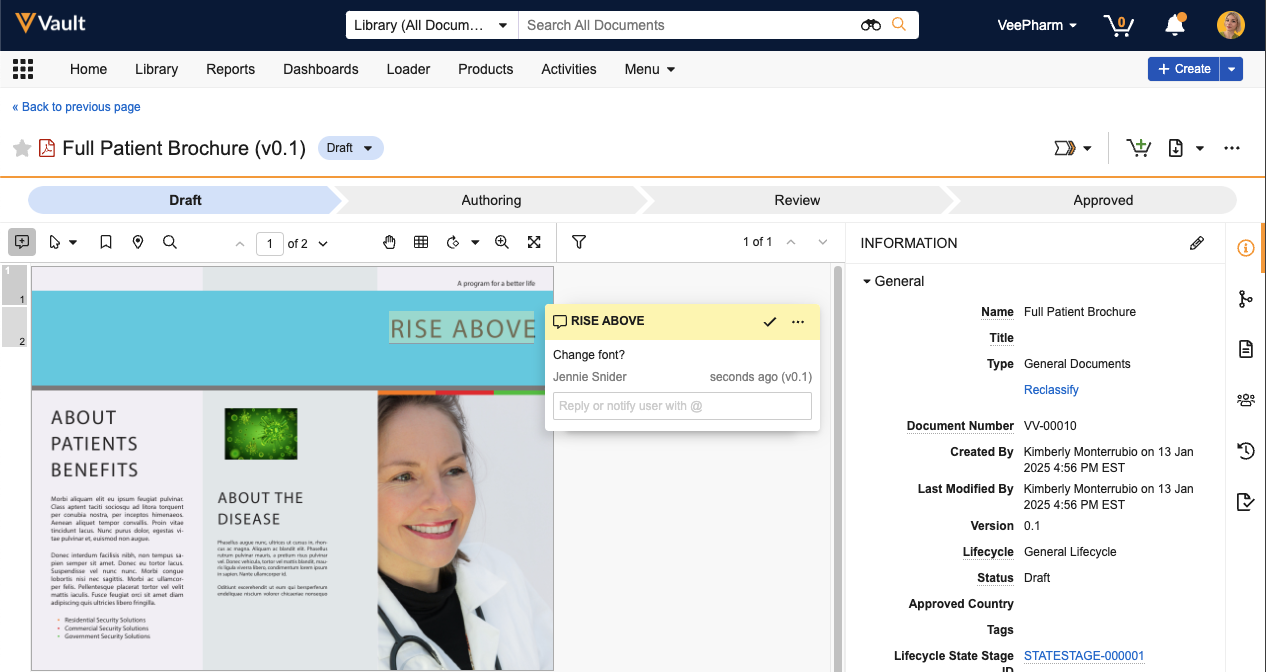
Note: The Lifecycle State Stage ID and Lifecycle Stage fields appear by default in the General section of the Information panel, even if lifecycle stages are not configured.
## Active Workflow Panel {#active-workflow}
The **Active Workflow** panel opens from a diamond icon in the header area. From this panel, you can view information about the workflow that is currently active on the document, including open tasks, the workflow owner, and the workflow configuration version. If you are a task assignee or the workflow owner, you can perform actions from this panel.
Note: The Active Workflow panel is only available for legacy workflows.
Note: The Lifecycle Stages banner does not appear for users with the Read-only User license type or users whose security profile does not grant the View User Information permission.
Note: If the user opening a document does not have annotation permissions and the document has no annotations, the document is opened in View mode instead of Annotate mode. Additionally, if the Doc Info page is bookmarked with annotation mode hidden, the URL will always open the document in View mode instead of Annotate mode.
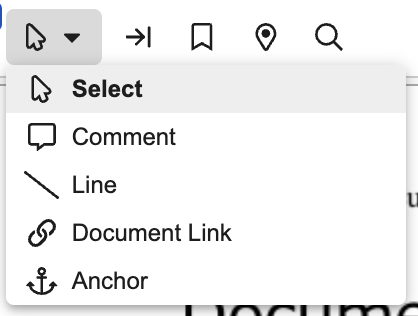 ### Bring Forward Annotations
Click **Bring forward annotations** () to copy annotations from a previous version of the document
. If you do not have permission to bring forward annotations, this icon is not displayed on the toolbar.
### Bookmarks
Click **Open Bookmarks** () to open the Bookmarks
panel, which allows you to view and navigate to bookmarks within the document. Click **Close Bookmarks** on the toolbar () or Bookmarks panel () to close the Bookmarks panel.
### Destinations
Click **Open Destinations** () to open the Destinations
panel, which allows you to view and navigate to destinations within the document. Click **Close Destinations** on the toolbar () or Destinations panel () to close the Destinations panel.
### Find in Document
Click **Find in document** () to open the _Find_ search box, which allows you to search the text of the document for a specific string. Vault only highlights matches in one page at a time. _Find_ reads periods as spaces. For example, the term **409.3** would find instances of **409** and **3**.
### Bring Forward Annotations
Click **Bring forward annotations** () to copy annotations from a previous version of the document
. If you do not have permission to bring forward annotations, this icon is not displayed on the toolbar.
### Bookmarks
Click **Open Bookmarks** () to open the Bookmarks
panel, which allows you to view and navigate to bookmarks within the document. Click **Close Bookmarks** on the toolbar () or Bookmarks panel () to close the Bookmarks panel.
### Destinations
Click **Open Destinations** () to open the Destinations
panel, which allows you to view and navigate to destinations within the document. Click **Close Destinations** on the toolbar () or Destinations panel () to close the Destinations panel.
### Find in Document
Click **Find in document** () to open the _Find_ search box, which allows you to search the text of the document for a specific string. Vault only highlights matches in one page at a time. _Find_ reads periods as spaces. For example, the term **409.3** would find instances of **409** and **3**.
 ### Document Page Navigation {#navigation}
To navigate between pages of the document click **Next Page** () and **Previous Page** (). To navigate to a specific page, enter the **page number** in the text field. You can also click on the page icon with page number to the left of your document to navigate to that page. The page icons show the annotation count for each page.
### Grab & Pan Mode
Toggle _Grab and Pan_ mode by selecting or deselecting **Grab and pan** (). _Grab and Pan_ mode allows you to click and drag the document view. This tool is helpful when a document page is zoomed in and you need to pan to a different view of the page that you cannot locate by scrolling.
### View Modes
By default, documents open in _Document_ view. Click **Thumbnail** () to switch to _Thumbnail_ view. To return to _Document_ view, click **Document** ().
### Rotate {#rotate_clockwise}
Click **Rotate this page** (
### Document Page Navigation {#navigation}
To navigate between pages of the document click **Next Page** () and **Previous Page** (). To navigate to a specific page, enter the **page number** in the text field. You can also click on the page icon with page number to the left of your document to navigate to that page. The page icons show the annotation count for each page.
### Grab & Pan Mode
Toggle _Grab and Pan_ mode by selecting or deselecting **Grab and pan** (). _Grab and Pan_ mode allows you to click and drag the document view. This tool is helpful when a document page is zoomed in and you need to pan to a different view of the page that you cannot locate by scrolling.
### View Modes
By default, documents open in _Document_ view. Click **Thumbnail** () to switch to _Thumbnail_ view. To return to _Document_ view, click **Document** ().
### Rotate {#rotate_clockwise}
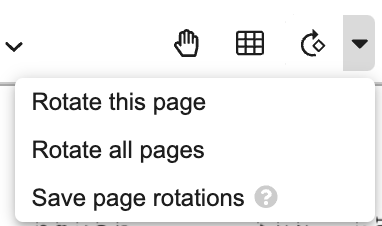
Click **Rotate this page** ( ) to rotate the current page clockwise (to the right) 90 degrees. Select **Rotate all pages** from the _Rotate options_ () drop-down to rotate all pages. Page rotation is disabled in _Thumbnail_ view.
To save the rotation, select **Save page rotations** from the _Rotate options_ () drop-down. This option applies the saved rotation fro the document in all document viewers and downloaded or exported renditions. You cannot save page rotations on CrossLinks, but saved rotations on the source document are applied to the CrossLink. Vault preserves saved rotations in re-rendered documents.
) to rotate the current page clockwise (to the right) 90 degrees. Select **Rotate all pages** from the _Rotate options_ () drop-down to rotate all pages. Page rotation is disabled in _Thumbnail_ view.
To save the rotation, select **Save page rotations** from the _Rotate options_ () drop-down. This option applies the saved rotation fro the document in all document viewers and downloaded or exported renditions. You cannot save page rotations on CrossLinks, but saved rotations on the source document are applied to the CrossLink. Vault preserves saved rotations in re-rendered documents.
 You must have a document role that grants the _Manage Viewable Renditions_ permission or have a security profile that grants the _Vault Owner Actions: Re-render_ permission to save rotations.
### Zoom/Fit Controls
All documents default to a zoom value of _Fit Width_. The default zoom applies to all layouts, note position options, and in full screen mode.
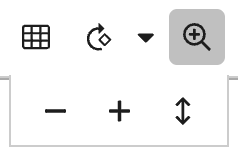
Click **Zoom/Fit Controls** () and select the following options from the menu to change the zoom: **Fit Height** (), **Fit Width** (), **Zoom In** (), **Zoom Out** ().
You must have a document role that grants the _Manage Viewable Renditions_ permission or have a security profile that grants the _Vault Owner Actions: Re-render_ permission to save rotations.
### Zoom/Fit Controls
All documents default to a zoom value of _Fit Width_. The default zoom applies to all layouts, note position options, and in full screen mode.
Click **Zoom/Fit Controls** () and select the following options from the menu to change the zoom: **Fit Height** (), **Fit Width** (), **Zoom In** (), **Zoom Out** ().
 You cannot scroll horizontally unless you first scroll to the bottom of the document.
### Full Screen
To view the document in full screen, click the **Full screen** icon in the far right of the document viewer toolbar. To close full screen, click the **Exit full screen** icon.
## Copy from Document {#copy-from-document}
To copy text from a document in _View_ or _Annotate_ mode
, hold down the **C** key and select the text with your cursor, then release the **C** key and mouse button to copy. You can also copy text using the [document viewer context menu][1]. You can copy text from any document where text is selectable.
By default, you must have the _View Content_ permission on a document to copy text. Admins can configure Vault to require additional permissions
when copying text.
### Limitations
The following limitations apply to copying text:
* Vault supports whole word selection only. You cannot copy part of a word.
* You cannot copy text while in _Thumbnail_ view.
* You cannot copy text on mobile devices.
* Read Only and Anonymous (token-based) users cannot copy text from documents.
* You cannot copy more than 500 words at a time.
## Checkout Lock Icon {#lock-icon}
When a document is checked out, you can hover over the **Checkout Lock Icon** to see who checked the document out, when it was checked out, and whether it was checked out using Vault File Manager
or a standard Vault checkout.
## Download Button {#downloads}
The **Download** button has two options:
* Click the file icon on the left to download the source document file.
* Click the arrow on the right to see a list of all available files and renditions to download.
Note that while the **Download** button is located in the Action bar by default, Vault replaces it with another action if you do not use it often. However, you can always download source files and rendition files from the **Files** panel.
## About the Document Viewer Context Menu {#context-menu}
While viewing a document in _View_ or _Annotate_ mode, you can right-click on the document or on selected text or area to open the context menu. You can select several actions from the context menu, such as _Copy Text_, _Search Glossary_, _Create Comment_, and more. Available actions depend on your permissions.
### Document Viewer Context Menu {#document-viewer-context-menu-demo}
This video demonstrates how to use the document viewer context menu.
Details
### Limitations
The following limitations apply to the document viewer context menu:
* The context menu closes if you scroll or resize a page, zoom in or out, or navigate between pages of the document.
* The context menu is unavailable for anonymous (token-based) and read-only users and in Vault Mobile.
* You cannot create line annotations using the context menu.
[1]: #context-menu
[2]: #downloads
You cannot scroll horizontally unless you first scroll to the bottom of the document.
### Full Screen
To view the document in full screen, click the **Full screen** icon in the far right of the document viewer toolbar. To close full screen, click the **Exit full screen** icon.
## Copy from Document {#copy-from-document}
To copy text from a document in _View_ or _Annotate_ mode
, hold down the **C** key and select the text with your cursor, then release the **C** key and mouse button to copy. You can also copy text using the [document viewer context menu][1]. You can copy text from any document where text is selectable.
By default, you must have the _View Content_ permission on a document to copy text. Admins can configure Vault to require additional permissions
when copying text.
### Limitations
The following limitations apply to copying text:
* Vault supports whole word selection only. You cannot copy part of a word.
* You cannot copy text while in _Thumbnail_ view.
* You cannot copy text on mobile devices.
* Read Only and Anonymous (token-based) users cannot copy text from documents.
* You cannot copy more than 500 words at a time.
## Checkout Lock Icon {#lock-icon}
When a document is checked out, you can hover over the **Checkout Lock Icon** to see who checked the document out, when it was checked out, and whether it was checked out using Vault File Manager
or a standard Vault checkout.
## Download Button {#downloads}
The **Download** button has two options:
* Click the file icon on the left to download the source document file.
* Click the arrow on the right to see a list of all available files and renditions to download.
Note that while the **Download** button is located in the Action bar by default, Vault replaces it with another action if you do not use it often. However, you can always download source files and rendition files from the **Files** panel.
## About the Document Viewer Context Menu {#context-menu}
While viewing a document in _View_ or _Annotate_ mode, you can right-click on the document or on selected text or area to open the context menu. You can select several actions from the context menu, such as _Copy Text_, _Search Glossary_, _Create Comment_, and more. Available actions depend on your permissions.
### Document Viewer Context Menu {#document-viewer-context-menu-demo}
This video demonstrates how to use the document viewer context menu.
Details
### Limitations
The following limitations apply to the document viewer context menu:
* The context menu closes if you scroll or resize a page, zoom in or out, or navigate between pages of the document.
* The context menu is unavailable for anonymous (token-based) and read-only users and in Vault Mobile.
* You cannot create line annotations using the context menu.
[1]: #context-menu
[2]: #downloads