# Working with Monitoring Events

With Vault, you can manage your monitoring trips and information with CTMS Trip Reports. This feature collects all of your trip information into a single Vault object, _Monitoring Event_, and enables you to automatically format it into a Monitoring Visit Report (MVR) document.

Vault uses _Trip Report Templates_, which your Admin can <a href="/en/gr/42837/">configure</a> for each type of visit you may perform.

<div class="note-border alert-info">
  <div class="alert alert-info" role="alert">
    <div><i class="far fa-info-circle"></i></div>
    <div class="alert-text">
      <p><strong>Note</strong>: This feature is only available on Clinical Operations CTMS Vaults.</p>
    </div>
  </div>
</div>


## Planning a Visit

You can view the relevant details about an upcoming visit from the visit's _Monitoring Event_ object **Details** page. To initiate visit planning, choose **Plan Visit** from the **Actions** menu.

Vault automatically adds _Monitoring Visit Participants_ and _Monitoring Activities_ to your visit, based on _Site Personnel_ and the _Monitoring Event_ object type.

This action allows you to specify the _Monitoring Visit Participants_ and _Monitoring Activities_ to your _Monitoring Event_. You can click **+ Add** to create participants and activities.

### Creating Confirmation & Follow Up Letters

Once you have reviewed all of your _Monitoring Event_ details, choose **Confirmed Visit** from the **Actions** menu. Select **Create Confirmation Letter** to have Vault automatically create _Monitoring Visit Confirmation Letter_-type documents, pre-populated with information, activities, and participants from your _Monitoring Event_ record.

You can also select **Create Follow Up Letter** to have Vault automatically create _Monitoring Visit Follow Up Letter_-type documents from your _Monitoring Event_. Which lifecycle states this action is available for depends on your Vault's configuration.

## During a Visit

When performing your monitoring visit, choose **Start Trip Report** from the **Actions** menu. This action adds several sections to your _Monitoring Event_ record.

### Answering Questions {#answering-questions}

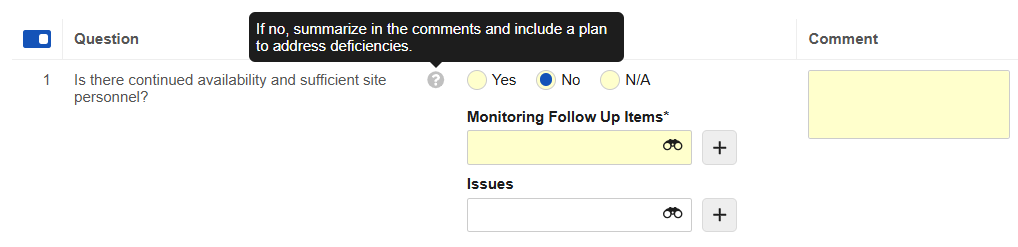
Each section includes the questions you must answer during your visit. If your Admin has <a href="/en/gr/42837/#manual">configured instructions</a>, you'll see a question mark icon next to the question. Click on the icon to view the relevant instructions for that question.

<a href="https://platform.veevavault.help/assets/images/25R2.2-clinops-1-ctms_trip_report_question.png" data-lightbox="25R2.2-clinops-1-ctms_trip_report_question.png" data-title="" data-alt="Trip Report question with instructions">
  <img class="docimage" src="https://platform.veevavault.help/assets/images/25R2.2-clinops-1-ctms_trip_report_question.png" alt="Trip Report question with instructions" style=""  />
</a>

To answer questions:

1. Scroll to the relevant section of the _Monitoring Event_.
2. Enter or select your response for each question.
3. Optional: If configured, click into the **Comment** column to enter a comment on your response. 
4. Optional: If configured, select a **Follow Up Item** or **Issue** after you enter or select a response for a question. Click the binoculars icon to search for and select existing records, or click on the plus (**+**) icon to create a new record.

Vault automatically saves your responses and comments once you navigate away from the row for that question.

[_Dependent Questions_][10] have a gray background and depend on the answer you enter or select for the _Controlling Question_. Vault only unlocks these _Dependent Questions_ if you answer the _Controlling Question_ with the configured _Controlling Answer_ a certain way.

Required fields have a yellow background. If you attempt to complete the workflow without entering values for all required fields, Vault displays an error dialog detailing which questions require entries.

#### Keyboard Shortcuts {#keyboard-shortcuts}

The following quick-entry keyboard shortcuts are available when you are entering responses in the question grid:

| Keyboard Shortcut | Action |
| ---------- | -------- |
| Left/Right Arrows (<strong>← →)</strong> | Move your answer selection to the left or right on radio buttons |
| Up/Down Arrows (<strong>↑ ↓</strong>) | Move your answer selection up or down on radio buttons and drop-down menus |
| 1-4 | Select a radio button option. Radio buttons utilize 1-4 from left to right. Keyboard shortcuts are only available for the number of options available for that question |
| Space | Select your highlighted answer |
| Enter/Return | Set your _Response_ or _Comment_ selection and move down to the next row |
| Tab | Move to the next _Response_ or _Comment_ field |
| Esc/Click out of the row | Save your _Response_ and _Comment_ |

### Question Branching {#question-branching}

When you open a _Trip Report Question_ section that contains _Dependent Questions_, Vault allows you to view or hide the _Dependent Questions_ and their responses, if applicable. You can use the toggle button to switch between the _Hide_ and _Show_ modes. When you set the toggle to the on position, Vault activates _Hide_ mode and stops displaying the _Dependent Questions_ and any responses. When you set the toggle to the off position, Vault switches to _Show_ mode and displays _Dependent Questions_ and any responses.

While in _Hide_ mode where the toggle is in the on position, if _Controlling Answers_ for the _Dependent Questions_ are not selected, then Vault hides those _Dependent Questions_. If the _Controlling Answer_ is selected, then the _Dependent Questions_ become visible and editable.

While in _Show_ mode where the toggle is in the off position, if _Controlling Answers_ for the _Dependent Questions_ are not selected, then Vault displays those _Dependent Questions_ as grayed out and uneditable. If the _Controlling Answer_ is selected, then the _Dependent Question_ becomes editable.

When you toggle _Hide_ or _Show_ mode for one _Trip Report Question_ section, it toggles the same behavior for all other _Trip Report Question_ sections on the trip report. In other words, you cannot choose to hide the responses for one section, but show the responses in another section on the same trip report. In addition, once you toggle _Hide_ or _Show_ mode, Vault remembers your preference when you access additional trip reports.

### Reviewer Comments {#reviewer-comments}

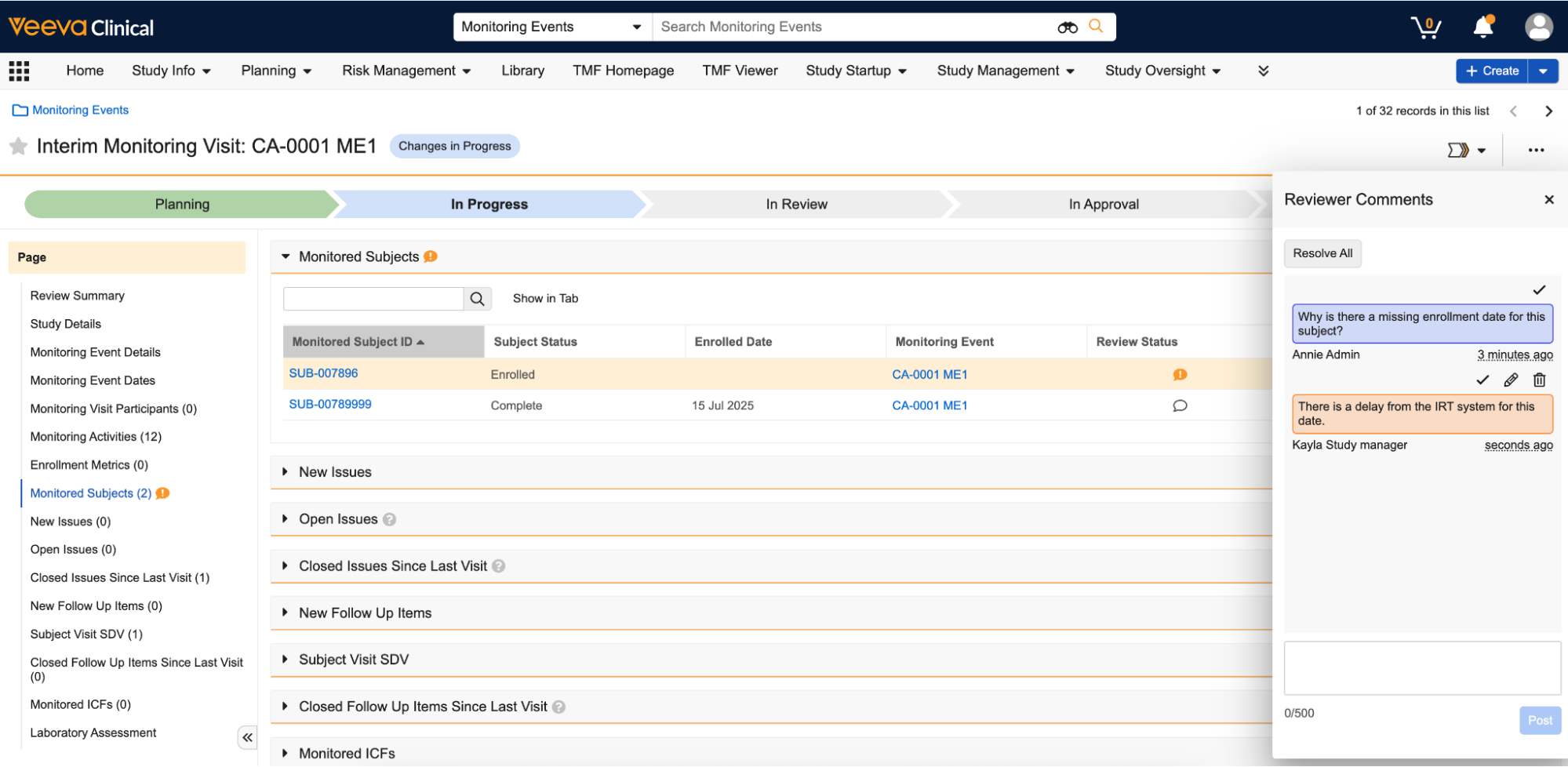
You can easily provide feedback on monitoring events using reviewer comments.
<a href="https://platform.veevavault.help/assets/images/25R2.2-clinops-2-ctms_trip_report_reviewer_comments.png" data-lightbox="25R2.2-clinops-2-ctms_trip_report_reviewer_comments.png" data-title="" data-alt="Trip Report Reviewer Comments">
  <img class="docimage" src="https://platform.veevavault.help/assets/images/25R2.2-clinops-2-ctms_trip_report_reviewer_comments.png" alt="Trip Report Reviewer Comments" style=""  />
</a>.

From the details page of a _Monitoring Event_ record, select a section and click the **Speech Bubble** icon on the _Review Status_ column to open the _Reviewer Comments_ dialog.

From this dialog, you can:

  * **Post a comment**: Write your comment in the space provided and click **Post** or press the **Enter** key to submit it. You can hold down **Shift** + **Enter** to start a new line within your comment.
  * **Delete a comment**: You can delete a comment by clicking the **Trash-bin** icon above the comment box.
  * **Review and resolve comments**: After you read and respond to a comment, you can resolve the comment by clicking the check mark above the comment box. You can also resolve all comments within a section by clicking **Resolve All**. Vault displays the speech bubble icon as orange when a line item has open comments and green once you resolve all comments.

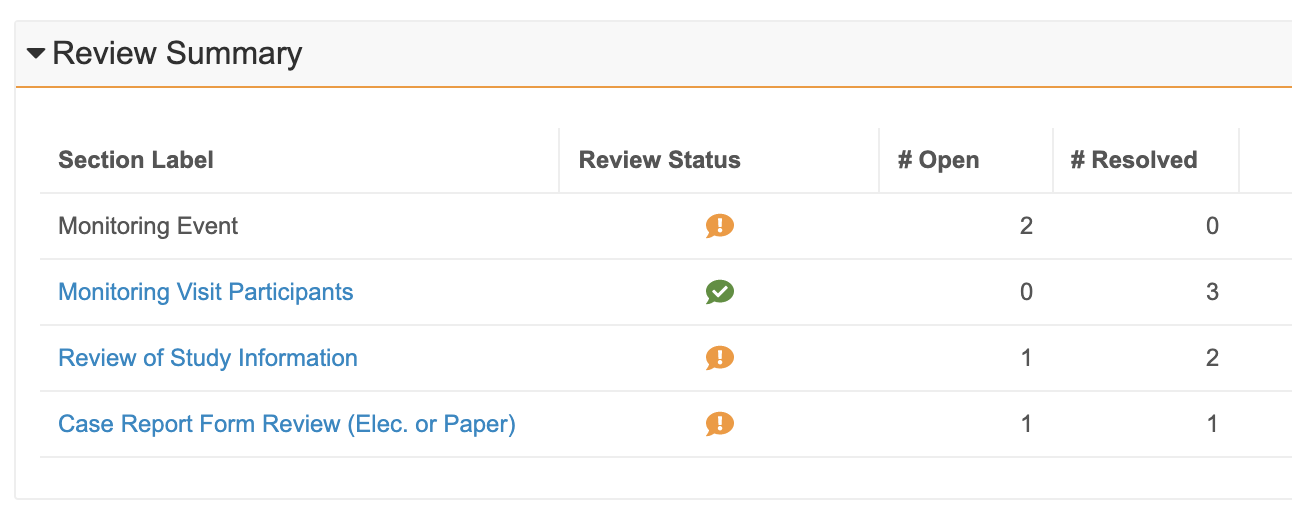
You can track comments, open and resolved, in the _Review Summary_ section.
<a href="https://platform.veevavault.help/assets/images/ctms_trip_report_review_summary_aui.png" data-lightbox="ctms_trip_report_review_summary_aui.png" data-title="" data-alt="Trip Report Review Summary">
  <img class="docimage" src="https://platform.veevavault.help/assets/images/ctms_trip_report_review_summary_aui.png" alt="Trip Report Review Summary" style=""  />
</a>

The _Review Summary_ section shows which sections have comments and how many open and/or resolved comments are in each section. Click the **Section Label** link or **Review Status** icon to navigate to the section.

For record sections with open comments, Vault displays an orange speech bubble icon to the right of the section heading and in the _Navigation Panel_. Once you resolve the comments, Vault stops displaying the orange speech bubble icon. 

<div class="note-border alert-info">
  <div class="alert alert-info" role="alert">
    <div><i class="far fa-info-circle"></i></div>
    <div class="alert-text">
      <p><strong>Note</strong>: Once you resolve all the comments in a <em>Monitoring Event</em> record section, you must refresh your browser for Vault to stop displaying the orange speech bubble icon from the <em>Navigation Panel</em> or section heading.</p>
    </div>
  </div>
</div>


[See permissions][7] related to working with comments.

#### Dependent Question Review

If a trip report contains a _Controlling Question_ with one or more _Dependent Questions_ and a user creates a comment on a _Dependent Question_, Vault displays the comment normally and users can interact with the comment as normal. If a _Dependent Question_ has a comment recorded against it, Vault displays this in the _Review Status_ column.

If there is a comment recorded against a _Dependent Question_ and the user has toggled _Hide_ mode for the _Trip Report Question Section_, when a user attempts to view the comment from the _Review Summary_ section, Vault automatically navigates to the relevant _Trip Report Question_ section and toggles to _Show_ mode so that the user can see the comment on the _Dependent Question_.

## Adding Monitored Study Site Addresses


<div class="note-border alert-info">
  <div class="alert alert-info" role="alert">
    <div><i class="far fa-info-circle"></i></div>
    <div class="alert-text">
      <p><strong>Note</strong>: Your Vault must have <a href="/en/gr/825395/"><em>Study Site Addresses</em></a> enabled and configured to create <em>Monitored Study Site Addresses</em>.</p>
    </div>
  </div>
</div>


You can create a **Monitored Study Site Address** (`monitored_study_site_address__v`) record to document the _Study Site Address_ visited during a _Monitoring Event_. The _Monitored Study Site Address_ record creates a snapshot of the _Study Site Address_ at the time of the visit. Once created, any updates made to the associated _Study Site Address_ will not override the data in the _Monitored Study Site Address_ record. 

To use _Monitored Study Site Addresses_, an Admin must add the **Monitored Study Site Address** related object section to the _Monitoring Event_ page layout.

To create a _Monitored Study Site Address_ record:
1. Select the _Monitoring Event_ record you want to create a record for. 
2. In the _Monitoring Event_ record, navigate to the _Monitored Study Site Address_ section and click **Create**. 
3. Select a **Site Address**. Vault only displays _Study Site Addresses_ related to the _Monitoring Event_'s _Study Site_ for _Site Address_ field.
4. Click **Save**.

Once you save the _Monitored Study Site Address_ record, Vault populates the address data from the _Study Site Address_ you selected into the _Monitored Study Site Address_ record.

## Seeding Monitored Subject Data {#seeding}

If configured by an Admin, you can select **Seed Monitored Enrollment** or **Proactively Seed Monitored Enrollment** from the _Monitoring Event_ record's _Actions_ menu.


<div class="note-border alert-info">
  <div class="alert alert-info" role="alert">
    <div><i class="far fa-info-circle"></i></div>
    <div class="alert-text">
      <p><strong>Note</strong>: For Studies using <a href="/en/gr/52876/#date-based">date-based metric calculations</a>, Vault references the <em>Actual Visit End Date</em> value and only seeds in <em>Subject</em> date and <em>Subject Visit</em> records that occur before or on the end date when you run the <strong>Seed Monitored Enrollment</strong> or <strong>Proactively Seed Monitored Enrollment</strong> action on a <em>Monitoring Event</em> record.</p>
    </div>
  </div>
</div>


### Seed Monitored Enrollment

The _Seed Monitored Enrollment_ action seeds the _Monitored Subjects_ object with a copy of the current _Subjects_ and their statuses for the site. This action also seeds the _Monitored Subject Visit_ object with a copy of the current _Subject Visits_ that apply to the _Subjects_ created as _Monitored Subjects_ when the _Study Site_ on the _Subject Visit_ matches the _Study Site_ of the _Monitoring Event_. This reduces data entry for the CRA. Vault seeds _Monitored Subject Data_ in the following circumstances:

  * When the current _Monitoring Event_ does not have an _Actual Visit End Date_ and there is no previous _Monitoring Event_ with an _Actual Visit End Date_, Vault seeds all _Monitored Subject Visits_ with an _SDV Complete Date_ that occurred on or before today's date.
  * When the current _Monitoring Event_ does not have an _Actual Visit End Date_ but a previous _Monitoring Event_ with an _Actual Visit End Date_ exists, Vault seeds all _Monitored Subject Visits_ with an _SDV Complete Date_ that occurred between the previous _Monitoring Event_'s _Actual Visit End Date_ and today's date.
  * When the current _Monitoring Event_ has an _Actual Visit End Date_ and no previous _Monitoring Event_ with an _Actual Visit End Date_ exists, Vault seeds all _Monitored Subject Visits_ with an _SDV Complete Date_ that occurred on or before the current _Monitored Event_'s _Actual Visit End Date_.
  * When both the current _Monitoring Event_ and the previous _Monitoring Event_ have _Actual Visit End Dates_, Vault seeds all _Monitored Subject Visits_ with an _SDV Complete Date_ that occurred after the previous _Monitoring Event_'s _Actual Visit End Date_ and on or before the current _Monitoring Event_'s _Actual Visit End Date_.

Based on the _Monitored Subject_ records created, Vault also creates _Monitored Metrics_. These records display a snapshot of the _Enrollment Metrics_ for the Study Site at the time of the _Monitoring Event_. Vault creates _Monitored Metrics_ via the <a href="/en/gr/63782/">_Update Monitored Metrics_ Job</a>.

### Proactively Seed Monitored Enrollment {#proactively-seed}

The _Proactively Seed Monitored Enrollment_ action seeds _Subject_ and _Subject Visit_ data according to the same criteria outlined for the _Seed Monitored Enrollment_ action. The action also seeds _Subject Visits_ as _Monitored Subject Visits_ if they do not have an _SDV Complete Date_, have a _Visit Date_, and the _SDV Mode_ field is set to _Required_ or _Optional_.

This action can help CRAs understand how many _Subject Visits_ will need to be processed during a given _Monitoring Event_.

## Adding Follow Up Items to Monitoring Events {#adding-follow-up-items-to-monitoring-events}

If configured, Vault relates _Follow Up Items_ and _Monitoring Events_ by creating simple join _Monitoring Event_ records. You can manually connect _Follow Up Items_ with _Monitoring Events_, and Vault can automatically seed _Follow Up Items_ that fit specific criteria to a _Monitoring Event_.

### Manually Add Follow Up Items {#manually-add-follow-up-items}

Depending on the configuration of your Vault, you can manually add _Follow Up Items_ to _Monitoring Events_ in several ways:

* Select a value in the **Monitoring Event** field on the _Follow Up Item_ record.
* **Add** _Follow Up Items_ to the related object section of a _Monitoring Event_ record.

Vault will not remove any _Follow Up Item_ that you manually add to a _Monitoring Event_, even if they no longer fit the criteria that would cause them to be automatically seeded.

### Seeding Follow Up Items {#seeding-follow-up-items}

Depending on the configuration of your Vault, Vault can seed relevant _Follow Up Items_ into _Monitoring Event_ records in several ways:

* Automatically when a _Monitoring Event_ reaches a specific lifecycle state
* Via manual user action on the _Monitoring Event_ record

To manually seed related _Follow Up Items_ to a _Monitoring Event_, navigate to a _Monitoring Event_, and select the option to seed _Follow Up Items_ from the **Actions** menu.

When initiated, Vault populates the related object section of the _Monitoring Event_ record with all incomplete follow up items that have the same _Study Site_ value as the _Monitoring Event_. Vault will also add complete follow up items if the _Completion Date_ of the _Follow Up Item_ meets one of the following criteria:

* When the current _Monitoring Event_ does not have an _Actual Visit End Date_ and there is no previous _Monitoring Event_ with an _Actual Visit End Date_, Vault seeds _Follow Up Items_ with a _Completion Date_ that occurred on or before today's date.
* When the current _Monitoring Event_ does not have an _Actual Visit End Date_ but a previous _Monitoring Event_ with an _Actual Visit End Date_ exists, Vault seeds _Follow Up Items_ with a _Completion Date_ that occurred between the previous _Monitoring Event's Actual Visit End Date_ and today's date.
* When the current _Monitoring Event_ has an _Actual Visit End Date_ and no previous _Monitoring Event_ with an _Actual Visit End Date_ exists, Vault seeds _Follow Up Items_ with a _Completion Date_ that occurred on or before the current _Monitored Event's_ _Actual Visit End Date._
* When both the current _Monitoring Event_ and the previous _Monitoring Event_ have _Actual Visit End Dates_, Vault seeds all _Follow Up Items_ with a _Completion Date_ that occurred after the previous _Monitoring Event's_ _Actual Visit End Date_ and on or before the current _Monitoring Event's_ _Actual Visit End Date_.

Each subsequent time you execute the action, either by moving the _Monitoring Event_ record to a specific lifecycle state or manually executing the user action, Vault removes the _Follow Up Item_ that no longer meet the criteria described above. However, Vault will not remove any _Follow Up Item_ you manually added to the _Monitoring Event_.

## Adding Issues to Monitoring Events {#issues}

If <a href="/en/gr/42837/#seeding-issues">configured</a>, Vault relates _Issues_ and _Monitoring Events_ by creating simple join _Monitoring Issue_ records. You can manually connect _Issues_ with _Monitoring Events_, and Vault can automatically seed _Issues_ that fit specific criteria to a _Monitoring Event_.

### Manually Add Issues {#manual-add}

Depending on the configuration of your Vault, you can manually add _Issues_ to _Monitoring Events_ in several ways:

* Select a value in the **Monitoring Event** field on the _Issue_ record.
* **Add** _Issues_ to the related object section of a _Monitoring Event_ record.

Vault will not remove any _Issues_ you manually add to a _Monitoring Event_, even if they no longer fit the criteria that would cause them to be automatically seeded. [See details below][8].

### Seeding Issues {#automatic-seed}

Depending on the <a href="/en/gr/42837/#seeding-issues">configuration</a> of your Vault, Vault can seed relevant _Issues_ into _Monitoring Event_ records in several ways:

* Automatically when a _Monitoring Event_ reaches a specific lifecycle state
* Via manual user action on the _Monitoring Event_ record

To seed related _Issues_ to a _Monitoring Event_, navigate to a _Monitoring Event_ and select **Seed Issues** from the _Actions_ menu.

When initiated, Vault populates the related object section of the _Monitoring Event_ record with all unresolved _Issues_ that have the same _Study Site_ value as the _Monitoring Event_. Vault also adds resolved issues if the _Resolved Date_ of the _Issue_ meets one of the following criteria:

* When the current _Monitoring Event_ does not have an _Actual Visit End Date_ and there is no previous _Monitoring Event_ with an _Actual Visit End Date_, Vault seeds _Issues_ with a _Resolved Date_ that occurred on or before today's date.
* When the current _Monitoring Event_ does not have an _Actual Visit End Date_ but a previous _Monitoring Event_ with an _Actual Visit End Date_ exists, Vault seeds _Issues_ with a _Resolved Date_ that occurred between the previous _Monitoring Event_'s _Actual Visit End Date_ and today's date.
* When the current _Monitoring Event_ has an _Actual Visit End Date_ and no previous _Monitoring Event_ with an _Actual Visit End Date_ exists, Vault seeds _Issues_ with a _Resolved Date_ that occurred on or before the current _Monitored Event_'s _Actual Visit End Date_.
* When both the current _Monitoring Event_ and the previous _Monitoring Event_ have _Actual Visit End Dates_, Vault seeds all _Issues_ with a _Resolved Date_ that occurred after the previous _Monitoring Event's Actual Visit End Date_ and on or before today's date given the _Issues_ were created prior to the current _Monitoring Event's_ _Actual Visit Start Date._

Each subsequent time you execute the action, either by moving the _Monitoring Event_ record to a specific lifecycle state or manually executing the user action, Vault removes the _Issues_ that no longer meet the criteria described above. However, Vault will not remove any _Issue_ you [manually added to the _Monitoring Event_][9], nor will it re-seed any _Issue_ you manually removed from the _Monitoring Event_.

## Creating Trip Reports

After you complete your monitoring visit, Vault can automatically generate a PDF trip report that contains all of your question responses and relevant visit information.

To create a trip report, select **Create Trip Report** from the **Actions** menu of the _Monitoring Event_. Vault creates your trip report document using a [formatted output template][11]. Once Vault has created your _Trip Report_ document, you can view it in the **Library** and submit it for review from the document's **Actions** menu. Vault automatically names this document per the document naming format specified by your Admin.

<div class="note-border alert-info">
  <div class="alert alert-info" role="alert">
    <div><i class="far fa-info-circle"></i></div>
    <div class="alert-text">
      <p><strong>Note</strong>: Depending on the configuration of your Vault, CJK characters may not display properly when you apply formatted output templates. Contact your Customer Success Manager or Veeva Support for assistance with resolving this issue.</p>
    </div>
  </div>
</div>


### Creating Trip Report Templates {#trip-report-temp}

Vault creates your trip report document using an <a href="/en/gr/41172/">Adobe formatted output template</a> or a <a href="/en/gr/796234/">Word formatted output template</a>. You can also <a href="/en/gr/796234/#create-word-fo-temp">create new templates</a> create new templates to upload into your Vault. <a class="download-link " href="https://platform.veevavault.help/assets/downloads/25R3-Veeva-Clinical-Operations-Word-Trip-Report-Templates.zip" target="_blank" rel="noopener">Download sample Word Formatted Output Trip Report Templates here<i class="fa fa-download" aria-hidden="true"></i></a>.

## Related Permissions {#related-permissions}

To perform the tasks described in this article, you must have a security profile that includes the following permissions:

| Permission Type | Permission | Controls    |
| --------------- | ---------- | ----------- |
| Security Profile | Object: Monitoring Event: Read, Create, Edit | Ability to view, create, and edit _Monitoring Events_ |
| Security Profile | Object: Trip Report Question Response: Read, Edit | Ability to view and answer questions on a _Monitoring Event_ by editing the _Trip Report Question Response_ object record |
| Security Profile | Object: Trip Report Answer: Read, Edit | Ability to view and answer questions on a _Monitoring Event_ by editing the _Trip Report Question Response_ object record |
| Security Profile | Object: Review Comment: Read | Ability to view and resolve review comments |
| Security Profile | Object: Review Comment: Create, Edit | Ability to post review comments |
| Security Profile | Object: Review Comment: Delete | Ability to delete review comments |
| Document Type | Monitoring Visit Report: Create | Ability to create a new _Monitoring Visit Report_-type document |
| Security Profile | Objects: Monitored Issue: Read | Ability to view the _Monitored Issues_ that Vault seeds into a _Monitoring Event_ record |
| Security Profile | Objects: Monitored Issue: Create, Edit | Ability to create and edit _Monitored Issue_ records |
| Security Profile | Object: Response Issue: Read, Create, Edit, Delete | Ability to view, create, and remove issues from a _Trip Report Question_ |
| Security Profile | Object: Response Follow Up Item: Read, Create, Edit, Delete | Ability to view, create, and remove follow up items from a _Trip Report Question_ |
| Security Profile | Object: Monitored Study Site Address: Read, Create, Edit, Delete | Ability to view, create, edit, or delete _Monitored Study Site Address_ records for _Monitoring Events_ |
| Security Profile | Object: Study Site Address: Read | Ability to view _Study Site Address_ records |

 [7]: #related-permissions
 [8]: #automatic-seed
 [9]: #manual-add
 [10]: #question-branching
 [11]: #trip-report-temp
