# Configuring & Planning Subject Recruitment

Subject Recruitment Planning for Veeva CTMS allows you to plan the number of subjects that will be screened, enrolled, or randomized into a study over time. This allows for a more granular view of subject recruitment, as you can view the monthly or weekly plan at the _Study_, _Study Country_, or _Site_ levels. Additionally, subject metrics planned at the _Site_ or _Study Country_ level roll up to the _Study Country_ and _Study_ levels, respectively, giving you a comprehensive view of the _Study Country_ or _Site_ plans. As you enter subjects into the system, _Actual_ values on your metrics update to show you how well you are matching up to your plan.

For customers using the <a href="/en/gr/80113/">_Subject Groups_</a>
 functionality, Vault can also support _Recruitment Planning_ for _Subject Groups_ using the same parameters specified at the _Study_ level.

## Configuration Overview

  * [Select a level to start planning subject metrics][1] (_Site_, _Study Country_, or _Study_), what metrics to plan for (_Total Screened_, _Total Randomized_, _Total Enrolled_, _Total Consent_, and/or _Total Started Treatment_), the frequency you would like to plan over and set the _Metric Calculation_ field to **Date-Based** or **Metrics Only**.
  * [Prepare a study for subject recruitment planning][2] by creating applicable milestone and metric records.
  * [Define _Planned Finish Dates_ and the _Planned_ number of subjects][3] for each milestone and metric you are planning for.
  * Run the **Create Metrics Over Time** action to create _Metrics Over Time_ records for any _Study_, _Study Country_, or _Site_ that has _Recruitment Planning_ data. After performing the action, Vault notifies you if it encounters any errors or if it identifies duplicate records.

## Subject Recruitment Planning Setup {#configure-subject-planning}

When creating or editing a _Study_, there are four fields that control how Vault creates _Metrics Over Time_ records: _Recruitment Planning Level_, _Recruitment Planning Frequency_, _Recruitment Planning Metrics_, and _Metric Calculation_.


<div class="note-border alert-info">
  <div class="alert alert-info" role="alert">
    <div><i class="far fa-info-circle"></i></div>
    <div class="alert-text">
      <p><strong>Note</strong>: If you change the <em>Recruitment Planning Level</em> or <em>Recruitment Planning Frequency</em>, an Admin must run the <a href="/en/gr/63782/#updating-metrics"><em>Recalculate Enrollment Metrics</em> action</a>
 to avoid inconsistent data.</p>
    </div>
  </div>
</div>


### Recruitment Planning Level

Select the level where you want to begin planning metrics over time. The hierarchy order (lowest to highest) is Site > Study Country > Study. Vault creates _Metrics Over Time_ records for the level of the hierarchy you select and any levels above it. For example, if you select _Study Country_, Vault will create both _Study Country_ and _Study Metrics Over Time_ records.

Enrollment numbers at lower levels will roll up to the level above over the course of the study. Manually updating the recruitment plan should only be done at the lowest level as Vault [rolls the values up from the lowest level][4] to the higher levels.

### Recruitment Planning Frequency

Select the frequency for which Vault will create metrics over time. You can select weekly or monthly.

<div class="note-border alert-info">
  <div class="alert alert-info" role="alert">
    <div><i class="far fa-info-circle"></i></div>
    <div class="alert-text">
      <p><strong>Note</strong>: If this field is left blank, Vault generates monthly <em>Metrics Over Time</em> records when you perform the <strong>Recalculate Metrics</strong> action.</p>
    </div>
  </div>
</div>


### Recruitment Planning Metrics

Select the metrics you want to begin planning for. This selection determines what types of metrics Vault tracks. You can select any combination of the following metrics:

  * Screened
  * Randomized
  * Enrolled
  * Started Treatment
  * Consented

### Metric Calculation

You must select **Date-Based** or **Metrics Only** in the _Metric Calculation_ field in order to use the Subject Recruitment Planning feature.

## Preparing a Study for Subject Recruitment Planning {#prepare-your-study}

After you update the recruitment planning fields on a study, ensure you have the appropriate milestones and metrics available at the lowest level you expect to plan. For example, if you are planning at the site level, you need milestones and metrics at the site level. Vault will not use milestones and/or metrics at levels where you haven't planned for metrics over time.

### Subject Recruitment Milestones

You can <a href="/en/gr/24430/">create milestones</a>
 for a study manually, with an <a href="/en/gr/30683/#entry-action">entry action</a>
, or using the **Create Milestones from Template** action. Milestones with the following milestone types must exist to utilize Subject Recruitment Planning:

  * If planning the _Screened_ metric:
      * One milestone must exist with the _First Subject Screened_ milestone type and the _Planned Finish Date_ or _Baseline Finish Date_ field populated
      * One milestone must exist with the _Last Subject Screened_ milestone type and the _Planned Finish Date_ or _Baseline Finish Date_ field populated.
  * If planning the _Enrolled_ metric:
      * One milestone must exist with the _First Subject In_ milestone type and the _Planned Finish Date_ or _Baseline Finish Date_ field populated.
      * One milestone must exist with the _Last Subject In_ milestone type and the _Planned Finish Date_ or _Baseline Finish Date_ field populated.
  * If planning the _Randomized_ metric:
      * One milestone must exist with the _First Subject Randomized_ milestone type and the _Planned Finish Date_ or _Baseline Finish Date_ field populated.
      * One milestone must exist with the _Last Subject Randomized_ milestone type and the _Planned Finish Date_ or _Baseline Finish Date_ field populated.
  * If planning the _Started Treatment_ metric:
      * One milestone must exist with the _First Subject Started Treatment_ milestone type and the _Planned Finish Date_ or _Baseline Finish Date_ field populated.
      * One milestone must exist with the _Last Subject Started Treatment_ milestone type and the _Planned Finish Date_ or _Baseline Finish Date_ field populated.
  * If planning the _Consented_ metric:
     * One milestone must exist with the _First Subject Consented_ milestone type and the _Planned Finish Date_ or _Baseline Finish Date_ field populated. 
     * One milestone must exist with the _Last Subject Consented_ milestone type and the _Planned Finish Date_ or _Baseline Finish Date_ field populated.


### Subject Recruitment Metrics

You can either create metrics for a study manually or Vault can create them through the <a href="/en/gr/52876/">**Seed Metrics Records** entry action</a>
. Metrics records for the following metric types must exist to utilize Subject Recruitment Planning:

  * If planning the _Screened_ metric, one metric record must exist with the _Total Screened_ metric type and the _Planned_ field populated.
  * If planning the _Enrolled_ metric, one metric record must exist with the _Total Enrolled_ metric type and the _Planned_ field populated.
  * If planning the _Randomized_ metric, one metric record must exist with the _Total Randomized_ metric type and the _Planned_ field populated.
  * If planning the _Started Treatment_ metric, one metric record must exist with the _Total Started Treatment_ metric type and the _Planned_ field populated.
  * If Panning the _Consented_ metric, one metric record must exist with the _Total Consented_ metric type and the _Planned_ field populated.

## Planning Subject Numbers {#plan-subject-numbers}

Once you've configured milestone and metric records for the metric types you expect to plan for this study, you can run the **Create Metrics Over Time** action to create _Metrics Over Time_ records.

Vault creates a record based on the number of _Planned_ subjects for each metric and splits the total number as evenly as possible on the months or weeks defined between the "first" and "last" milestones.

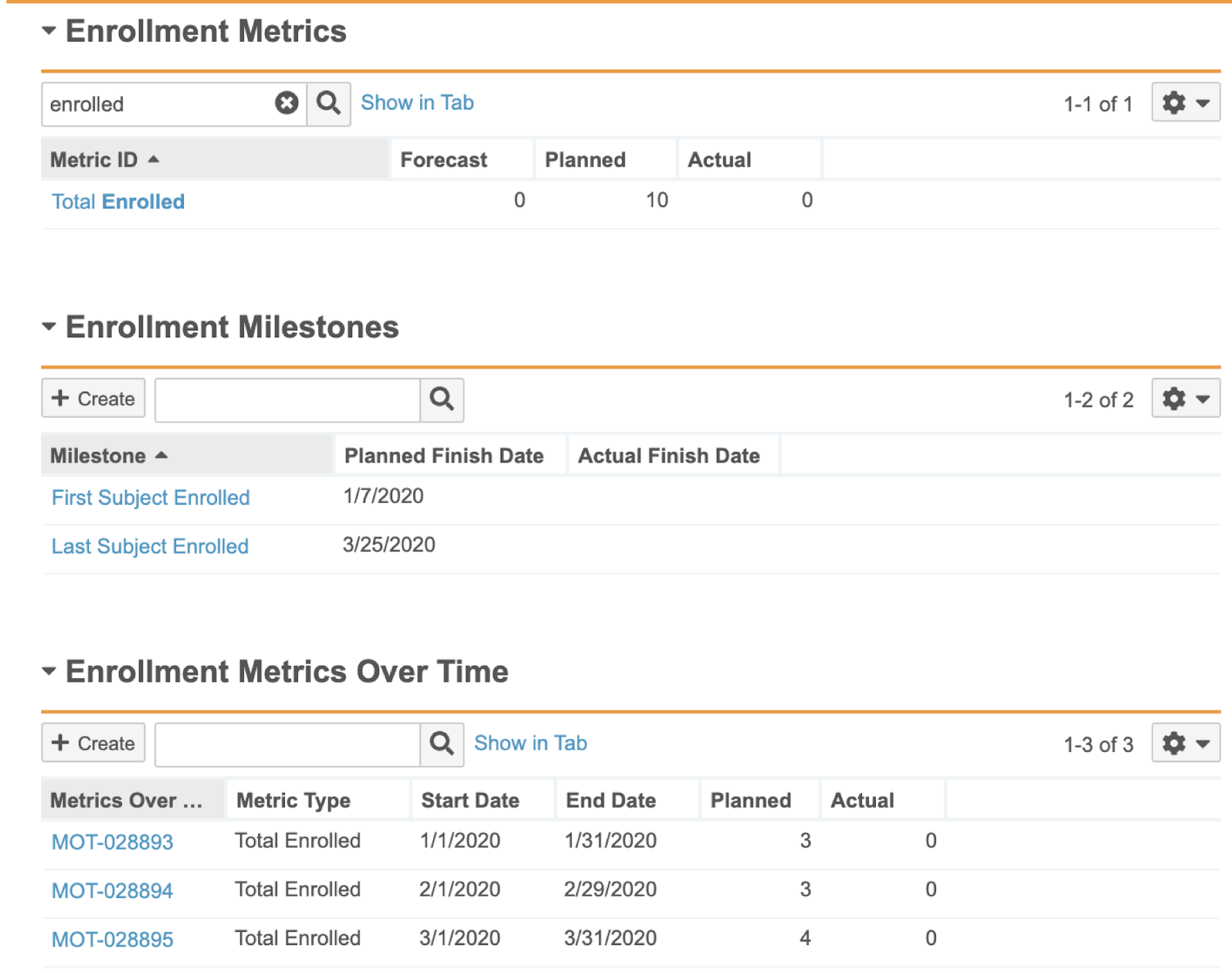
For example, if you entered ten (10) _Planned_ subjects for the _Total Enrolled_ metric, and that metric's related _First Subject In_ milestone had a _Planned Finish Date_ of 1/7/2020 and a related _Last Subject In_ milestone with a _Planned Finish Date_ of 3/25/2020, Vault would create a total of three (3) _Metrics Over Time_ records with three (3) _Planned_ subjects in the first two (2) intervals and four (4) in the last, as shown here:

<a href="https://platform.veevavault.help/assets/images/ctms-enrollment-metrics.png" data-lightbox="ctms-enrollment-metrics.png" data-title="" data-alt="Enrollment Metrics">
  <img class="docimage" src="https://platform.veevavault.help/assets/images/ctms-enrollment-metrics.png" alt="Enrollment Metrics" style=""  />
</a>

You can in-line edit the distribution of _Planned_ numbers at the lowest level you are planning to more accurately plan the recruitment of your _Study_, _Study Country_ or _Site_. A separate set of _Metrics Over Time_ records can be created for each _Subject Group_ when the **Create Recruitment Plan** field is set to **Yes** on the _Study_.

Vault uses non _Subject Group_ milestones when planning for a _Study_, _Study Country_, or _Study Site_, and _Subject Group_ milestones when planning for _Subject Groups_. If the appropriate milestone is not available, Vault defaults to use the other type. This means that _Study_, _Study Country_, or _Study Site_ planning use _Subject Group_ milestones and _Subject Group_ planning uses non _Subject Group_ milestones.


<div class="note-border alert-info">
  <div class="alert alert-info" role="alert">
    <div><i class="far fa-info-circle"></i></div>
    <div class="alert-text">
      <p><strong>Note</strong>: If both the <em>Planned Finish Date</em> and <em>Forecast Finish Date</em> for a given <em>Milestone</em> are populated, Vault creates <em>Metrics Over Time</em> records that span the longer time range. For example, Vault uses the earlier date provided for <em>First Subject In</em>.</p>
    </div>
  </div>
</div>


### Planned Number Roll-Up {#roll-up}

_Metrics Over Time_ record data rolls up to the level(s) above so you can accurately keep track of your aggregate subject recruitment data. For example, if you planned for 25 _Total Screened_ subjects on 1/1/2020 at Site A and 25 _Total Screened_ subjects on 1/1/2020 at Site B, Vault rolls that data up to the _Study Country_ level. The _Study Country_ would show 50 _Planned Total Screened_ subjects on 1/1/2020.

Vault rolls _Planned_ numbers up the hierarchy.

The _Planned Roll Up_ field on _Metrics_ object records shows a sum of the number of subjects planned in the _Metrics Over Time_ records. For example, a site has _Metrics Over Time_ records for January with 3 _Planned Total Screened_, February with 3 _Planned Total Screened_, and March with 4 _Planned Total Screened_ subjects. The _Planned Roll Up_ field on the _Total Screened_ metric will show 10.

### Actual Number Roll-Up {#actual-roll-up}

_Metrics Over Time_ record data rolls up to the level(s) above so you can accurately keep track of your aggregate subject recruitment data.

* For studies using **Date-based** as their Metrics Calculation method, _Actual_ values on _Metrics Over Time_ records are populated using the corresponding _Subject's_ status dates.
* For studies using **Metrics Only** as their Metrics Calculation, _Actual_ values on _Metrics Over Time_ records must be manually populated at the level used for recruitment planning.

Vault rolls _Actual_ numbers on _Metrics Over Time_ records up the Recruitment Planning hierarchy.

### Updating a Recruitment Plan {#updating-recruitment-plan}

Subject Recruitment Plans and dates may change after completing the initial Recruitment Plan if you make changes to the following:

Scenario 1: Extending Existing Date Range

  * _Milestone Finish Date_: running the **Create Metrics Over Time** action creates additional records if you extend the _Finish Dates_. The action does not delete existing **Metrics Over Time** records.
  * _Planned Subject_: running the **Create Metrics Over Time** action does not update _Planned_ values after the initial run. You can manually update the _Planned_ amounts at the Recruitment Planning Level specified in the _Study_ configuration.

Scenario 2: Replacing Initial Date Range

  * _Milestone Finish Date_: running the **Create Metrics Over Time** action deletes existing records and creates new records if you replace the _Finish Dates_ with values that do not overlap with the original range.
  * _Planned Subject_: running the **Create Metrics Over Time** action populates _Planned_ values when creating new records.

## Viewing Subject Recruitment Plan on the Homepage

Vault displays your subject recruitment plan on the <a href="/en/gr/39905/">CRA</a>
 and <a href="/en/gr/39903/">Study Manager</a>
 homepages.

### Planned Lines

<div class="note-border alert-info">
  <div class="alert alert-info" role="alert">
    <div><i class="far fa-info-circle"></i></div>
    <div class="alert-text">
      <p><strong>Note</strong>: Planned lines are only applicable if you are planning for metrics over time.</p>
    </div>
  </div>
</div>


<a href="https://platform.veevavault.help/assets/images/ctms-planning-line.png" data-lightbox="ctms-planning-line.png" data-title="" data-alt="Planned Line">
  <img class="docimage" src="https://platform.veevavault.help/assets/images/ctms-planning-line.png" alt="Planned Line" style=""  />
</a>

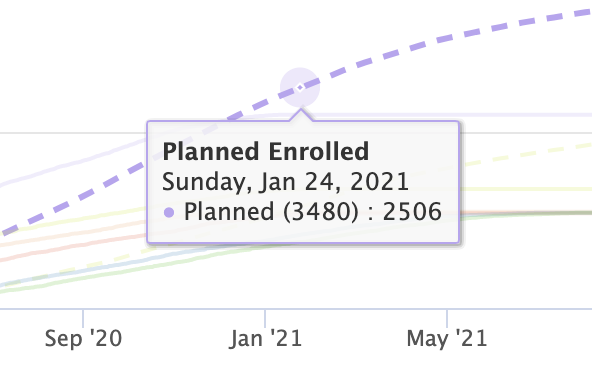
The "Planned" lines show your planned numbers defined for that metric. The points on each line represent the metric over time end dates, which occur monthly or weekly, depending on how your Vault calculates metrics over time.

### Planned Diamond

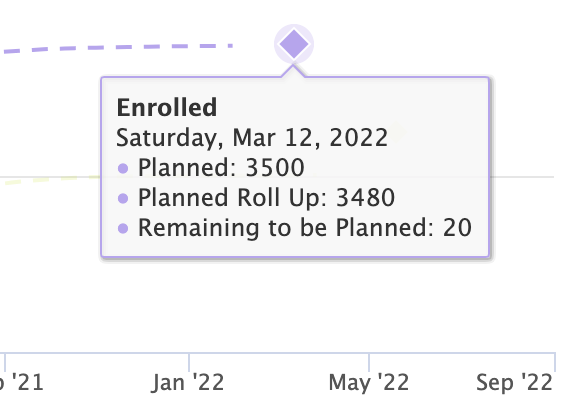
Vault plots the planned diamond using the _Planned Finish Date_ of the "last" milestone for that metric as the X coordinate and the number of planned subjects defined for that metric as the Y coordinate.
<a href="https://platform.veevavault.help/assets/images/ctms-planned-diamond.png" data-lightbox="ctms-planned-diamond.png" data-title="" data-alt="Planned Diamond">
  <img class="docimage" src="https://platform.veevavault.help/assets/images/ctms-planned-diamond.png" alt="Planned Diamond" style=""  />
</a>

When you hover over the planned diamond, Vault displays a hovercard that shows the name of the metric, the Planned Finish Date of the applicable "last" milestone, the number of planned subjects defined for that metric, the planned rollup value, and the difference between those two as Remaining to be Planned.

## Related Permissions

You need the following permissions to set up subject recruitment planning:

| Type | Permission Label | Controls |
| --- | --- | --- |
| Security Profile | Objects: Metrics Over Time: Create | Ability to create _Metrics Over Time_ records. |
| Security Profile | Objects Milestone: Create | Ability to create _Milestone_ records. |
| Security Profile | Objects: Metrics: Create | Ability to create _Metrics_ records. |

 [1]: #configure-subject-planning
 [2]: #prepare-your-study
 [3]: #plan-subject-numbers
 [4]: #roll-up