Important: The functionality described on this page is only available to customers who have Vault AI enabled on their Vault.
Vault provides an AI tab with a chat feature that allows you to query and explore your Vault data. You can inquire about a range of categories, such as documents approved in the last 30 days or the total number of Country records in a Vault. Ask questions in plain language without technical jargon, and the AI tab retrieves data to provide you an answer.
If enabled by an Admin and you have the appropriate permissions, the AI tab displays in your list of tabs, and the Home tab is relabeled to Tasks.
Note: The AI tab focuses on helping you find and understand information in your Vault. It cannot perform specific Vault actions, such as creating records and initiating workflows. However, depending on the nature of your question, it may route to a Vault AI Chat action, such as translating and summarizing documents.
Navigating the AI Tab
In addition to exploring your Vault data, the AI tab displays additional chat-related options:
- New Chat (
 ): Initiates a new conversation. You can also use a keyboard shortcut: Ctrl + Shift + O on Windows, Cmd + Shift + O on Mac.
- Recent Chats (
 ): Displays all recent AI tab conversations. This only includes chats initiated on the AI tab.
- History (): Displays a history of all chats from the AI tab and Vault AI Chat. Displays up to 30 days of history.
- Tasks (
 ): The total number of your tasks, including assigned and available tasks. Click Tasks > Show my tasks to navigate to the Tasks tab and view your tasks and active workflows. This counter displays 100+ if there are over 100 tasks.
- Suggested (
 ): Displays a “What can I do?” question that generates a response describing how the AI tab can help you. In addition, Suggested displays a list of up to four suggested prompts.
- Start Agent Trace Activity (
 ): Initiates an agent trace session for all agent activity on the AI tab. When you stop the agent trace session, you can download the trace file from the Agent Activity Trace dialog.
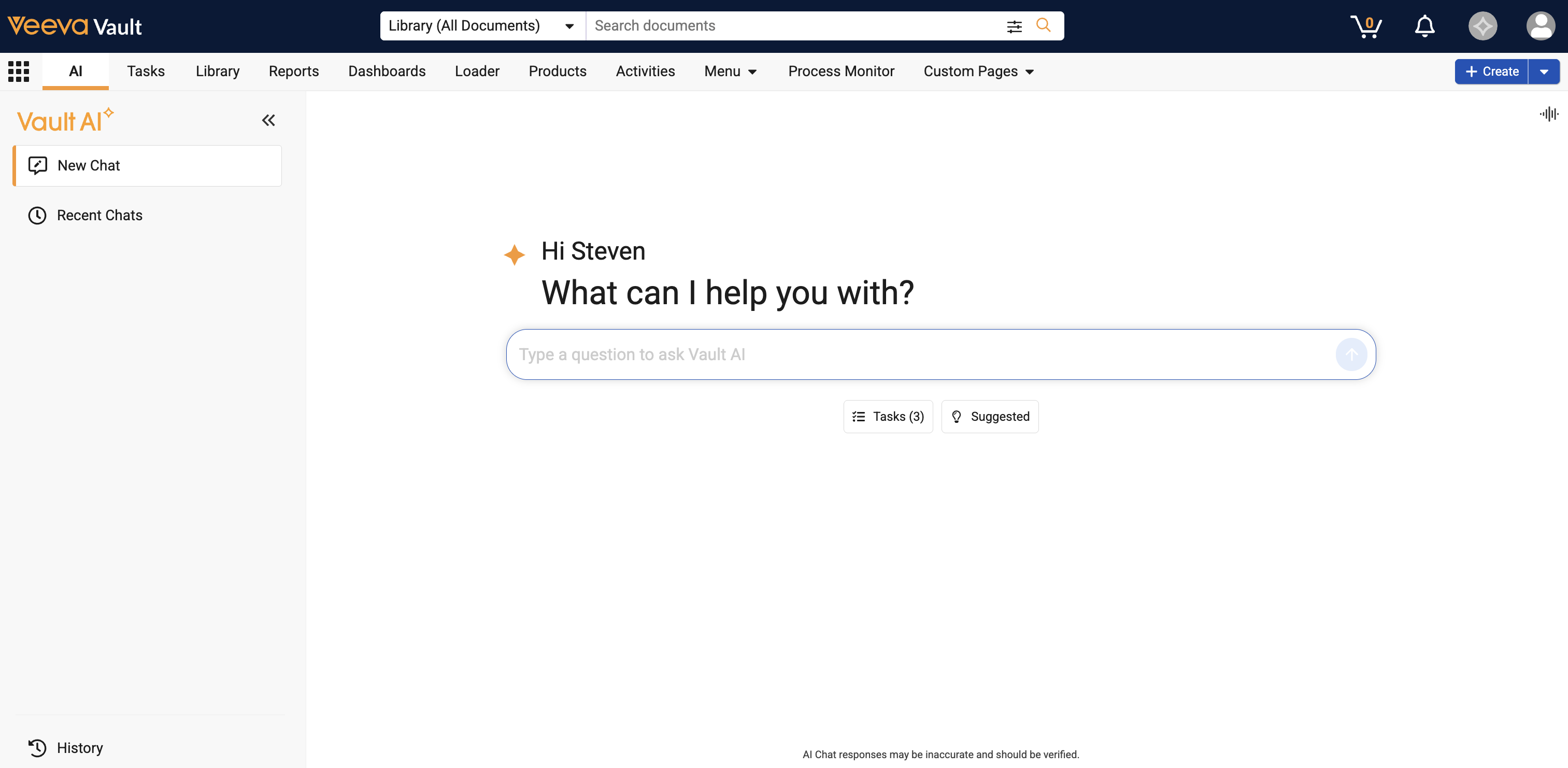
When you ask a question or submit a request, you can navigate away from and return to your chat from the History or Recent Chats section at any time while the AI tab generates your response. Click Cancel request () in the text input field at any point to cancel the response generation.
About Questions & Responses
You can submit a variety of questions and requests for information about your Vault. You can use full or incomplete questions, such as business terms, text fragments, and synonyms. Based on the content of your question, the AI tab uses its best judgement to determine the type of response to return. However, if your question is too vague, the AI tab may ask for more clarifying information before generating a response.
See the sections below for examples of question categories. These are only examples and you are not limited to these types of questions.
Note: Admins should ensure custom and standard Vault AI Metadata is accurate and updated, as the AI tab uses this information to query your Vault data.
View Response Generation
Once you ask a question or submit a request, the AI tab begins a process to generate a response. During the process, messages are displayed to keep you updated on the response progress.
Reduce Large Data Responses
To narrow down large amounts of data in the AI tab’s response, use specific details in your questions and prompts, such as dates, statuses, or categories (such as document types and record names) when necessary. The more refined your question or prompt, the more accurate and focused a response the AI tab can generate. For example, instead of asking “Show me promotional documents”, you could ask “Show me promotional brochures approved in the last 30 days”.
Previously Asked Questions
When starting a new chat, the text input field displays a drop-down of previously asked questions, if available. Selecting one of these questions helps the AI tab respond faster as it uses the same logic to provide a response, rather than reassessing how to answer the question. If you select a question and slightly modify it, the AI tab still uses the existing logic to provide a quick response.
The drop-down can display up to 90 days of previous questions. The list is sorted by the most frequently used, and then by the most recent. You can remove a question by hovering over it in the list and clicking the x icon.
Vault Data Questions
You can ask the AI tab a variety of plain language questions about your Vault records and documents, such as statuses, count of records, and dates. The AI tab searches the documents and records you have permission to view and generates a response.
For example, “Can you check for overdue tasks?” returns the exact number of overdue tasks in your Vault including brief details on each task. In addition, you can click Open to view a list of the returned data.
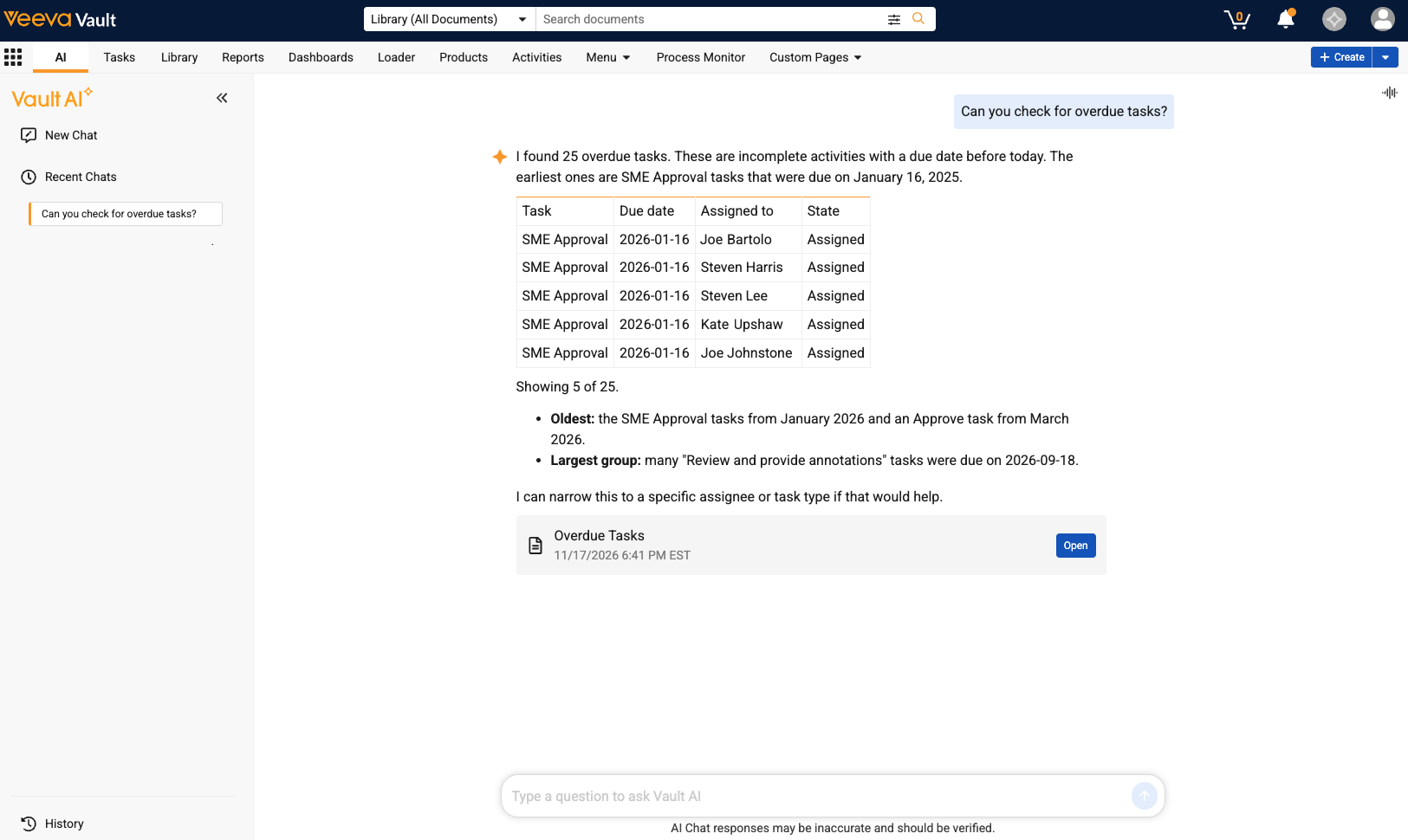
The list view displays links to the requested data. In this example, a link to each overdue task is displayed.
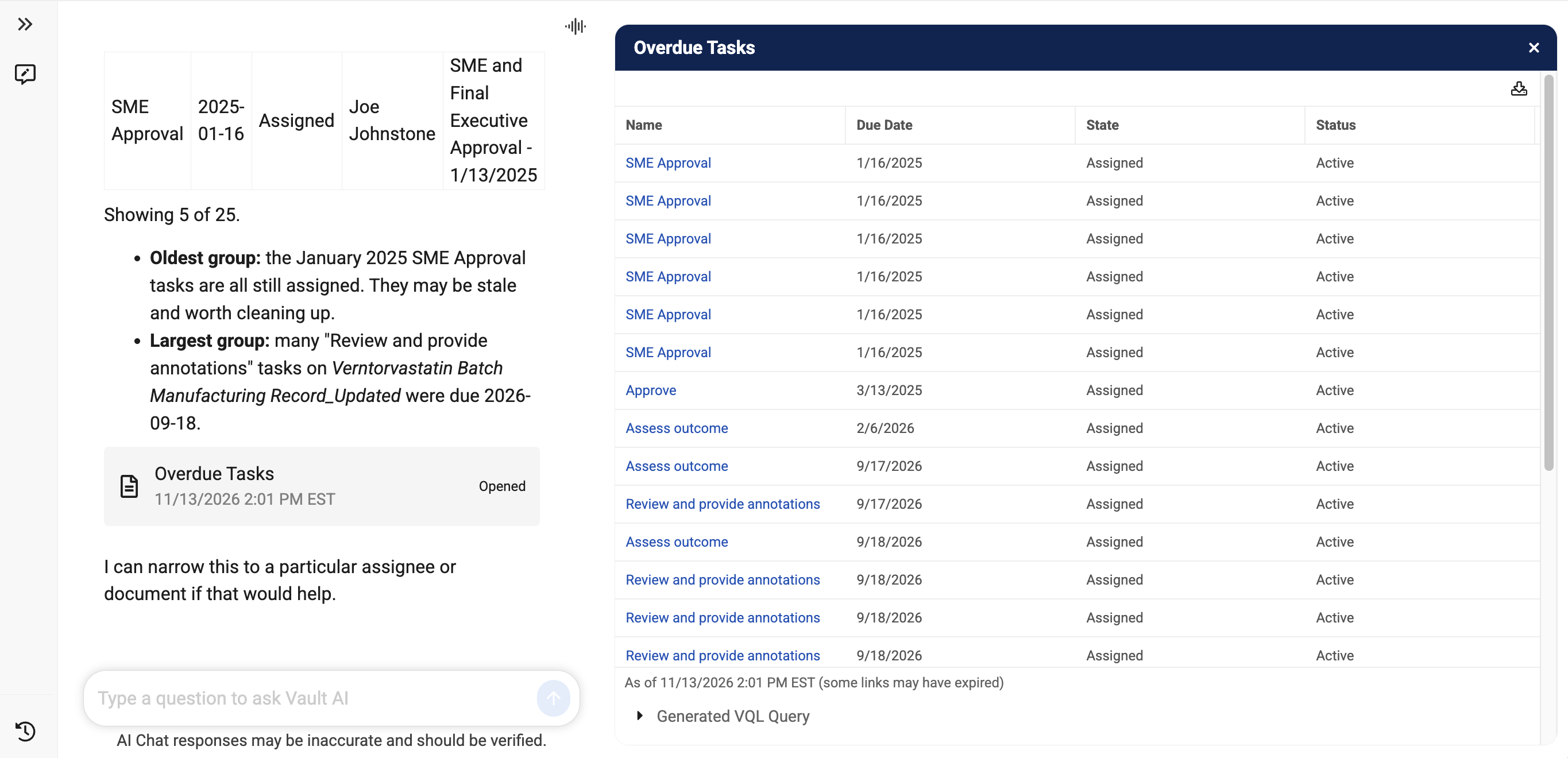
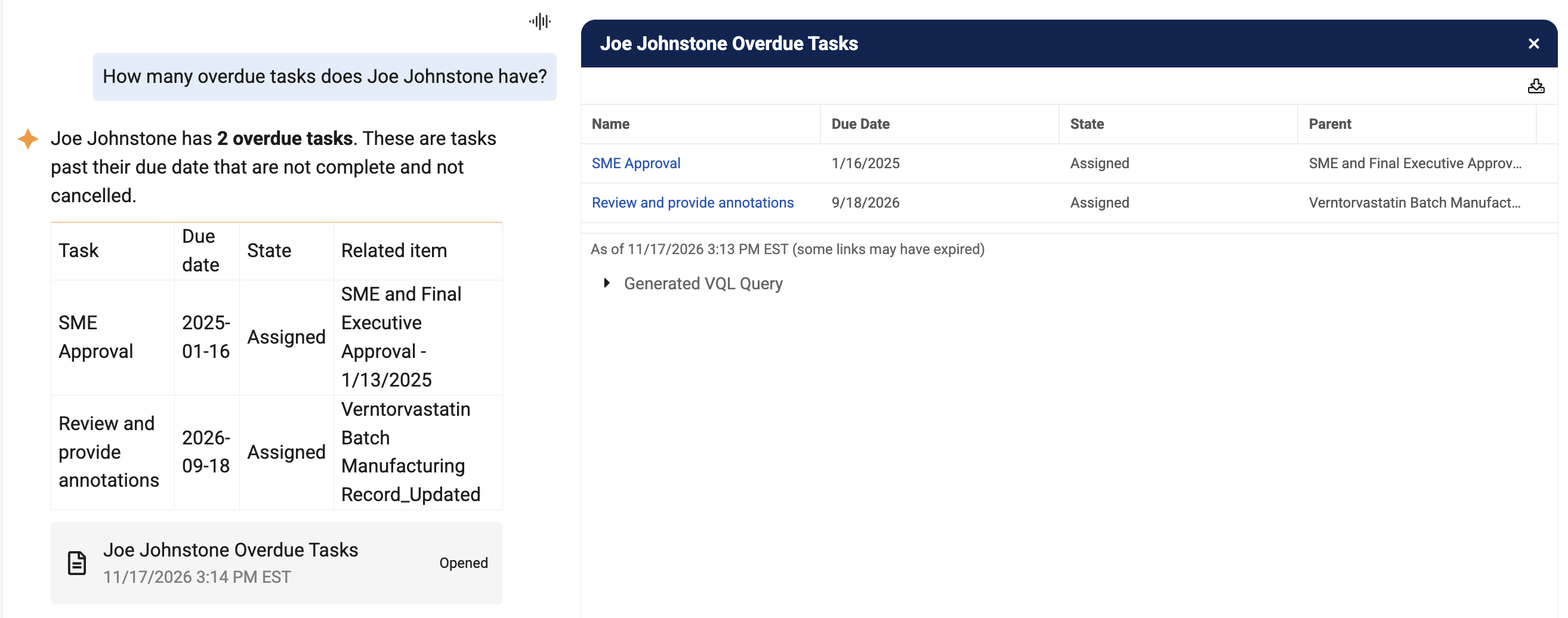
The list view displays up to 1,000 rows of data. In these instances, you can refine your question to narrow the results. Using the example above, if you only wanted to see overdue tasks for a specific user, you could ask, “How many overdue tasks does Joe Johnston have?”. If asked as a follow up question, the AI tab responds with the exact number and details on each overdue task. The Open button also displays additional details on each task.
Sample Questions & Responses
See below a few sample Vault data questions and prompts and the expected response from the AI tab.
| Question/Prompt | Expected AI Tab Response |
|---|---|
| Which Study records are active in this Vault? | Displays the exact number of active Study records in your Vault. The Open button displays a list of and link to each active record. |
| Show me all overdue workflow tasks. | Displays a list of all overdue workflow tasks in your Vault. The Open button displays a list of each overdue task and a direct link to the task. |
| How many Activity records are in this Vault? | Displays the exact number of Activity records in your Vault. |
Document Metadata & Full-Text Search Questions
The AI tab can answer plain language questions around locating specific documents in your Vault. To generate a response, the AI tab searches your Vault’s document fields and text to return a list of up to ten relevance-ranked documents based on your question. The closer a document matches your question, the higher its ranking in the list. Results provide details about each document, such as the document title, document type, a brief snippet of the document text, and a direct link to the document. Only the latest version of documents you have permission to view are displayed. Archived and document attachments are not included in the response.
Ranked document lists are returned only when the AI tab must evaluate a document’s relevancy to your question to generate a response. Questions that require an exact filter or count, such as a document’s status or approval date, are treated as Vault data questions. For example, “How many SOPs were approved this week?” returns a specific list with only the approved SOP documents.
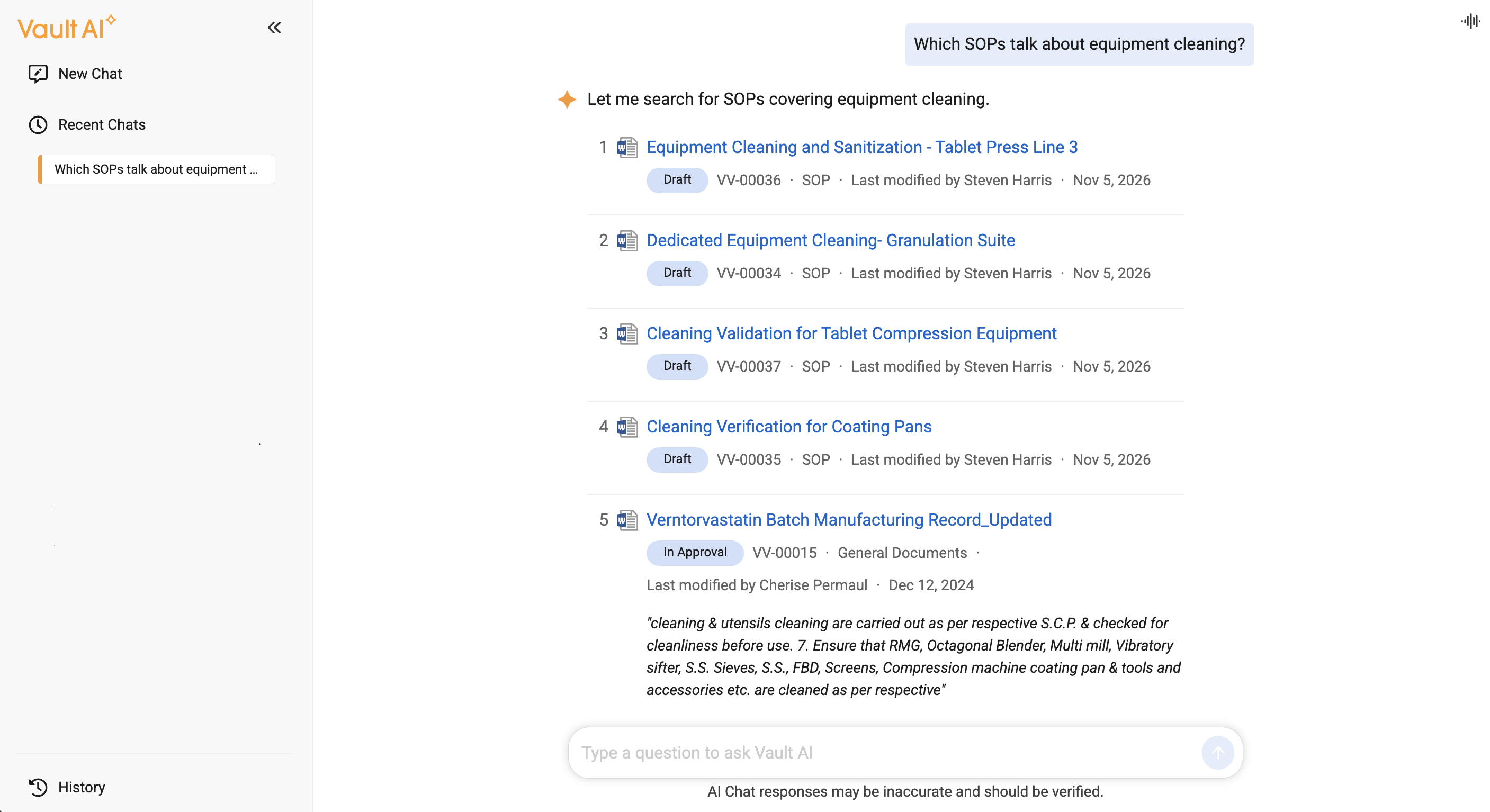
Note: If the AI tab returns over ten ranked documents, view the rest of the documents by clicking Open at the bottom of the list. You can also narrow your search by including additional criteria in your question, such as date ranges and document types.
Sample Questions & Responses
See below a few sample questions and prompts and the expected responses for document metadata and text search questions.
| Question/Prompt | Expected AI Tab Response |
|---|---|
| Which documents mention the drug Cholecap? | A ranked list of relevant documents that mention the drug Cholecap either in document fields or text. |
| Cholecap Brochure | Depending on how “Cholecap Brochure” is stored in your Vault, the AI tab uses its best judgement to determine if it should initiate a document search or a Vault data query to return a response. If a document search is performed, the AI tab searches for documents with “Cholecap Brochure” in the document fields or text and returns a ranked list. |
| Find Raxxipen study documents. | A ranked list of documents related to “Raxxipen study”. |
Note: Snippets display matching text extracted directly from the ranked document. Snippets are not displayed if the document relevancy is based only on document fields and not the document text, or the file contains no readable text, such as an image.
Vault Navigation Questions
You can ask the AI tab to locate specific areas in your Vault, such as pages and tabs. The response includes a direct link to your intended destination, alleviating the need to memorize paths to your desired area and reducing clicks. Only Vault areas you have permission to access are displayed.
For example, questions and prompts such as “Where do I create subject visits?”, “Take me to the Corporate Initiatives tab”, and “Open the TMF Homepage” display links directly to the requested destination.
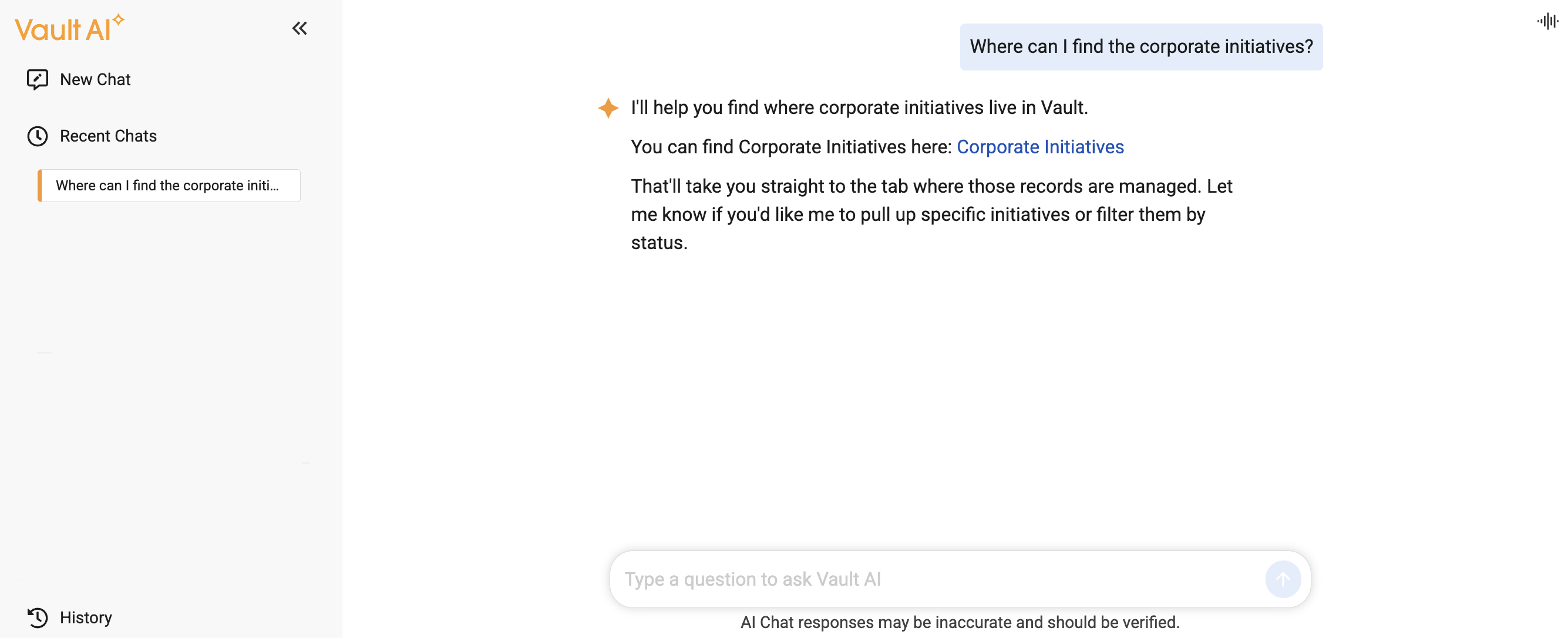
If the AI tab cannot find one direct location based on your question, up to three related locations are displayed in the response.
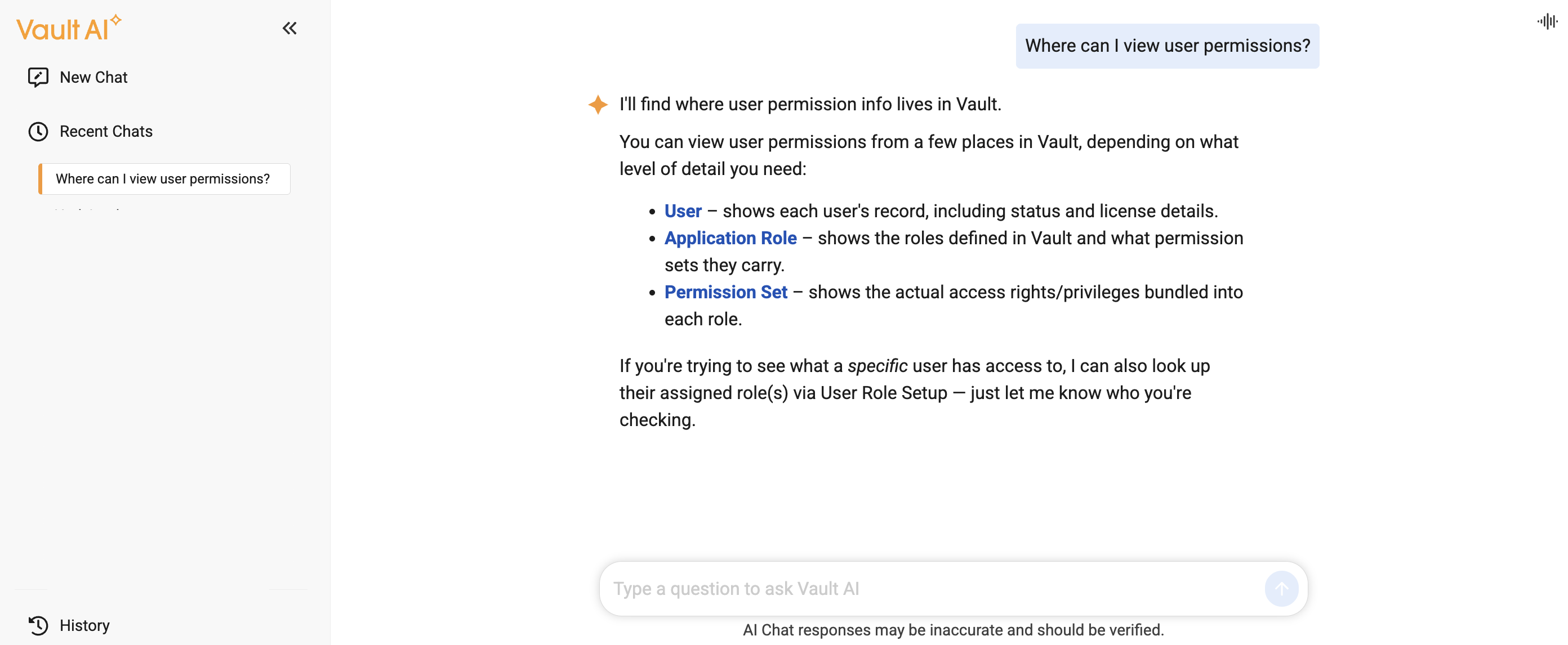
Note: It is recommended to use the following phrases to generate a navigation response:
- “Where can I find…”
- “Take me to…”
- “Go to…”
- “Open…”.
Procedure & Process Questions
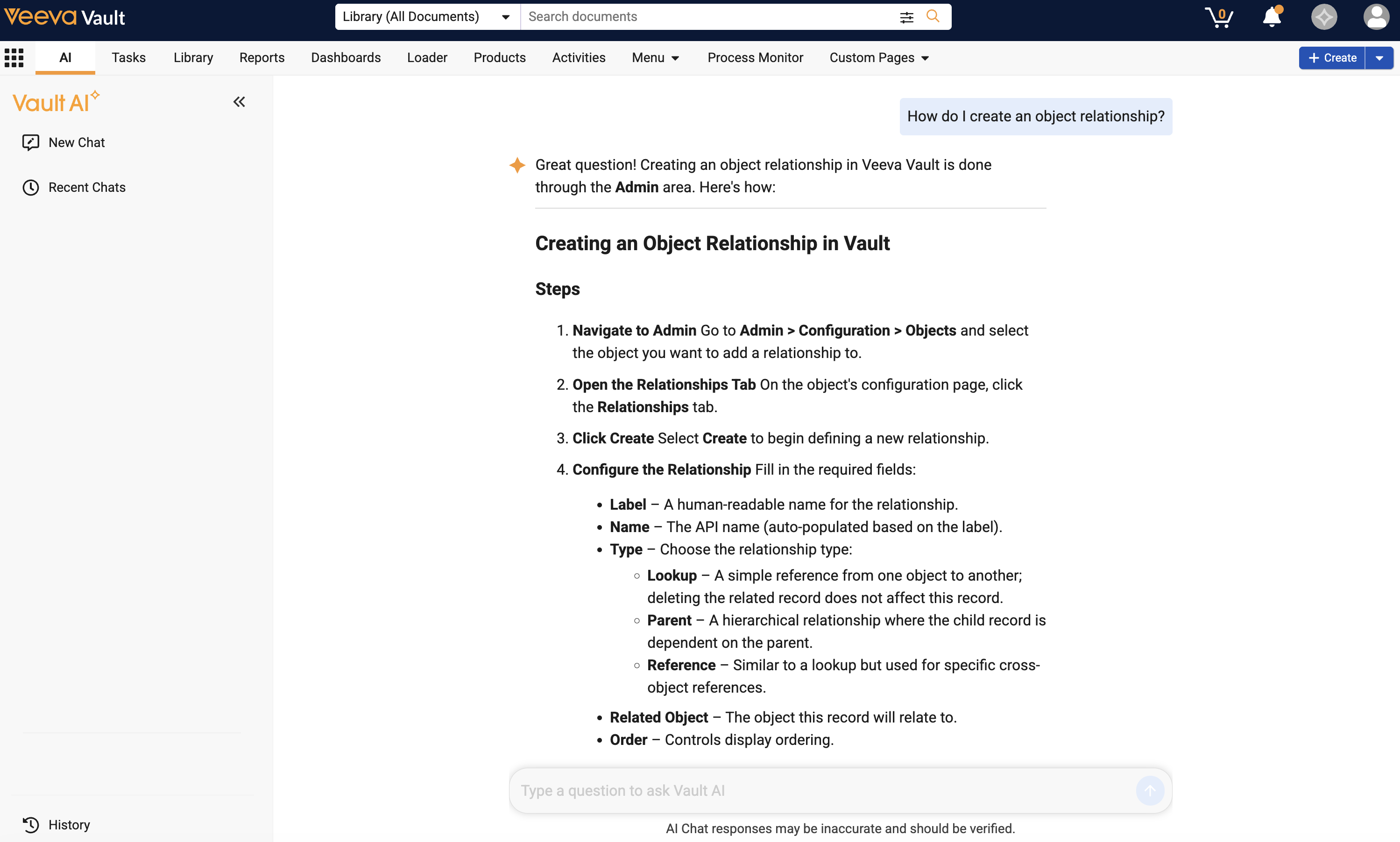
You can ask questions about specific tasks, procedures, and processes in Vault. For example, you could ask, “How do I create an object relationship?”. The AI tab responds with detailed instructions on how to complete the task.
Limits
The following limits apply to using the AI tab:
- You cannot modify any data in Vault, such as creating, updating, or deleting documents or records. You can only retrieve information about data in your Vault.
- You cannot ask billing and consumption-related questions, such as how many tokens the Vault used in a time period.
- You cannot ask workflow related questions about Legacy workflows. Only object and document workflows (single and multiple) are supported.
- The list view displays up to 1,000 rows of data. Results exceeding 1,000 rows are truncated.
- The AI tab cannot provide information about any Vault data you do not have permission to access.
- The AI tab can only answer questions about data within the Vault you are currently using.
Related Permissions
The following permissions control your ability to use the AI tab. These permissions are available under the Vault AI User Actions permission set:
| Permission | Access Details |
|---|---|
| Tabs: AI: View | Ability to view the AI tab. Must be enabled in conjunction with the Pages: AI: View preference |
| Pages: AI: View | Ability to view the AI tab. Must be enabled in conjunction with the Tabs: AI: View preference. |