The Safety-EDC Connection allows organizations with a Safety Vault and a Clinical Data EDC Vault to exchange data about serious adverse events (SAEs) discovered by study sites for case processing. Site Investigators can enter and update Safety Case Initiation Event forms in your EDC Vault and the connection automatically transfers the SAE data, along with the applicable subject and Case information, to your Safety Vault. Case Processors and Medical Reviewers can then triage, review, and process the Case according to the submission requirements of the relevant regional health authorities for a particular study. This allows your organization to minimize data entry errors, avoid compliance issues, and respond to SAEs within designated timelines.
When a site user creates an SAE in their EDC Vault, the connection generates an Inbox Item for intake in your Safety Vault. If an EDC site user later updates that SAE after you’ve promoted the initial Inbox Item or merged it to an in-flight Case, the connection generates a new Inbox Item linked to that Case, which you can review and merge, as appropriate. For more information, see Managing Safety Integrations in Veeva Clinical Data Help.
Note: Vault generates records and updates data in your Safety Vault based on your Admin’s configuration. Refer to your organization’s business processes for guidance.
About the Safety-EDC Connection
The Safety-EDC Connection creates new records and updates existing records across Vaults in the following situations:
- When an EDC user creates or updates SAE subject data, Vault generates or updates the corresponding Inbox Item, Case, and EDC subject information records in your Safety Vault based on Admin-defined field mapping.
- For Inbox Items generated by the connection:
- The lifecycle state depends on whether the Inbox Item matches an existing Case:
- If a Case does not yet exist, the Inbox Item is in New state. When a Case does exist, the Inbox Item is in Marked for Follow-up state.
- For any Inbox Items in New state for which the connection generates a follow-up Inbox Item for the same Case (indicated by matching Link values), Vault moves the previous Inbox Item to Superseded, making it safe to ignore. Vault links the Superseded records to the new Inbox Item and copies the New Info Date from the oldest Inbox Item superseded by the new record, supporting accurate due date calculation.
- You can review source EDC values in the Source Data pane.
- You can promote the Inbox Item or mark it for follow-up.
- When the SAE is for a child subject, the Inbox Item includes parent information. The connection also generates an Inbox Item when parent information changes in EDC.
- For Inbox Items with multiple adverse events:
- For products with multiple adverse events, Vault assigns the most severe Action Taken value (based on the lowest E2B Code). For duplicate values, Vault assigns the value from the earliest-created Adverse Event.
- Vault concatenates all Reporter Comments from EDC in the Reporter’s Comments field and all Sender Comments from EDC in the Company Comments field, with both concatenated field values on the Case ordered by Form Sequence Number.
- When configured by your Admin, Vault assigns a Significance value, allowing you to prioritize follow-up Cases for processing.
- When an EDC user clears the SAE by clicking the Mark as Blank button, the generated Inbox Item has an EDC Reason value of Form cleared by the EDC user, representing a void or nullification scenario.
- The Inbox Item may be blank if an EDC user updates unmapped data for an SAE linked to a Case; Case Processors can triage these items as needed.
- The lifecycle state depends on whether the Inbox Item matches an existing Case:
- After promoting the Inbox Item or merging it to an in-flight Case, you can review and adjust all relevant subject information.
- Any EDC Local Lab results integrated into the subject casebook transfer to the Inbox Item and corresponding lab section in the Case in your Safety Vault. You can also review the data on the Test Results tab of the Add Relevant Subject Information dialog. When an EDC user populates any Analyte value for a specific lab panel, all available Analytes for the panel display in your Safety Vault, including any Analytes without values.
- When an EDC user deletes subject data related to an SAE, Vault marks the corresponding EDC subject information records in your Safety Vault as deleted and creates an Inbox Item for each nullified Case associated with the deleted subject. The EDC Reason value on these Inbox Items is Subject Deleted on Vault EDC. Vault does not delete the associated Inbox Item or Case when deleting subject information records.
- In Safety Vaults, you cannot run the Promote to Multiple Cases or New Case - Copy Patient Info actions on Inbox Items generated by the connection.
Safety Decisions
Vault tracks certain updates made to Cases promoted from Inbox Items generated by the connection so that future updates from EDC consider those Safety decisions. This includes adding subject information, removing subject-related information (Case Medical History, Case Drug History, Case Test Results, Case Products, or Case Adverse Events), and merging additonal Inbox Items. This allows Vault to generate appropriate follow-ups for the most applicable Case and alert Safety teams of any developments for ongoing evaluation and regulatory compliance. Vault generates Inbox Items for follow-up for the most recent Case, providing it is not in a voided state, with the following exceptions:
- When multiple Cases have the same Case Number, Vault generates an Inbox Item only for the most recent Case Version.
- When a Case splits into multiple Cases:
- If the Link value is the same, Vault generates an Inbox Item only for the Case with the highest Case Number.
- If the primary Case Adverse Event is the same on both Cases, Vault generates an Inbox Item only for the Case with the highest Case Number. In this scenario, we recommend that you add relevant subject information from the lowest Case Number to the other Case.
- If either of the primary Case Adverse Events was manually added by a user, Vault ignores the associated Case.
- All updates made in EDC generate corresponding follow-up Inbox Items in Safety. If users make the same change in both Vaults, the connection generates an Inbox Item so you can review and determine next steps.
Record Creation & Updates
For records generated in your Safety Vault, the connection populates certain standard fields based on your Admin’s mapping. Vault also populates the Link field on the target record with the source record’s Global ID in EDC, which tracks which records update in the target Vault based on data updated in the source Vault. In the EDC Vault, the connection populates fields on the source Safety Case to reference the name and ID of the target record.
Vault populates the Study and Study Product fields on generated Inbox Items if there are matching records in your Safety Vault. If no matches are found, the Inbox Item will be in Missing Information state. You can then manually populate the blank fields.
Vault creates all records in their lifecycles’ initial states except Inbox Items, which may be in Missing Information state if required fields are blank.
EDC Subject Information Records
Vault transfers clinical subject data from an EDC Vault to subject information records in your Safety Vault, which includes a parent CDMS Subject Information record and the following child records:
- CDMS Subject Adverse Event
- CDMS Subject Case Product
- CDMS Subject Case Product Dosage
- CDMS Subject Case Product Indication
- CDMS Subject Cause of Death
- CDMS Subject Drug History
- CDMS Subject Event Product Assessment
- CDMS Subject Height History
- CDMS Subject Last Menstruations
- CDMS Subject Links
- CDMS Subject Medical History
- CDMS Subject Pregnancy Child
- CDMS Subject Pregnancy Information
- CDMS Subject Test Results
- CDMS Subject Weight History
Automated Classification of Inbox Item Significance
Vault may assign a Significance value to Inbox Items generated by the connection based on your Admin’s configuration, allowing you to prioritize follow-up Cases for processing by referencing the following assigned values:
- Initial Case
- Non-Significant Follow-Up
- Significant Follow-Up
- Urgent Significant Follow-Up
This determination is typically based on updates to the seriousness, expectedness, or relatedness details. You can review which Significance Criteria Vault evaluated to determine Significance in the Significance Results section of an Inbox Item. Vault recalculates Significance every time it detects an associated follow-up Inbox Item. You can also manually recalculate Significance. When you promote an Inbox Item to a Case or merge the latest data to an in-flight Case, Vault populates the Significance value based on the Inbox Item’s specified value.
Recalculating Significance Criteria
If you make changes that may impact seriousness, expectedness, or relatedness, you can recalculate the significance by running the Rerun Significance Criteria action from the All Actions menu of an Inbox Item in Marked as Follow-up state.
Promoting & Merging
In your Safety Vault, use the Inbox Item to Case Compare page to review Inbox Items, and promote them to new Cases or merge them into in-flight Cases, as appropriate. Vault does not assign incoming Adverse Events a Rank value when promoting an Inbox Item generated by the connection or merging it to an in-flight Case. You can designate a new primary event (Rank of 1) only for an event sourced from EDC. When you promote an Inbox Item with multiple adverse events, Vault concatenates narratives from each EDC Adverse Event into the Case Narrative field.
Note: In Sandbox Vaults, you must wait five minutes after updating multi-event Case data in Safety before executing the Run Follow-up Scan action in EDC. This delay ensures the connection generates safety decisions that track and communicate the structural changes to EDC. This delay does not apply to production Vaults.
Follow-Up Cases
When marking an Inbox Item for follow-up, Vault checks for any previously marked Inbox Items that are related to the same initial Case and updates them to Marked as Follow-up (Not Current) state with a link to the newer Inbox Item, allowing you to prioritize the most up-to-date Inbox Item for promotion. Vault makes the following updates based on the New Info Date values of the existing related Cases:
- The most recently created Inbox Item moves to the Marked as Follow-up state with a New Info Date value based on the oldest related Marked as Follow-up (Not Current) record. You can review the original date below the populated field value and in the Source Data pane of the record.
- All other applicable Inbox Items move to the Marked as Follow-up (Not Current) state.
When you manually promote an Inbox Item to a follow-up Case (using the Create Follow-Up action or the manual merge method), all other Inbox Items related to the same initial Case move to the Superseded state.
Pregnancy Cases, Child & Parent Information
Upon promotion of Inbox Items generated from EDC Casebooks for pregnant and child subject SAEs, including cases with birth outcomes, Vault generates and updates the applicable Pregnancy Cases, Child Information, and Parent Information for processing in Safety. Vault does the following:
- Maps the parent’s subject information to the child’s Case and links the Cases.
- When multiple Cases exist for the parent, links the child’s Case to the parent’s most recent pregnancy Case.
- If no pregnancy Case exists, links the child’s Case to the parent’s most recent Case.
- Links the Cases so that any new versions retain links to the applicable first version, even if a more recent follow-up version exists in either Vault.
- Generates an Inbox Item to promote to a Case each time parent information is updated in EDC. For Inbox Items generated for child information-related updates in EDC, Vault maps source data that may not appear on the Inbox Item but does appear on the Case upon merge or promotion.
Once a day, Safety Vault checks for any parent Cases that are not already linked to child Cases and, when applicable, links those Cases. Vault also checks for any changes made to parent subject information and, when applicable, updates the parent’s Case.
Note: The Parent Information field in the Patient section on the Inbox Item to Case Compare page appears as blank on Inbox Items generated by the connection when the parent information changes in EDC.
Reviewing & Adding Relevant Subject Information
For SAEs transferred from an EDC Vault, you can run the Add Relevant Subject Information action on the applicable Case to review all relevant subject data, including medical and drug history, test results, and adverse events. You can then select which relevant subject data you want to add to the Case.
Note: This action is only available on Cases with subject data received from an EDC Vault that your Access Group allows you to view.
To add data based on subject information received from your EDC Vault and generate the applicable related records:
- Navigate to the applicable Case.
- From the All Actions menu, select Add Relevant Subject Information.
- In the Add Relevant Subject Information dialog, select the applicable items you want to add to the Case.
- Optional: Use the search bar and filters to help find the items you want to add. Search results are case-sensitive. Any column that references a raw object will sort all values starting with capital letters before all values starting with lowercase letters.
- Optional: customize the records grid to specify which columns display.
- Click the tabs to navigate between the options:
- Medical History
- Drug History
- Test Results
- Products
- Adverse Events: You can only add Adverse Events not already linked to another SAE.
- When you’ve made your selections, click Confirm.
Vault adds the applicable records to the appropriate sections in the Case based on the items you selected in the dialog. When you add a product, Vault includes any associated dosage and study or concomitant indication details. You cannot remove Products in the Add Relevant Subject Information dialog, but if you manually delete a Study Product from a Case and then run the Add Relevant Subject Information action, you can re-add the related Product in the dialog.
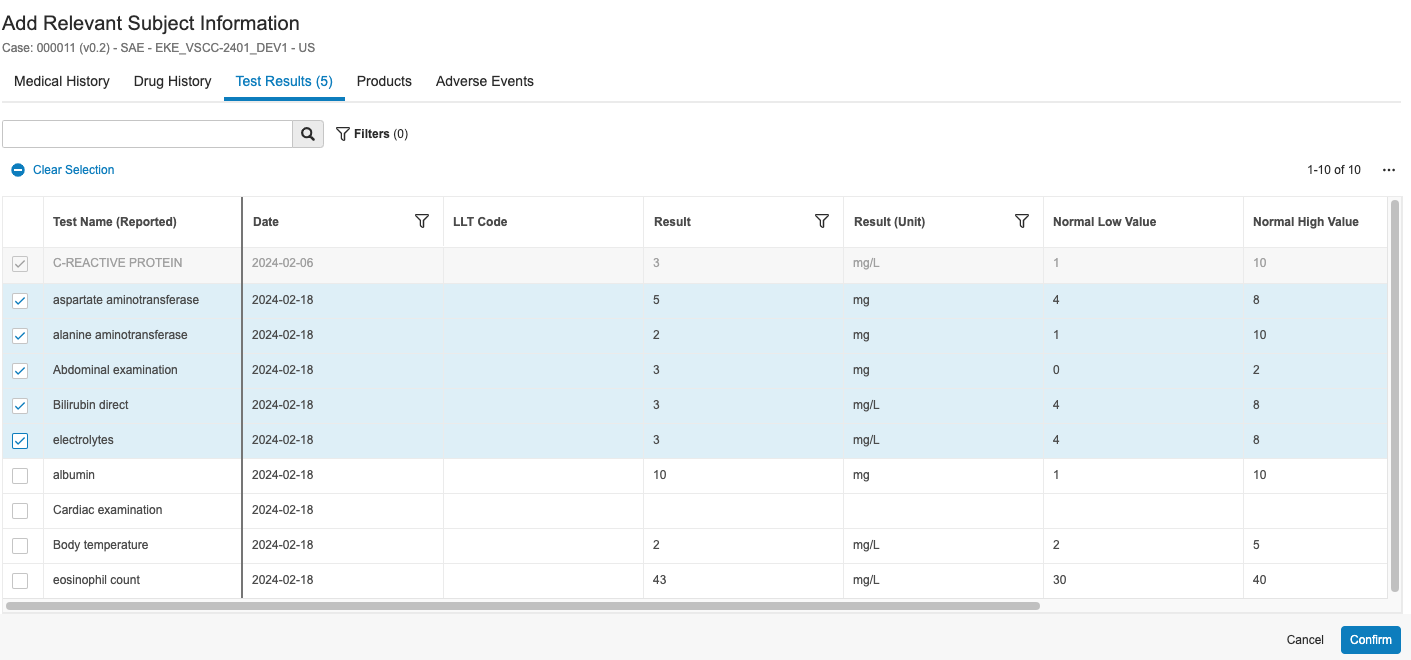
Reviewing Subject Information
When configured by your Admin, you can review subject-specific information on a CDMS Subject Information record’s details page using the following layouts on any record generated after running the Add Relevant Subject Information action on a Case:
- Triage: Overview of all pending Inbox Items and any additional Cases for the subject.
- Subject Information: Comprehensive view of the subject, allowing you to identify and review any unexpected data.