With Veeva Site Connect, Sponsors/CROs and Site Staff can use Study Site Address (study_site_address__v) records to capture and manage physical locations within a clinical study, such as IP Shipment Addresses, Patient Visit Locations, and Laboratories.
Sponsors and CROs can create and update Study Site Address records, request new addresses from sites for specific address types, or send existing Study Site Address records to site staff for formal confirmation to ensure address accuracy.
Active Study Site Address records and open address tasks are visible to site staff in the Site Profile section of Site Home. Here, site staff can create new addresses, update existing addresses, or confirm current details in response to Sponsor/CRO requests. Depending on Vault configuration, any new addresses or updates submitted by site staff may undergo Sponsor/CRO review and approval before becoming active.
Creating Study Site Addresses
Sponsors and CROs can create Study Site Address (study_site_address__v) records from the Site Connect tab.
To create a new Study Site Address record in the Site Connect tab:
- Navigate to the Site Addresses subtab.
- Click Create.
- In the Create Study Site Address dialog, select a Study, Study Country, and Study Site.
- Optional: Search for and select a Location. Selecting a Location populates the address details from the Location record in the global directory into the Study Site Address record. The individual address fields remain hidden on the Study Site Address record and automatically populate on the record once a user saves it.
- Select an Address Type from the drop-down list. This value specifies the purpose of the Study Site Address record.
- Enter an Address Name. Vault only displays this field when you do not select a Location.
- Optional: Enter Additional Details.
- Enter information for Attention/Care Of. Some Address Types require a value for this field.
- If you did not select a Location record, enter values for the Address Information: Street Address 1, Street Address 2, City, State, Postal Code, and Country.
- Click Save.
Vault saves Study Site Address records in the Active state, allowing users to immediately view the record in Site Connect.
Site users can only view active Study Site Address records in Site Home. Sponsors/CROs can update the state of Study Site Address records by selecting Activate Address or Inactivate Address from the Workflow and State Change menu.
Once you create a Study Site Address record, you can also create a linked Location record.
Site users can create Study Site Address records in the Site Addresses tab in Site Home. Sites with an assigned Universal Site Numbers (USN) can save addresses to the registry for future use across Studies and Sponsors/CROS, reducing duplicate data entry.
Requesting Study Site Addresses
Sponsors and CROs can initiate address requests to collect missing address information directly from site staff. Address requests are managed within the Study Site Addresses control section on a Study Site record.
Creating Requests
To request a Study Site Address from a site:
- Navigate to the Study Site record.
- In the Study Site Addresses section, select Study Site Address Request from the section view filter dropdown.
- Select Request Address.
- Select the checkbox for each Address Type you wish to request from the site.
- Optional: Enter Comments in line for each selected Address Type to provide specific instructions or context to the site.
- Click OK.
After initiating requests, Vault sends an email and notification to site staff
Task Fulfillment
Site staff can fulfill open Study Site Address Requests by creating a new Study Site Address that includes the requested Address Type or updating an existing record to add the requested Address Type.
Once saved, and approved by the Sponsor/CRO if subject to review, Vault marks the request as Received, links the Study Site Address to the request record, and removes the task from the Site’s view. Additionally, if a Sponsor or CRO user creates or updates a matching address in Vault, the open request is automatically fulfilled.
Cancelling Requests
Sponsors and CROs can cancel open Study Site Address Requests. To cancel a request:
- Navigate to the Study Site record.
- In the Study Site Addresses section, select Study Site Address Requests from the view dropdown.
- Click the All Actions menu next to the record you want to cancel.
- Select Cancel Site Address Request.
Cancelling a request automatically removes the task from the site’s view in Site Connect.
Confirming Study Site Addresses
Sponsors and CROs can request site staff to confirm existing Study Site Address records to ensure their details remain accurate and up to date.
To send an address confirmation request to a Site:
- Navigate to the Study Site Address record.
- Select the All Actions menu.
- Select Confirm Address with Site. The label may vary based on configuration.
The Study Site Address record enters the In Site Review state and Vault delivers an email and notification prompting site staff to confirm the record.
Task Fulfillment
Site staff can fulfill a confirmation request in one of two ways:
- Click Confirm Address: Clicking Confirm Address on the Study Site Address immediately completes the task, returns the record to the Active state, and populates the Last Confirmed Date with the current date on both the Study Site Address and any linked Location record.
- Edit Address Details: Editing the record details fulfills the confirmation task. Depending on Vault configuration, site-submitted updates may trigger a Sponsor/CRO review and approval process before the changes become active.
Cancelling Confirmation Requests
Sponsors and CROs can cancel open confirmation requests by moving the Study Site Address record out of the In Site Review state.
Approving Study Site Addresses
Sponsors and CROs can enforce review and approval workflows for site-submitted addresses. These controls provide oversight of physical site details before new addresses or modified information becomes active.
When a Study Site Address record is pending Sponsor/CRO review, site users see a clock icon next to the address in Site Home indicating it is under review. Once the review is complete, site staff receive an automated notification informing them whether the request was approved or rejected, if configured.
Approving Net-New Site Addresses
If an Admin configures the Review New Site Address workflow, Sponsor/CROs must approve specific Study Site Addresses created by Site Staff before they become Active.
Sponsors and CROs can review the details for a new Study Site Address and approve or reject the record. If approved, Vault set the record to the Active state. If rejected, Vault moves the record to the Inactive state.
Approving Site Address Change Requests
If an Admin configures the Site Address Change Request workflow, Sponsors/CROs must approve specific Study Site Address record changes made by Site Staff.
Sponsors and CROs can review the requested changes for a Study Site Address record in the Site Change Request section of the record. The Site Change Request section displays the Current Address and the Proposed Address side by side, highlighting the requested changes in yellow.
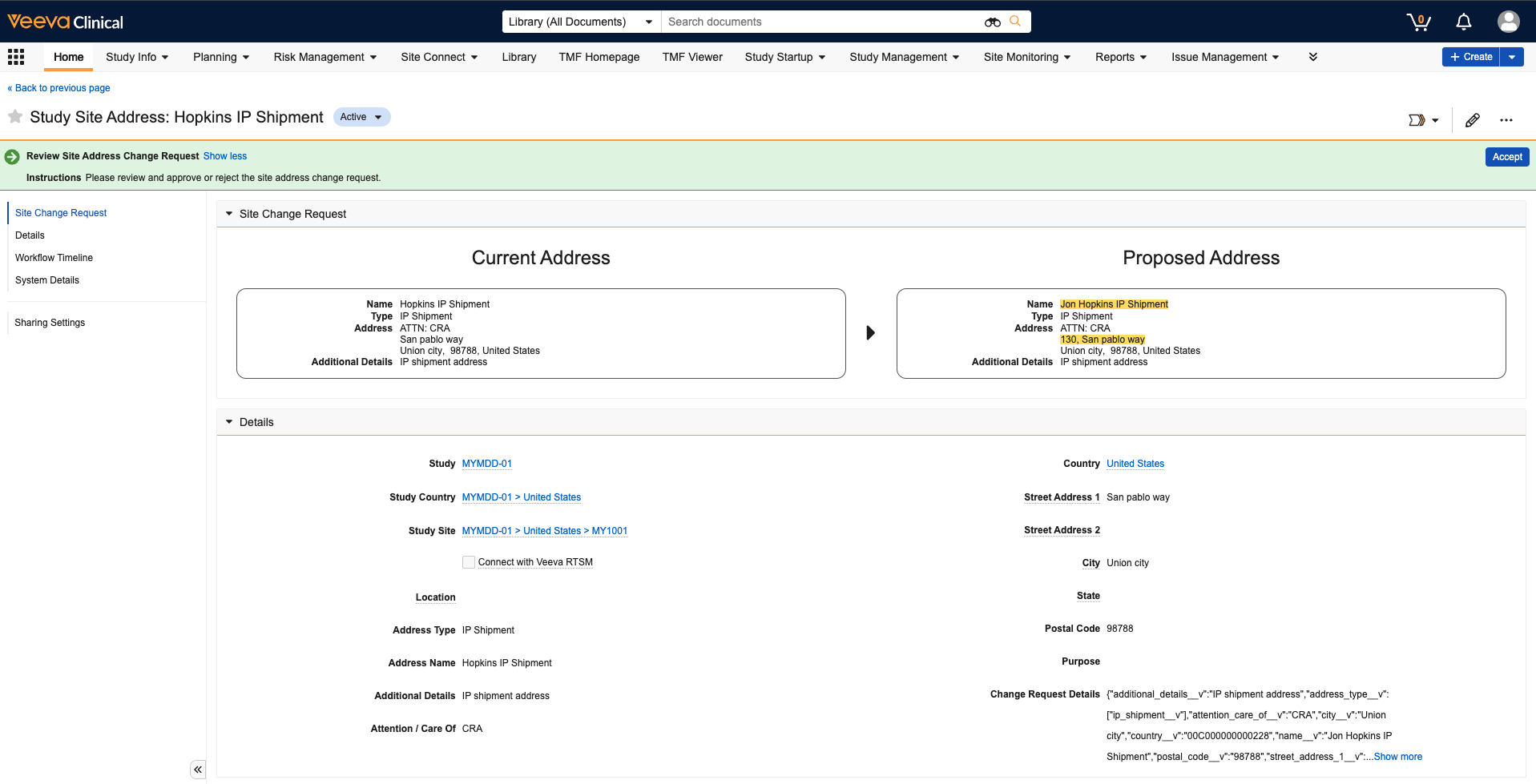
Once you review the requested changes, you can approve or reject the suggestions. Once approved, Vault updates the Study Site Address record and automatically makes the changes visible to Site Users in Site Home.