With Veeva Site Connect, Sponsors/CROs and Site Staff can use Study Site Address (study_site_address__v) records to capture and manage physical locations within a clinical study, such as IP Shipment Addresses, Patient Visit Locations, and Laboratories.
Site Staff can view all active Study Site Addresses in the Site Addresses tab in the Site Profile section of Site Home. Sponsors/CROs and Site Staff can both create and update Study Site Address records. In configured Vaults, Site initiated Study Site Address record updates may trigger a Sponsor/CRO approval process.
Creating Study Site Addresses in Site Connect
Sponsors, CROs, and Site Staff can create Study Site Address (study_site_address__v) records. Sponsors/CROs can create Study Site Address records from the Site Connect tab.
To create a new Study Site Address record in the Site Connect tab:
- Navigate to the Site Addresses subtab.
- Click Create.
- In the Create Study Site Address dialog, select a Study, Study Country, and Study Site.
- Optional: Search for and select a Location. Selecting a Location populates the address details from the Location record in the global directory into the Study Site Address record. The individual address fields remain hidden on the Study Site Address record and automatically populate on the record once a user saves it.
- Select an Address Type from the drop-down list. This value specifies the purpose of the Study Site Address record.
- Enter an Address Name. Vault only displays this field when you do not select a Location.
- Optional: Enter Additional Details.
- Enter information for Attention/Care Of. Some Address Types require a value for this field.
- If you did not select a Location record, enter values for the Address Information: Street Address 1, Street Address 2, City, State, Postal Code, and Country.
- Click Save.
Vault saves Study Site Address records in the Active state, allowing users to immediately view the record in Site Connect.
Site users can only view active Study Site Address records in Site Home. Sponsors/CROs can update the state of Study Site Address records by selecting Activate Address or Inactivate Address from the Workflow and State Change menu.
Once you create a Study Site Address record, you can also create a linked Location record.
Site users can create Study Site Address records in the Site Addresses tab in Site Home. Sites with an assigned Universal Site Numbers (USN) can save addresses to the registry for future use across Studies and Sponsors/CROS, reducing duplicate data entry.
Approving Site Address Change Requests
If an Admin configures the Site Address Change Request workflow, Sponsors/CROs must approve specific Study Site Address record changes made by Site Staff.
Sponsors and CROs can review the requested changes for a Study Site Address record in the Site Change Request section of the record. The Site Change Request section displays the Current Address and the Proposed Address side by side, highlighting the requested changes in yellow.
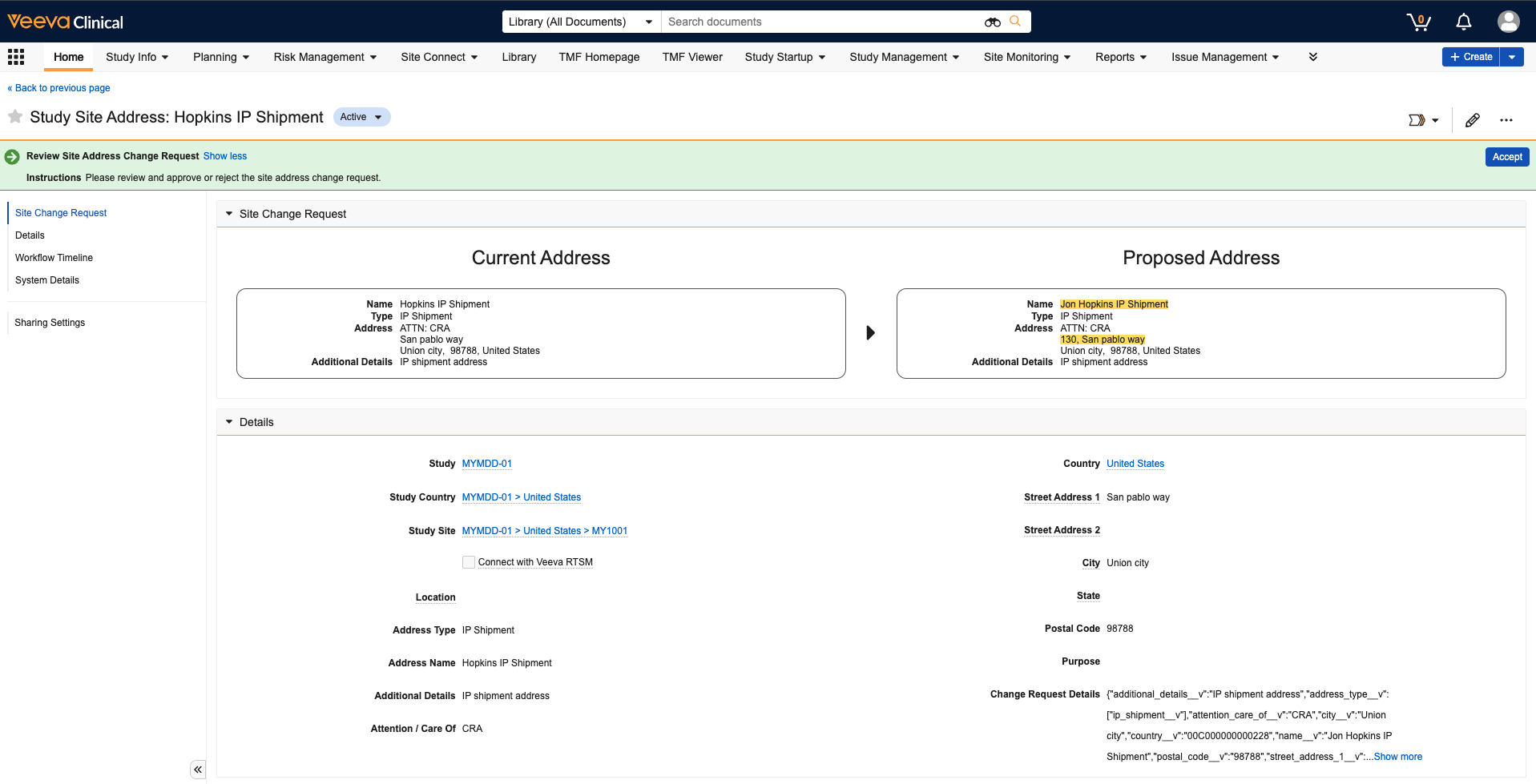
Once you review the requested changes, you can approve or reject the suggestions. Once approved, Vault updates the Study Site Address record and automatically makes the changes visible to Site Users in Site Home.